Logs, Snapshots & Files
The Diagnostics group is for two jobs: understanding what the App did (Logs, Files) and undoing what shouldn't have happened (Snapshots).
Logs
The App's server-side log stream, last 30 days. Every entry carries:
- A level: DEBUG, INFO, WARN, ERROR, with live counts on the filter chips so "ERROR 7" jumps out immediately.
- A source: server (the App's API routes), webhook, tool, or agent, so you can split "my route is failing" from "the automation is failing" in one click.
- The message, the age, and, expanded, any structured data the App attached.
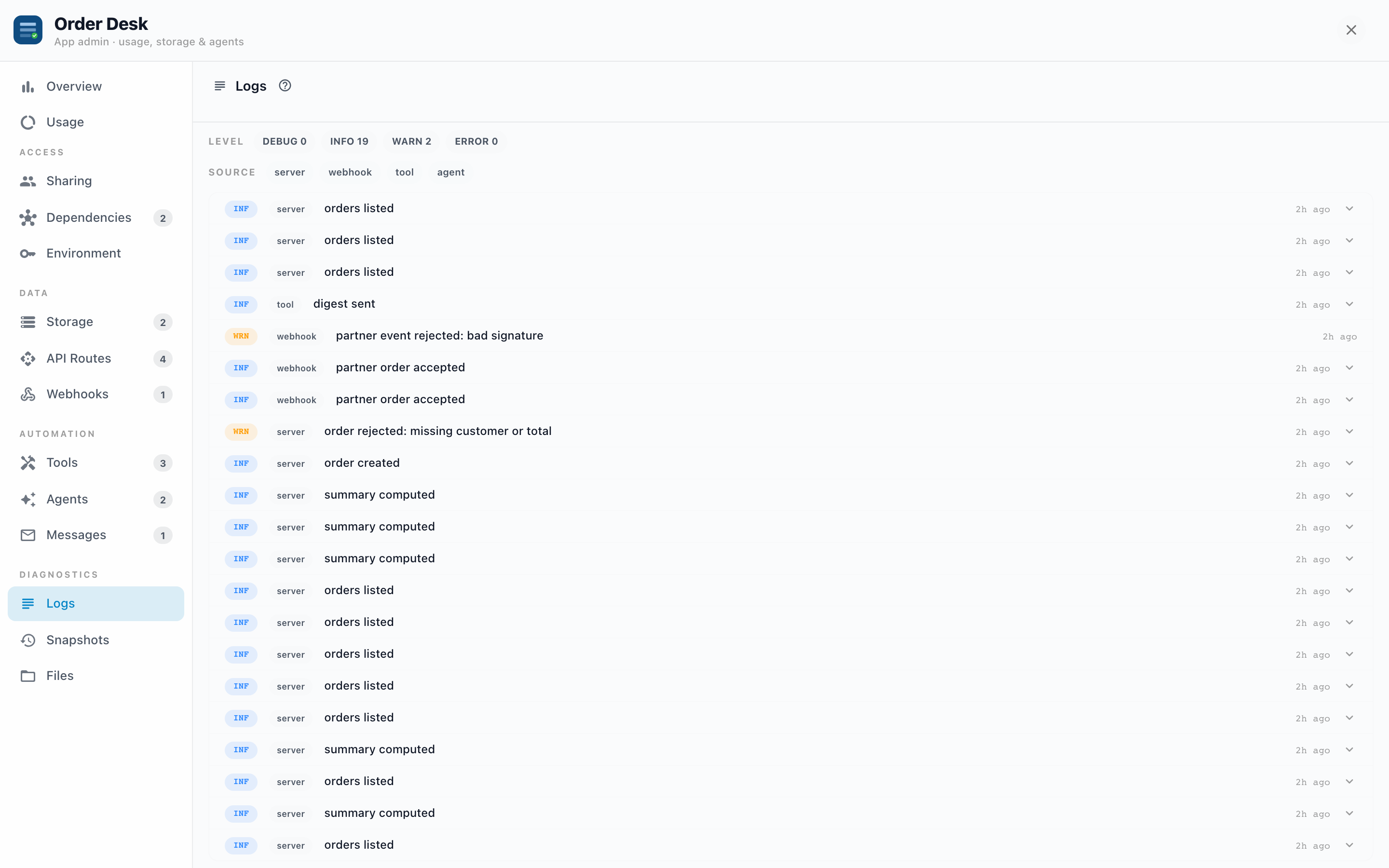
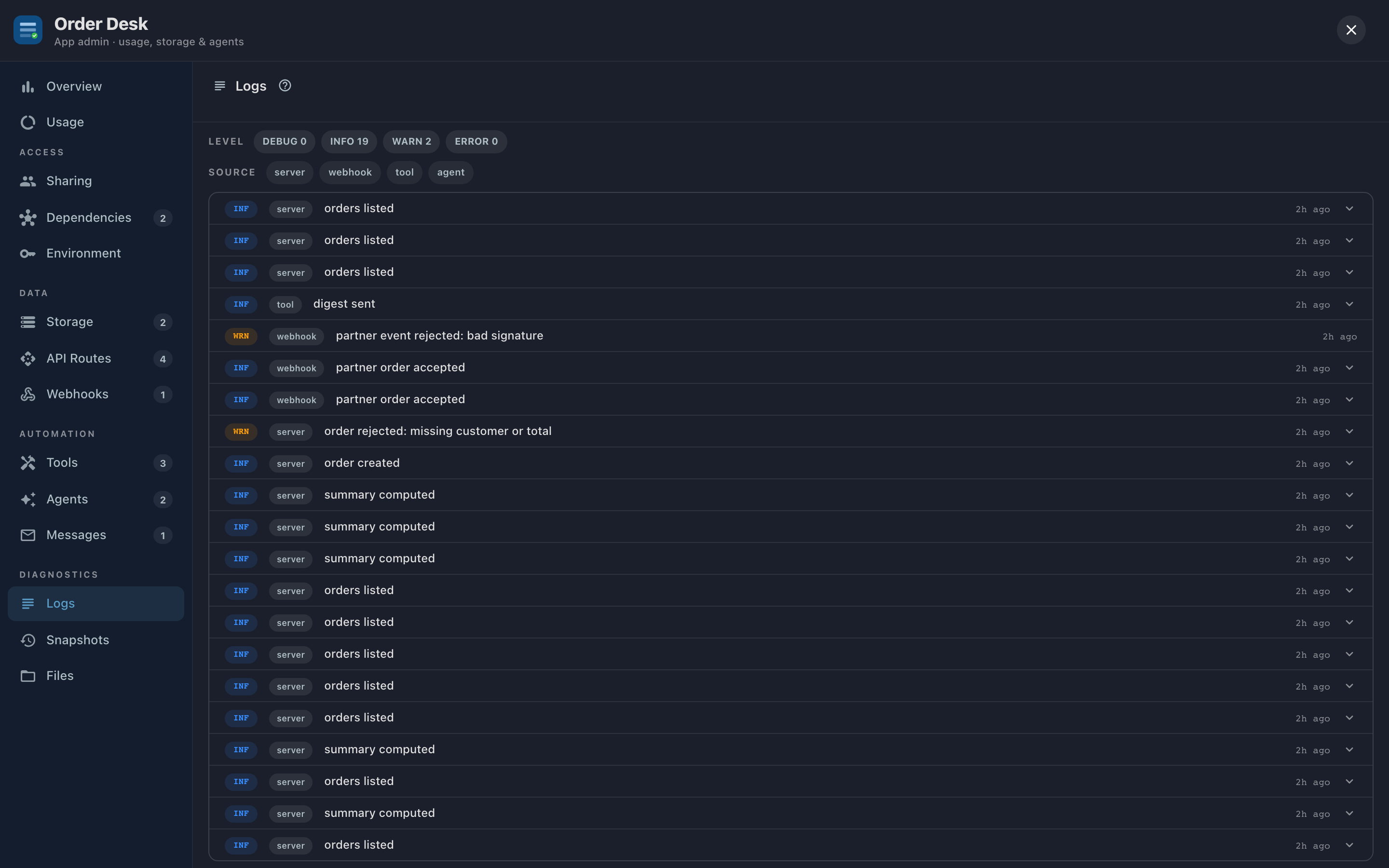
How to use it: start from a symptom elsewhere. Overview says "5 log errors"? Filter to ERROR. A webhook is rejecting events? Filter source to webhook and the signature-verification failure is usually right there. The source filter is the fastest triage tool in the panel.
Snapshots
Snapshots are point-in-time copies of the App. They're created automatically at meaningful moments (saving a draft, an AI editing session, refreshes) and you can take one manually with Create Snapshot, with an optional label ("before Q3 pricing change").
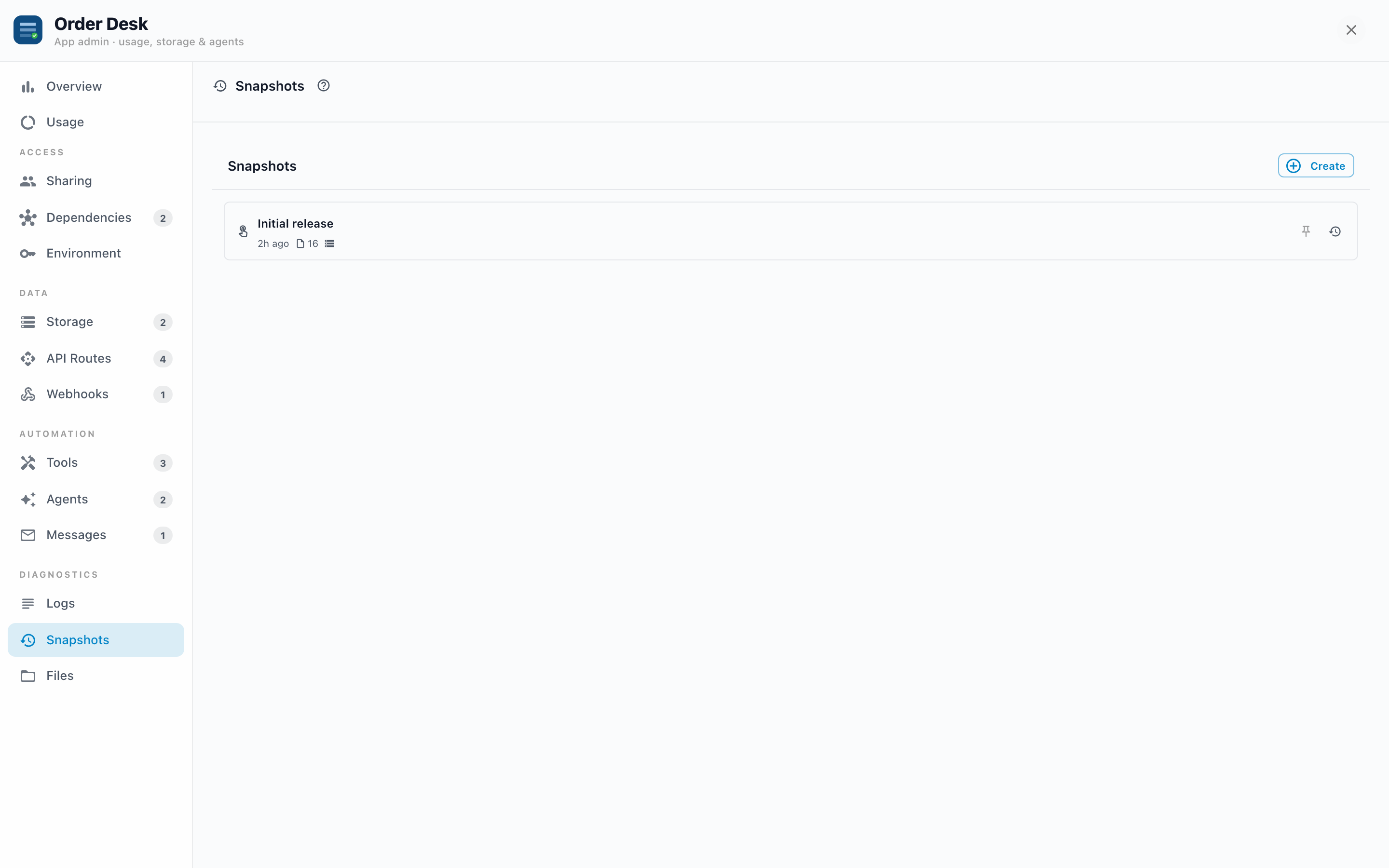
Each snapshot shows its trigger, age, file count, and, when the App has a database, whether it includes workspace data (the small storage icon). Two affordances keep the list useful:
- Pin the snapshots you care about so they're not lost in the noise.
- Label them inline; an unlabeled snapshot is just a timestamp, and timestamps age poorly.
Consecutive snapshots from one editing session collapse into a single "Editing session" group, so a long AI conversation doesn't bury the history.
Restoring
Restore replaces the current App files with the snapshot's, and, if the snapshot includes workspace data, the database too. The confirmation spells out which. Two properties make restore low-fear:
- A new snapshot of the current state is taken automatically before restoring. Restoring is itself undoable.
- Restores are immediate; the App serves the restored version on the next load.
Example: an enthusiastic editing session left the App broken, and the editor has gone home. Open Snapshots, find the last snapshot before the session group, Restore. Total time: under a minute, and the broken state is preserved as its own snapshot if anyone wants to study it.
Manual snapshots pair with the Storage console: before a risky UPDATE, take a snapshot (workspace included) and label it. The Export button gives you a belt to go with the suspenders.
Files
A read-only view of every file in the App, in the same file-tree-and-code layout as the builder. It exists for inspection: confirming which version of a file is live, reading how the App computes something, checking whether a fix actually deployed.
Edits don't happen here, deliberately. Changes go through the builder (where drafts, locks, and snapshots protect the work) or, for managed Apps, through the source project. A read-only admin view means "let me just quickly fix it in admin" can't bypass those protections.
Troubleshooting
- Logs show nothing for a failing feature. The failure may be client-side (in the browser). Logs cover the App's server surface: routes, webhooks, tools, agents.
- You can't find the good snapshot. Pinned and labeled ones first; otherwise match snapshot ages against when the App last worked. The file count is a hint too: a snapshot with 4 files isn't the one from the mature version with 40.
- Restore brought back old data. The snapshot included workspace data and you only wanted files. Restore again from the automatic pre-restore snapshot, then redo with one that doesn't carry the storage icon.