Building Apps
You don't need to be a developer to build an App. Describe what you want, and Informer's AI builds it with you, while everything it does stays visible and editable.
Building Apps requires the Admin role and Strategic-tier AI access. If the builder tells you "The AI builder needs Strategic-tier model access, which isn't enabled on your usage profile," ask an Informer administrator to grant it under AI & Billing → Access. Full Apps (beyond Magic Reports) also require the Apps license.
Creating an App
- Start from the gallery
Click Create an App in the Apps tab and pick the shape closest to what you're making: a Dashboard, a Data form, a Presentation, an Admin panel, and more. Each type suggests what to think about before you start. Give it a name and describe the App you want ("a sales dashboard with KPI cards, revenue by product, and a monthly trend"), then hit Start Building.
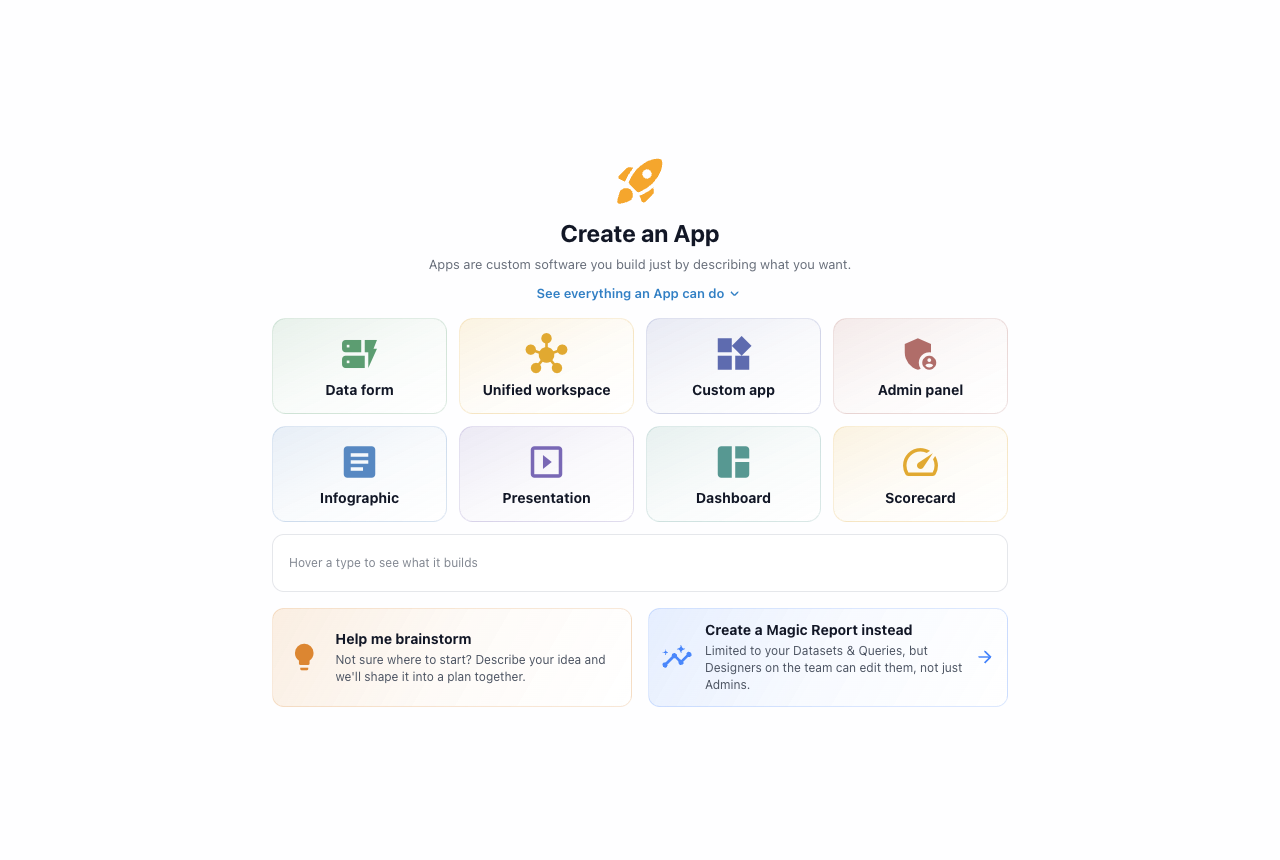
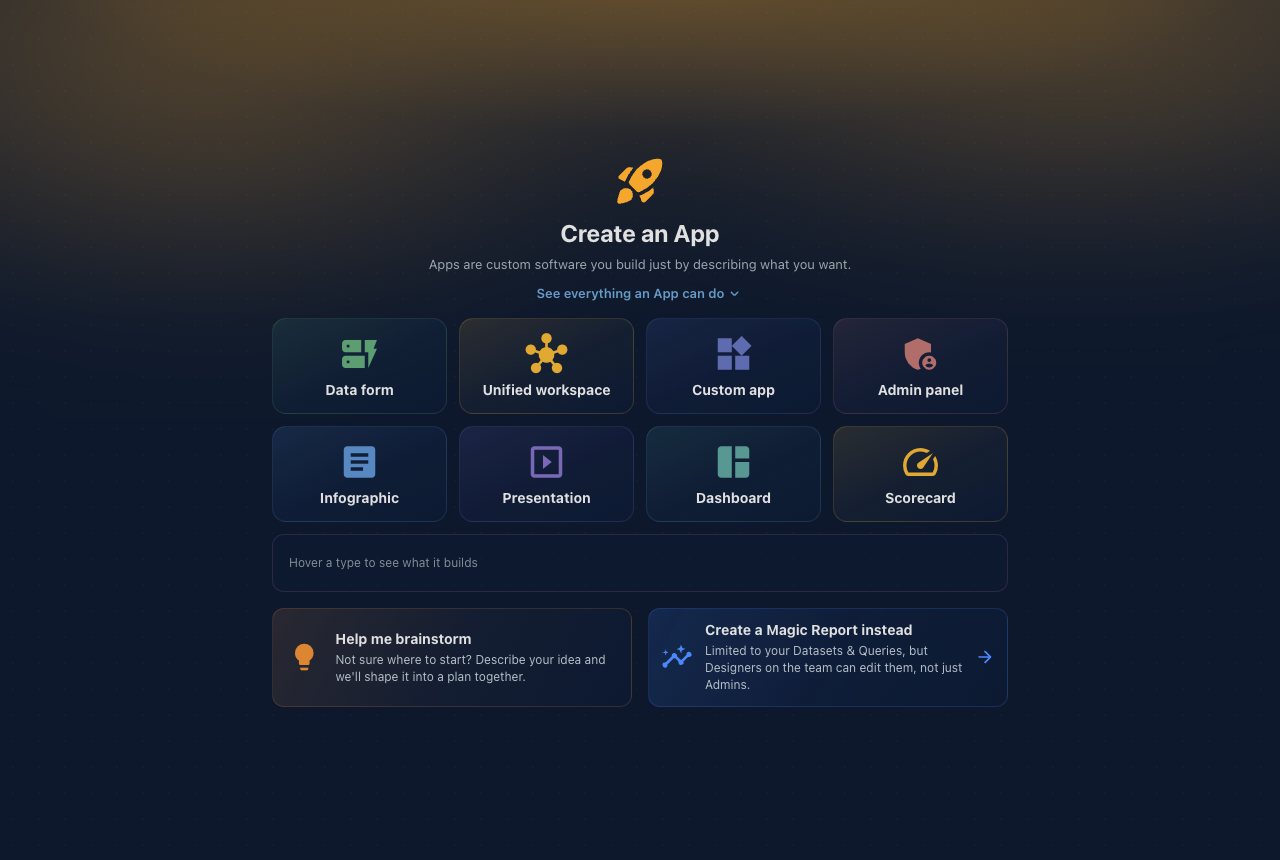
Pick a type, describe what you want, start building. On desktop, creation opens in its own window. notePrefer something simpler? Create a Magic Report instead builds on just your Datasets and queries, and Designers on your team can edit it, not only Admins.
- Build by conversation
The builder opens with a chat pane on the left and a live preview on the right. Tell the AI what to change ("add a bar chart of sales by region", "make the header sticky") and watch the preview update. The builder always uses the Strategic Model tierA quality level for the AI model behind a chat: Everyday for fast, lightweight tasks, Advanced for challenging multi-step work, and Strategic for the most complex jobs. Higher tiers reason more deeply; lower tiers respond faster and use fewer credits., the deepest-reasoning model, because building is complex work.
Need more room? The chat pane collapses to a thin rail, and it remembers the width you give it from session to session. Above the preview, the Desktop, Tablet, and Mobile toggles show how your App behaves at every size.
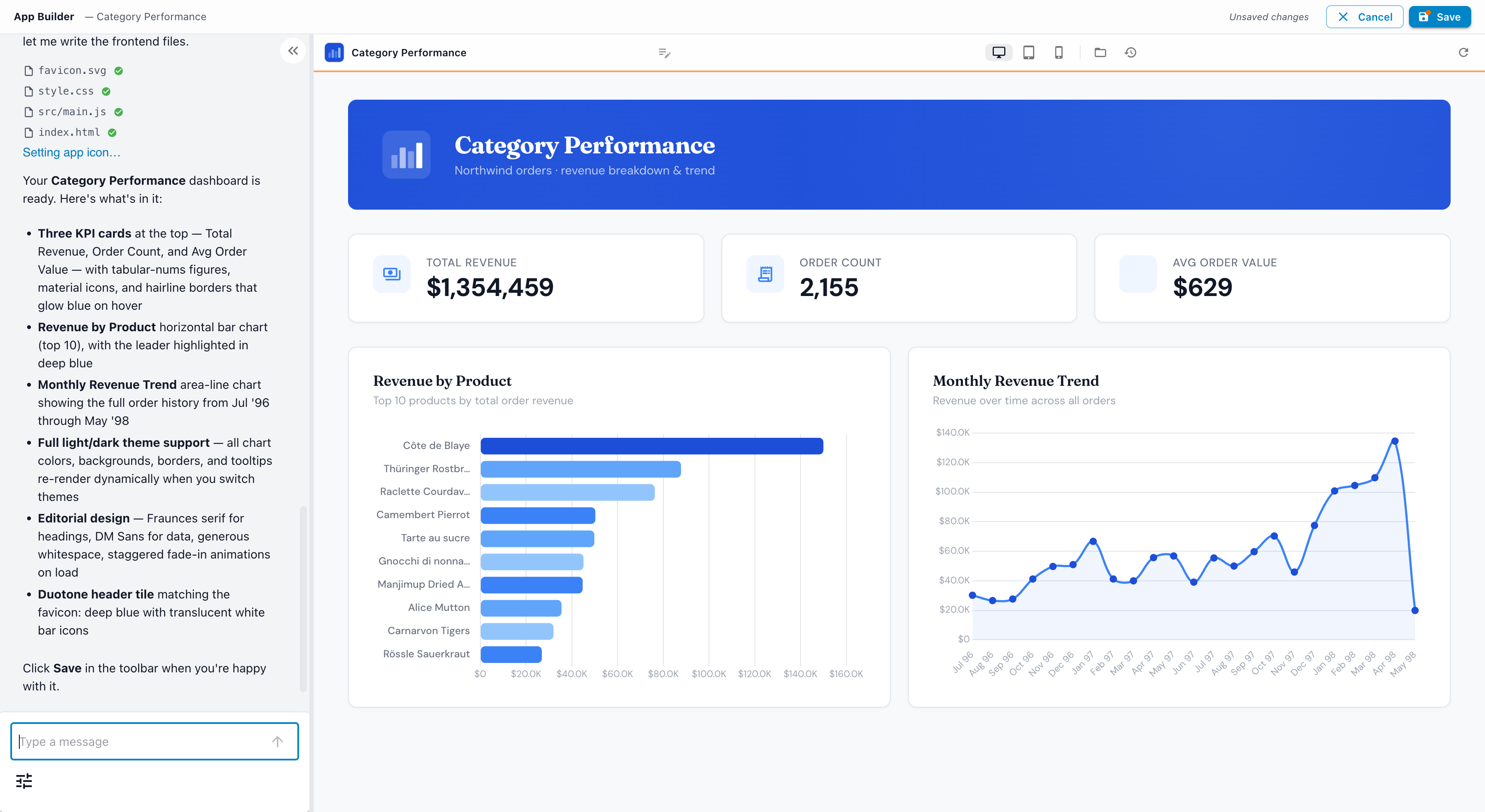
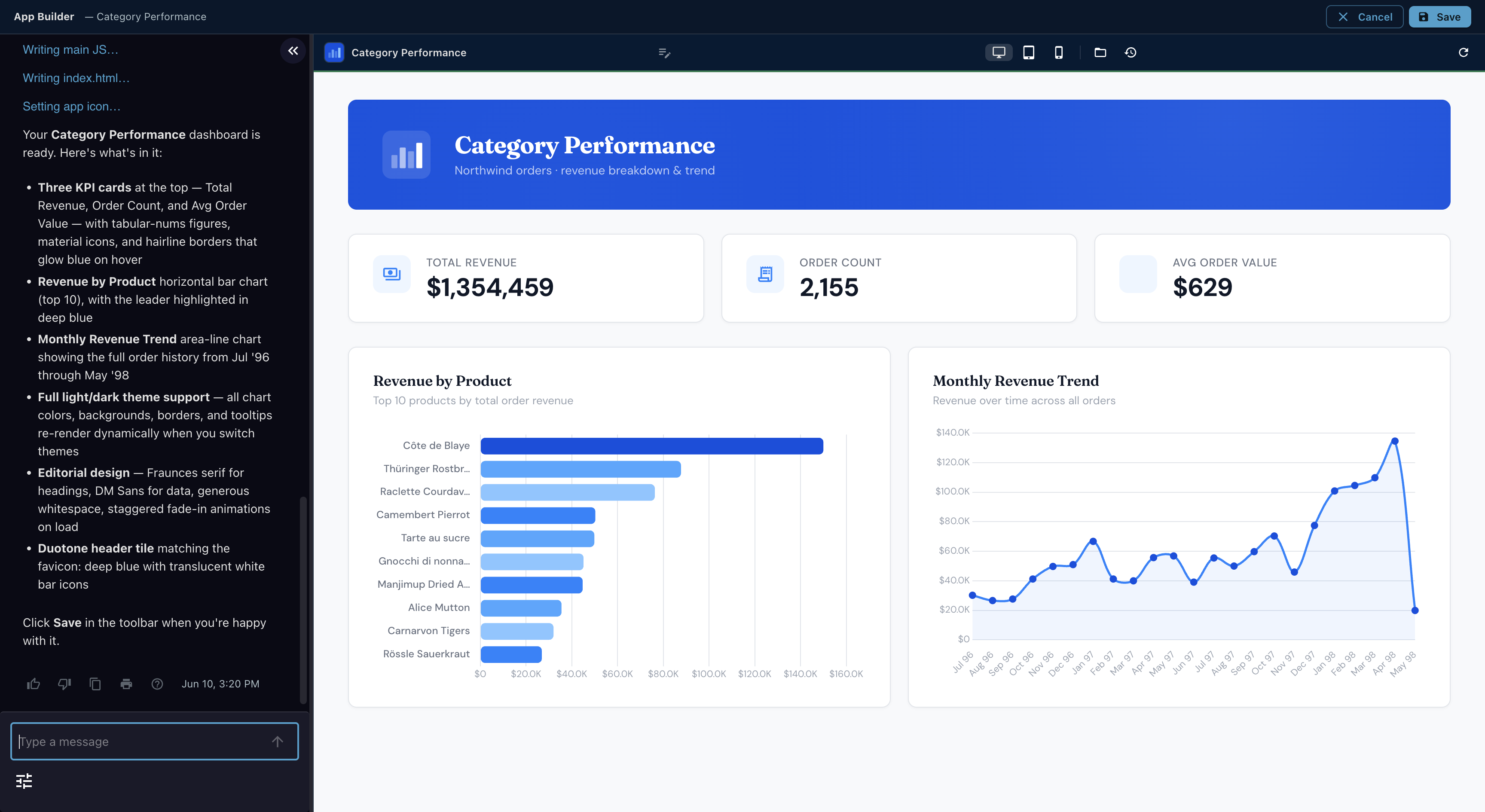
A real build: the AI reads your Dataset, validates its queries, writes the files, and narrates every step. 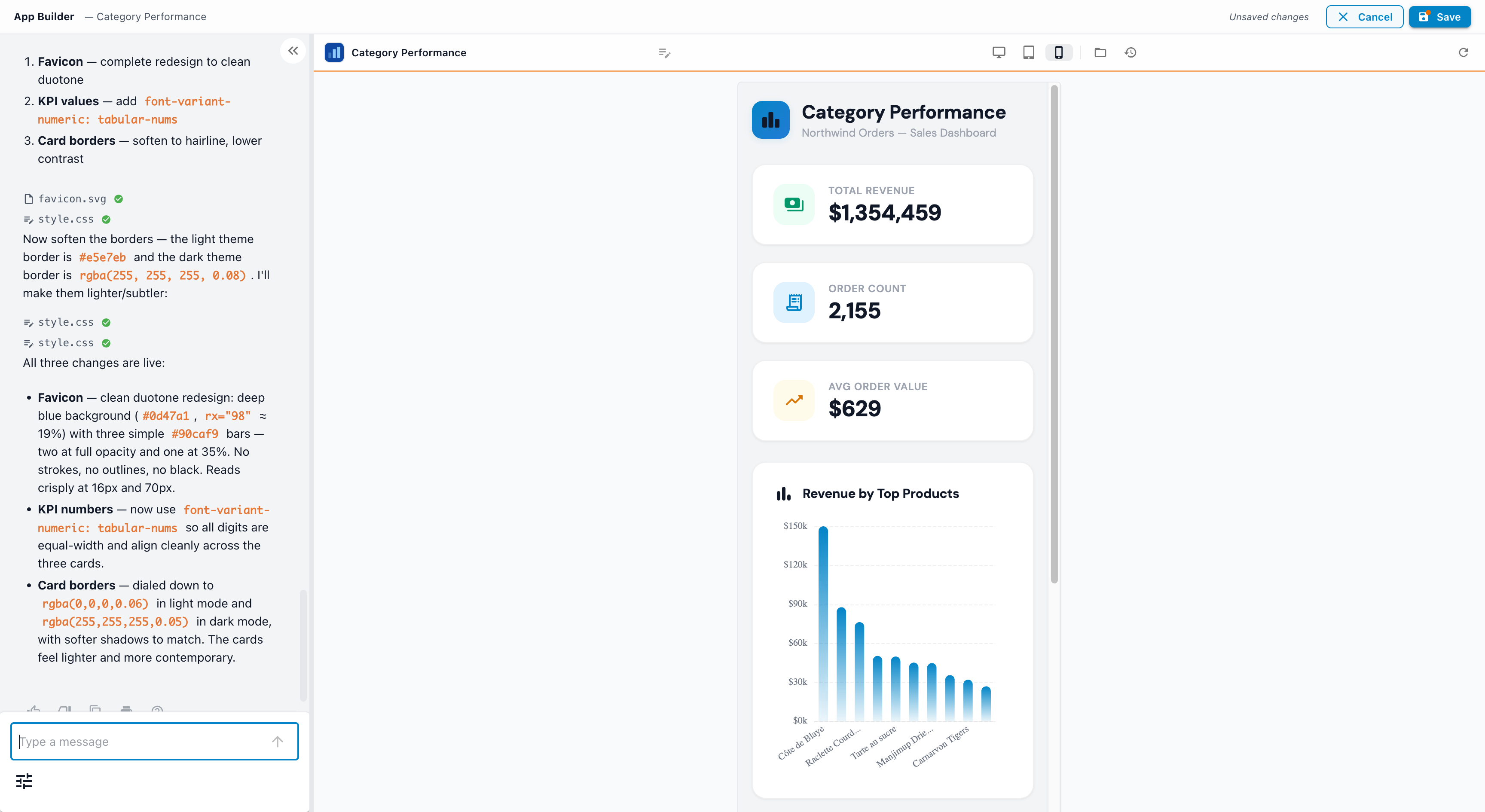
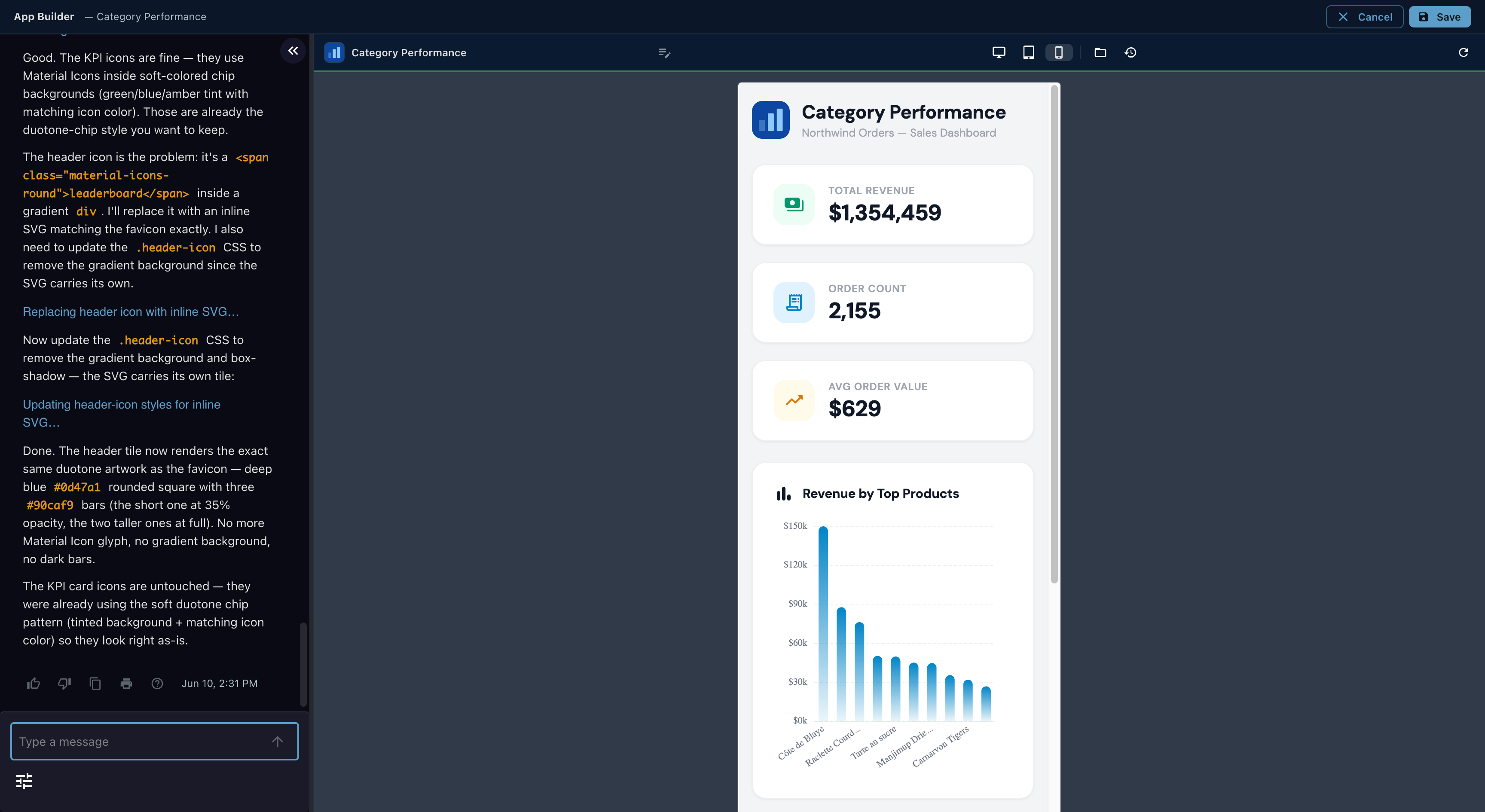
One click previews the same App at phone width. If the preview hits an errorThe builder watches the live preview. Runtime errors surface in an error chip with the details already captured, and Ask AI to fix hands the error straight back to the conversation.
- Save when you're happy
Your work accumulates in a draft: the live App is untouched until you click Save, at which point the draft becomes the live version and everyone sees it. Cancel discards the draft; if you have unsaved changes, the builder stops you first and offers Save, Discard, or Keep editing.
Writing a prompt that gets a great App
The AI builds what you describe, so the description is where design happens. A few things experience teaches:
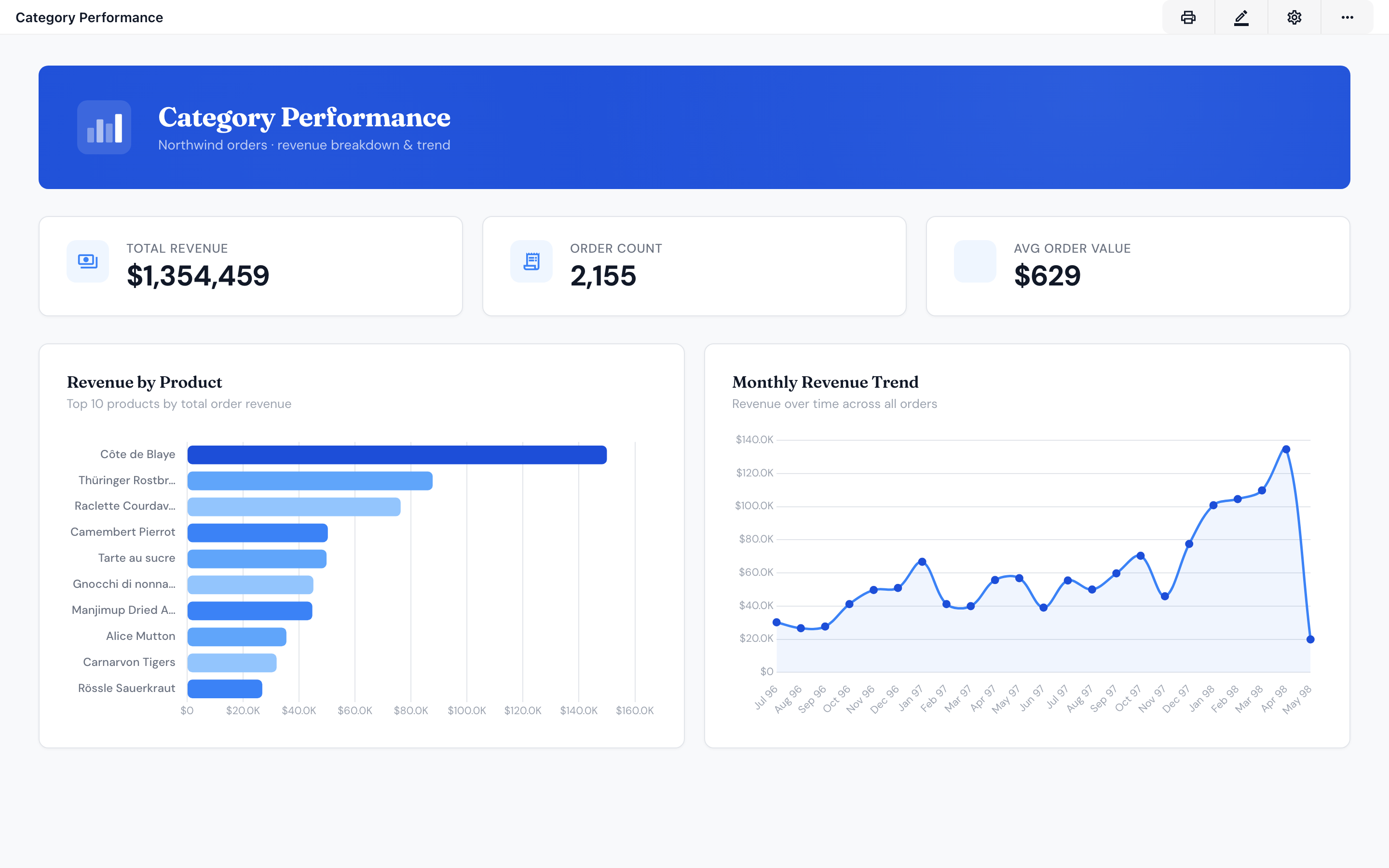
"A sales dashboard on the Northwind orders Dataset: revenue, order count, and average order value as KPI cards, revenue by product as a bar chart, a monthly trend line" beats "a sales dashboard" every time.
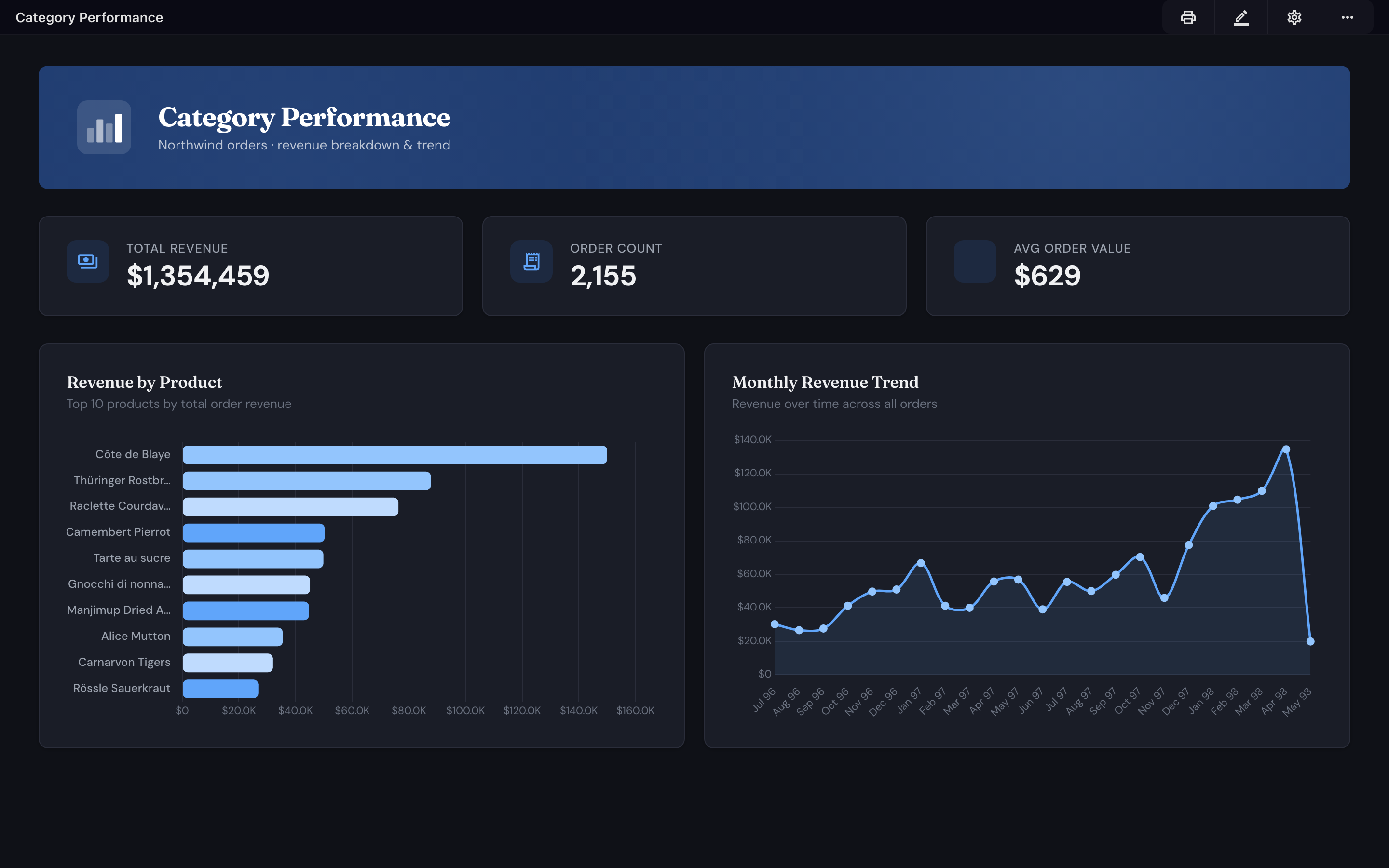
Your App is its own page; it won't inherit Informer's theme unless it's built to. Say "support Informer's light and dark themes, with chart colors tuned for each" up front, otherwise expect a light-only App.
Tone ("clean and editorial", "bold and dense"), what to emphasize, how much whitespace, whether numbers should align, how strong borders and shadows should be. The AI follows aesthetic instructions as faithfully as functional ones.
Every follow-up message refines the draft: "make the icon duotone, no dark bars", "soften the card borders to hairlines", "the trend chart needs lighter gridlines in dark mode" are all real, effective requests.
"A sales performance dashboard on the Northwind orders Dataset. KPI cards for total revenue, order count, and average order value with tabular figures; a bar chart of revenue by product; a monthly revenue trend. Clean and professional, generous whitespace, hairline card borders, and full support for Informer's light and dark themes with chart colors tuned for each."
Working with files
Every App is a set of files (HTML, CSS, JavaScript, JSON, images), and the builder gives you direct access alongside the AI:
- Add a file: choose a type (HTML, CSS, JavaScript, JSON) or upload assets like images and fonts, up to your server's file-size limit. Drag-and-drop works too.
- Rename or delete: right-click a file in the tree. File names can use letters, numbers, dots, dashes, underscores, and folder slashes; deleting asks you to confirm ("Are you sure you want to delete filename?").
- Edit by hand: click any file to open it in the built-in code editor, with syntax highlighting and error squiggles. Your edits go into the same draft as the AI's changes, so the two of you never fork.
- Set the entry point: right-click an HTML file to make it the page the App opens with.
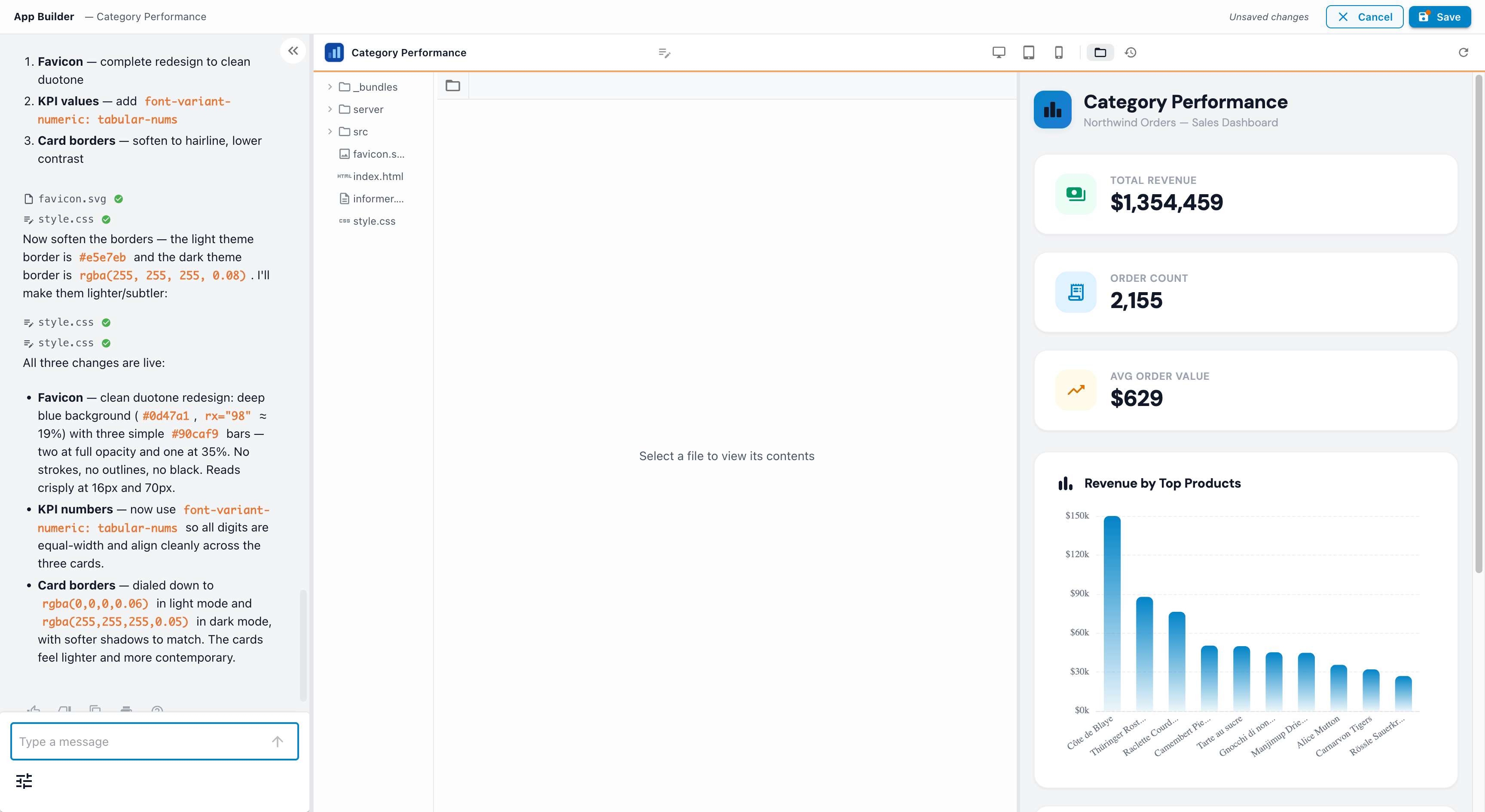
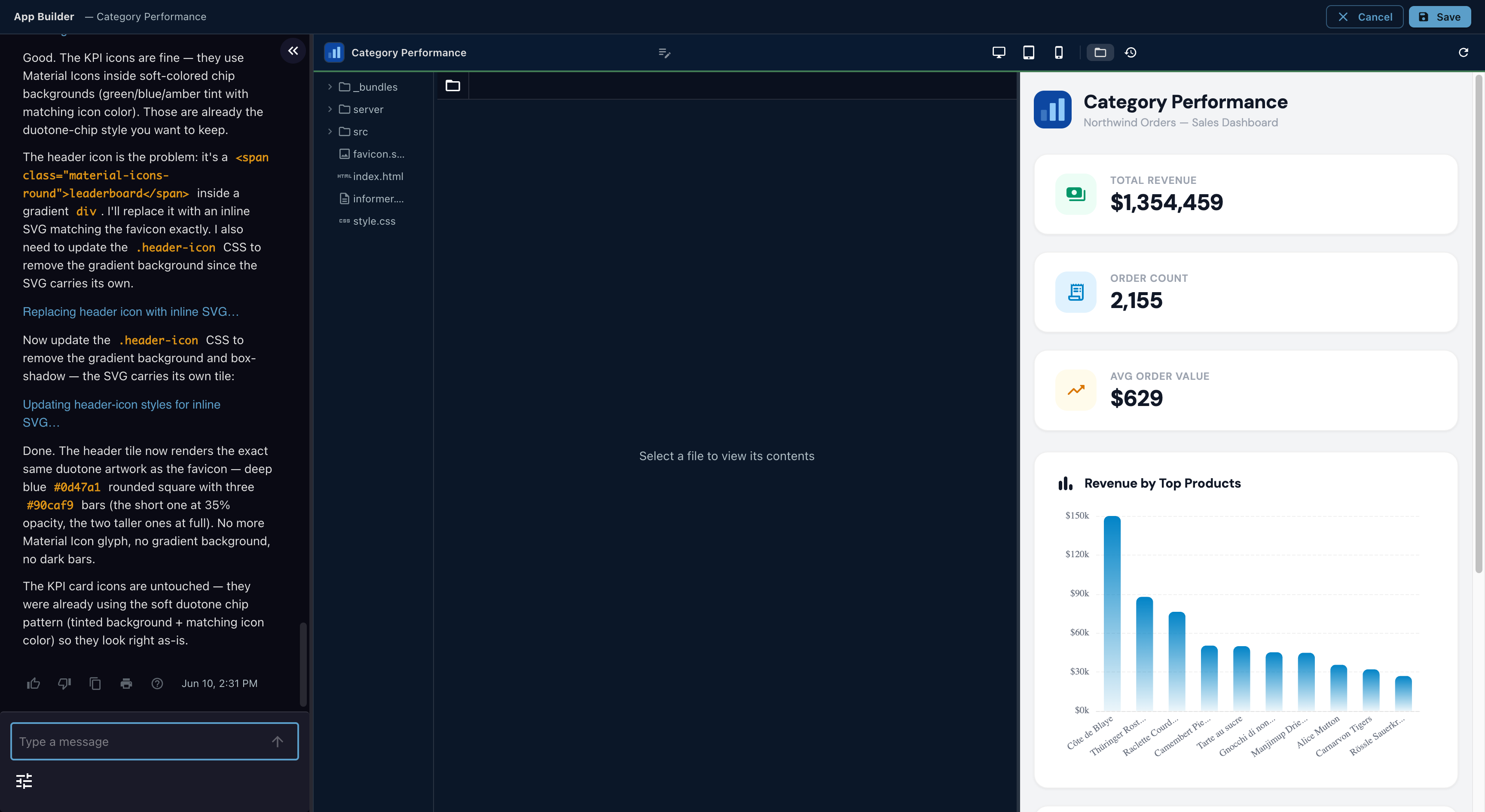
From a sentence to a working App
Everything on this page produced the App below: described in one message, built by the AI against a live Dataset, refined by conversation ("make the icon duotone", "tune the charts for dark mode"), and saved. It's a real App in the gallery now, in light and dark, on every device.
Where drafts live
A few useful properties of drafts:
- While you're editing, a dot on the App's Edit icon marks unsaved changes, visible even from view mode.
- Drafts remember your builder chat history, so closing and reopening the builder picks the conversation back up where you left it.
- Only one person can hold an App's draft at a time; see Editing & draft protection.
There's a second way to build: as a real project on your machine, with your own editor and an AI coding agent like Claude Code, deployed to Informer with one command. It unlocks version control, server routes, a database workspace, webhooks, and agents. See Apps for developers.