External links
An external link lets someone without an Informer account open your App: a customer checking their order status, a vendor portal, a dashboard on a wall display. You create links from the Sharing tab of the App's admin panel, under the same master switch as everything else.
How external links work
Three things to understand before you create one:
- The link is the key. Anyone who has the URL can open the App (subject to the restrictions you set below). There's no login step.
- The link acts as you. Whoever follows it inherits the identity and permissions of the person who created the link. They can see exactly what you can see through that App, nothing more, and nothing less. Create links for an App only when you're comfortable with that.
- Revoking is instant. Delete a link and it stops working immediately. Turning the App's sharing switch off also disables every link at once.
Creating a link
In the Sharing tab's Add menu, choose Create external link.
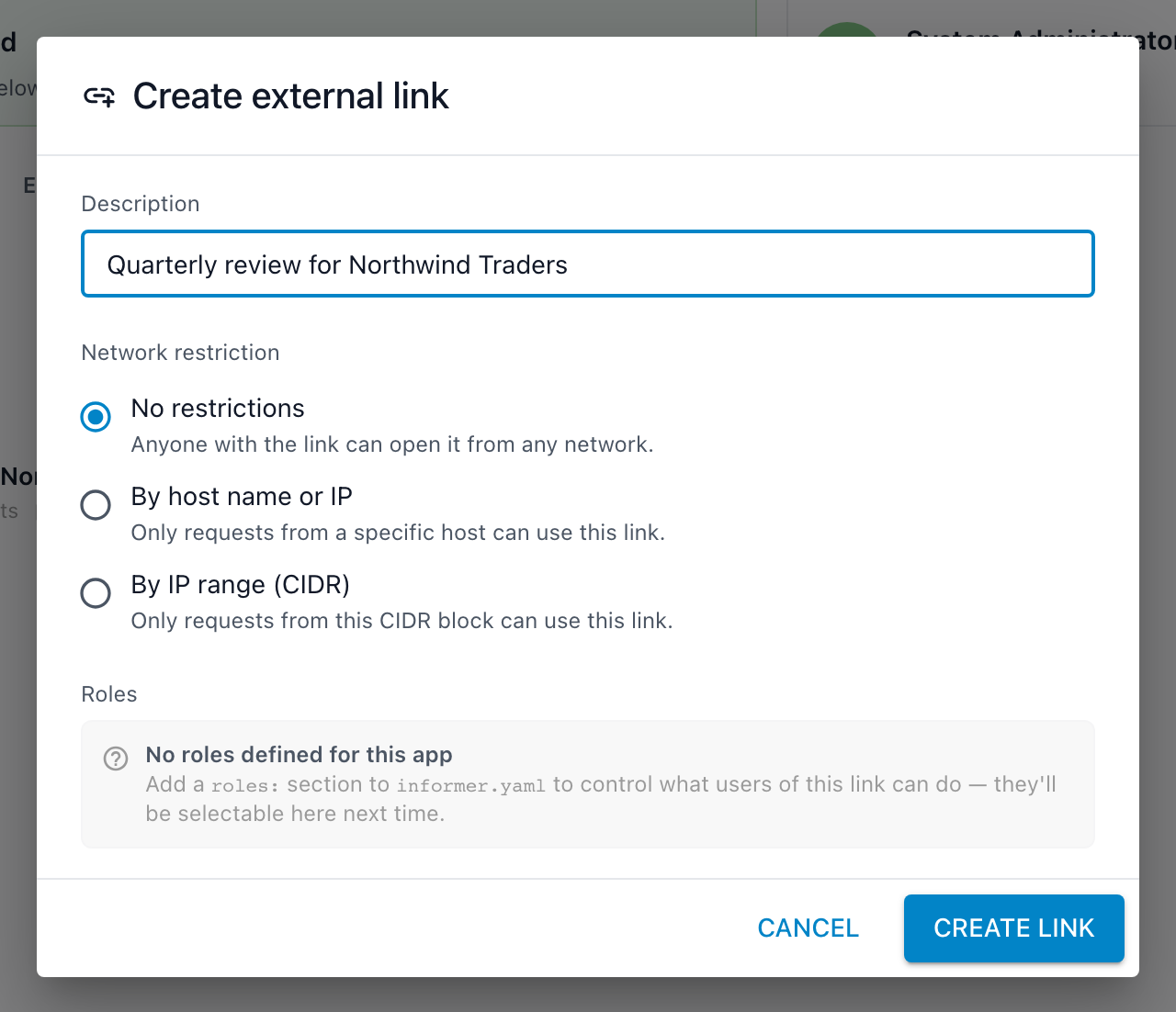
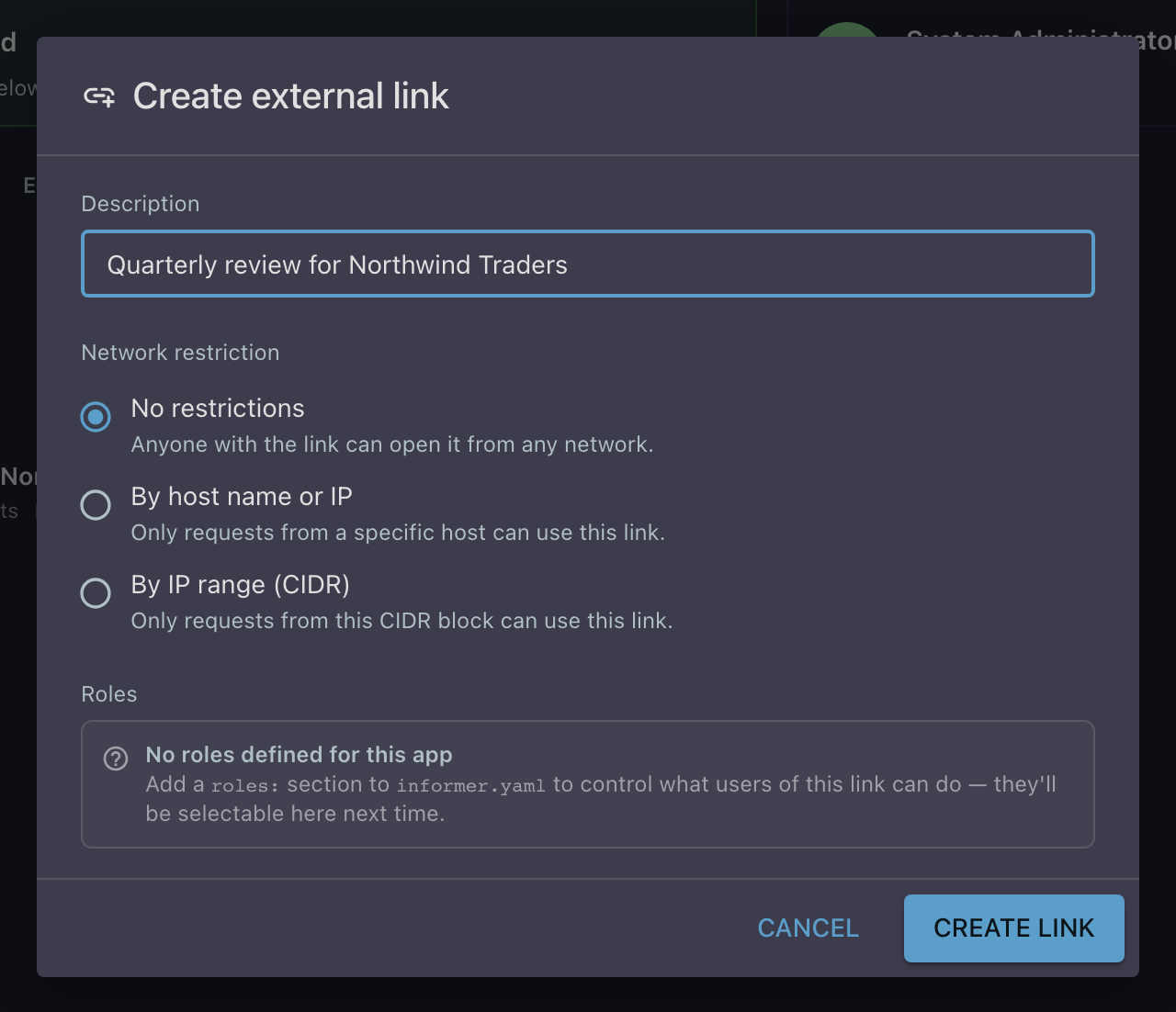
The dialog asks for three things:
Description
A note to yourself about what the link is for ("What is this link for?"). With several links on one App, this is how you tell them apart later: "Acme vendor portal", "Lobby display, building 2".
Network restriction
Where the link may be used from:
Anyone with the link can open it from any network.
Only requests from a specific computer or device (for example server.acme.com or 192.168.1.10). Right for a wall display or a single integration server.
Only requests from a network block (for example 192.168.1.0/24). Right for "anyone in our office" or a partner's corporate network.
A network restriction is your main guard rail on a link that escapes: even forwarded, it only works from the network you chose.
Roles
If the App defines roles, pick which ones the link carries. Anyone using the link acts with the selected roles, so a link for outside reviewers might carry only Viewer while an approval link carries Approver. The roles are baked into the link itself; different links on the same App can carry different roles.
Click Create link, and the new link appears in the Sharing list ("New link ready to share") with a Copy link action.
Managing existing links
Each link in the Sharing list shows its description, who it acts as ("Acts as username"), when it was created, how many requests it has served, and when it was last used. That last-used timestamp is worth a glance now and then: a link that's still being used long after its purpose ended is a link to delete.
- Copy link: grab the URL again any time.
- Edit link: change the description, network restriction, or roles of a live link. The URL stays the same, so you can tighten a link's restrictions without re-sending it.
- Remove: the link stops working immediately, and there's no way for anyone outside your tenant to keep using the App through it.
With many links, use the Sharing tab's Links filter (or the search box) to see only external links.
External links are per-App. Deleting a link revokes access to this App only; other Apps' links are unaffected.