Chatting with Informer
Every ChatA conversation with Informer AI. Chats can reference Datasets and Libraries, run tools, search the web, and accept uploaded files. in Informer GO is a conversation with AI that can see your organization's data, when you let it. A chat starts knowing nothing; you decide, per conversation, which model thinks for it, which data it may read, and which tools it may use. That control is what makes chats genuinely useful, and it's what this section covers.
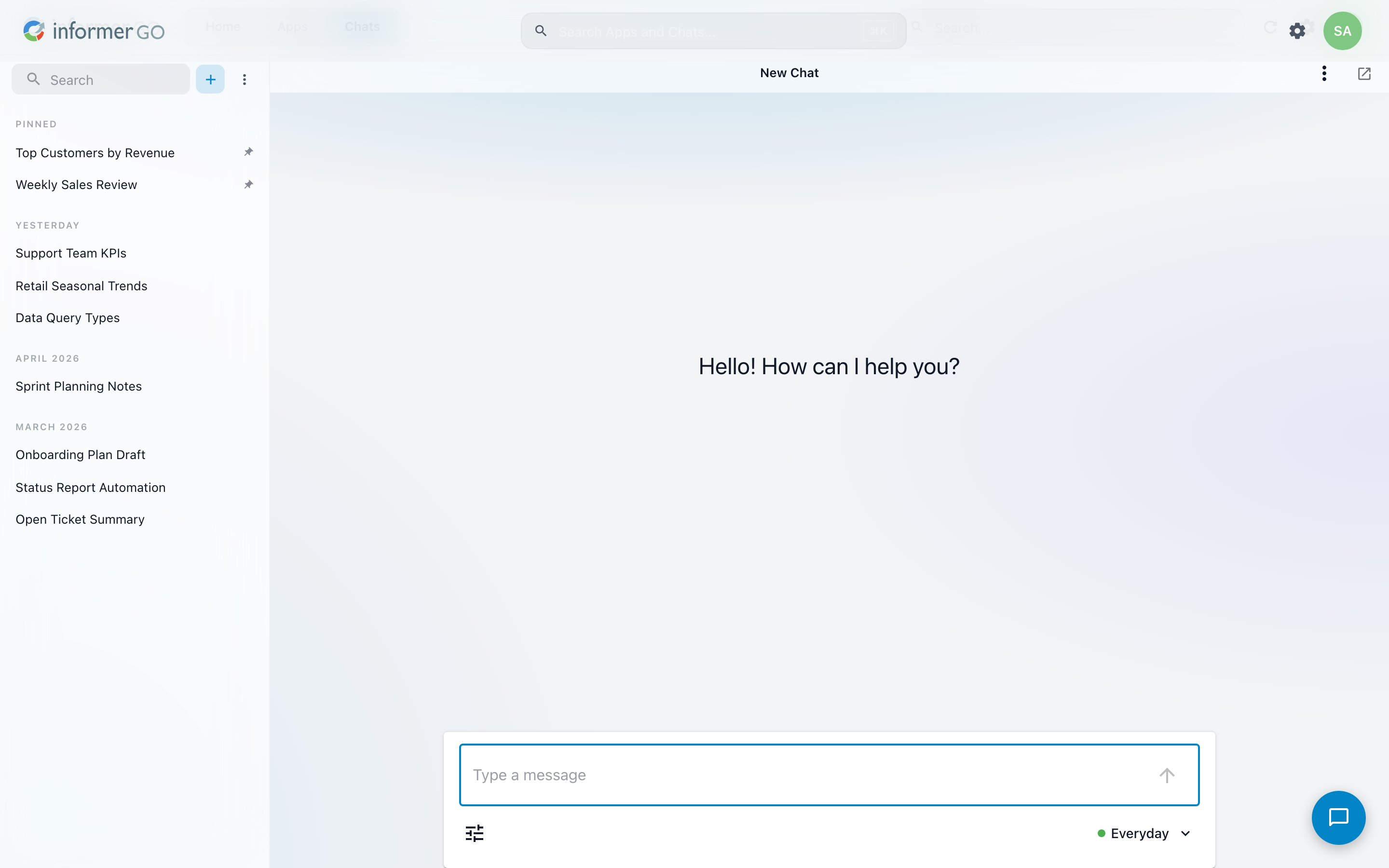
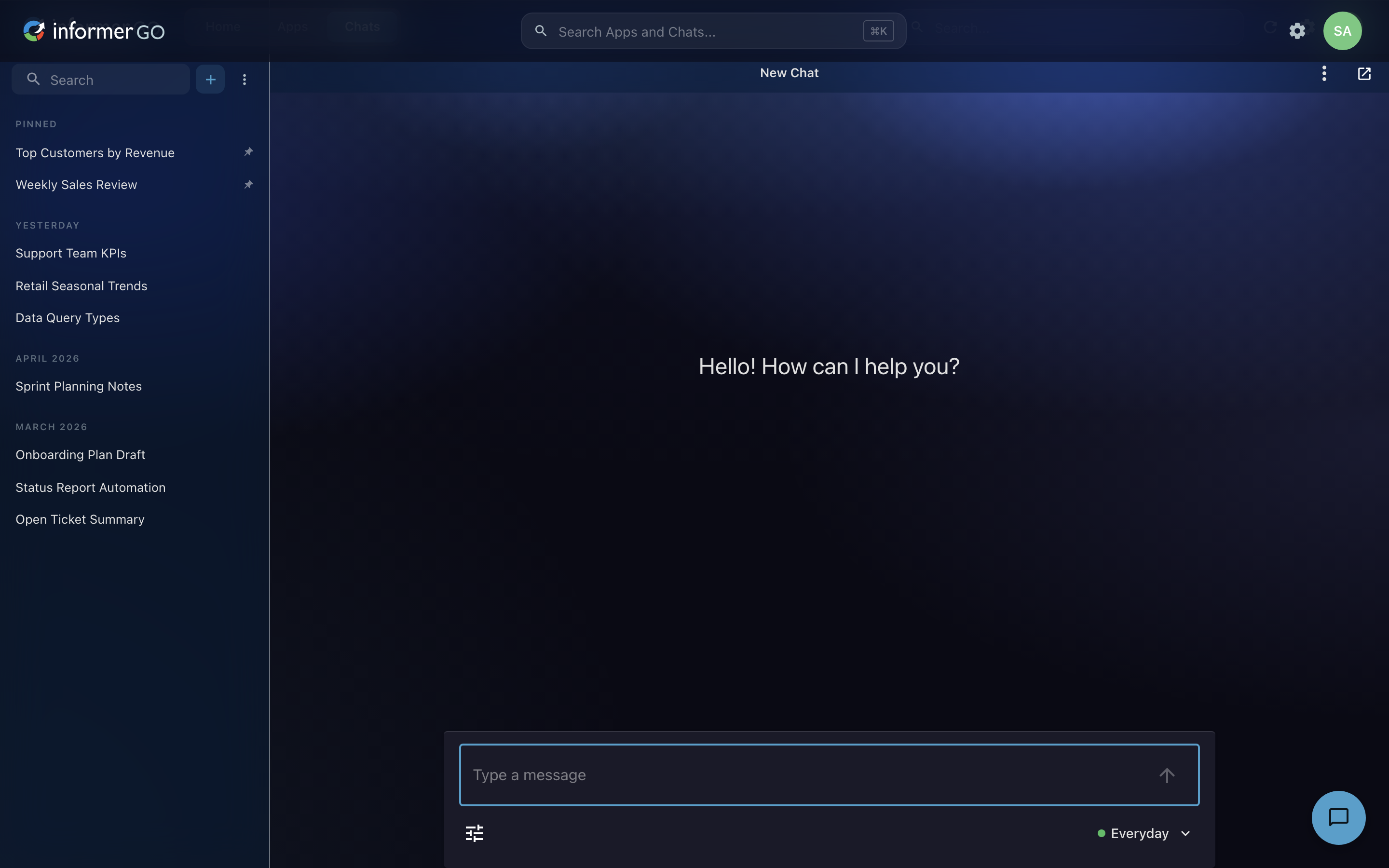
The two controls that matter
Everything you can configure about a chat lives behind two controls on the prompt box:
- Choose AI Model picks the brain: how deeply the chat reasons, and how fast it answers. See Choosing the right model.
- Settings & Tools (the sliders icon) controls what the chat can see and do.
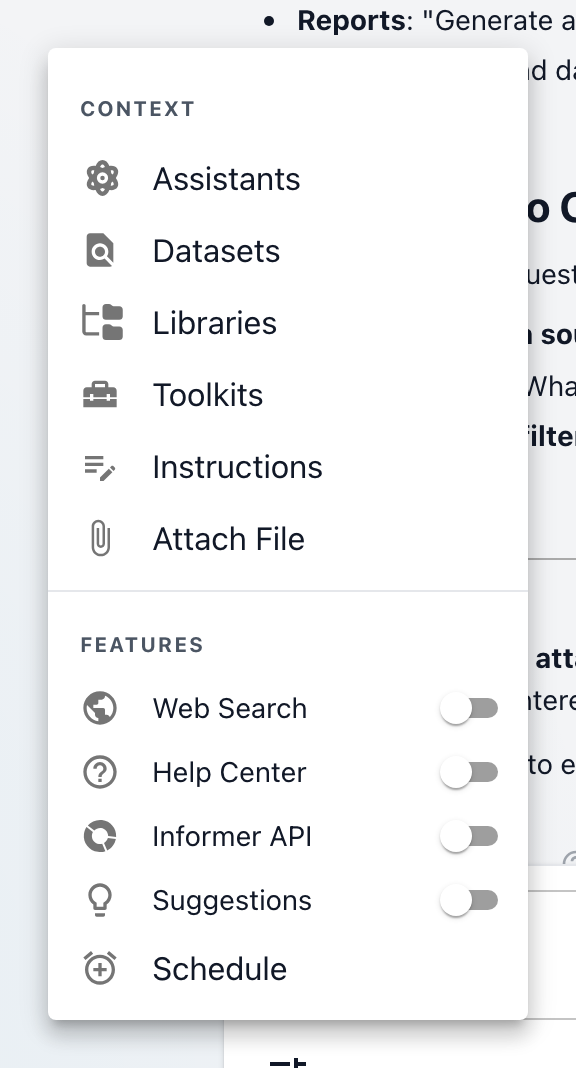
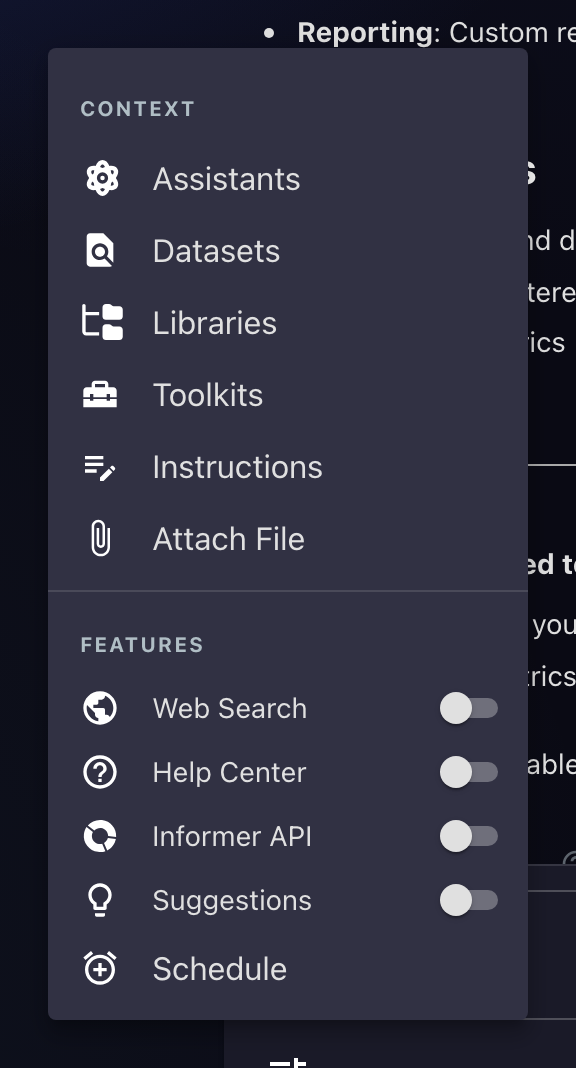
Every item in that menu is covered in this section:
| Menu item | What it does | Covered in |
|---|---|---|
| Assistants | Hand the conversation to a configured AI persona | Giving a chat context |
| Datasets | Pick which Datasets the chat may query | Giving a chat context |
| Libraries | Let the chat read your document libraries | Giving a chat context |
| Toolkits | Let the chat take actions, tool by tool | Toolkits & features |
| Instructions | Standing guidance that shapes every answer | Giving a chat context |
| Attach File | Upload a document into the conversation | Giving a chat context |
| Web Search | Search the public web for current information | Toolkits & features |
| Help Center | Consult Informer's own documentation | Toolkits & features |
| Informer API | Work with your Informer server itself | Toolkits & features |
| File System | Read local files (desktop app only) | Toolkits & features |
| Suggestions | AI-proposed follow-up questions after each answer | Toolkits & features |
| Schedule | Turn the chat into a standing question | Prompts on a schedule |
In this section
| Article | In one line |
|---|---|
| Choosing the right model | Everyday, Advanced, and Strategic: what each tier is for, and who controls access. |
| Giving a chat context | Assistants, Datasets, Libraries, Instructions, and attached files. |
| Toolkits & features | Letting a chat take actions, search the web, or consult Informer itself. |
| Your chat history | Where conversations live: naming, pinning, searching, deleting. |
| Prompts on a schedule | Turn a chat into a standing question that runs on its own. |
Working with a conversation
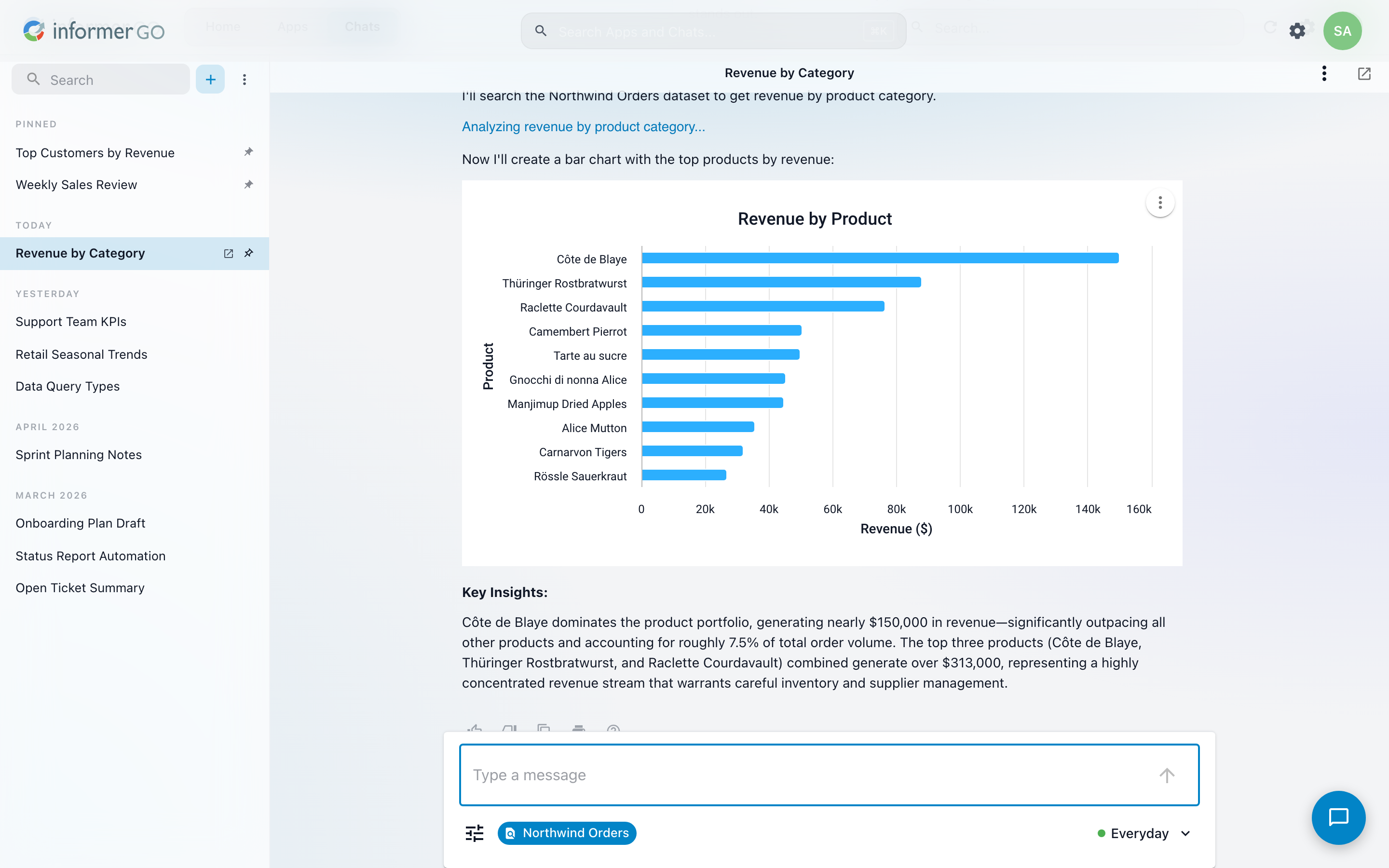
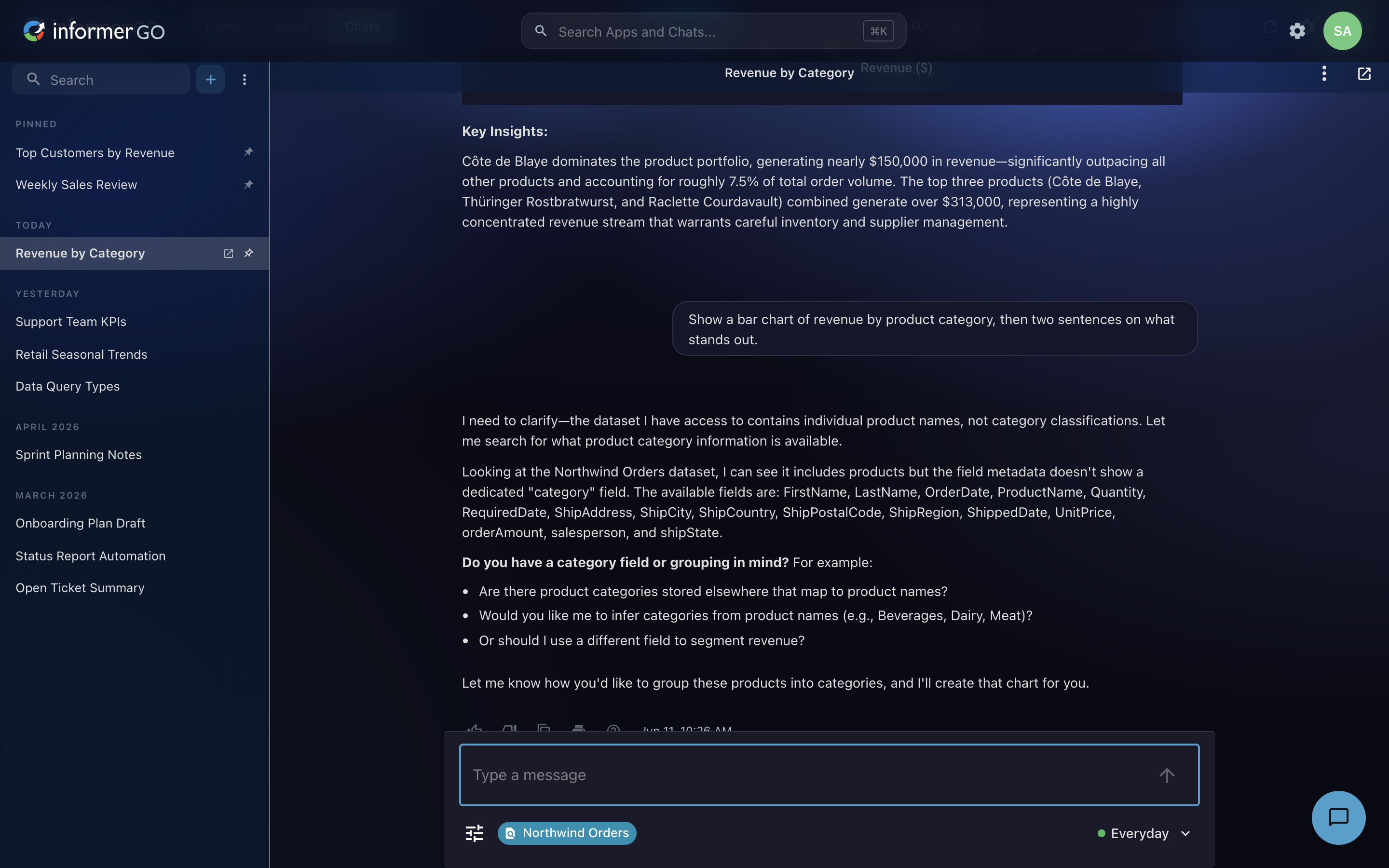
Answers stream in as they're written; a stop button halts a response you don't need to finish. Every message offers a small set of actions:
- Copy the text of an answer.
- Like or dislike an answer to record what worked.
- Explain asks the AI to walk through an answer step by step, useful when a number looks surprising.
- Delete removes a message and everything after it, rolling the conversation back to that point. You'll be asked to confirm; it can't be undone.
- On the desktop app, print a message to PDF.
A chat with two relevant Datasets beats a chat with ten loosely related ones, less noise, sharper answers. You can change the selection mid-conversation as the topic evolves.
Where do I look when…
| Symptom | Start here |
|---|---|
| "The chat says it can't see my data" | Giving a chat context: context is opt-in, per conversation. Add the Dataset or library it needs. |
| "Answers feel slow" or "answers feel shallow" | Choosing the right model: tiers trade speed for depth. |
| "A tier shows a lock" | Your usage profile doesn't include it; the lock says who can grant it. See model access. |
| "I can't find an old conversation" | Your chat history: search, or check the Pinned and month groups. |
| "I want this question answered every Monday" | Prompts on a schedule. |