Toolkits & features
Context lets a chat see; the items on this page let it do. Toolkits give the AI hands, and the Features switches at the bottom of Settings & Tools open specific doors: the web, Informer's documentation, your Informer server itself. Like context, every one of them is off until you turn it on, per conversation.
Toolkits
Toolkits opens Choose Toolkits, where you enable ToolkitsA bundle of tools an AI chat or Assistant can call, either built into Informer or connected from an external service via MCP. so the chat can take actions: file a ticket, post a message, query an external system.
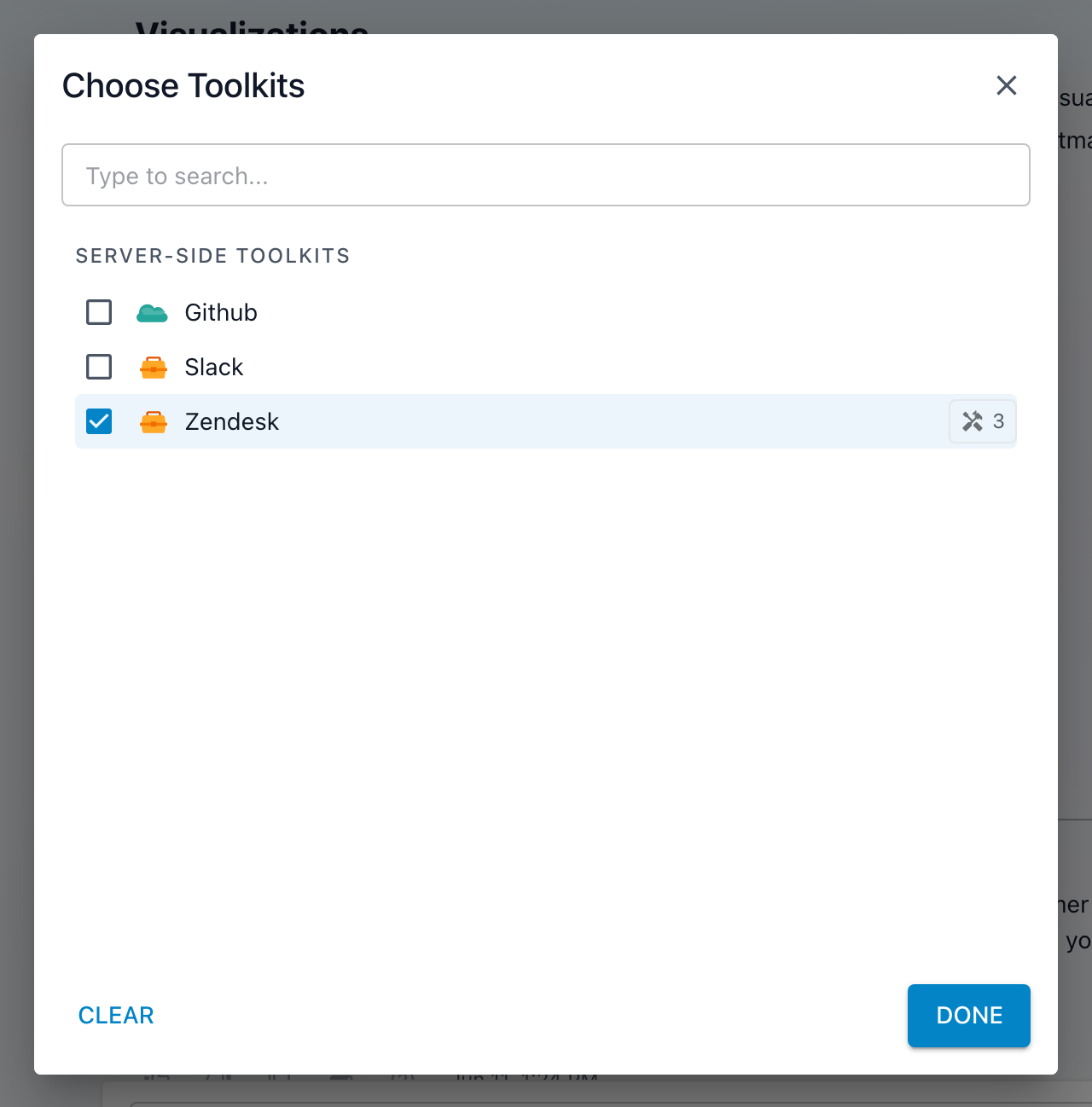
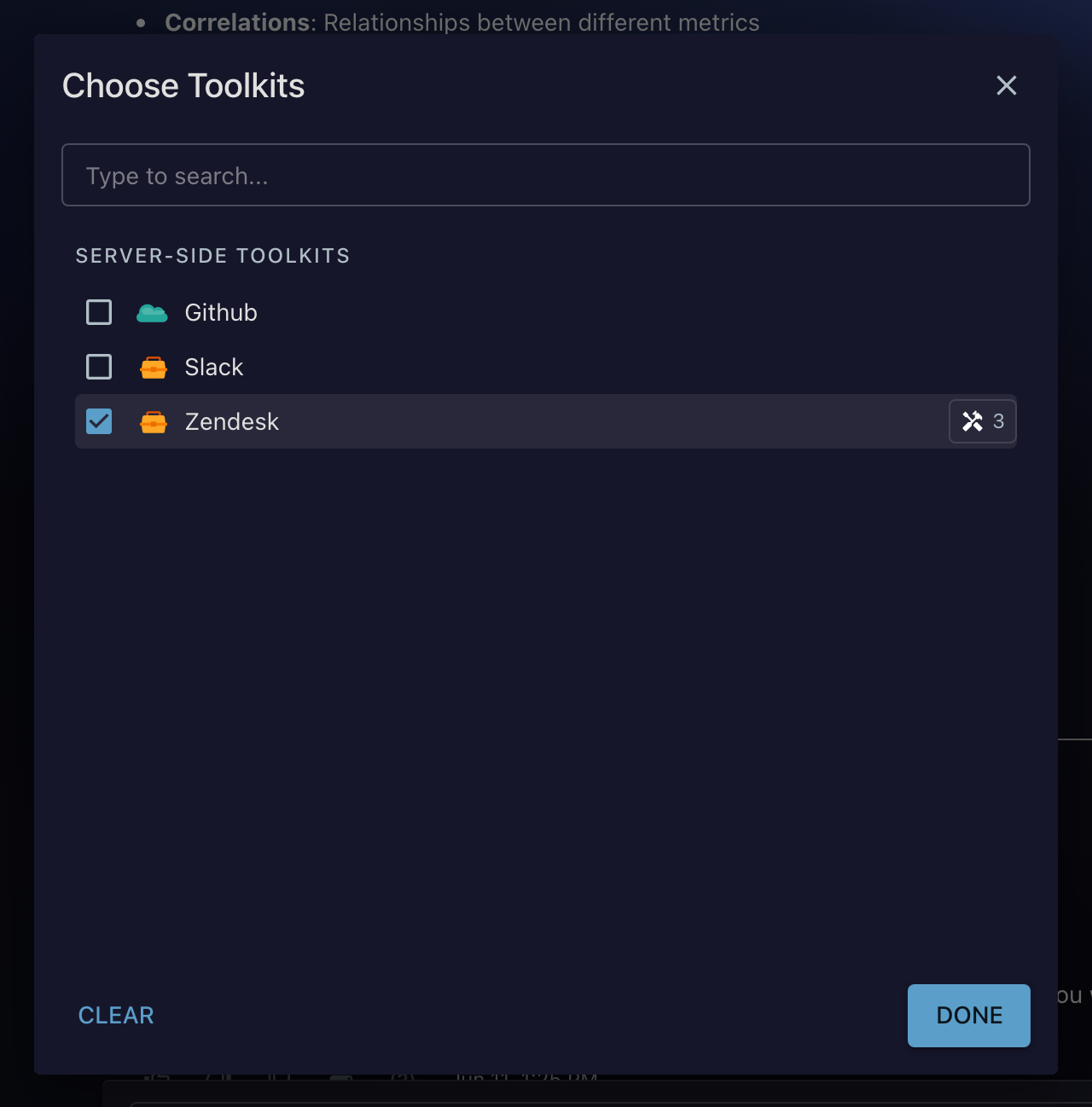
The dialog separates Server-Side Toolkits (they run on your Informer server) from Client-Side Toolkits (they run on your device). A Toolkit's icon hints at what it is: a connected service over MCPModel Context Protocol, an open standard for connecting AI to external tools. Informer uses it to bring outside services into a chat as Toolkits. looks different from a built-in or custom one.
Checking a Toolkit turns it on right away, and that's when you see what it brought:
- An MCP Toolkit connects to its server: a brief connecting state, then a count of the tools it exposes. If the connection fails, the row says so instead of going quiet.
- A built-in or custom Toolkit loads its tools from your server and shows the same count.
- The tools chip (a number on the row) tells you how many tools the Toolkit added to the chat. Click it, or View tools, to see each one by name and description before you rely on it. The AI can only use what that list contains.
A client-side (MCP) Toolkit runs on your device, so it can reach things only your machine can (a local app, a file on disk), but only while the app is open. A server-side Toolkit runs on your Informer server, so its actions work even after you close your laptop, which matters for anything a scheduled prompt needs to do.
Web Search
Web Search lets the chat search the public web for current information: prices, news, the things your data warehouse doesn't know. Your organization can lock this switch, so it may be fixed on or off for you.
The visual: when the chat uses it, you'll see it working the web into its answer mid-response, rather than answering from memory alone.
Help Center
Help Center lets the chat consult Informer's own documentation, handy for "how do I…" questions about Informer itself. Ask "how do I share an App with my team?" and the chat answers from the same articles you're reading now.
Informer API
Informer API is the broadest switch in the menu. It doesn't just let the chat read about your data, that's what Datasets are for. It gives the chat the full Informer API, acting as you: anything you're allowed to do in Informer, the chat can do on your behalf.
That means more than questions. With it on, a chat can:
- Create things: a new Dataset, an Ad Hoc Query, a Report, a Team.
- Edit what exists: rename, re-tag, change settings, update sharing.
- Run and execute: refresh a Dataset, execute a query, trigger a Job.
- Delete: remove resources you have permission to remove.
- Discover: search the API itself to find the right endpoint for a task.
Because it acts as you, it can do exactly what your account can do, no more, no less. Your permissions, roles, and row-level access all still apply; the chat can't reach anything you couldn't reach yourself. That power is also why it's worth a moment's thought before turning it on for a chat that will run on a schedule or take instructions from a shared prompt.
Attach a Dataset when you want the chat to analyze specific data you've chosen. Turn on Informer API when you want the chat to operate Informer: build, change, run, or clean up. Many chats use neither; some use both.
File System
On the desktop app, File System lets the chat read from your local files, useful for working with a folder of documents without uploading them one by one. The switch only appears in the desktop app; browser and mobile chats don't have it.
Suggestions
Suggestions shows AI-proposed follow-up questions after each answer. They appear as clickable chips just above the prompt box, click one instead of typing your next question. Good for exploring a Dataset you don't know yet, and easy to switch off when the chips get in the way.
Troubleshooting
- A Toolkit's action didn't happen. Open View tools and confirm the Toolkit actually has a tool for what you asked; the AI can only use what's listed.
- An MCP Toolkit won't connect. The row shows the connection error. A client-side (MCP) Toolkit also needs the desktop app open, since it runs on your device.
- The chat says it can't create or change something. Informer API acts as you: if your account lacks permission for that action, so does the chat. Check your role, or ask an administrator.
- The Web Search switch won't move. Your organization has locked it; that's a policy choice, not a glitch.
- File System is missing. It's desktop-only. In the browser or on mobile, attach the files instead (Giving a chat context).