Working with Jobs
A Job is a process Informer runs, on a schedule or on demand, that refreshes some Data (DatasetA saved, queryable collection of data pulled from one or more Datasources. Datasets are the foundation for reports, dashboards, and AI data analysis.s and Queries) and then performs Actions on the results: email it, save it to a file system, send it over FTP, and more.
Why Jobs matter
Reports answer questions when someone opens them; Jobs answer questions automatically and deliver them. Set a Job to refresh the Northern Sales Dataset every morning and email each regional director their slice of it, or drop a nightly export onto a shared drive, and the work happens without anyone signing in. A Job ties together the data, the schedule, and the delivery, so a recurring task is defined once and then just runs.
The anatomy of a Job
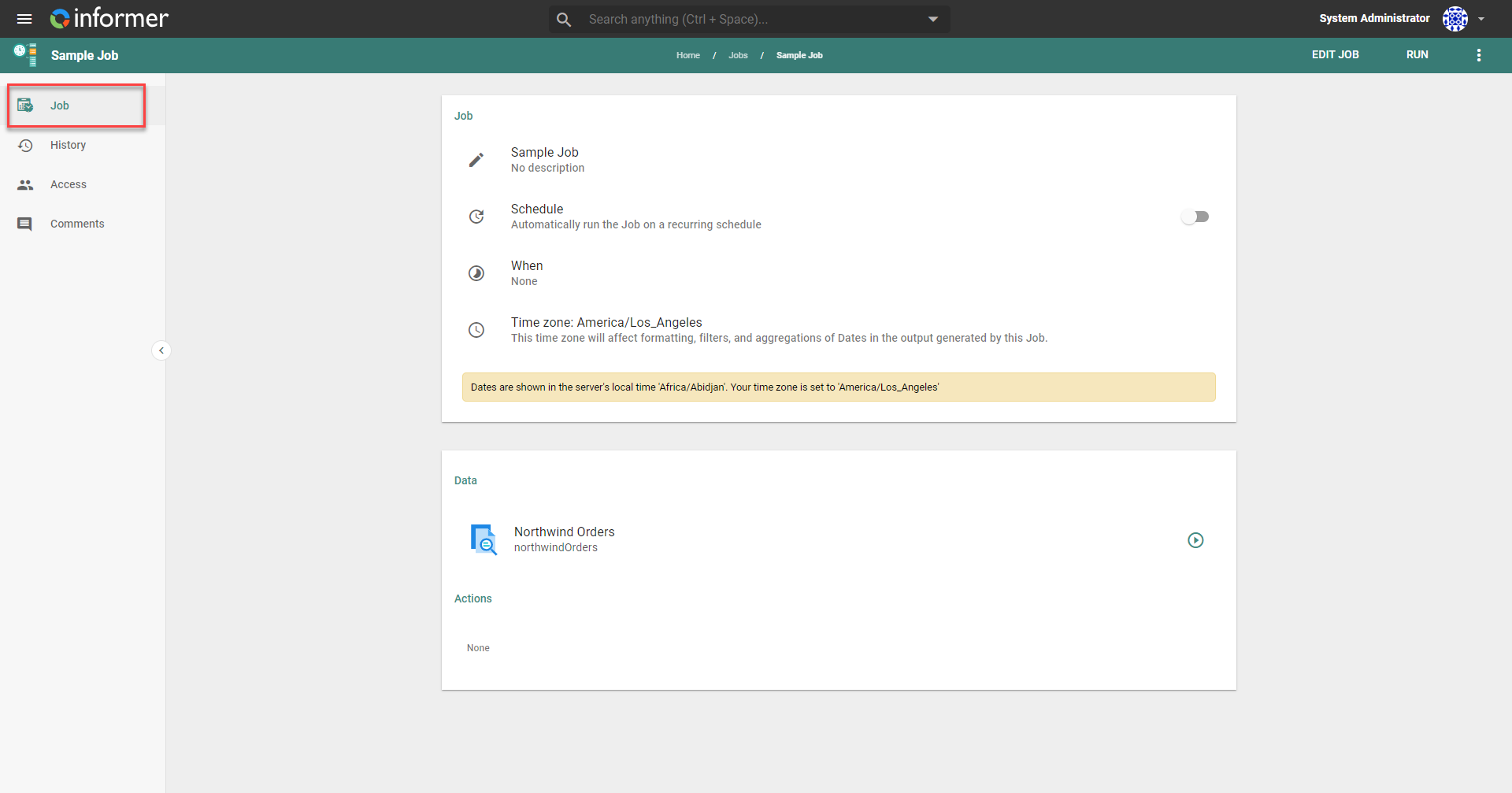
Every Job is built from three things:
- Data: the Datasets and Ad Hoc QueryA saved, parameterized query in Informer. Together with Datasets, Ad Hoc Queries are the data foundation Magic Reports build on.s the Job refreshes and draws its content from.
- Actions: what the Job does with that data after it refreshes (see below).
- Schedule: when the Job runs. Leave it off to run the Job by hand, or turn on Schedule to run it automatically on a recurring basis. A Time zone controls how dates in the output are formatted, filtered, and aggregated.
Open a Job and you get a workspace with a tab for each part of it:
| Tab | What it's for |
|---|---|
| Job | The Job's Data, Actions, and schedule |
| History | Every past run: when it fired, how long it took, and whether it succeeded |
| Access | The owner and Teams that have access to this Job |
| Comments | Discussion regarding the Job |
The kinds of Action
A Job can run several kinds of Action after its data refreshes:
| Action | What it does |
|---|---|
| Save to File System | Save export files to a file system connected to the Informer server. |
| Send an Email | Compose an email in a rich editor, with content sourced from the Job's data. |
| Send an Email Burst | Send many emails at once, one per unique email address found in the data. |
| Send to FTP | Send files over an FTP, FTPS, or SFTP connection. |
| Export Saved List | Save the results back to a U2 Datasource. |
| Batch Upload | Group data and upload one file per group to FTP or a cloud Drive. |
| Upload to Drive | Upload files to a OneDrive or Google Drive IntegrationA connection from Informer to an external service such as Google Drive, Gmail, or Salesforce, used by Apps, chats, and jobs to act on your behalf. or Library. |
Depending on your environment, a Publish to Cloud Action may also be available when Informer is connected to the cloud.
In this section
| Chapter | In one line |
|---|---|
| Overview | The listing page, the details page, Actions, history, and creating a Job. |
| Data within a Job | Add Datasets and Ad hoc Queries as the data a Job acts on. |
| Actions within a Job | Email, file system, FTP, Drive, and the other delivery Actions. |
| Scheduling a Job | Run a Job automatically on a recurring schedule. |
| Appendix | Best practices for configuring Jobs to run efficiently. |
Where do I look when...
| You want to... | Where |
|---|---|
| Build a new Job | Creating a Job |
| Choose what data the Job uses | Data within a Job |
| Decide what the Job delivers | Actions within a Job |
| Run it automatically | Scheduling a Job |
| See whether last night's run succeeded, or why it failed | Job history |
| Control who can edit or run the Job | the Access tab |