Send an Email Burst
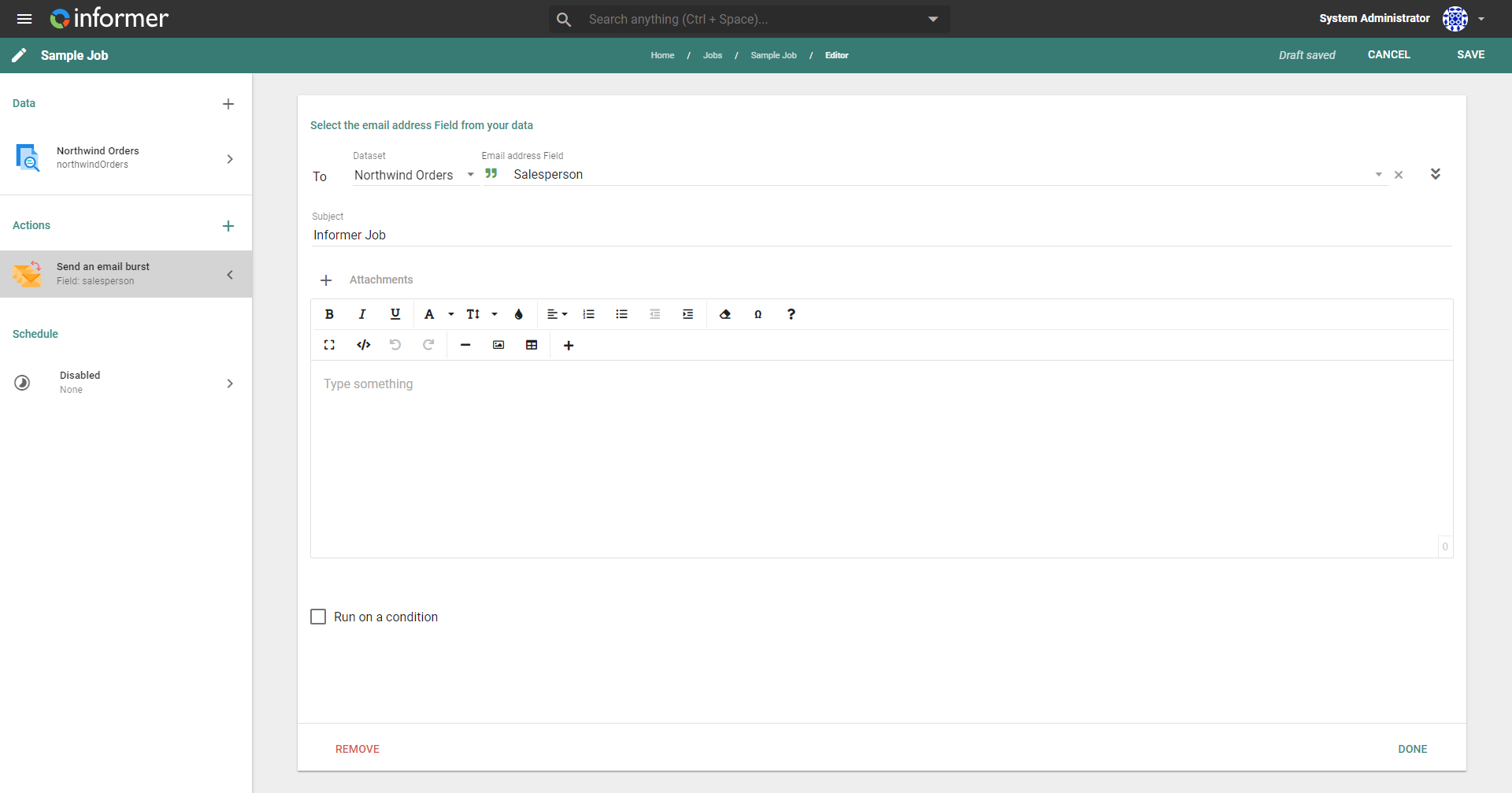
The Send an email burst Action provides all the functionality of the Send an email Action but sends multiple emails based on email addresses from a data component of the Job. This makes it easier to send emails in bulk without manually entering each address.
Instead of the standard To form, the Send an email burst Action prompts you to choose a Field that contains email addresses from a data component on the Job. This Field can be single or multi-valued. Each unique email address in this Field receives an email once the Action runs. So if there are 25 unique email addresses in the chosen Field, each address receives an individual email.
A string of email addresses in a column separated by commas (for example sam@mail.com,sue@mail.com) works in burst email Actions, similar to multiple email addresses in a multi-valued Field.
Use standard email addresses in the common user@domain.com format. Invalid or non-standard addresses are excluded and do not receive emails.
Job Owner email options
Two additional checkboxes are available in the expanded email configuration:
- Send email to Job Owner: when enabled, the Job Owner automatically receives a copy of the email in addition to the recipients in the burst.
- Send attachments to Job Owner: when enabled along with Send email to Job Owner, the Job Owner's copy includes all configured attachments. If this option is left unchecked, the Job Owner receives the email without any attachments.
For these options to appear, the Job Owner must have an email configured in their User profile.
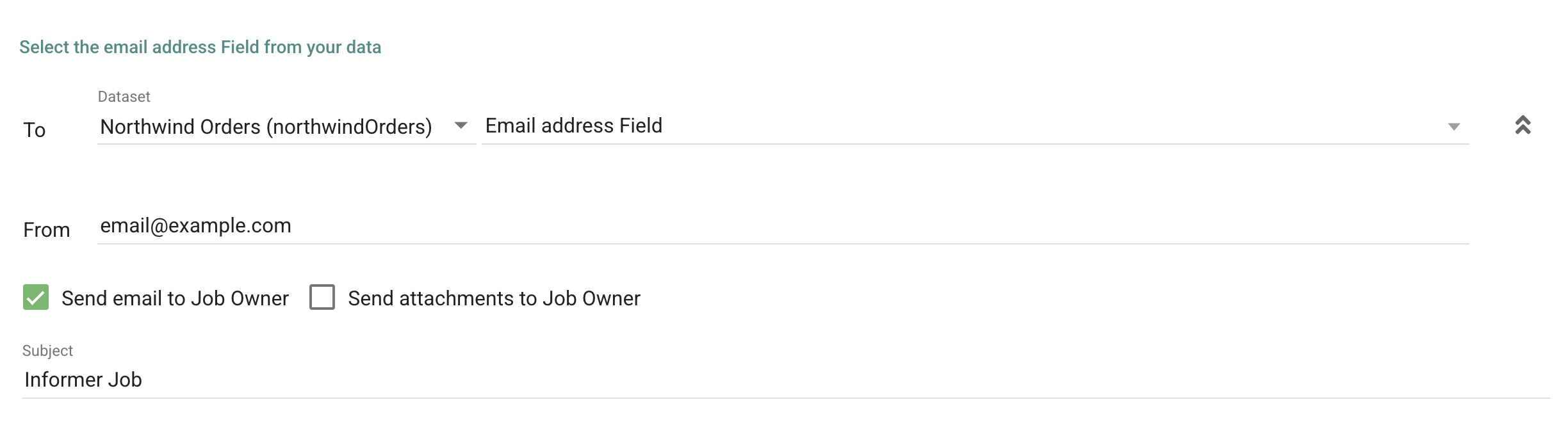
Configuring an email burst
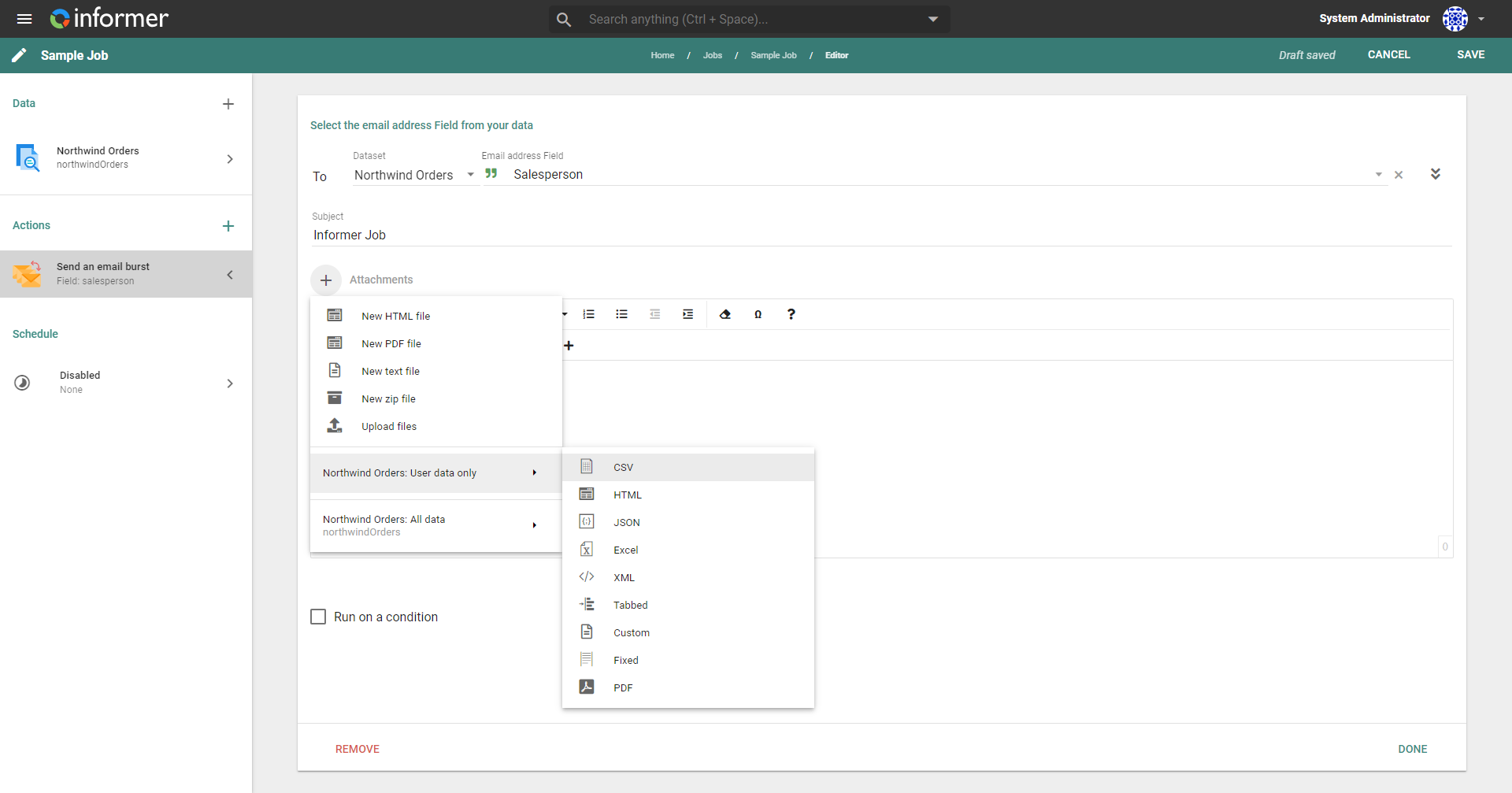
To configure email attachments, click the + icon next to Attachments. Attachments can be static HTML files, PDFs, text files, client-uploaded files, or ZIP files containing any of those types. These static file types provide a WYSIWYG editor to create the file. Attachments can also be files exported from the data components of the Job. The configurable options for each export file type are the same as when exporting a file directly from the Query results (see Exporting).
Attaching a file
Unique to the Send an email burst Action, attachments can also be file exports that contain only the data records associated with the recipient's email address. For example, if a recipient's email address is associated only with the first and third records in a four-record result set, the file export attached to that recipient's email contains only the first and third records. To send these attachments split by email address, choose the User data only option when selecting an attachment. If a selected email Field has multi-valued records, then all of the email addresses associated with that record include the record in any User data only file exports.
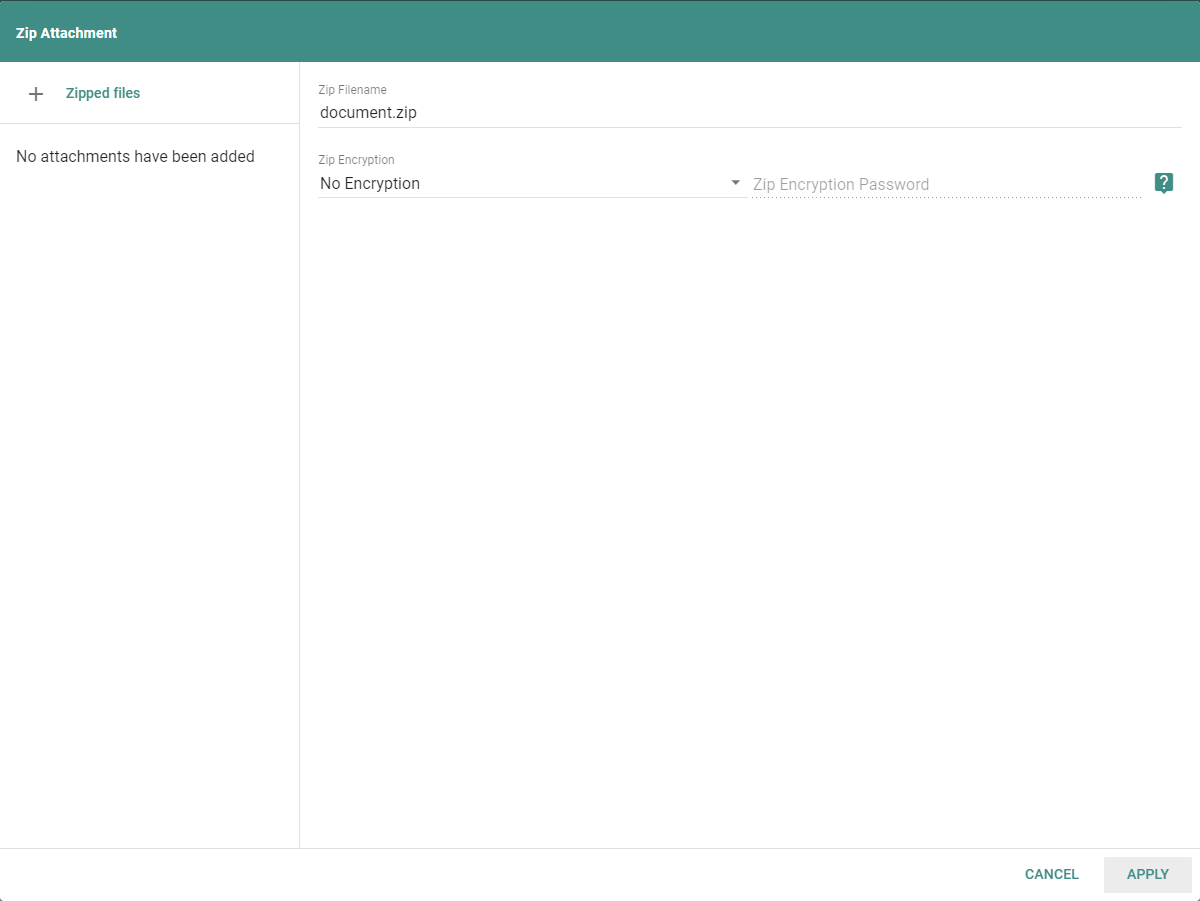
A Zip file attachment is configurable with or without encryption. Enter an encryption type and password to use this option. There are two supported types of encryption, Zip 2.0 and AES 256.
- Zip 2.0: most modern operating systems can open this encryption type without special software (less secure).
- AES 256: this option uses 256-bit encryption and likely needs additional software to open, such as 7-Zip or WinRAR (most secure).
Editing the email body
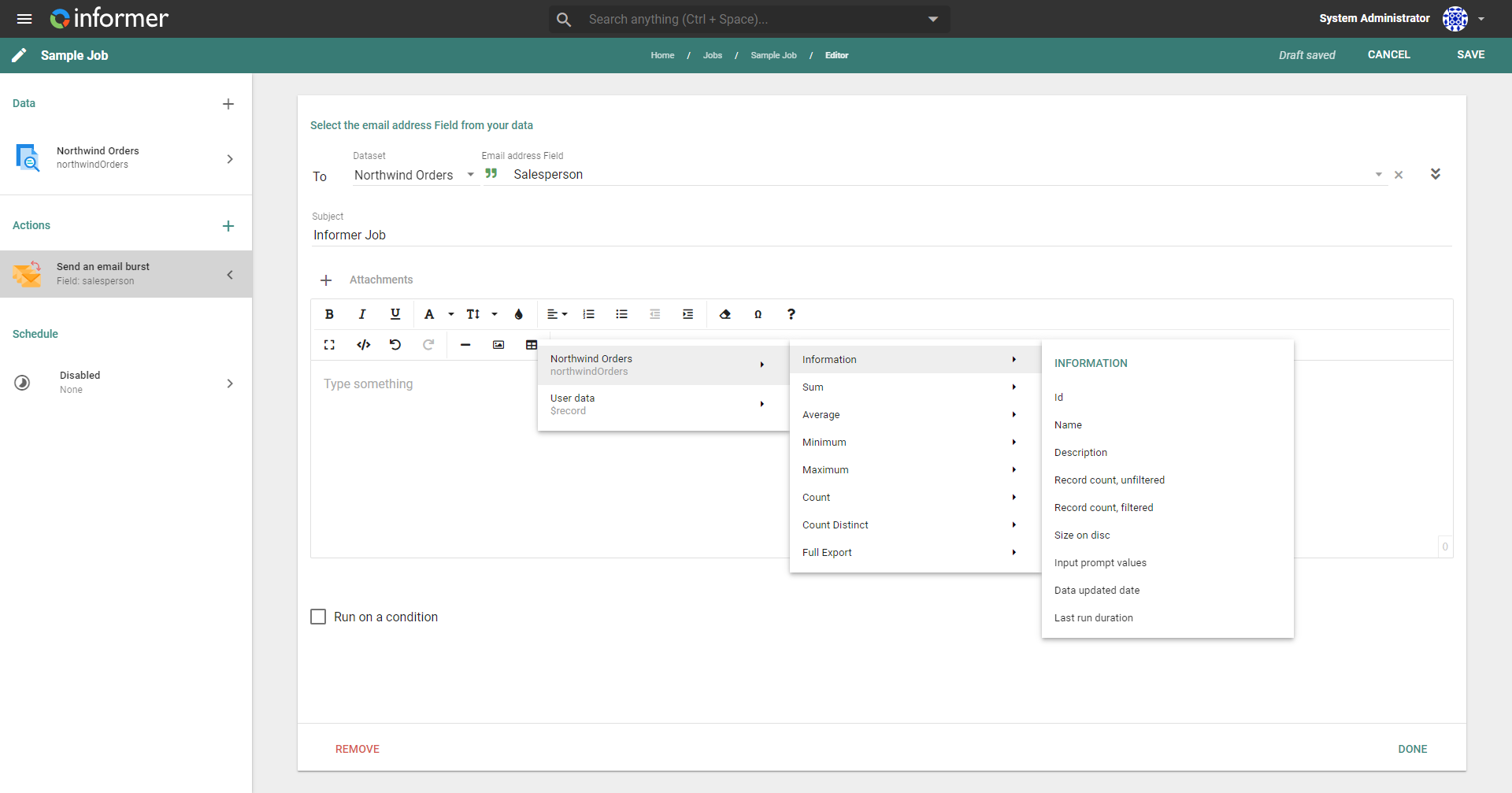
The toolbar above the WYSIWYG editor gives formatting options to change the body of the email. Clicking the Insert Keyword button provides options for adding dynamic keywords to the email body. These populate at runtime with metadata or aggregate information pulled directly from the data components of the Job. The keywords can use metadata from only the rows relevant to a given email address, similar to User data only file exports.
Run on a condition
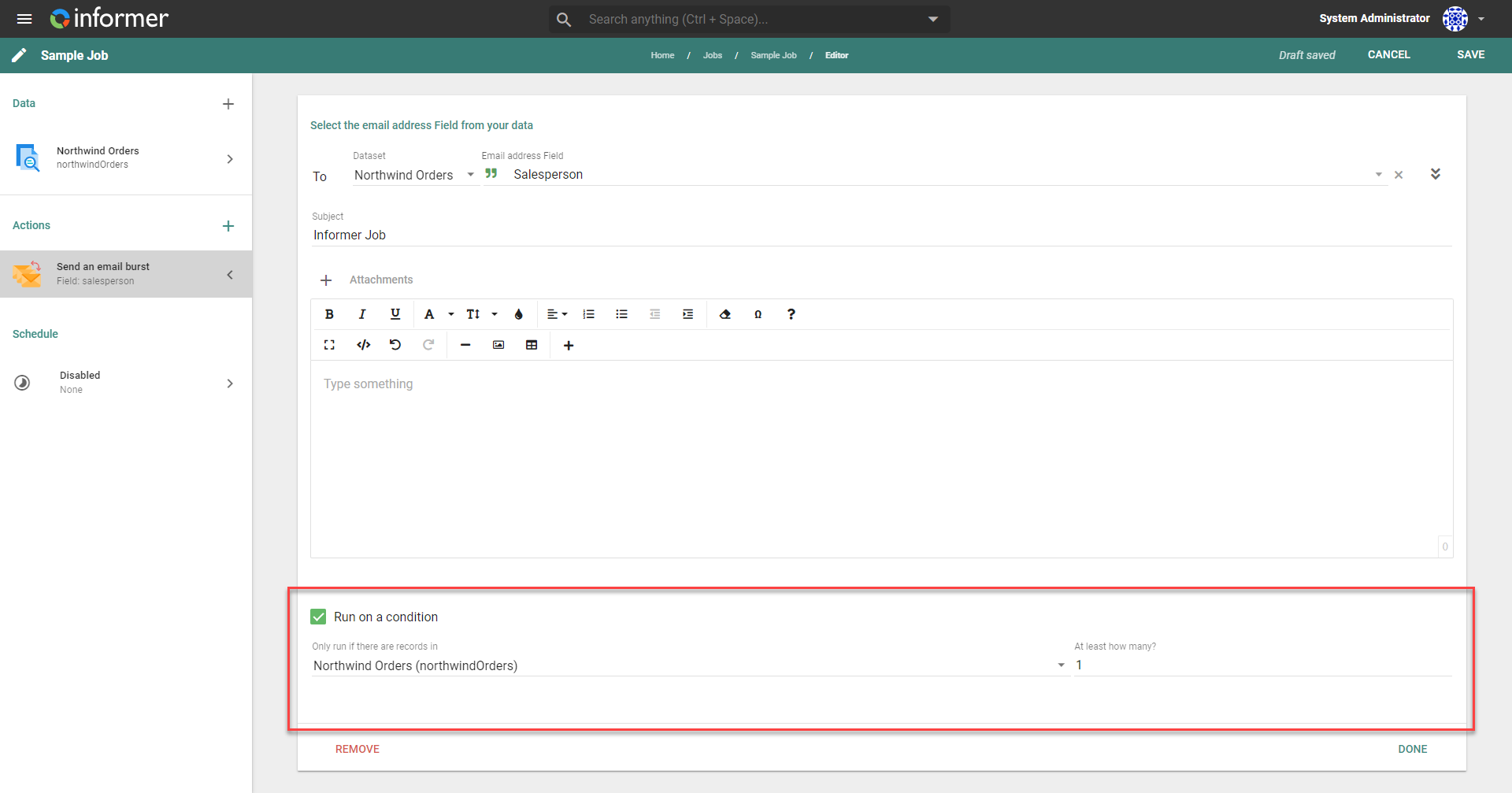
The Run on a condition checkbox configures this Action to run only when a specific number of records come back from a specific data component. This is helpful when you do not want to send out emails with attachments containing zero records.
Using a Template with a burst email
One use case for the email burst Action is using it with a Template, using connected data to get email addresses and populate an input for the Template.
- Create a Template that needs an Input. See the Template Inputs documentation for more information.
- Create a new Job with connected data and the email burst Action. See Data within a Job for more information.
- Select the Field from the connected data that contains email addresses.
- Click the + Attachments button and, under New File, select Template.
- In the dialog, select the desired Template, and in the Input enter the desired Field from the data in the following format, replacing
<field>with the desired Field alias:
{{$record.<field>}}
The resulting Template uses the selected Field associated with the email split Field, so the resulting Template file included with the email contains the associated data.