Send to FTP
The Send to FTP Action sends file exports to a designated FTP server.
After adding this Action to a Job, choose the protocol to send the file with, fill in the connection information, and supply any credentials if needed.
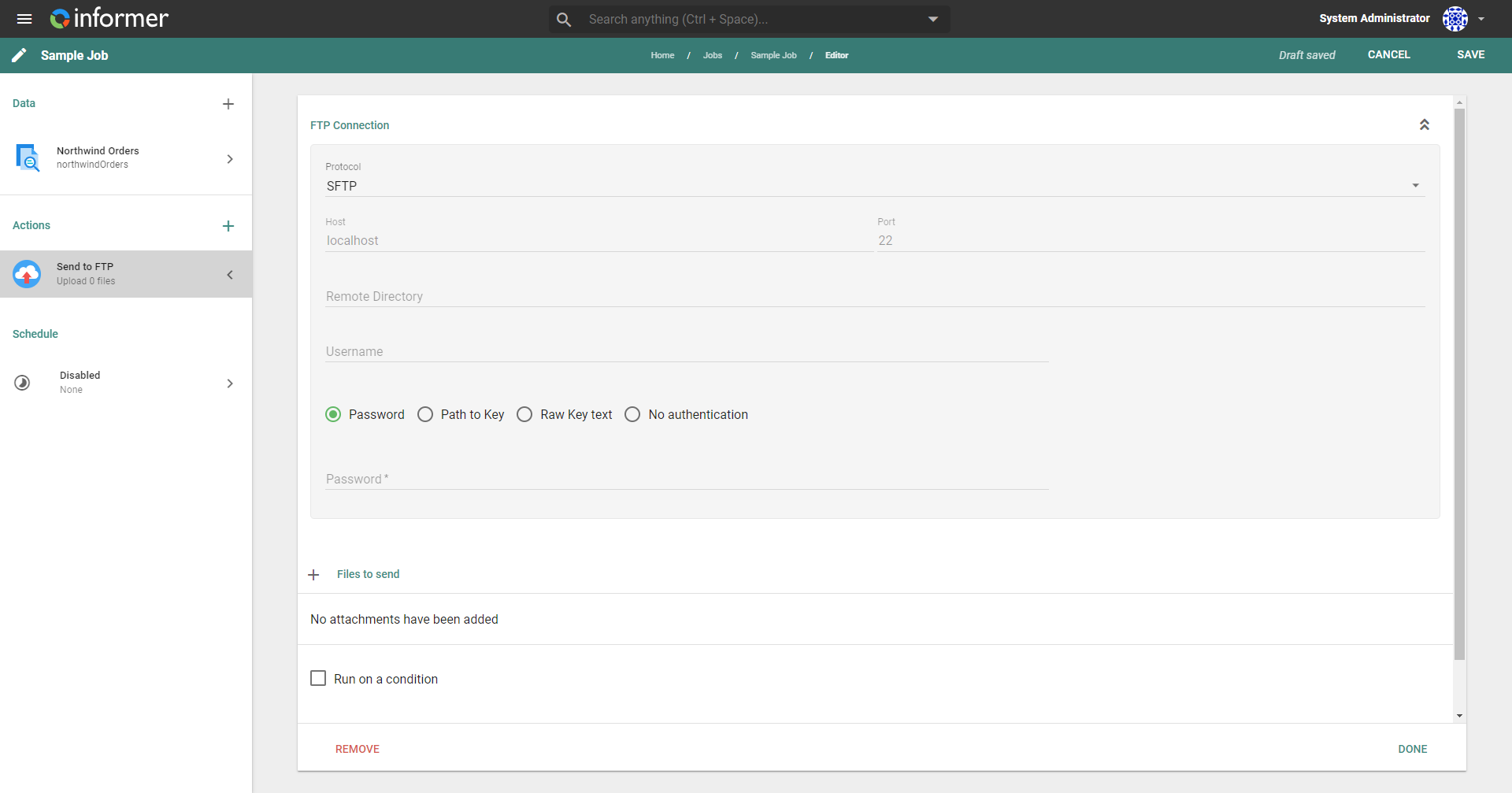
- Protocol: select the type of file exchange protocol from FTP, FTPS, or SFTP.
- FTP: File Transfer Protocol is unencrypted and susceptible to interception and attacks. FTP requires the port to remain open, which may pose a security risk.
- FTPS: FTP-SSL allows the encryption of both the control and data channel connections, either concurrently or independently.
- SFTP: Secure FTP runs over a protocol that provides secure file access, transfer, and management over any reliable data stream. Both data and commands are encrypted and transferred in specially formatted packets via a single connection secured via SSH.
The Informer SFTP plugin Actions migrated to the native Informer SFTP Action. Remove the plugin and begin using the native Jobs Action.
- Host and Port: the host and port for the FTP server connection.
- Remote Directory: the directory path name on the FTP server.
- Require Password (FTP and FTPS only): toggle whether the server requires a username or password. Toggling this field adds fields for Username and Password.
- Reject Unauthorized (FTPS only): toggles whether the FTP server's certificate is verified against the Informer server's registered certificate authorities. If unchecked, the upload proceeds even if the certificate cannot be verified.
- Username (SFTP only): the username to connect to the SFTP server.
- Concurrency (SFTP only): the number of file chunks that can be sent simultaneously. Higher values result in faster transfers but are not supported by all SFTP servers. Enter
1for sequential transfers. The default is64. - Authentication (SFTP only): select the type of authentication to connect to the SFTP server. For more information, see Send to SFTP using a Key.
- Password: the raw password used to connect to the SFTP server.
- Path to Key: the path on the server where the key to the SFTP is saved, with an additional passphrase to access this path.
- Raw Text Key: the raw text of the SSL key, with an additional passphrase.
- No Authentication: access the SFTP server without authentication.
Files to send
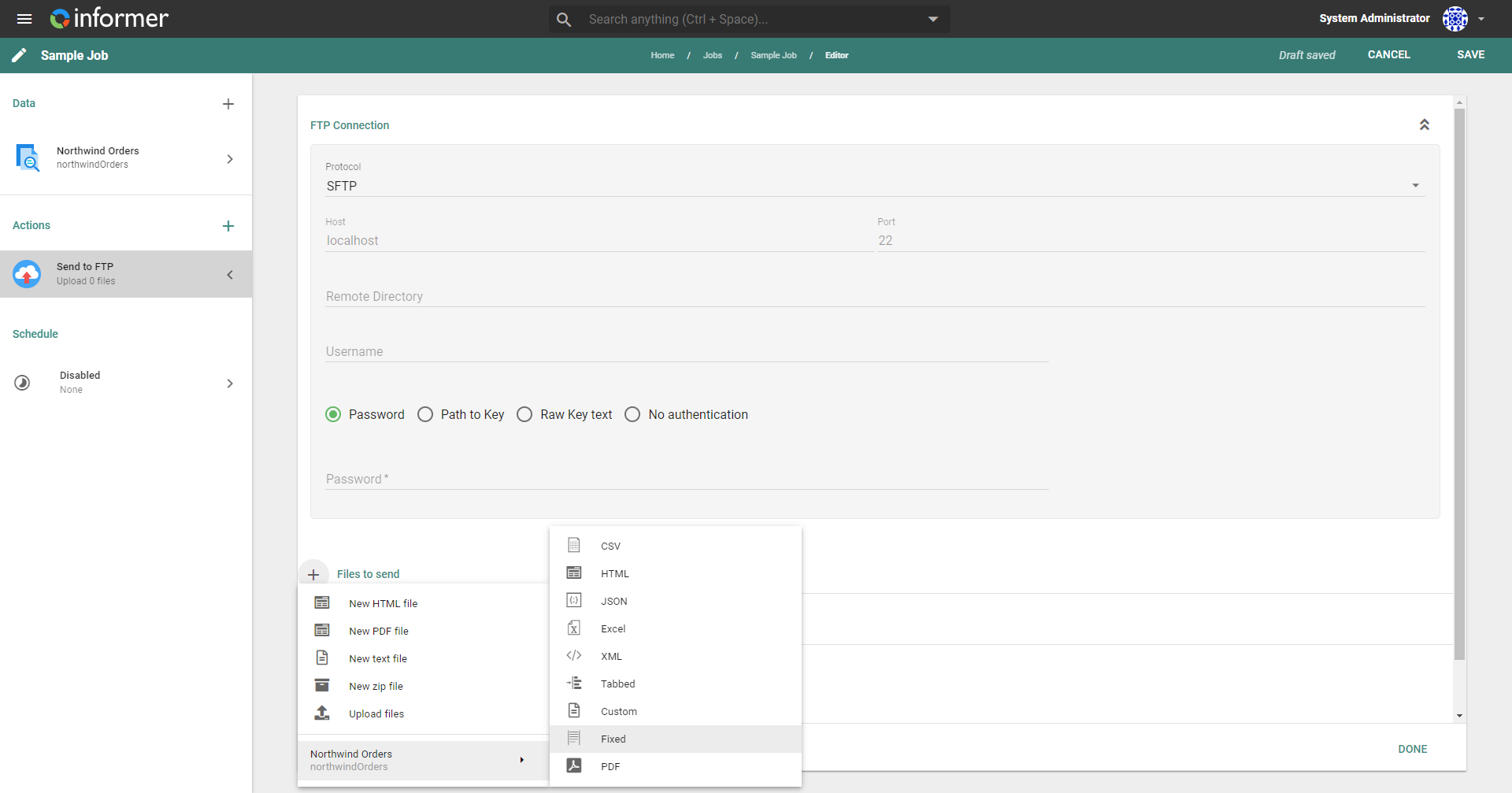
Configure the files to send through FTP or SFTP by clicking the + icon next to the Files to send header. Attachments can be static HTML files, PDFs, text files, client-uploaded files, or ZIP files containing any of those types. These static file types provide a WYSIWYG editor to create the file.
The Job's data components also allow for file export. The configurable options for each export file type are the same as when exporting a file directly from the Query results (see Exporting).
Zip attachments
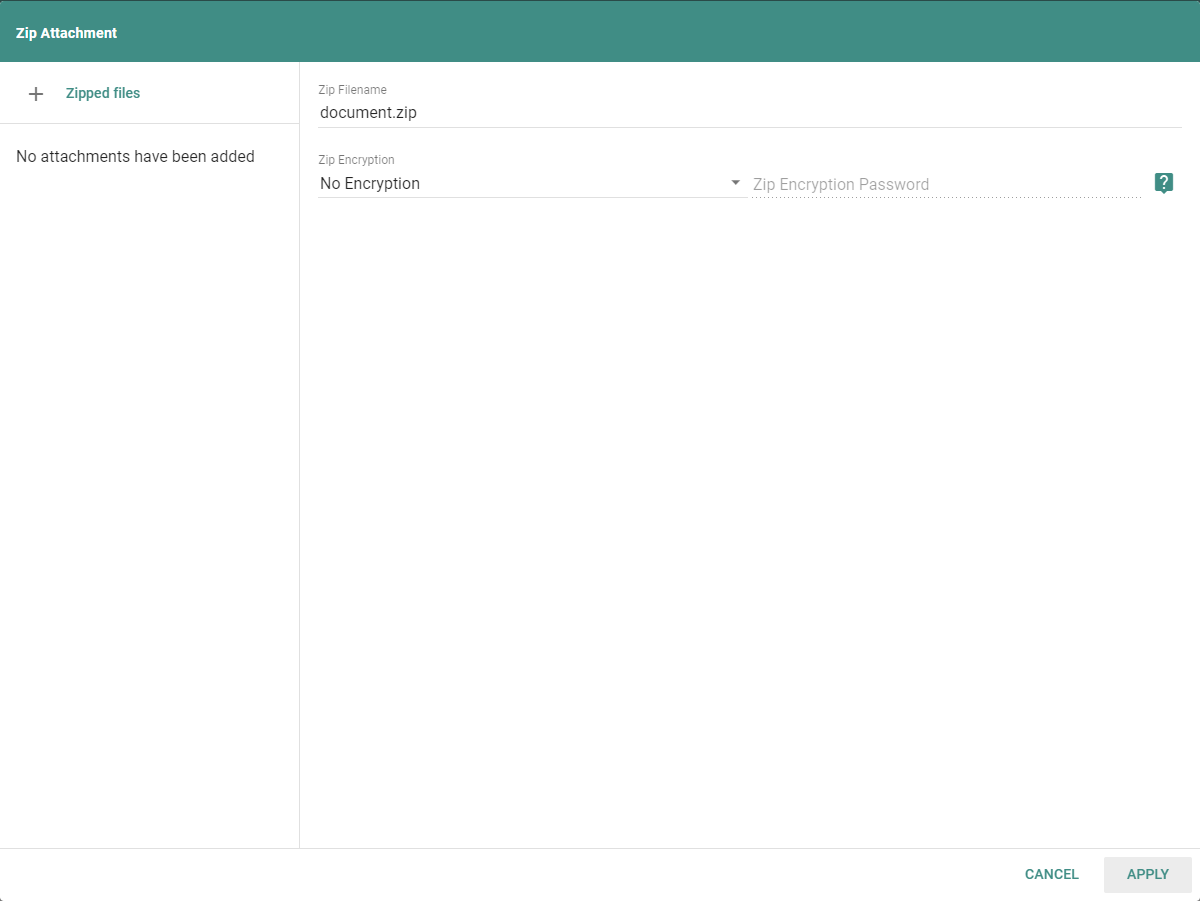
A Zip file attachment is configurable with or without encryption. Enter an encryption type and password to use this option. There are three types of encryption: No Encryption, Zip 2.0, and AES 256.
- No Encryption: add no additional encryption to the zip file (least secure).
- Zip 2.0: most modern operating systems can open this encryption type without special software (less secure).
- AES 256: this option uses 256-bit encryption and likely needs additional software to open, such as 7-Zip or WinRAR (most secure).
Run on a condition
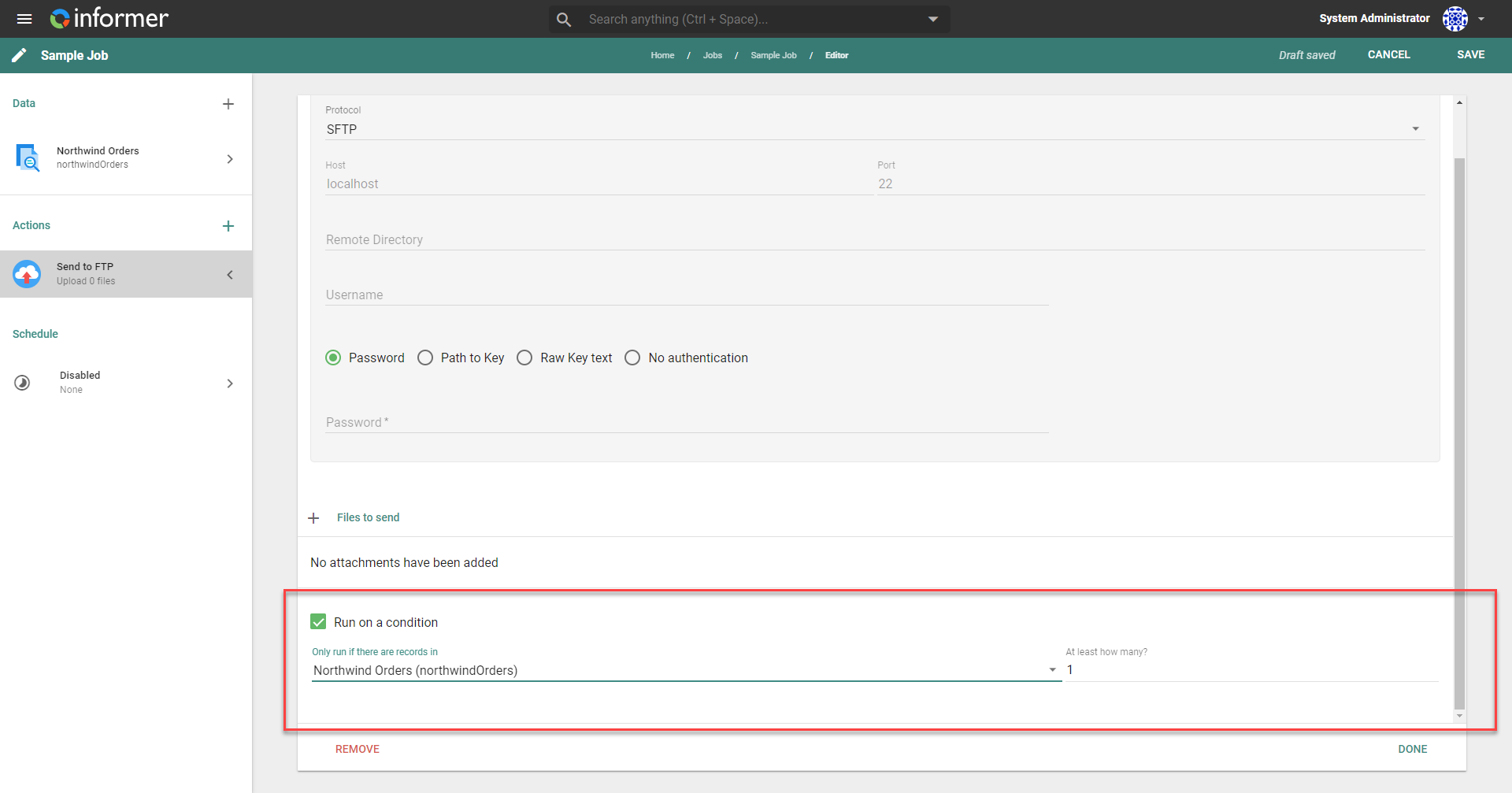
The Run on a condition checkbox configures this Action to run only when a specific number of records come back from a specific data component. This is helpful when you do not want to send out files containing zero records.