Exporting
Exporting a Query takes its data outside Informer so you can work with it in other applications. Export creates a local file containing the Query results. The available file types are CSV, HTML, Live Excel, JSON, Excel, XML, Saved List, Tabbed, Custom, Fixed, and PDF.
Saved List exports require the User or Team to have query access to a U2 Datasource on Informer.
How to export
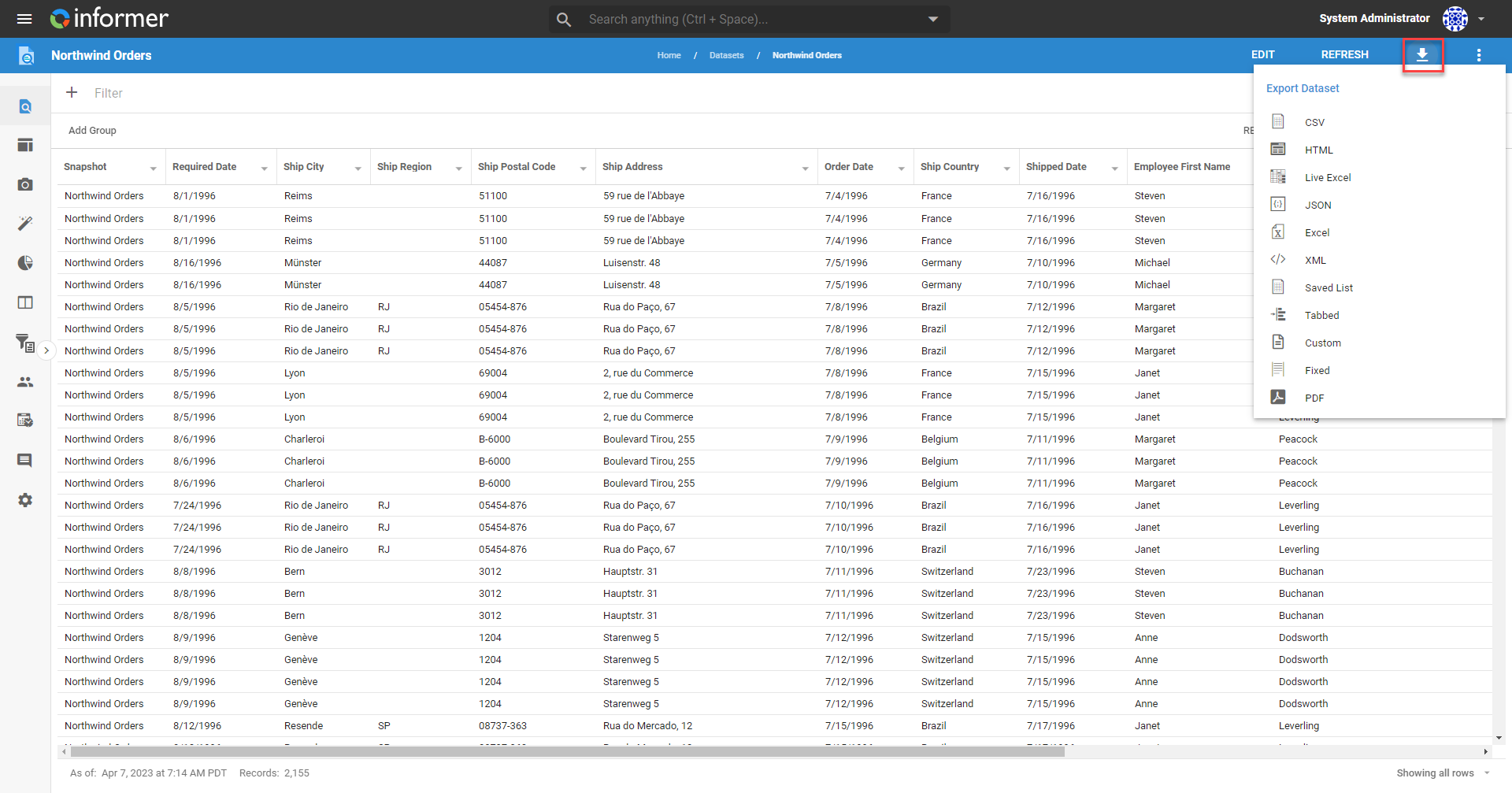
Open the Query, then click the Export icon (the down arrow) next to Actions in the top-right corner. You can also export from the Dataset listing page or the Reports listing. Select the file type and fill out the fields to export.
Common options
Several formats share these options:
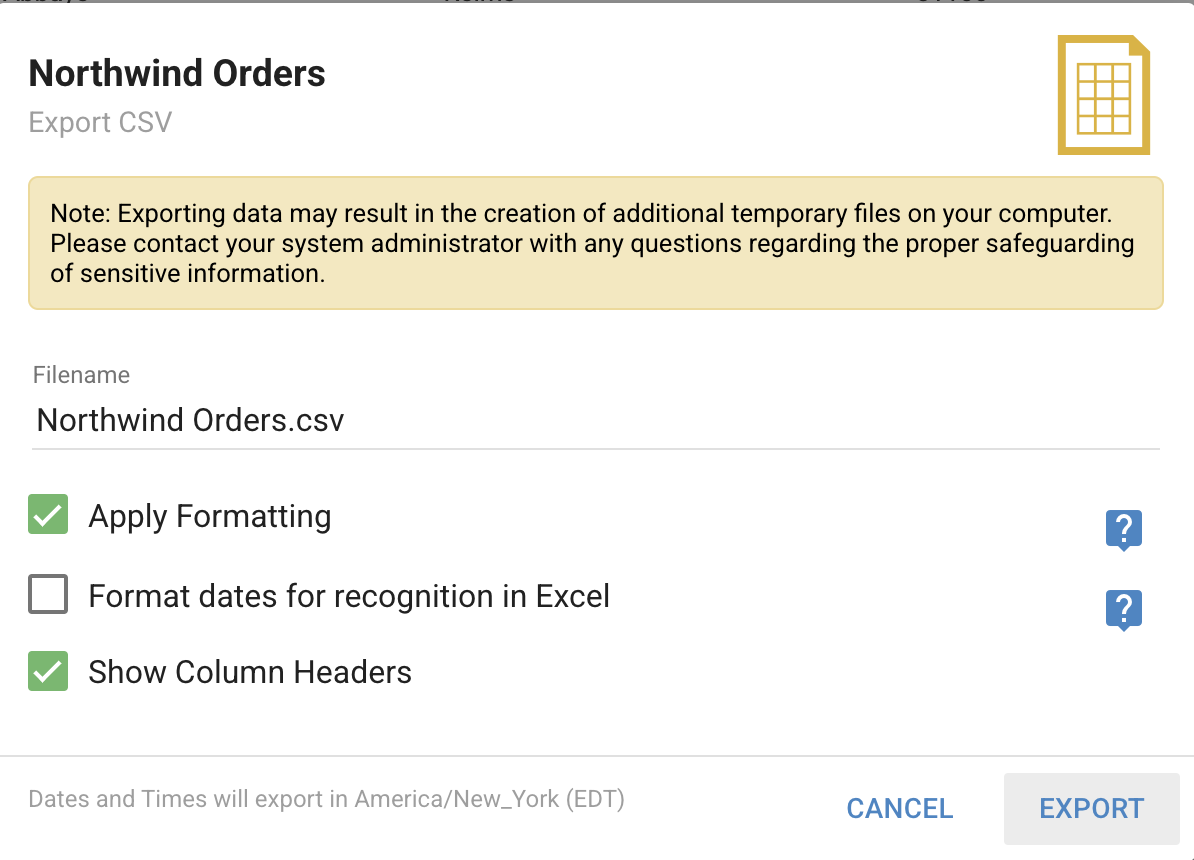
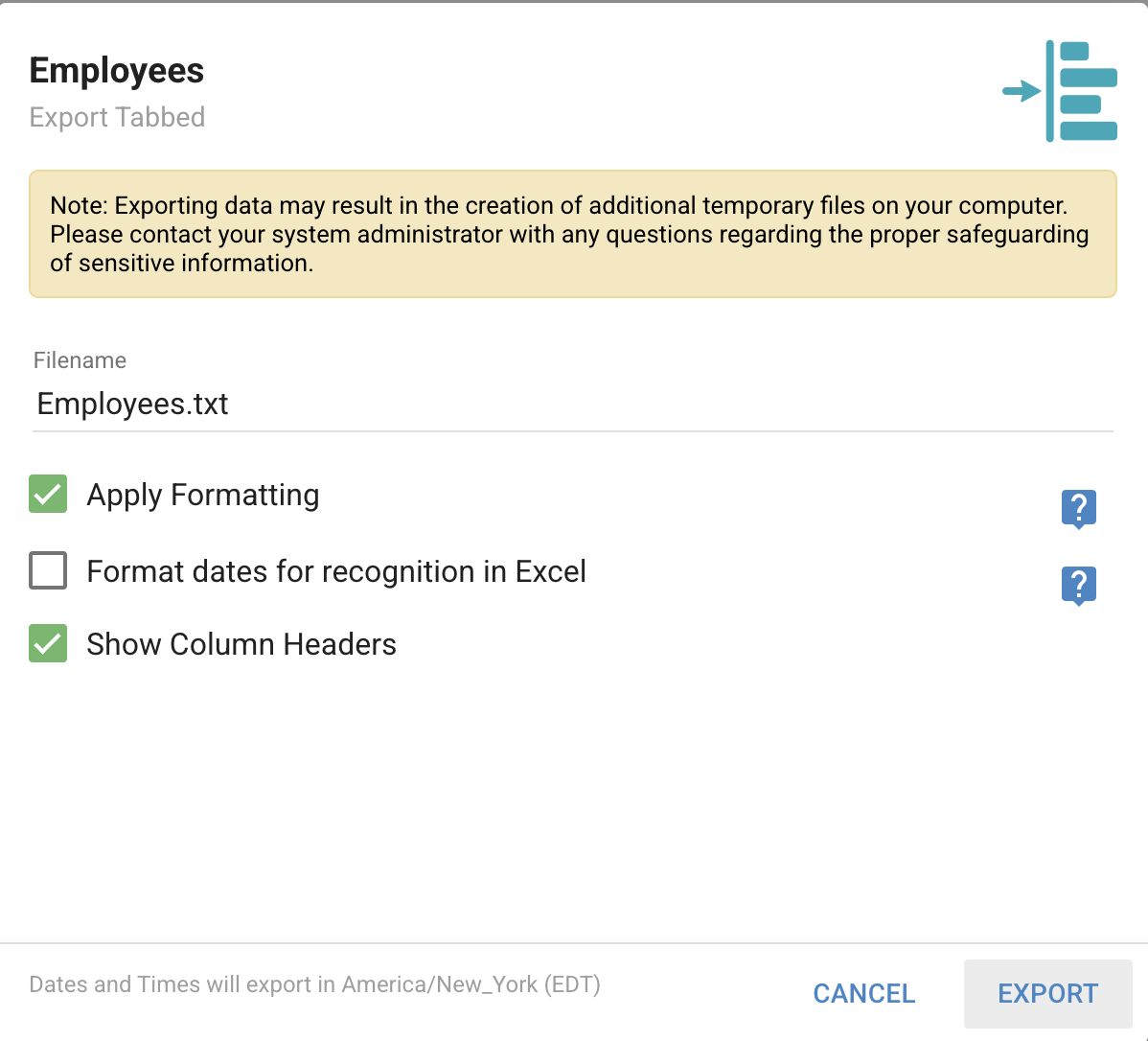
- Apply Formatting: when checked, numbers and dates appear exactly as they do in the grid (for example
07/31/2021orJuly 31, 2021). When unchecked, dates export in raw ISO format, such as2021-07-01T17:00:00.000Z. - Format dates for recognition in Excel: formats date fields so Excel recognizes them as dates, always as
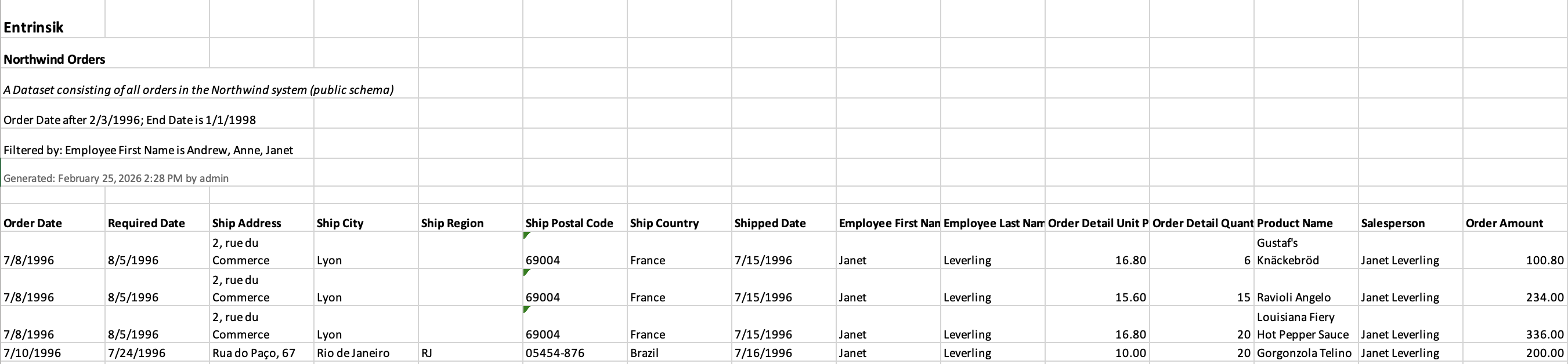
MM/DD/YY(orMM/DD/YY HH:mm:sswith times). If both this and Apply Formatting are checked, the Excel-friendly format wins. - Show Column Headers: when checked, column headers appear as the first row; when unchecked, only data rows are included.
CSV
A CSV export produces a text file with a header for each Field, with data surrounded by double quotes and separated by commas. Options: Apply Formatting, Format dates for recognition in Excel, and Show Column Headers.
HTML
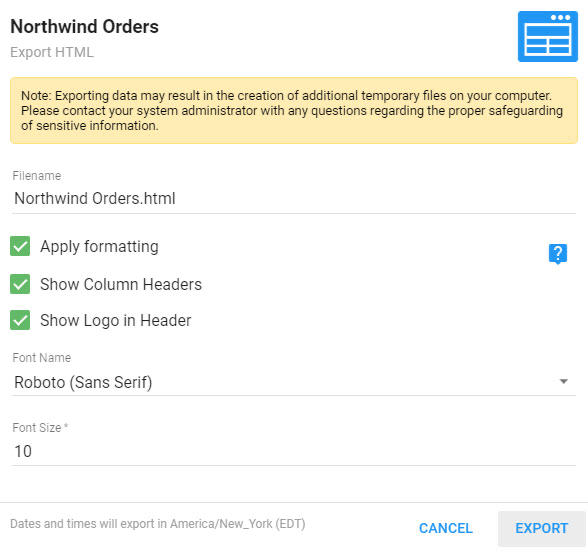
An HTML export produces a static HTML file of the results. Options: Apply Formatting, Show Column Headers, Show Logo in Header (displays the logo defined in Informer), and font name and size.
Live Excel
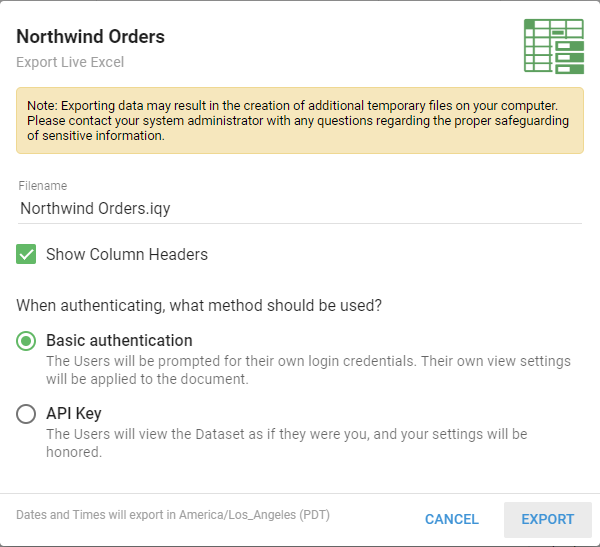
A Live Excel export creates an IQY file that, when launched, opens Microsoft Excel and runs the Informer 5 Query, so results appear in Excel without opening Informer. Live Excel authenticates to Informer in two ways:
- Basic Authentication: prompts the end user for their Informer login credentials (local, or LDAP/AD) before showing the data.
- API Key: uses the credentials of the user who created the Live Excel and honors that user's settings.
JSON
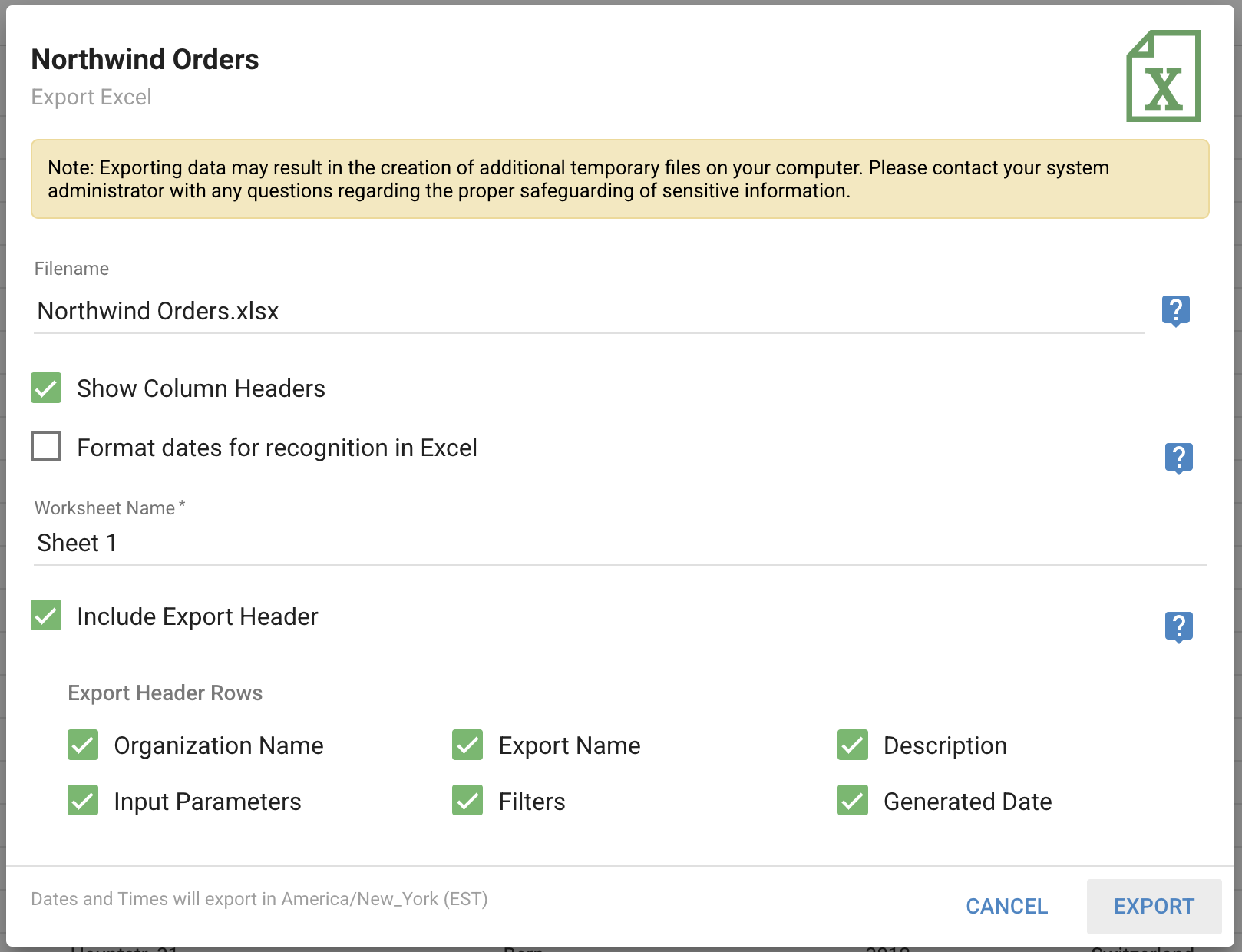
The JSON export produces the results in JSON format. Options: Apply Formatting and Pretty Formatting (formats the file in a more human-readable way).
Excel
The Excel export creates an Excel file from the results. Options: Show Column Headers, Format dates for recognition in Excel, a configurable Worksheet name (default "Sheet 1"), and Include Export Header.
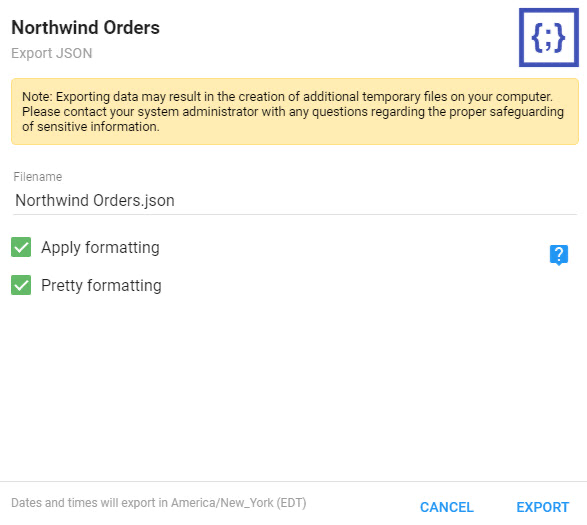
When Include Export Header is on, header rows are added to the top of the export. The options control what they contain:
- Organization Name: your organization name in large bold text. It resolves from the Organization Name set by an admin in the Excel Export Header settings, then falls back to the license's "Issued To" name, then the current Tenant's name. The row is omitted if none can be resolved.
- Export Name: the name of the item, in priority order: Report name, Dataset name, then Query name. Falls back to "Untitled Export."
- Description: the item's description, in the same priority order.
- Input Parameters: the run-time Input values provided when the export ran, for example Start Date is 01/01/2025; End Date is 03/31/2025.
- Filters: any Filters applied in the grid view before exporting, prefixed with "Filtered by".
- Generated Date: a timestamp of when the export was generated and who ran it.
Some data may appear differently in Excel than in Informer. Informer writes the exact value to the file, but Excel may read it differently. You can verify the content by unzipping the .xlsx file and inspecting the raw data.
XML
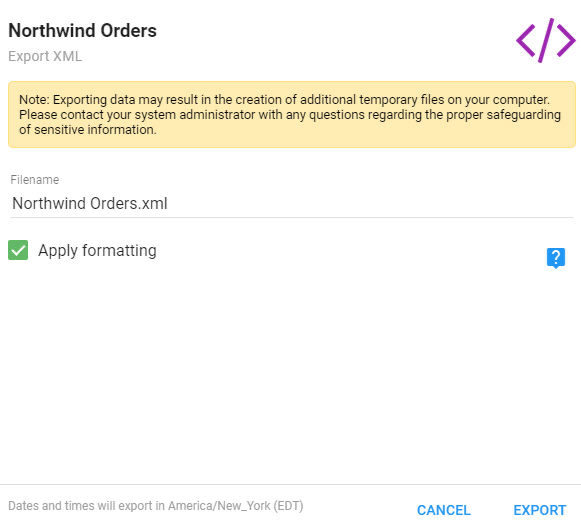
The XML export produces the results in XML format. The only option is Apply Formatting.
Saved List
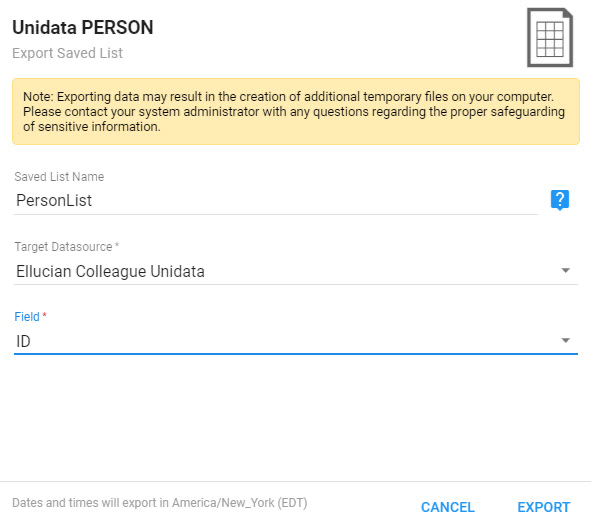
A Saved List writes a file to a selected U2 Datasource. The Saved List Name is the name of the file written out. Choose the Datasource to write to and which Field from the Query to use for the contents.
Tabbed
A Tabbed export produces a text file with a header for each Field, with the header and data surrounded by double quotes and separated by tabs. Options: Apply Formatting, Format dates for recognition in Excel, and Show Column Headers.
Custom
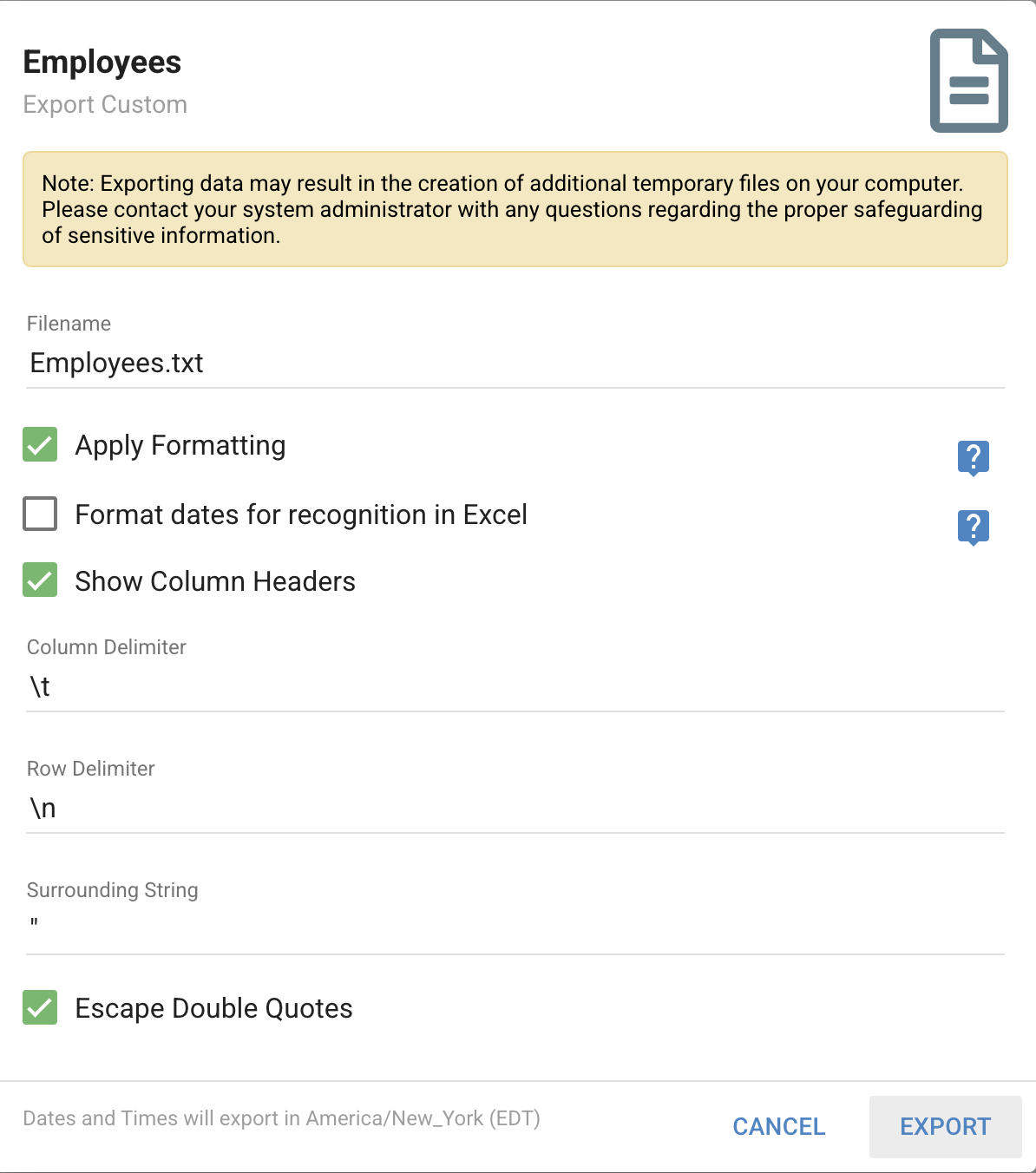
A Custom export produces text output similar to a CSV or Tabbed file, with more control over how the content is created. In addition to the common options, you choose the Column and Row delimiters, any surrounding string on the fields, and whether to escape double quotes.
Fixed
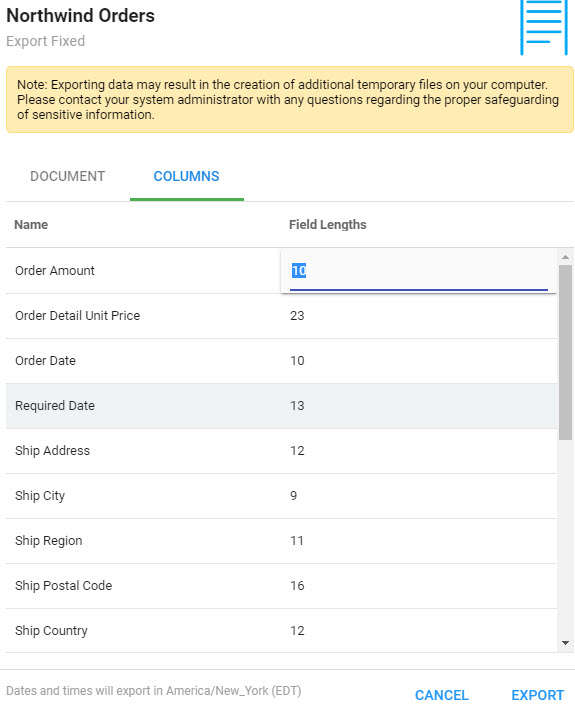
A Fixed export creates a text file with specific column-width constraints on the header and data. Options include the common ones, plus a Columns tab where you set each Field's length.
PDF
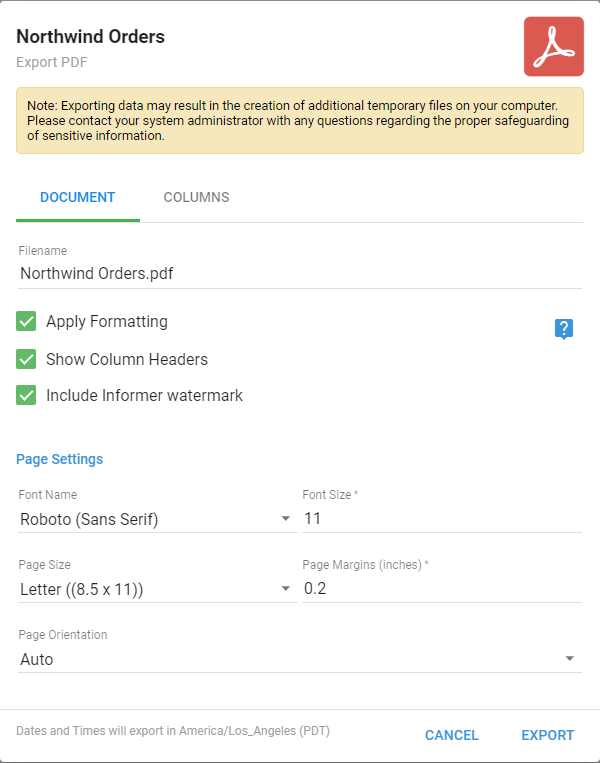
A PDF export creates a PDF file. On the Document tab, configure Apply Formatting, Include Informer watermark (uncheck to remove it), and Page Settings (font name and size, page size and margins, and orientation).
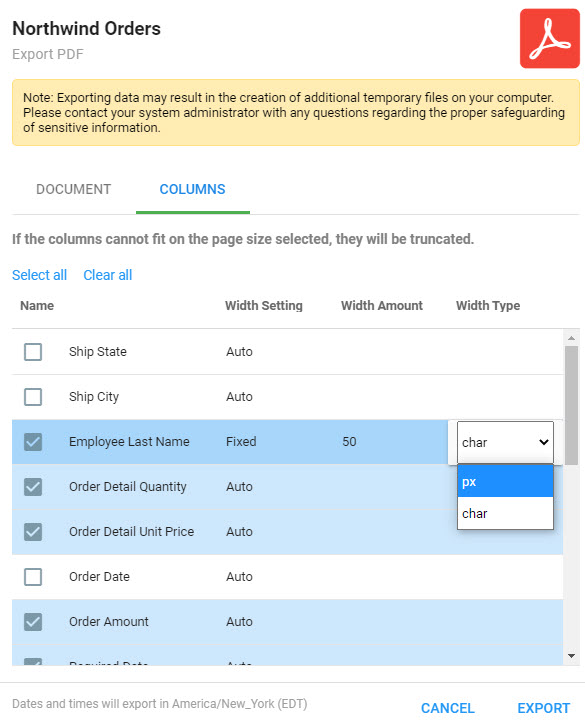
On the Columns tab, choose which Fields to include and set each column's Width Setting to Auto (Informer sizes it) or Fixed (you enter the amount and type).