Dataset listing page
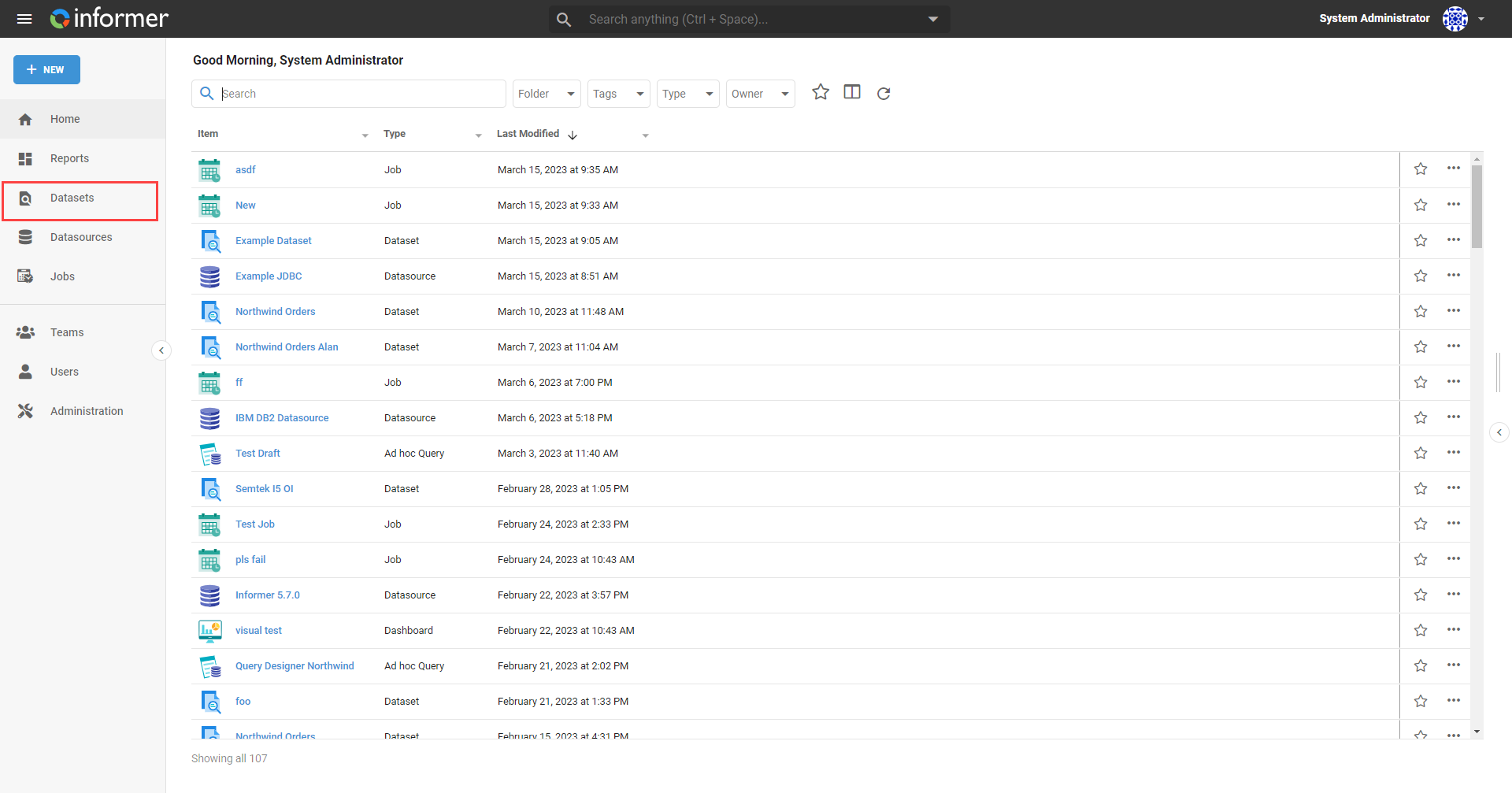
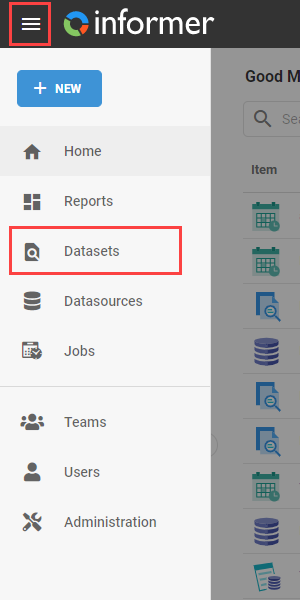
View Datasets by clicking Datasets on the Home page, or by opening the navigation menu in the top left of Informer and clicking Datasets.
The resulting page lists all the Datasets the currently logged-in User has access to.
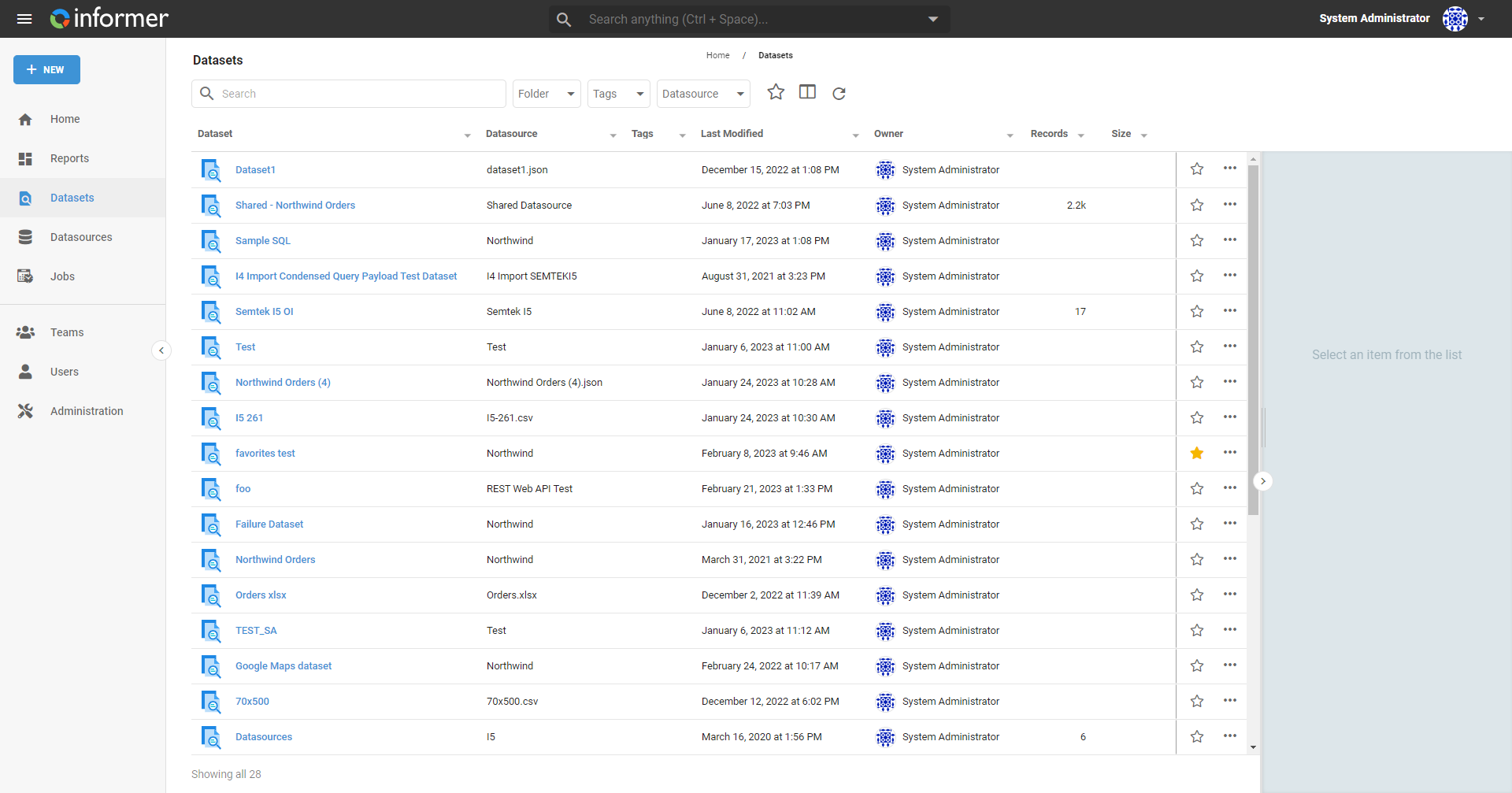
This listing page provides summary information about the Datasets the current User has access to, along with filtering options to find specific Datasets. Type keywords into the search bar at the top to dynamically filter the list.
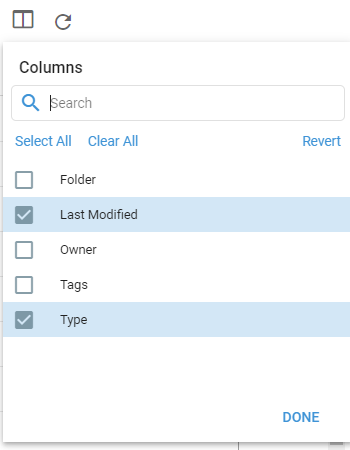
The right panel provides information about the selected Dataset's internal ID, Elasticsearch index name, parent Datasource, creation time, last modified time, and last refreshed time. It also lists the Users and Teams that have access to the selected Dataset. Use the Choose Columns button to select which columns appear in the table by checking or unchecking them.
You can also organize Datasets using Folders and Tags, described below.
Folders
Folders are an optional way to organize content in the system. By default, content not placed in a folder appears under the Unassigned grouping in the Folders section of the left panel.
To view the folders in the system, click Folders at the top of the listing page. Clicking a top-level folder reveals any folders nested under it and filters the main list to show only the content in the selected folder.
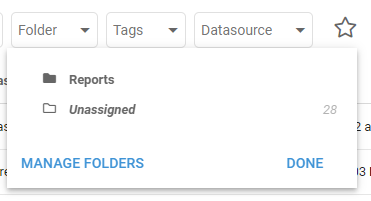
To create a folder, click Manage Folders then + New. When creating a folder, you can also nest it inside an existing folder.
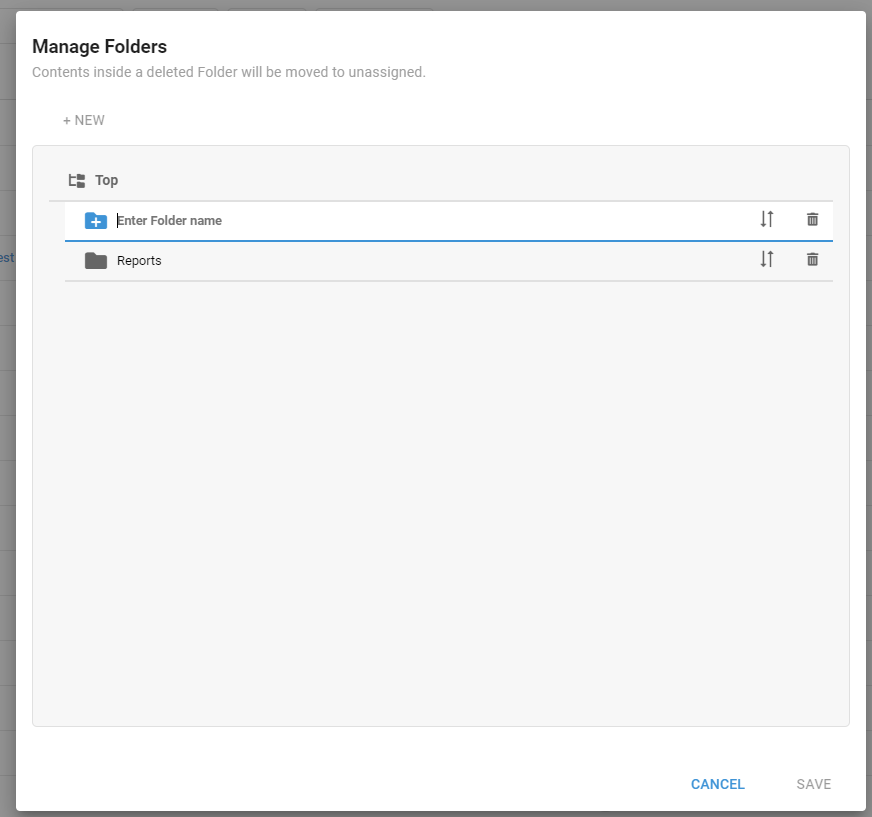
Rename a folder by clicking its name and entering a new name. Click the trash can to delete a folder; content inside a deleted folder moves to Unassigned.
Tags
Tags are another optional way to organize content. Tags are keywords associated with content that help end users find what they need faster. Click the Tags dropdown at the top to see the tags currently in use.
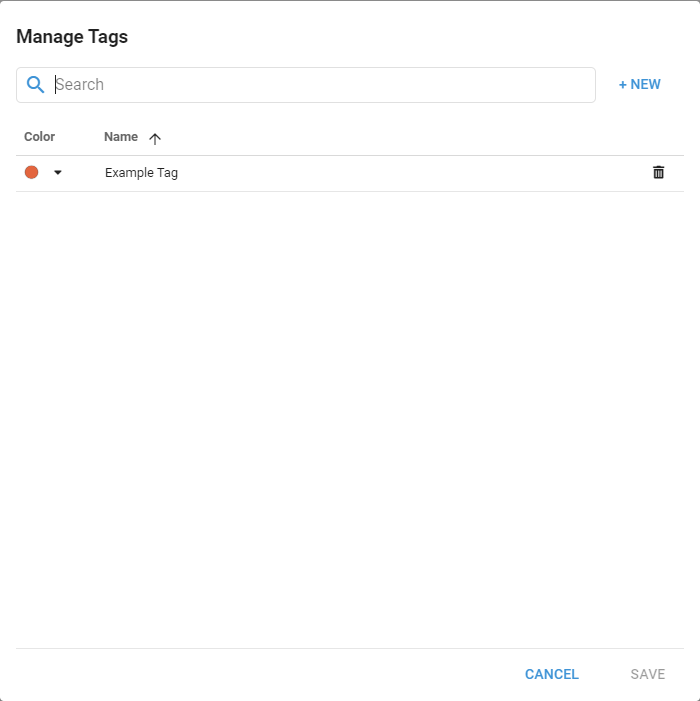
To create or edit Tags, click the Manage tags icon in the dropdown. A Manage Tags panel lists all tags in the system. Click + New to create a tag with a name and color. To edit a tag, click its name and provide a new name or color. To delete a tag, click the Delete trash can next to it.
The next step is to build a Dataset. See Creating a Dataset.