Refresh behavior
The Refresh Behavior setting controls what happens to a Dataset's data when it refreshes, and whether to add a timestamp Field. Change it by clicking the Settings gear in the left ribbon of a Dataset and going to the Refresh Behavior section.
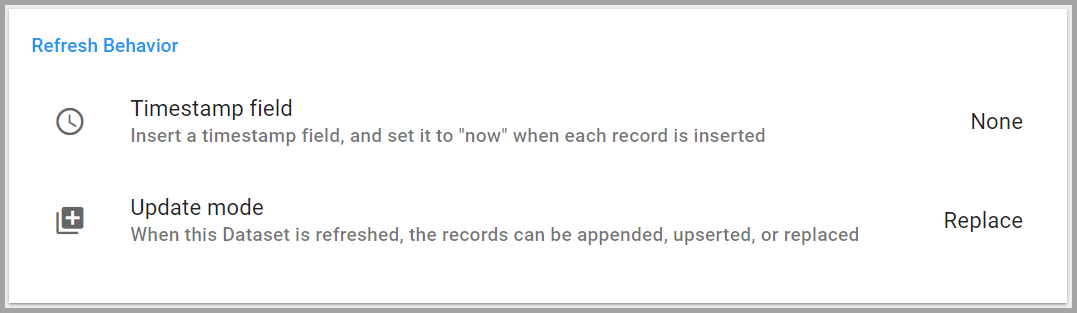
Timestamp Field
The Timestamp field option adds a Field to the Dataset containing the last update time of each record. A timestamp Field is recommended when the Dataset is set to Append mode.
- Click Timestamp field to open the Timestamp settings window.
- Check Enable timestamp.
- Enter a column label; Informer automatically generates the alias from the label.
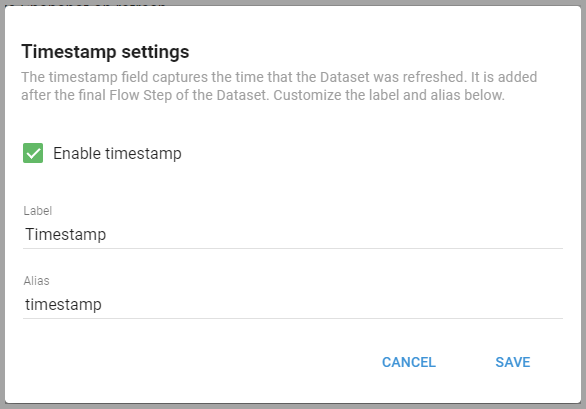
Update Mode
There are three options for refreshing Datasets: Replace, Append, and Upsert. Each is useful depending on the situation and the data in the Dataset.
- Replace mode is best when only the most current data is needed.
- Append mode is ideal for building a historical dataset.
- Upsert mode is useful for maintaining up-to-date records while preserving history and avoiding duplicates.
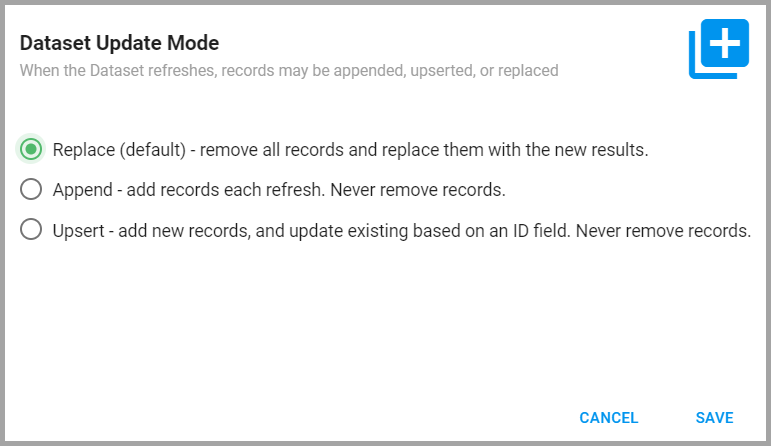
Replace
Replace mode removes all of a Dataset's old data and replaces it with new data every time it refreshes. It deletes all existing records, then creates a new set based on the latest information from the Dataset's Query, so the Dataset always has the most current data.
Replace is useful when historical data is not needed and the focus is on the most current data, for example a Dataset tracking daily inventory levels where only the current day's data matters.
Append
Append mode updates a Dataset by adding new data to what is already there. It takes the results from a Query and adds them to the existing records. Used with a timestamp Field, it lets you see how data changes over time by checking the timestamp on each record. Nothing is deleted.
For example, a Dataset collecting daily sales transactions can use Append to maintain a running log of all transactions for trend analysis over time.
Upsert
Upsert mode adds new, unique records to an existing index and updates any records with changes, without removing preexisting records. For example, a Dataset could use Upsert to keep contact information current without losing historical data: if a phone number changes, Upsert updates that record rather than creating a duplicate.
A unique ID Field is needed when switching a Dataset to Upsert. This Field must be unique to each record and should not change. It allows Informer to be more efficient when streaming in new records or changes.
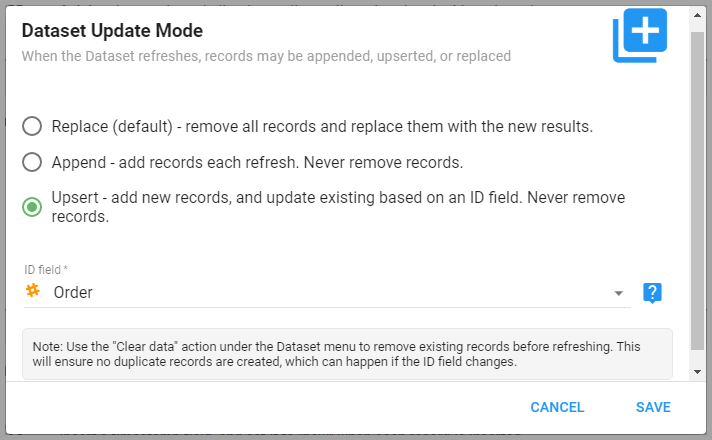
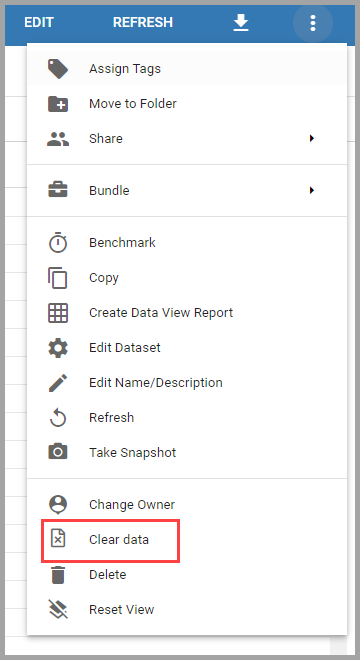
When a Dataset refreshes using Upsert, Informer indexes new records based on the unique ID Field selected. Records not indexed with the unique ID Field (for example, Fields brought into the result set while the Dataset was in Replace mode) are not updated by an Upsert refresh and risk duplicate records. Use the Clear data action under the Dataset menu to remove existing records before refreshing, so Informer does not create duplicates.
Best practice
A common issue with Upsert mode is that the Dataset takes just as long to refresh as before. That is usually because no time-based criteria has been added to the Query to produce a smaller result set. Use criteria, the LAST_QUERIED_AT date keyword, and a Field that tracks changes to make the refresh more efficient.

- Click Criteria in the left menu while editing a Dataset.
- Click the + button and select Criteria.
- Click Select Field and choose the Field that tracks changes (UpdatedAt in this example).
- Click the logic dropdown and select after.
- Click Enter Value, enter the date keyword
LAST_QUERIED_AT(case sensitive), and click Apply. - Click Done, then Save.
With this criteria, Informer only checks the records that changed since the last refresh and updates those records. See Adding Criteria for more information.
Index Name
The Index Name option appears when using Append or Upsert modes. It lets you configure the index name backing the Dataset.
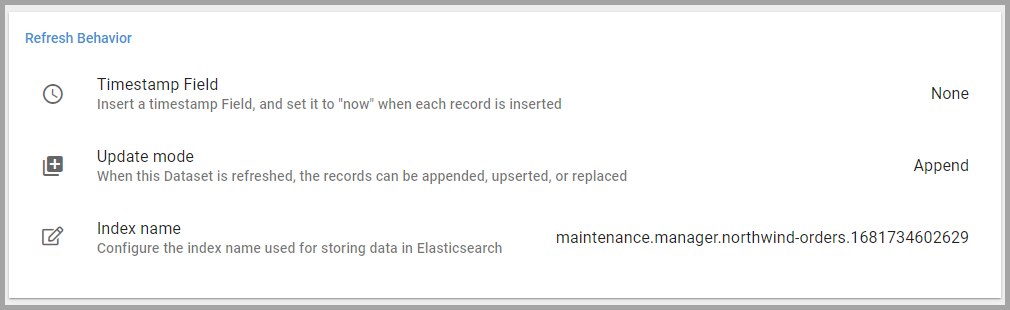
Elasticsearch uses this unique index name when storing and referencing the Dataset's result set. Use this option to change the index name to a more readable string.
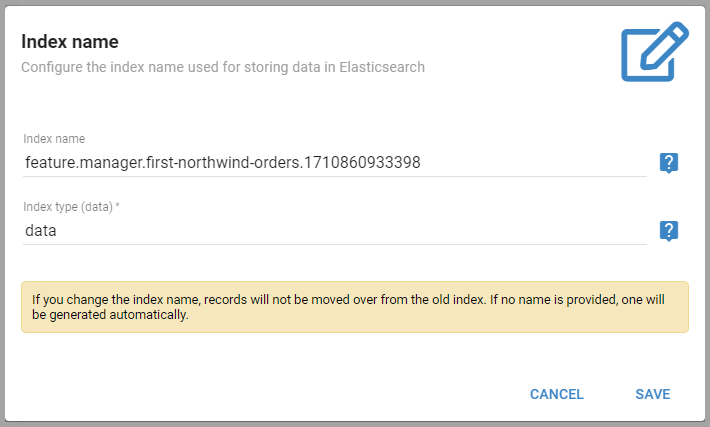
- Index name: the Elasticsearch index that stores data for this Dataset. If left blank, Informer automatically chooses a name.
- Index type (data): you can overwrite the index type for advanced indexing scenarios, such as a Query-less Dataset or newer versions of Elasticsearch. For most cases, use data.