Dataset and Script Fields
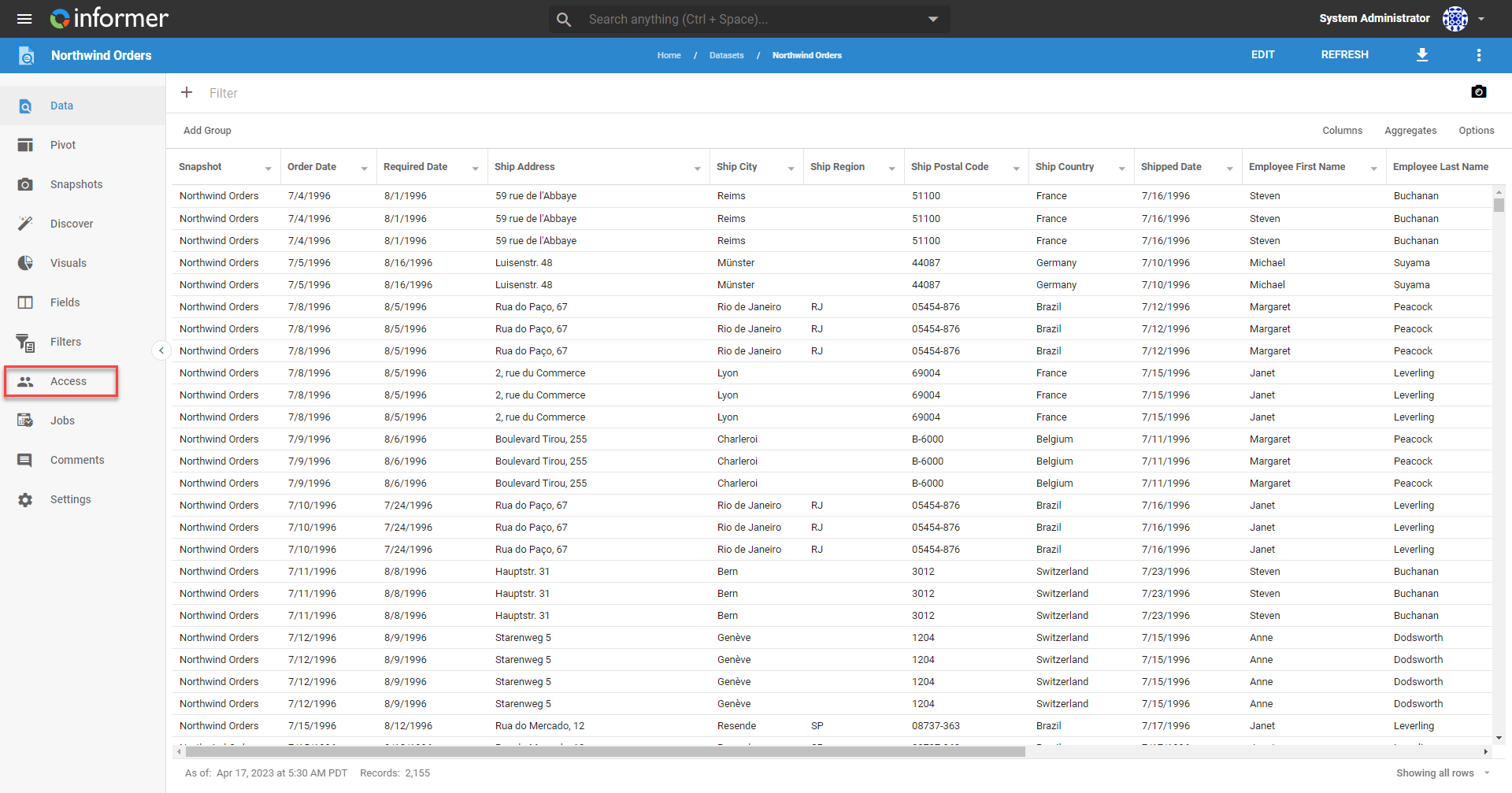
As Datasets grow more complex over time, the Fields panel provides a top-level view of all the Fields in a Dataset, along with the security each Field inherits. The Fields panel also lets you add new calculated Fields to a Dataset without refreshing the entire Dataset, called Script Fields.
Users with a role of Data Wizard or higher on the Team that owns the Dataset have access to the Fields panel.
Fields
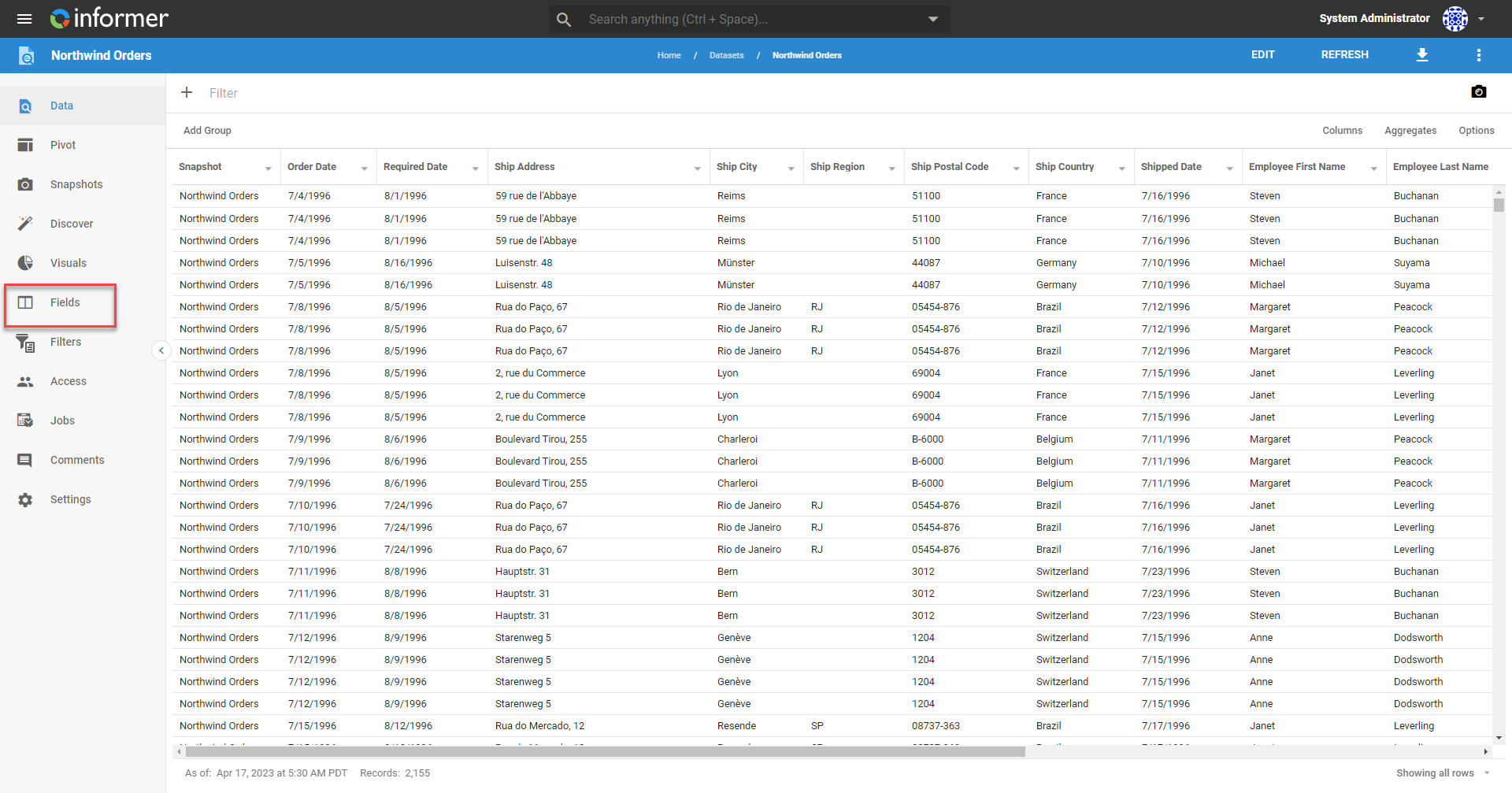
Click the Fields icon along the left side of the Dataset to open a list of all the Fields in the Dataset. This listing page provides basic summary information about the Fields, along with filtering options to find specific Fields. Use the search bar at the top to filter the list dynamically.
The left panel filters on the following categories:
- Data types: displays Fields with the selected data type (Decimal, Text, Timestamp, and so on).
- Indexed fields: displays indexed Fields in the result set.
- Script fields: displays Fields added to the Dataset as Script Fields.
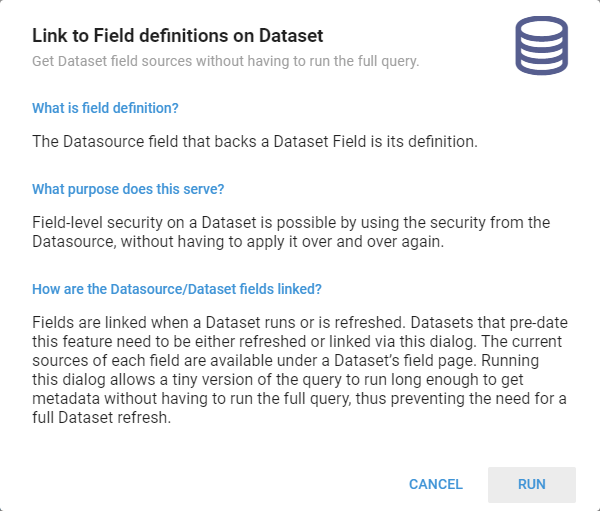
The Link Field Definitions button at the top links a Dataset's Fields with any field-level security configured for them on the Datasource, without refreshing the entire Dataset.
Script Fields
Script Fields let you add Fields to a Dataset without re-indexing the result set through a refresh. This is a good solution for Datasets that are incrementally updated and have calculated Fields whose values change over time.
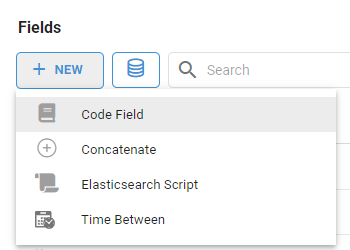
To create a Script Field, click + New on the Fields panel of a Dataset. There are four types of Script Field:
- Code Field
- Concatenate
- Elasticsearch Script
- Time Between (this option only appears if the Dataset has date or time Fields)
Code Field
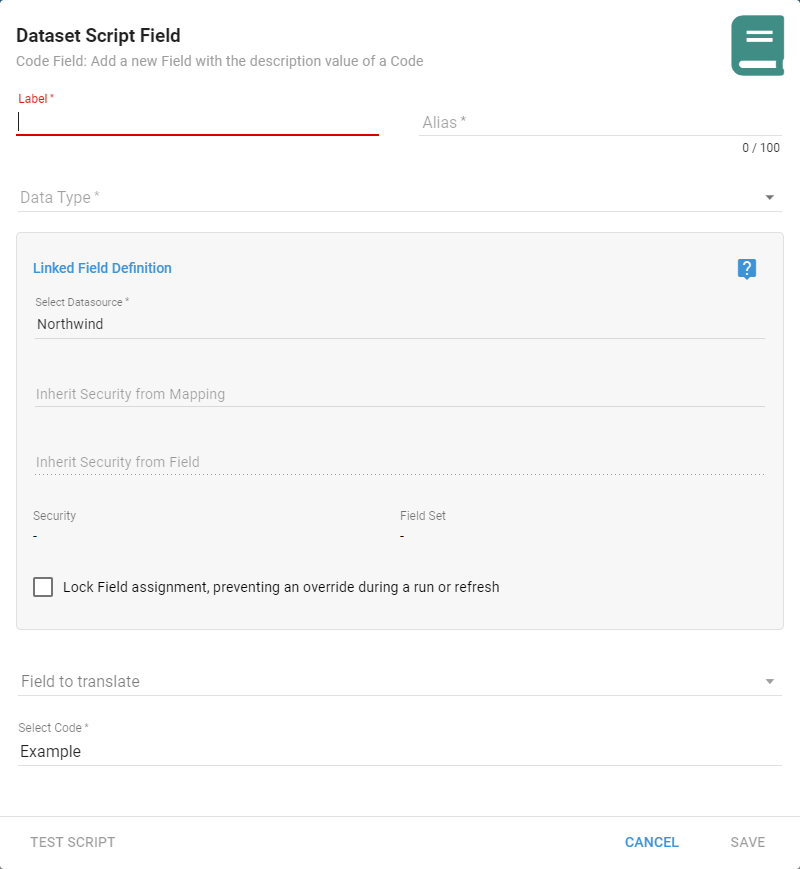
Code Fields need a Code to translate the value of a Field. See the Codes documentation to learn how to create a Code.
Name the new Field and choose its data type, choose whether to inherit security from the Mapping or Field, then choose the Field to translate and which Code to use. Click Test Script to make sure it works. In this example, the Company Name Code translates the CustomerId Field to get the full company name.
Concatenate
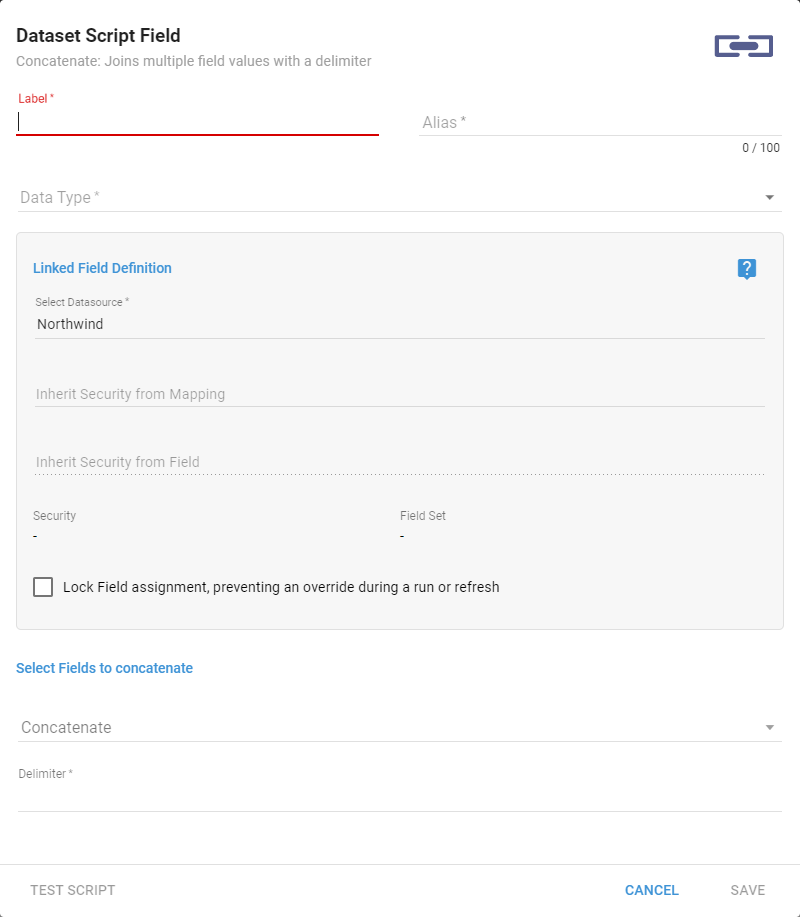
The Concatenate Field joins two or more Fields together. Name the new Field and choose its data type, choose whether to inherit security from the Mapping or Field, then select the Fields and enter a delimiter. Click Test Script to make sure it works.
Elasticsearch Script
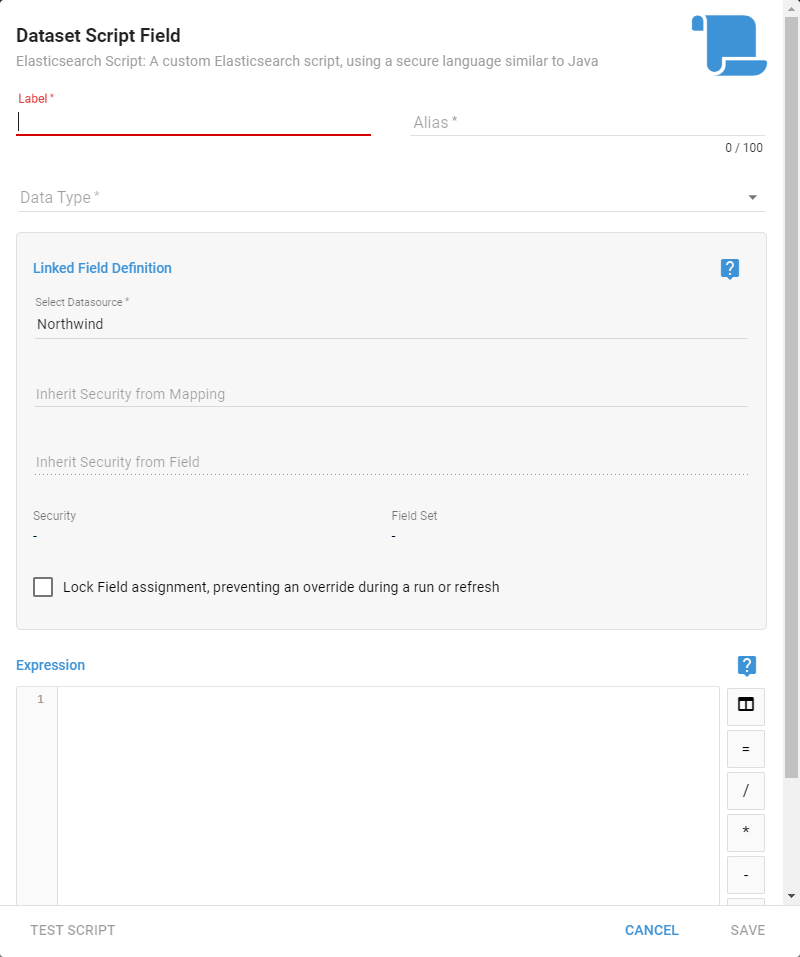
The Elasticsearch Script Field is like creating a calculated Field, but on already-refreshed data. Name the new Field and choose its data type, choose whether to inherit security from the Mapping or Field, then create the script. Click Test Script to make sure it works.
Like calculated Fields (the Add Field Flow Steps), the buttons to the right offer options to insert common pieces of logic, including Dataset Field aliases. Any Field aliases inserted with this button automatically include syntax to account for the Field being null or empty. In this example, the Quantity and Unit Price Fields are multiplied to get a Total Order Amount Field. For more on Elasticsearch scripts, see the Painless guide.
Time Between
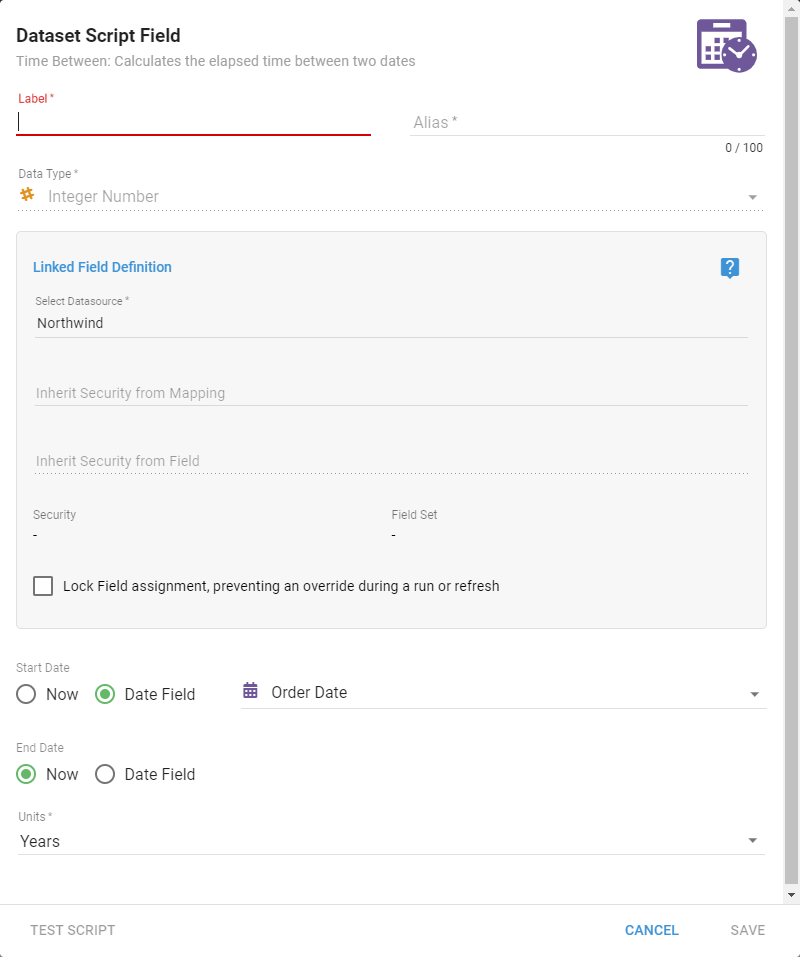
The Time Between Field calculates the time between two dates, or between a date Field and now. Name the new Field, choose whether to inherit security from the Mapping or Field, then choose the date parameters and the unit the result should use (Decades, Years, Days, Hours, or Minutes).
After you configure and add an Elasticsearch Script Field, the results display automatically without refreshing the Dataset.
Lock Field
All types of Fields have a Lock Field assignment option. Checking this box prevents the selected Fields' security from being overwritten during a Dataset refresh, so actions performed on the Dataset cannot override the Field's inherited security.