Add Field Flow Steps
Add Field Flow Steps create new Fields based on values in a Query's result set.
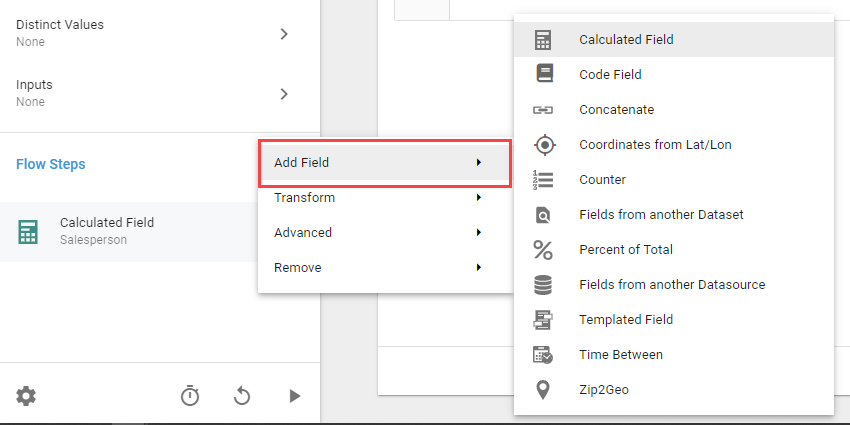
All Add Field Flow Steps have Label and Alias options. The Label is the name of the Flow Step as it appears to the User. The Alias is auto-generated from the Label (and editable) and is how Informer references the Flow Step.
Calculated Field
The Calculated Field Flow Step creates new Fields with JavaScript, deriving new values from other Fields in the Query.
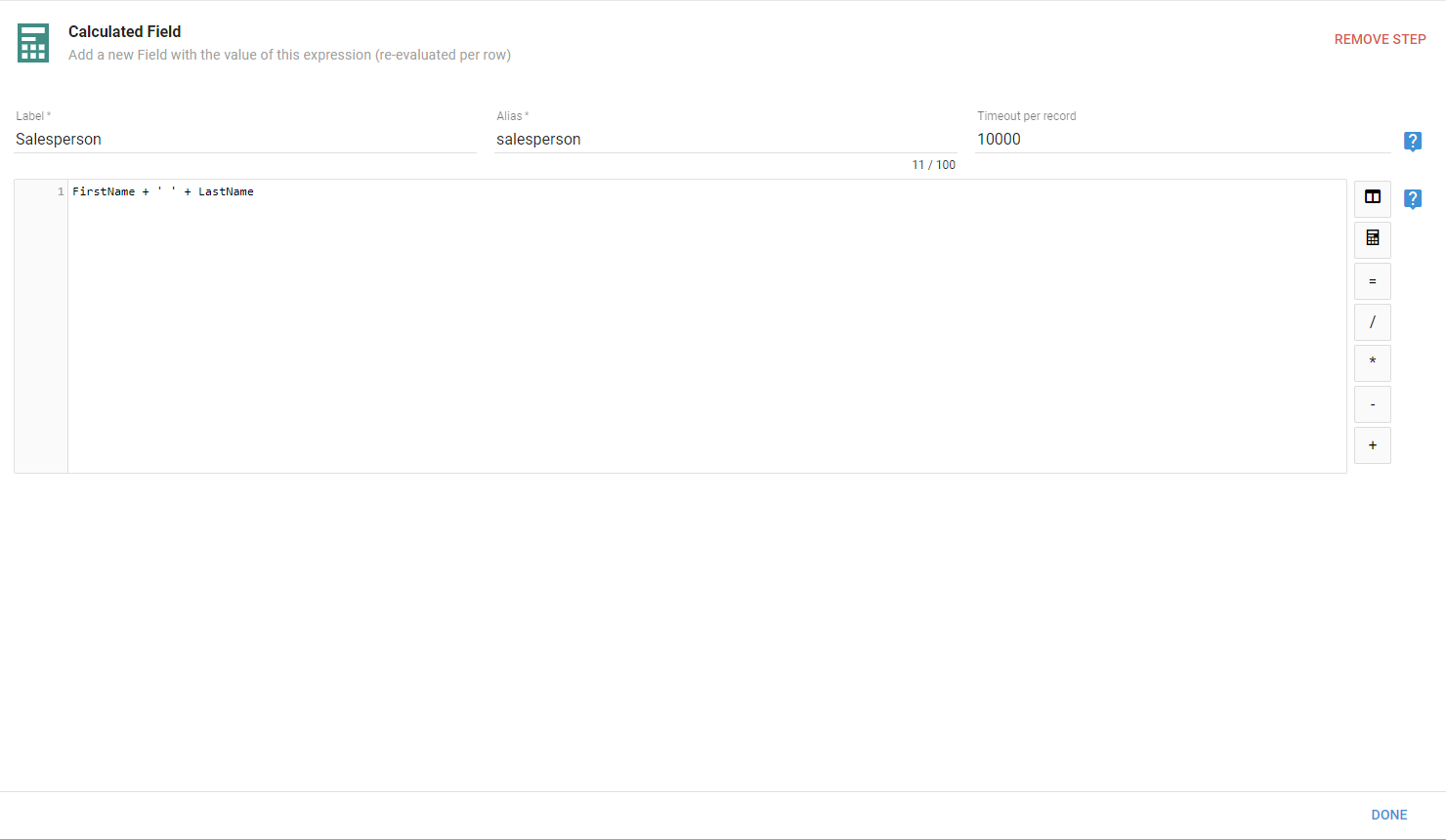
The buttons to the right insert common pieces of a Calculated Field expression:
- Timeout per record: how many milliseconds each record can take before throwing an error, which prevents the Query from locking on bad scripts. The default is 10000 ms (10 seconds). Use 0 for no limit, but that removes the protection from a runaway script.
- Insert Field: lists all Fields in the Query, including those created by earlier Flow Steps. Select a Field to add its alias to the expression.
- Insert Function: adds a Saved Function. Most Functions need Fields or values as parameters; this button opens a window to choose them. The reserved variables are
_for collection manipulation,momentfor date manipulation, and$recordfor the current, read-only data record. See Reserved Power Script variables for more. - Operators: inserts common JavaScript operators (equal, divide, multiply, subtract, and add) into the expression.
Code Field
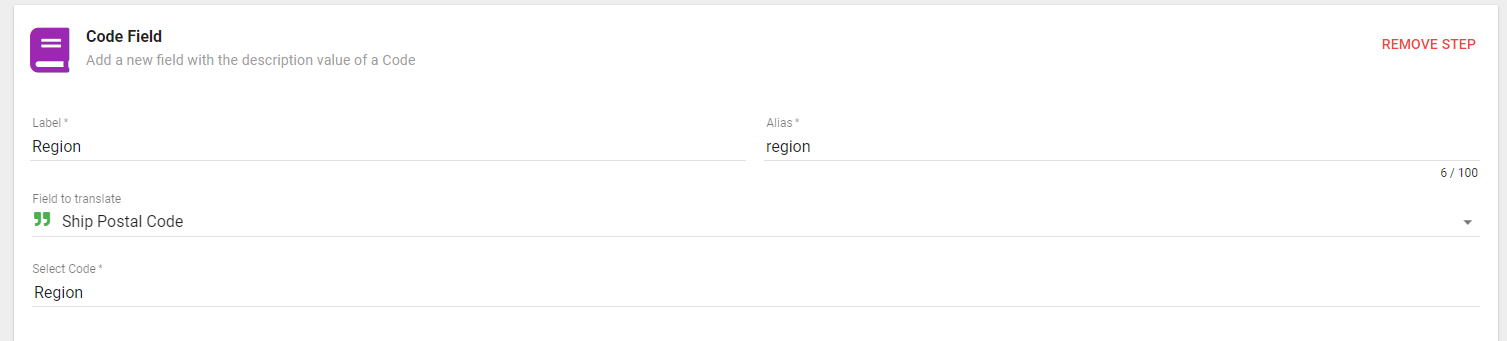
The Code Field Flow Step adds a new Field using existing Codes. Select a Field from the underlying Dataset to translate with the selected Code.
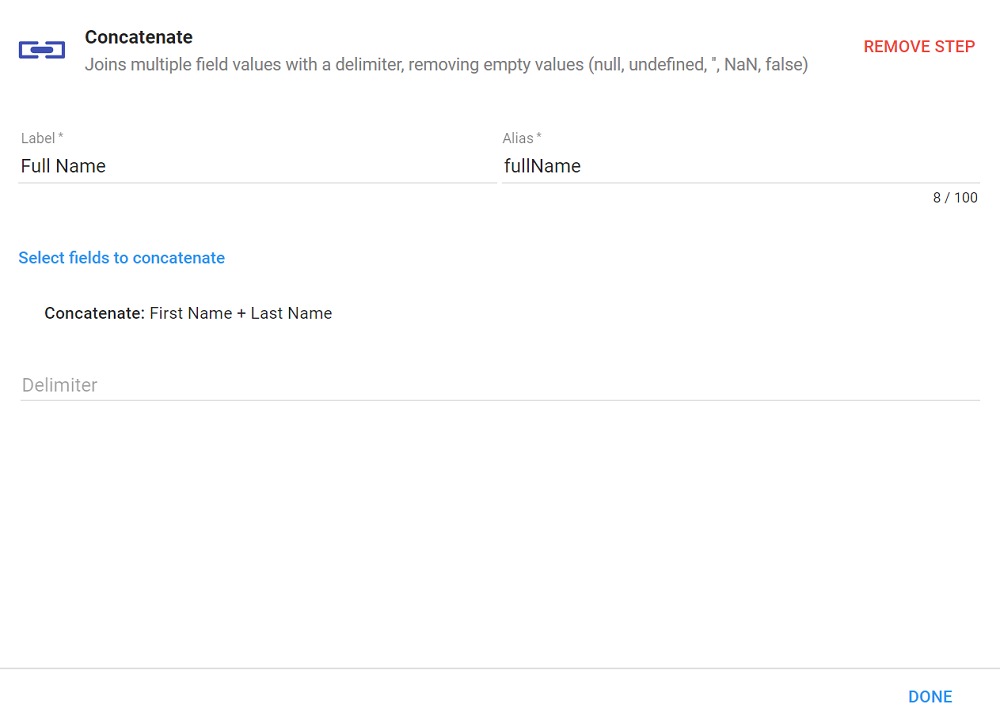
Concatenate
The Concatenate Flow Step joins two or more Fields with one or more delimiter characters between them. This is useful for combining Fields, such as a first and last name, into one. The default delimiter is a single space.
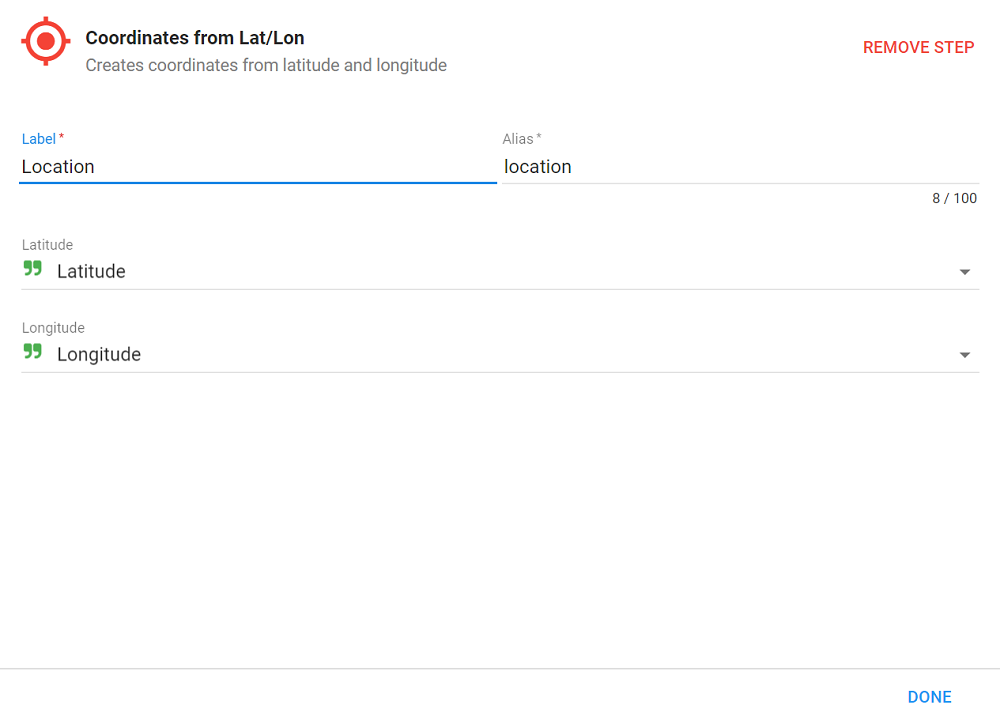
Coordinates from Lat/Lon
The Coordinates from Lat/Lon Flow Step combines latitude and longitude values into a single location value. Records with location data often store the coordinates separately, so it is sometimes necessary to convert them into a single value, for example for use in Map Visuals.
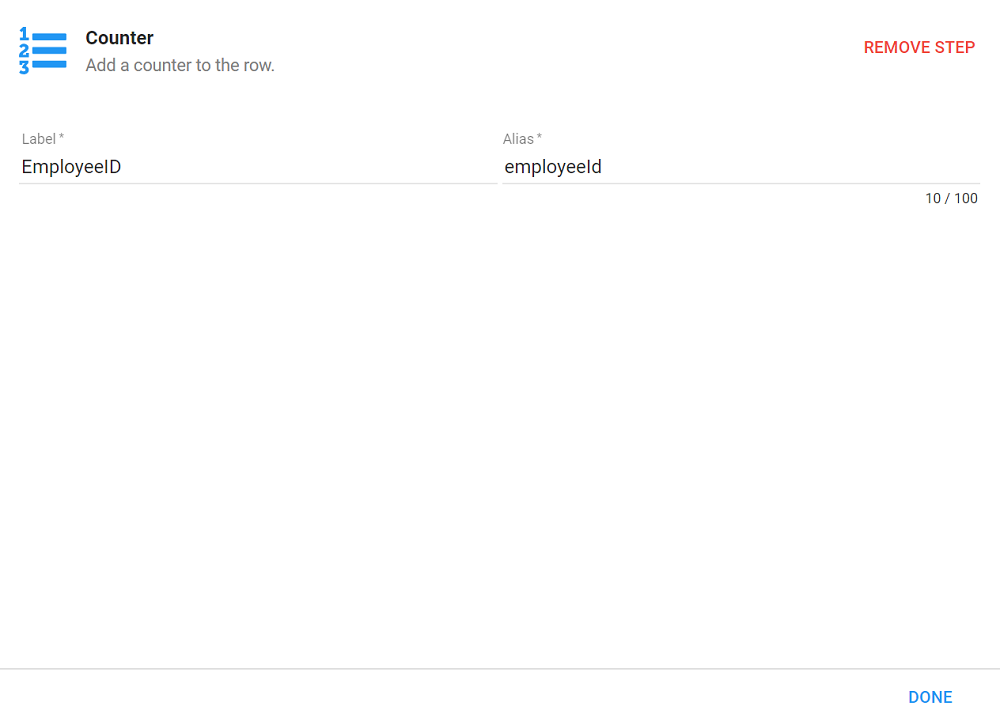
Counter
The Counter Flow Step assigns a unique, auto-incremented integer to each record returned by the Query. The order of the records at run time determines the order of the values.
Fields from another Dataset
The Fields from another Dataset Flow Step merges records from the Query into a different Dataset that shares a common Field.
- Select a destination Dataset.
- Choose the Field from the starting Query to join to the Dataset.
- Choose the Fields from the joining Dataset.
- Add extra Fields by clicking the + button at the end of the row; remove them with the - button.
- If more than one value matches in the joining Dataset, choose whether to display only the first value or all values of the array.
- Select additional Fields to add from the joining Dataset.
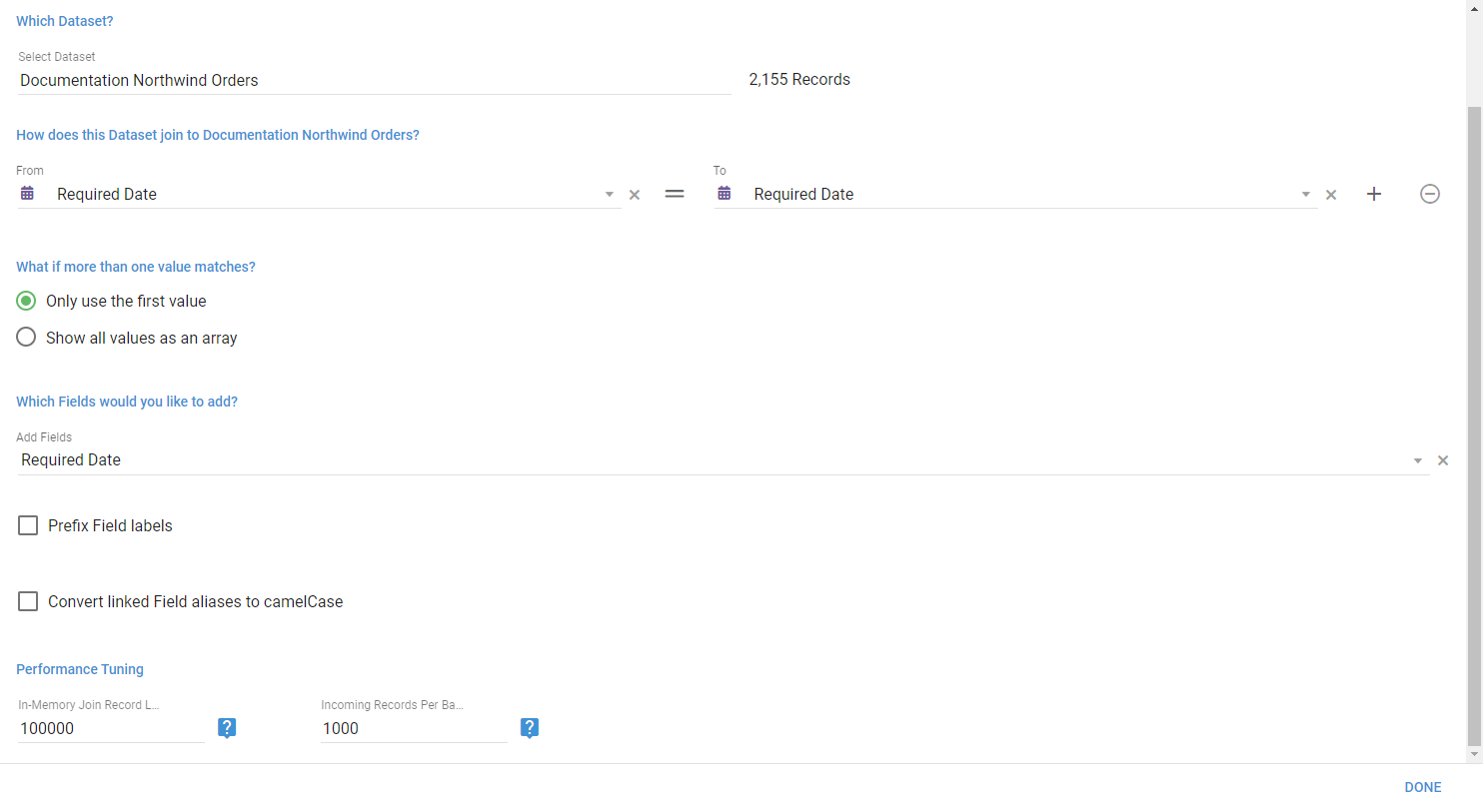
When adding a Field, more options help distinguish the joined Fields:
- Prefix Field labels: add a designated label to the beginning of each joined Field's label.
- Convert linked Field aliases to camelCase: forces all Fields brought in to have a camelCase alias. Only needed when dealing with migrated Field aliases.
- Performance Tuning: adding Fields from a large Dataset to another large Dataset can be slow in some situations. Use these settings to handle them:
- In-Memory Record Limit: the maximum number of records a joined Dataset can have before this Flow Step stops pre-fetching all joined data into memory. Above this limit, it collects distinct key values in batches and fetches joined data on demand. Higher thresholds use more memory. The maximum varies by server resources; do not increase it too far beyond the default. The default is 100000 records, the minimum 10000, and the maximum one million.
- Incoming Records Per Batch: when the in-memory limit is exceeded, this Flow Step buffers batches of this size and fetches joined data for the distinct key values in each batch. Higher values use more memory and may affect the Elasticsearch cluster. Do not set it too high if join keys are arrays, multivalued, or subvalued with many distinct elements. The default and minimum is 1000.
Percent of Total
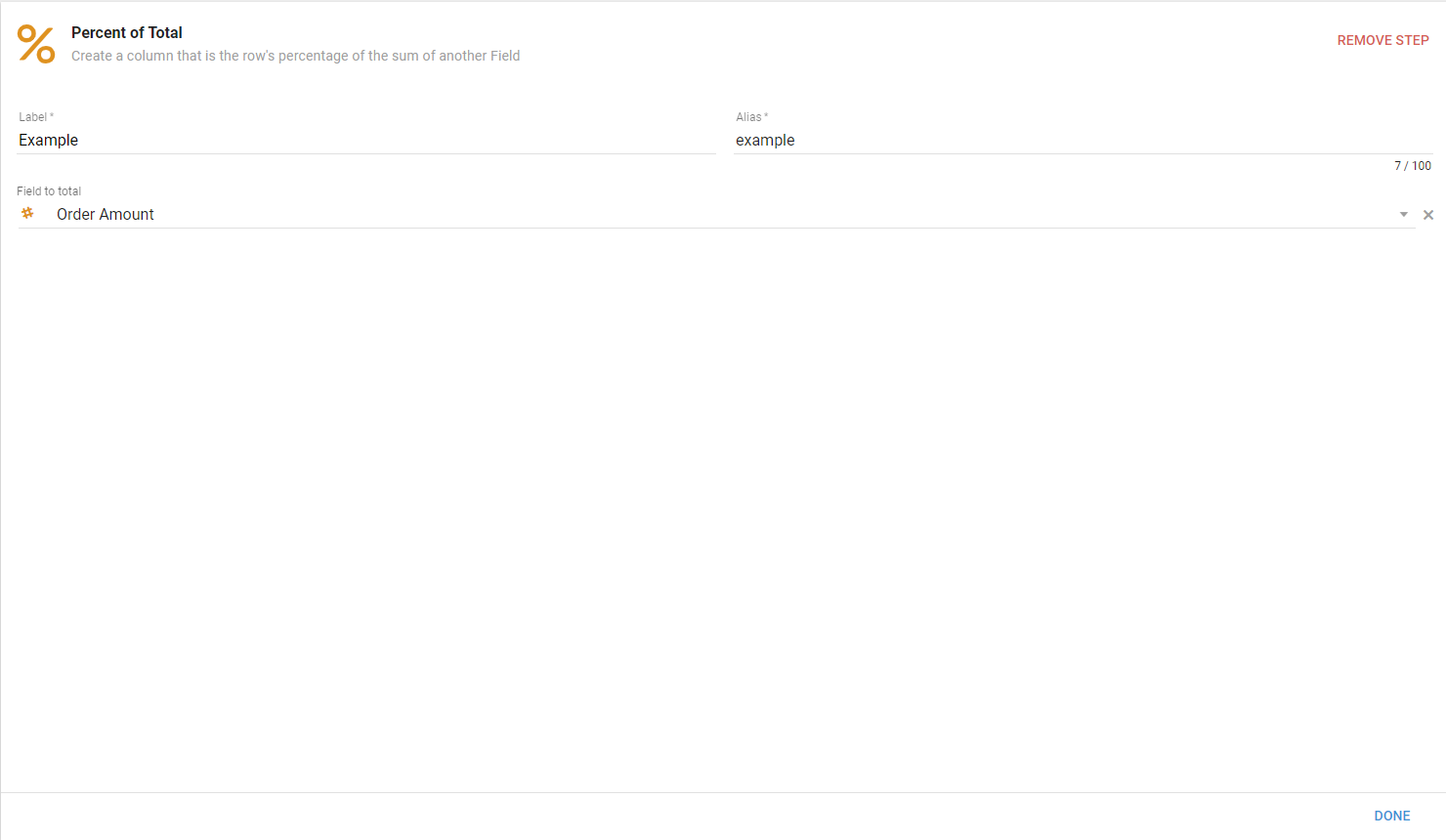
The Percent of Total Flow Step calculates the sum of a Field across all records returned by the Query, then determines what percentage of that total each row makes up.
Fields from another Datasource
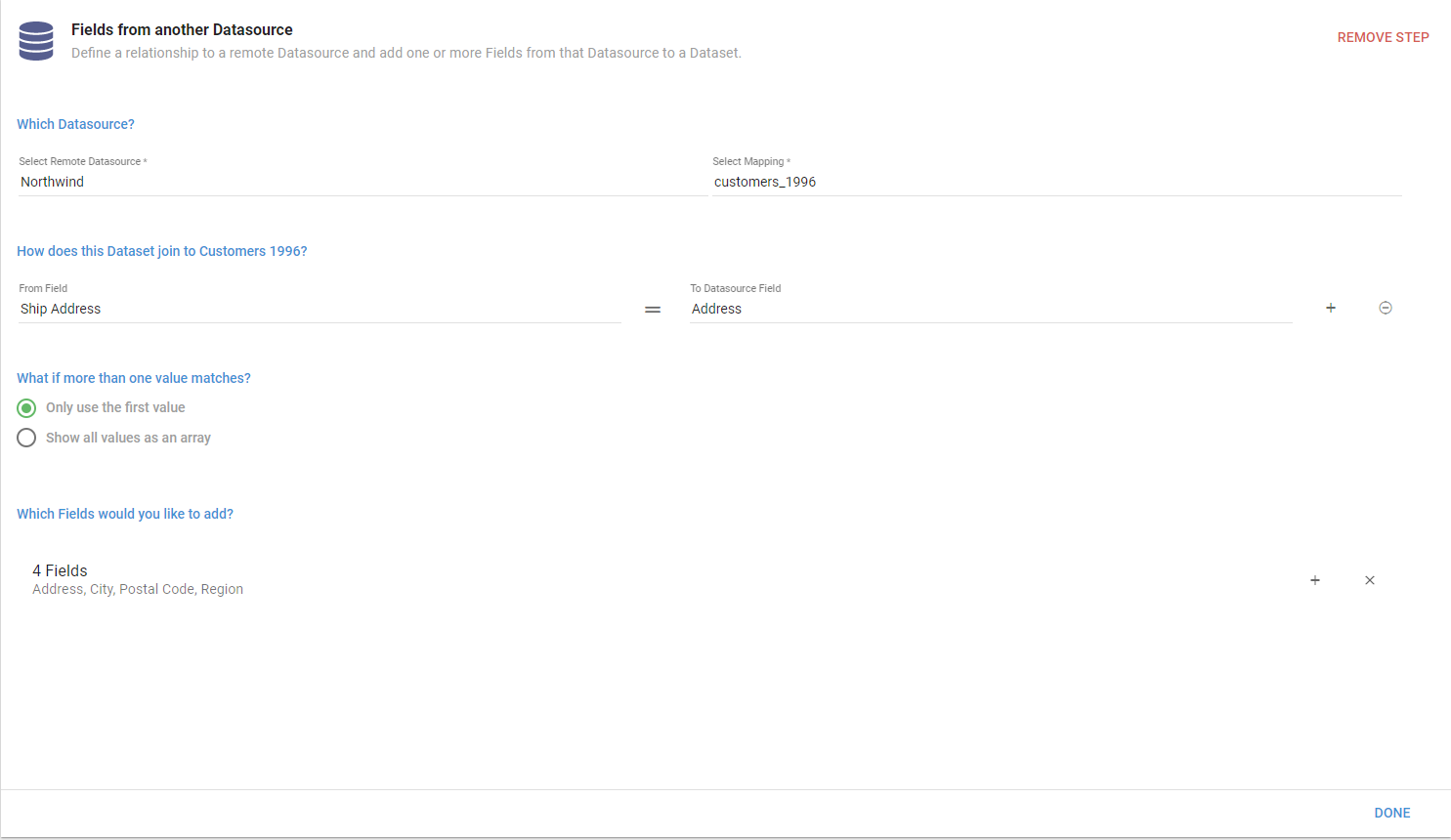
The Fields from another Datasource Flow Step joins records from different Datasources, or Mappings within the same Datasource, that share a common Field.
- Select the remote Datasource and Mapping.
- Choose the Field from the Query to join with the matching Mapping Field.
- Add extra Fields by clicking the + button; remove them with the - button.
- If more than one value matches in the joining Mapping, choose whether to display only the first value or all values of the array.
- Select additional Fields to add from the joining Mapping. Click the X at the end of the row to clear these Fields.
Templated Field
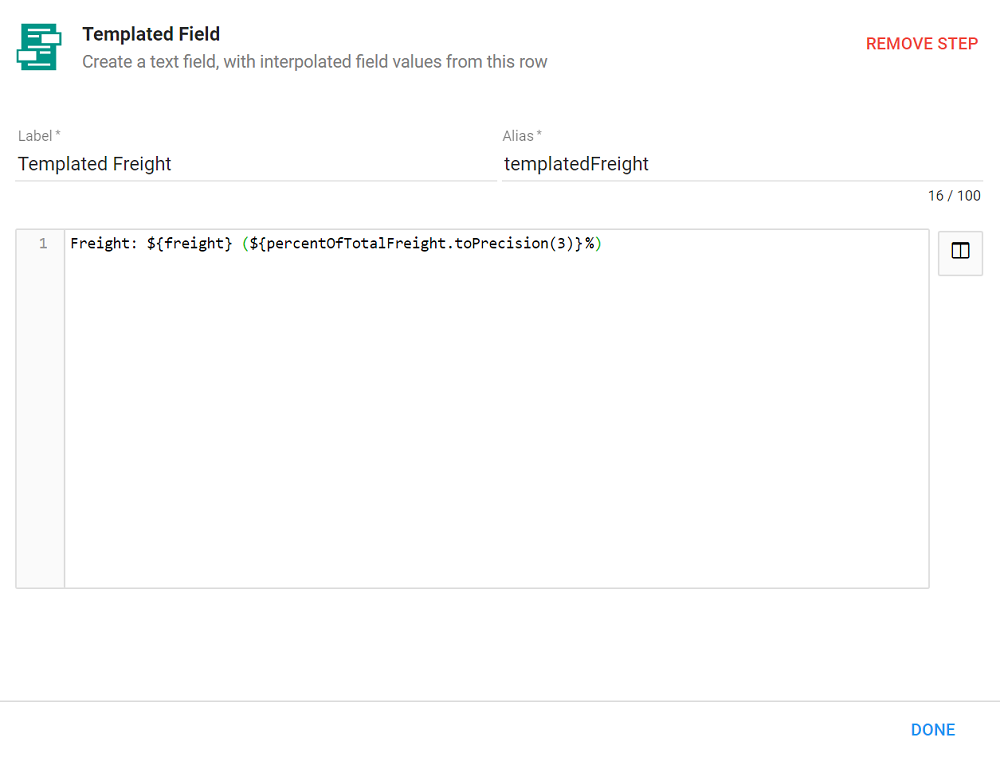
The Templated Field Flow Step creates a text Field using JavaScript template literals. Use the Insert Field button on the right to add a Field from the Query to the expression.
Time Between
The Time Between Flow Step calculates the amount of time between two date Fields. Specify the start and end dates, the units, and how to round the calculated values.
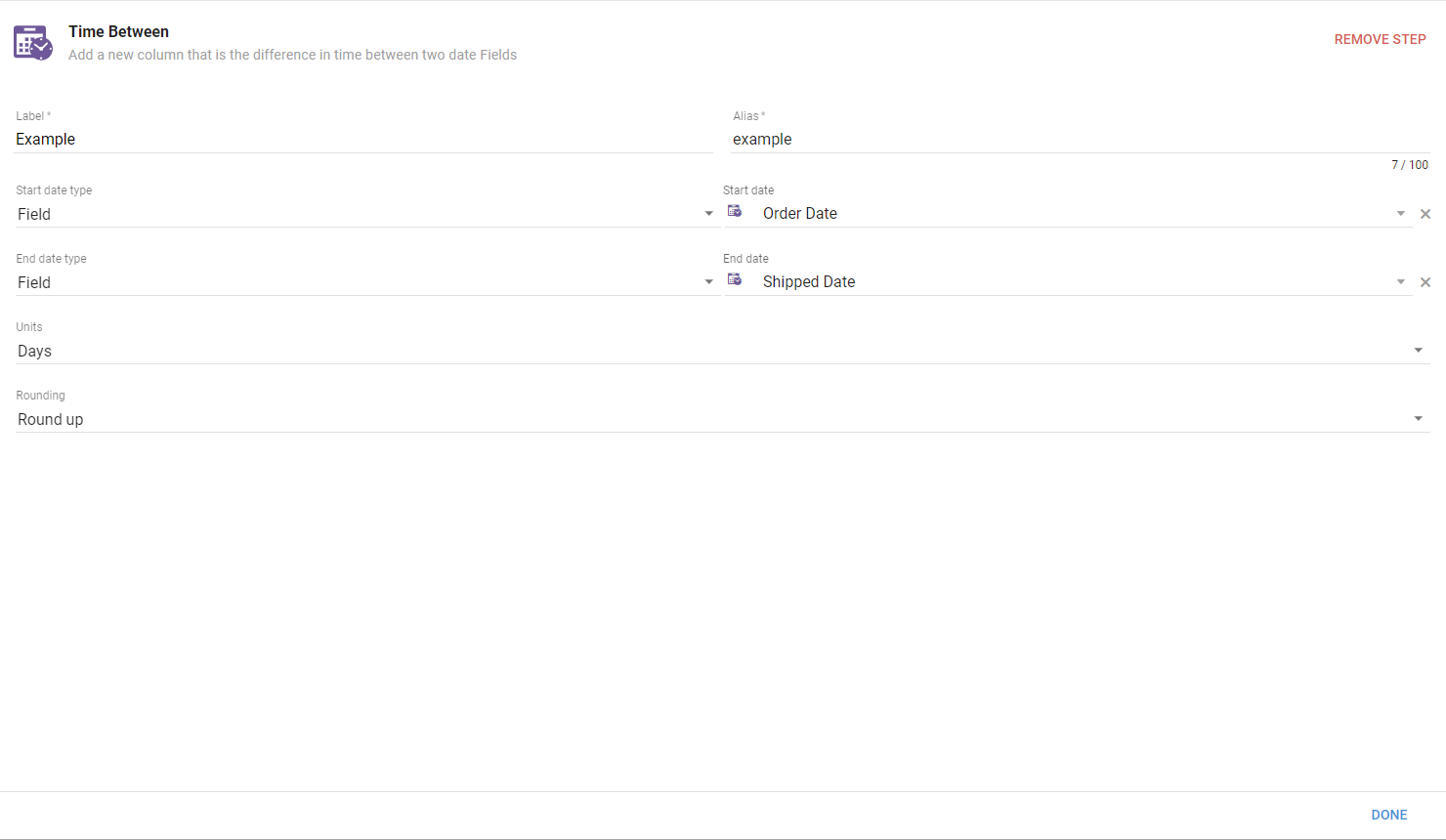
- Start / End Date and Type: select the start and end date Fields, or enter specific dates.
- Units: select the unit of time, from seconds, minutes, hours, days, or years.
- Rounding: set how the result is rounded, up, down, or to the nearest integer.
Zip2Geo
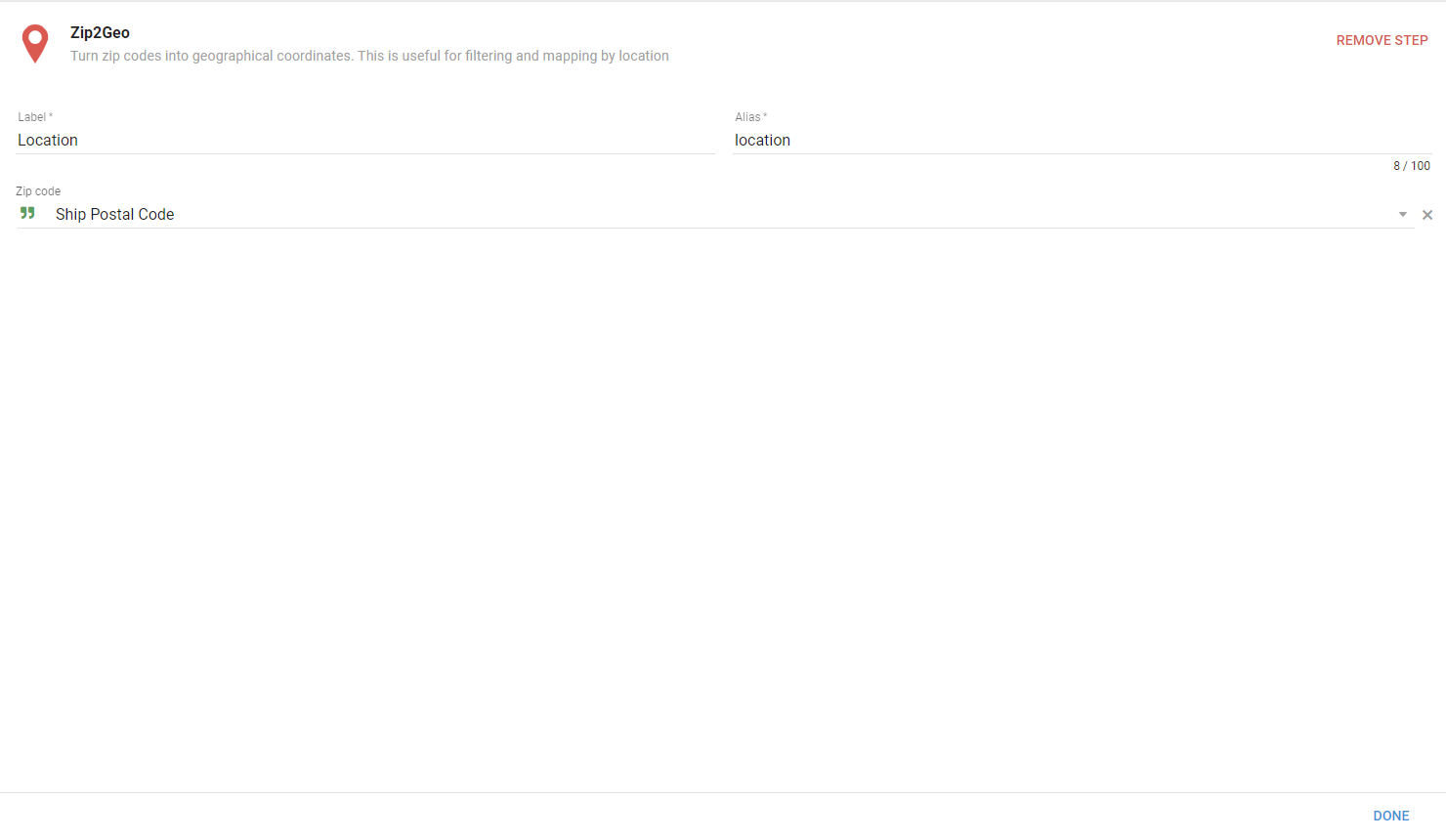
The Zip2Geo Flow Step converts a zip code into a Location Field. Map Visuals and Location Filters require a location value.