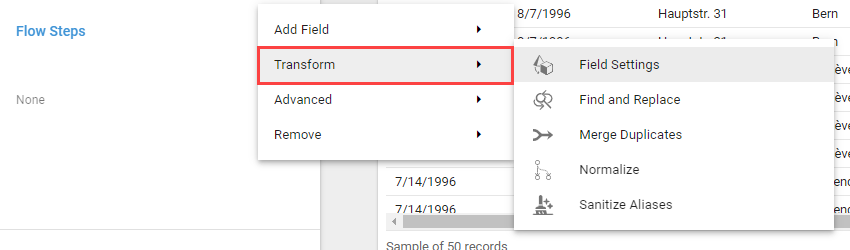
Transform Flow Steps
Transform Flow Steps modify the existing Fields, values, and structure of a Query.
Field Settings
The Field Settings Flow Step modifies the label, data type, default value, and security of the Fields in a Query.
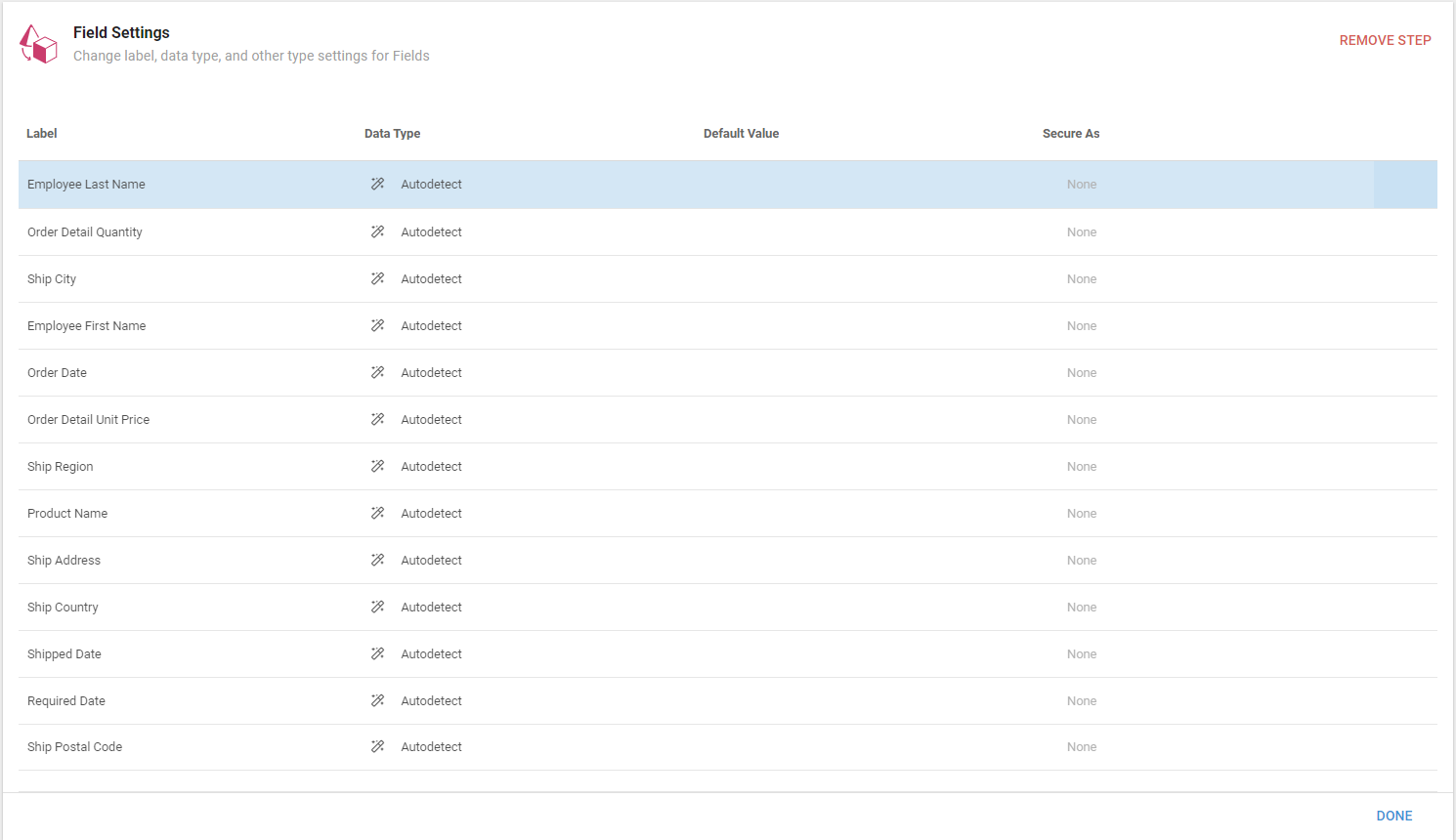
- Label: click a Field's name in the Label column to change it.
- Data Type: click Autodetect in the Data Type column to change the Field's data type.
- Default Value: set the Field's default value.
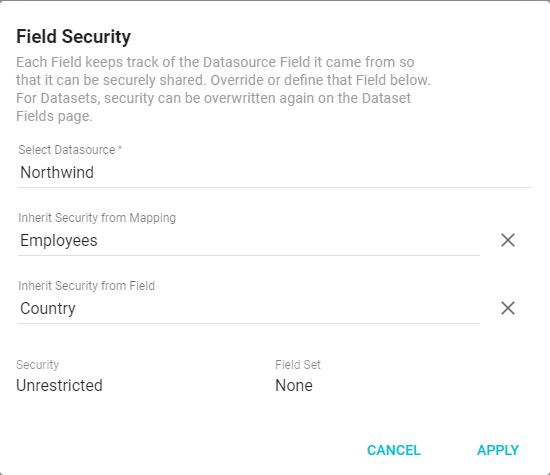
- Secure As: lets Fields inherit a different security setting from specified Mappings or Fields. This sets a security definition that prevents the Dataset Field from overwriting it. Each Field tracks the Datasource Field it came from so it can be securely shared. You can overwrite security for Datasets again from the Dataset Fields page.
Find and Replace
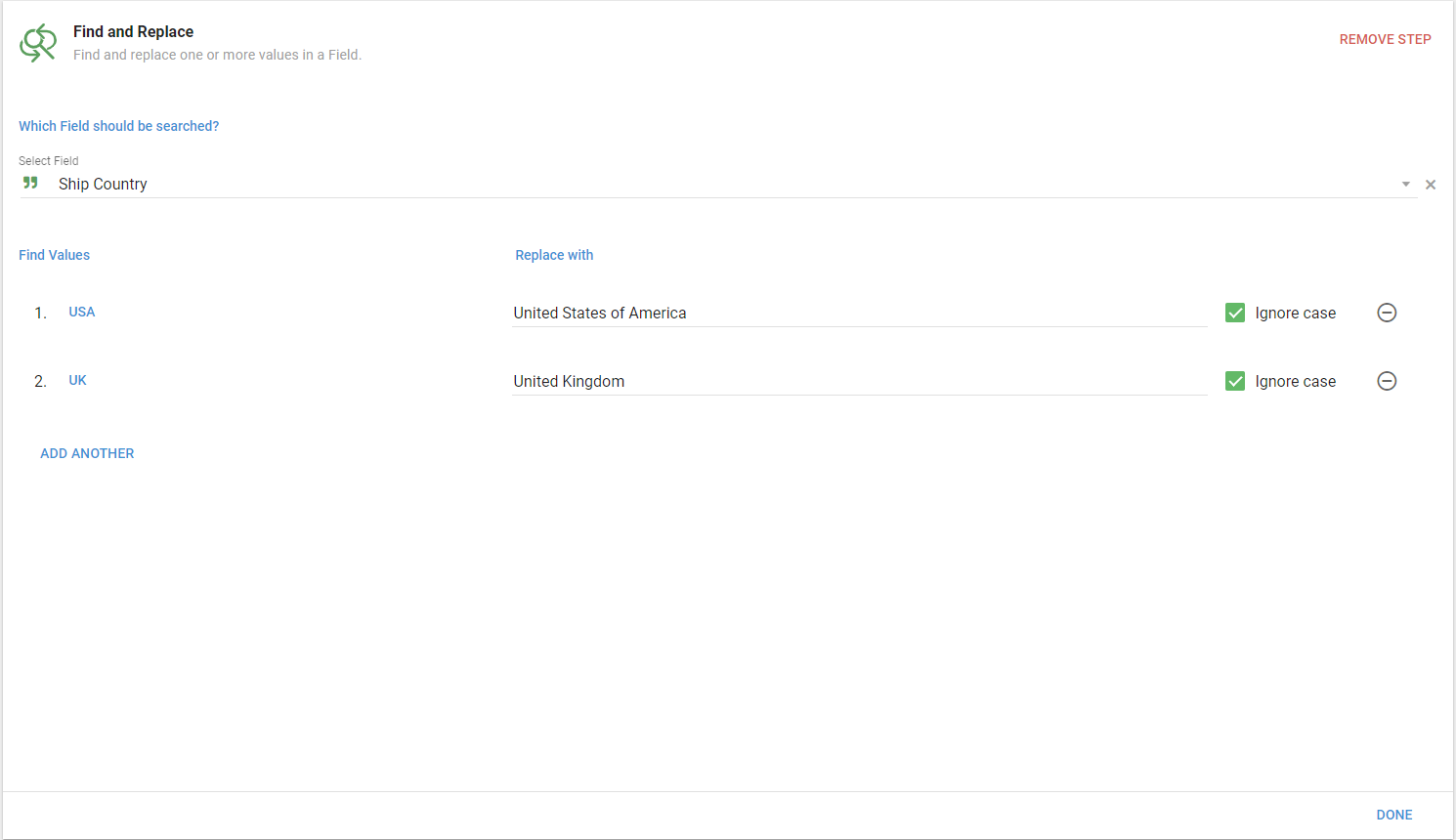
The Find and Replace Flow Step replaces all instances of a Field value with alternate values. This is useful for converting values to another format, such as "USA" to "United States of America".
Merge Duplicates
The Merge Duplicates Flow Step merges records that share the same value for a Field into a single row. When you select multiple Fields, Informer creates a new row for each unique combination of the selected Fields' values that the Query returns records for.
Requirements for Fields to merge
All selected Fields must be:
- Single-valued: one value per row.
- Non-complex data types: no arrays, objects, or other complex structures (such as location).
The following are not allowed:
- Object types or other complex structures
- Arrays or collection types (even if they currently hold only one value)
- Multivalues or subvalues
- Linked virtual Fields that return multiple values
- Fields added via remote links with "values as arrays"
- Fields added via a "Fields from another Datasource or Dataset" Flow Step with "values as arrays"
Before using Merge Duplicates, make sure each target Field has a single value per row. If your data contains arrays or objects, add Flow Steps first to normalize or flatten them, for example by extracting a property from an object, picking the first or last item in an array, or calculating a min or max value.
Configuring Merge Duplicates
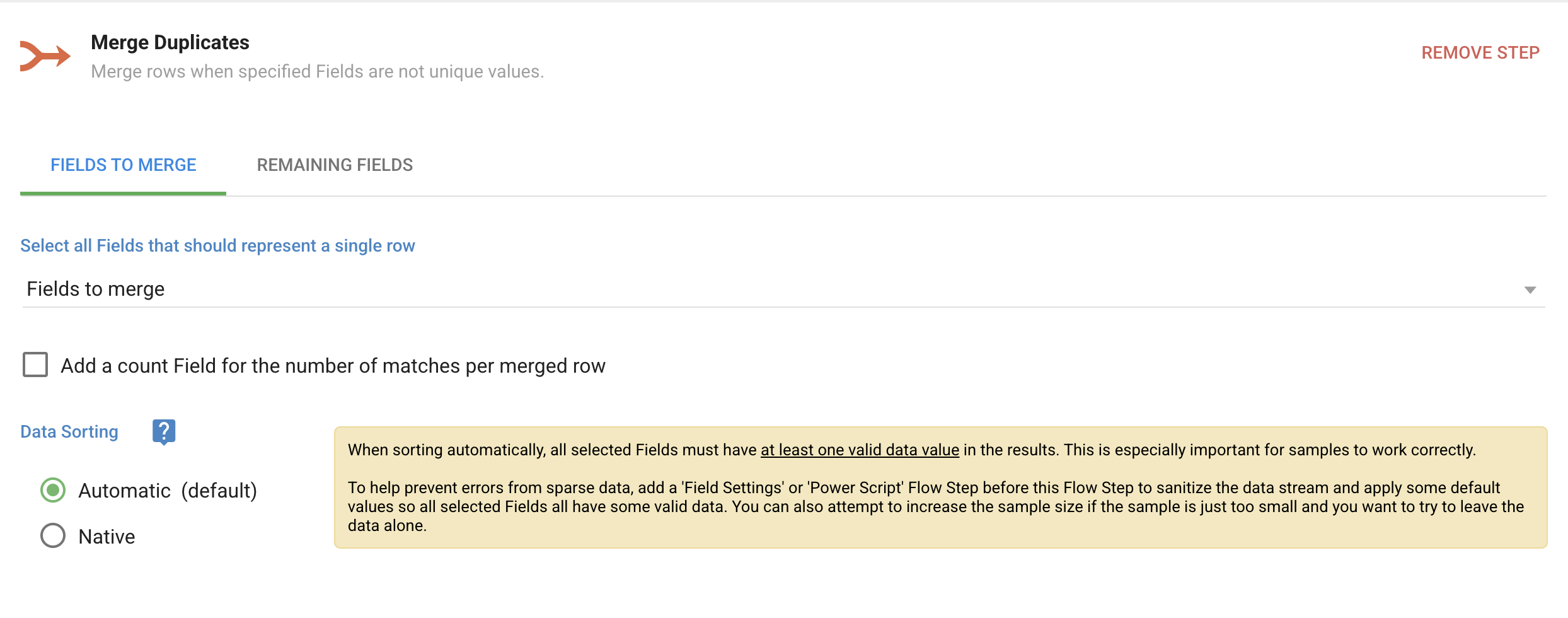
Configure Merge Duplicates from the Fields to Merge screen. Select the target Fields from the dropdown by searching or selecting a value; the selected Fields result in a single row. Then choose from the following options:
- Add a count column indicating how many matches were made per row. Selecting this creates dialogs for the column's Label and Alias.
- Data Sorting:
- Automatic (default): the most flexible option. It can merge on any Fields, including those added by Flow Steps, and handles sorting by flushing data to a temporary Elasticsearch index where sorting occurs on the target Fields according to Elasticsearch datatype rules.
- Native: the fastest option, but it requires the data to already be sorted by the target Fields. You must manually keep the selected Fields synchronized with the native sort order; any mismatch produces unexpected or incorrect results. This works only with Dataset Fields, not Flow Step Fields.
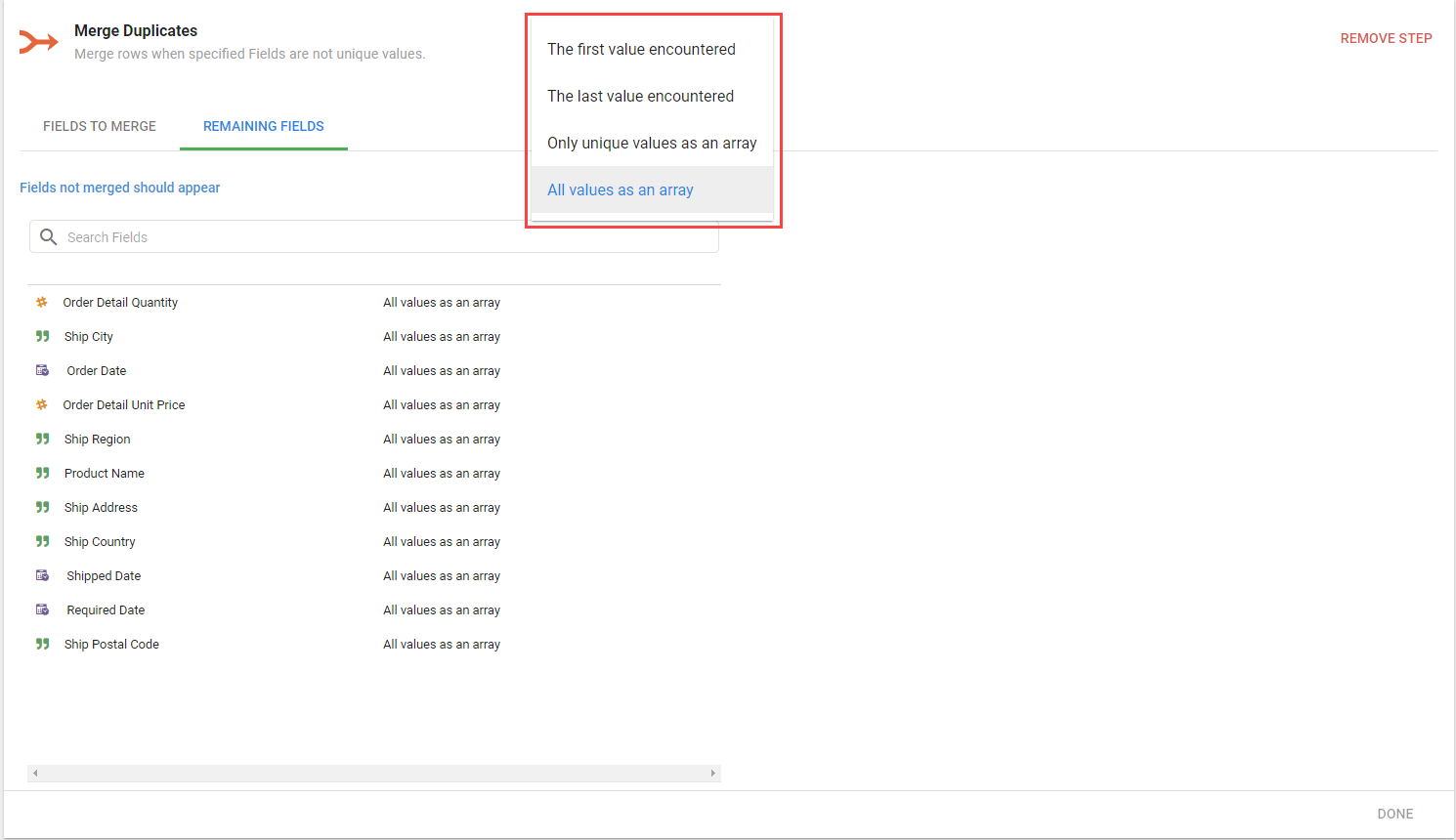
The Remaining Fields tab lists Fields not already in the Merge Duplicates Flow Step. Each has four options for how it appears in the results:
- The first value encountered
- The last value encountered
- Only unique values as an array
- All values as an array
The Merge Duplicates Flow Step creates a single row from duplicated information.

Interaction with Upsert Mode Datasets
If you use Merge Duplicates on an Upsert Mode Dataset, note these interactions:
- The Upsert key must be a scalar value.
- If the Upsert key is not one of the target Fields selected for Merge Duplicates, and you leave the Merge setting as "All values as an array," the Dataset fails to run.
To avoid this, either keep the Upsert key scalar by setting its merge option to "The first value encountered" or "The last value encountered," or include the Upsert key in the merge Fields.
For more about Upsert mode Datasets, see Refresh behavior. For a more detailed look at Merge Duplicates, see Merge Duplicates: behavior, errors, and troubleshooting.
Normalize
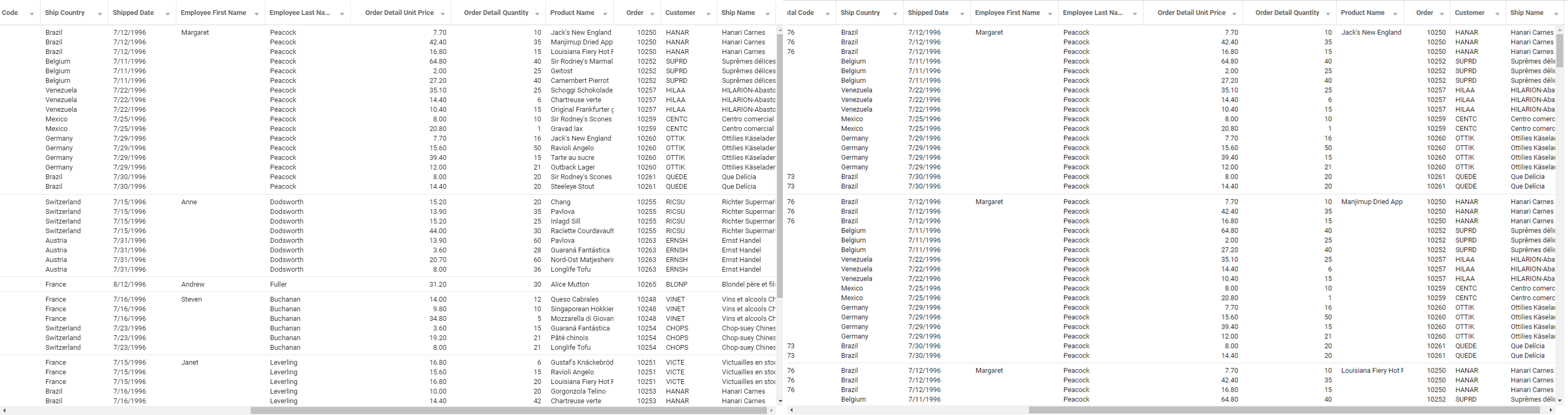
The Normalize Flow Step splits array values into individual rows, one for each value in the array. The Apply criteria to normalized values option evaluates each split row against the original Select Criteria. If enabled, do not change the alias of a Field that is also used in the criteria.
Do not sanitize aliases until after running this Flow Step.
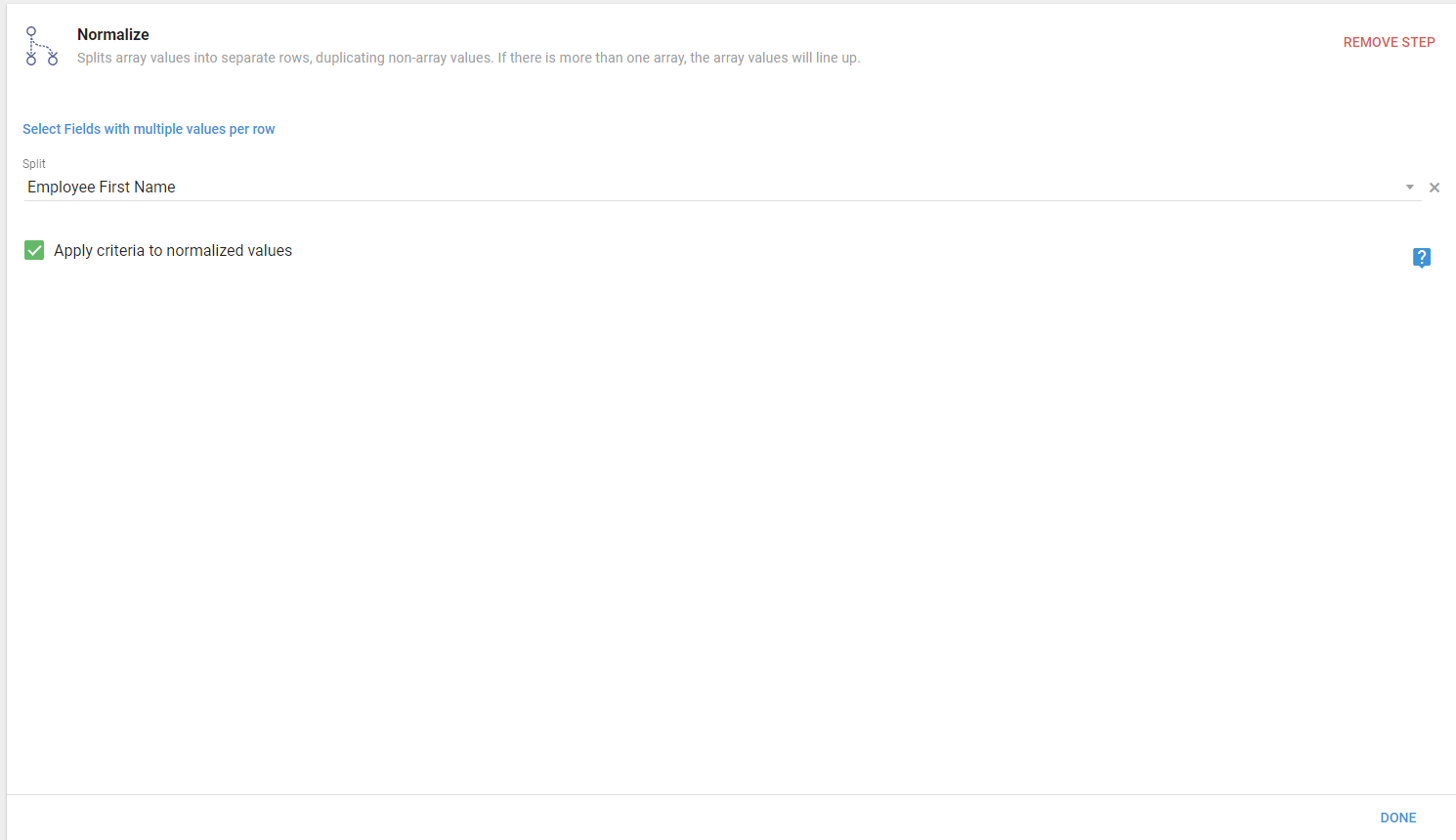
The Normalize Flow Step creates separate rows for each value in an array.
Sanitize Aliases
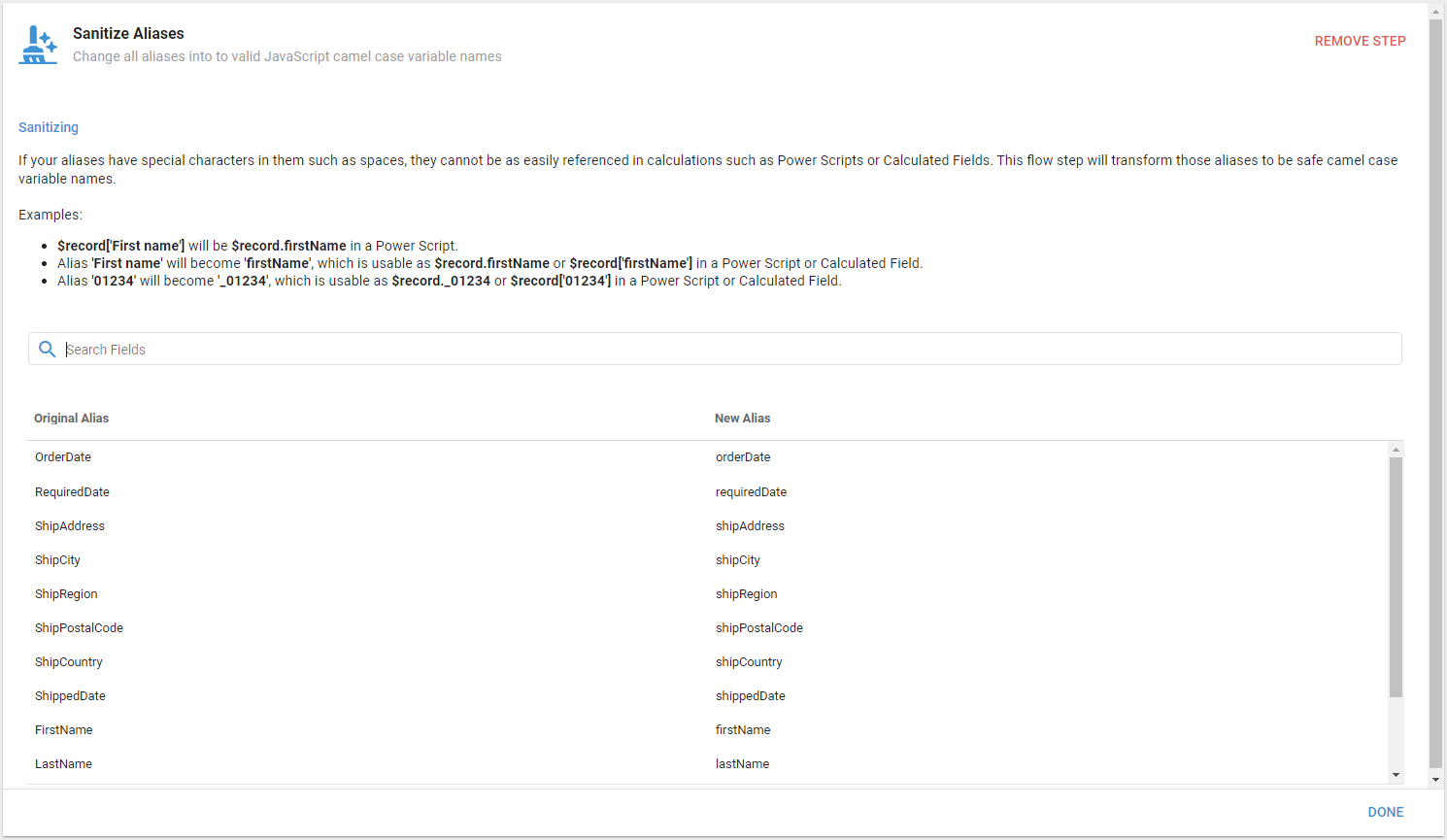
The Sanitize Aliases Flow Step transforms aliases into safe camelCase variable names. Referencing aliases with special characters such as spaces is difficult in calculations, so this Flow Step makes them easier to use in Power Scripts or Calculated Fields. For example, the alias First Name becomes firstName, usable as $record.firstName in a Power Script or $record['firstName'] in a Calculated Field.