Creating a Dataset
One of the first steps to building content in Informer 5 is to create a DatasetA saved, queryable collection of data pulled from one or more Datasources. Datasets are the foundation for reports, dashboards, and AI data analysis. to store data.
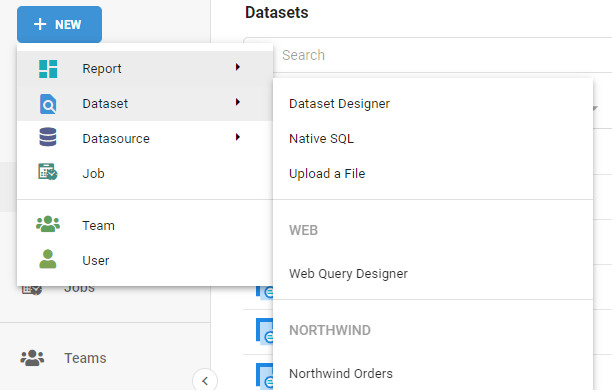
Create a Dataset by clicking the + New button. There are four ways to create a Dataset: through the Dataset Designer, as a Native SQL query, by uploading a file that already contains data, or through the Web Query Designer. There are also prebuilt Northwind Orders Datasets available.
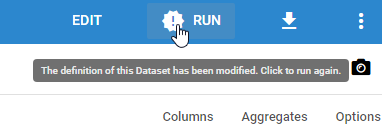
Several changes to a Dataset prompt a refresh. These are anything that affects the underlying data, including changes to criteria, Flow Steps, aliases, or Field selection. Changes that do not alter the data, such as Field labels, column names, column order, or display formatting, do not trigger a refresh prompt.
Dataset Designer
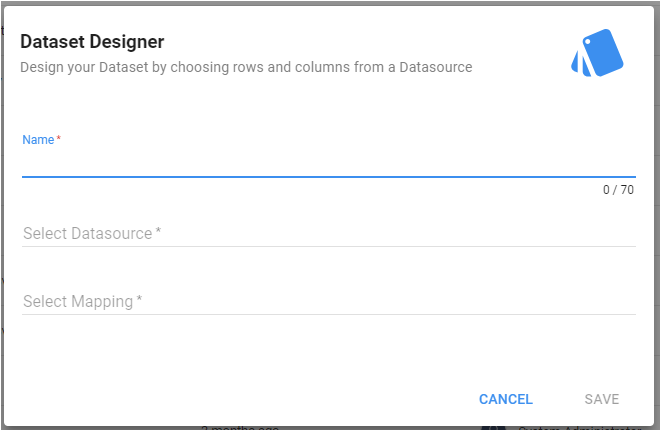
The Dataset Designer is the most user-friendly and recommended option, because you do not need to be familiar with writing queries in a native database language (SQL, TCL/ECL, and so on). After a few clicks, Informer 5 translates the query you design in the UI into a native query that gets sent to the database.
Informer 5 prompts for some basic information when creating a Dataset through the Dataset Designer:
- Name: what the Dataset is called.
- Select Datasource: which Datasource the Dataset is built from.
- Select Mapping: which Mapping (file or table) inside Informer 5 the Dataset starts from.
Native SQL
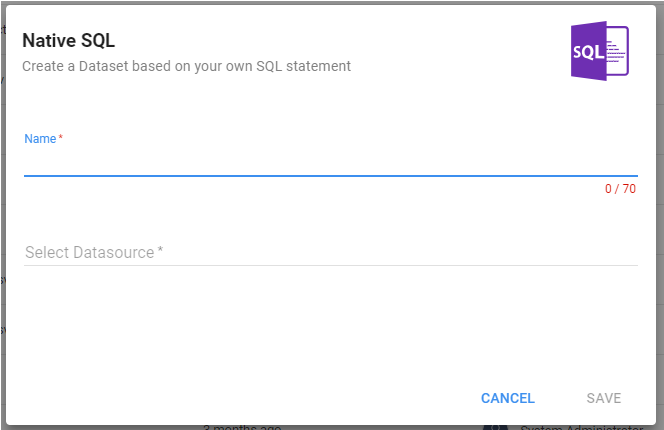
The Native SQL option lets you enter the exact SQL statement sent to the database. This is useful when you want direct control over the query, but it means you need to be familiar with writing native SQL. This option does not provide the other UI options the Dataset Designer offers. It is also useful for migrating pre-existing queries from other SQL systems.
Informer 5 prompts for some basic information when creating a Native SQL Dataset:
- Name: what the Dataset is called.
- Select Datasource: which Datasource the Dataset is built from.
Upload a file
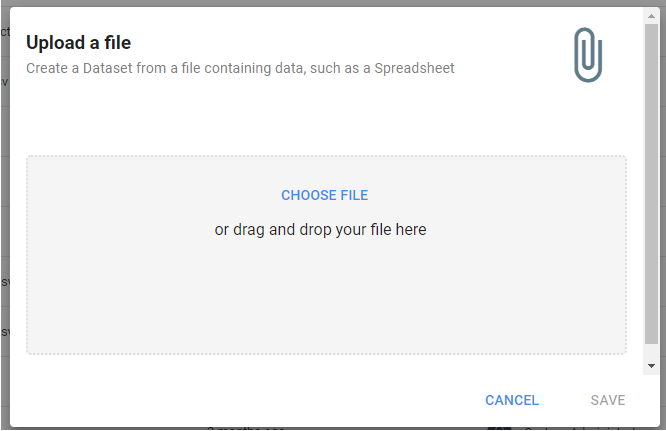
Uploading a file into Informer 5 takes the data from the file, usually in CSV format, and converts it into a Dataset. The resulting Dataset contains static information that is not based on any database query; it is the exact data from the file at the time of upload. This is generally used to consolidate data from multiple sources into Informer 5, and it is helpful for creating Informer 5 Visuals from a spreadsheet.
To upload a file, either drag and drop a file into the Informer 5 window or click Choose File to open a file explorer.
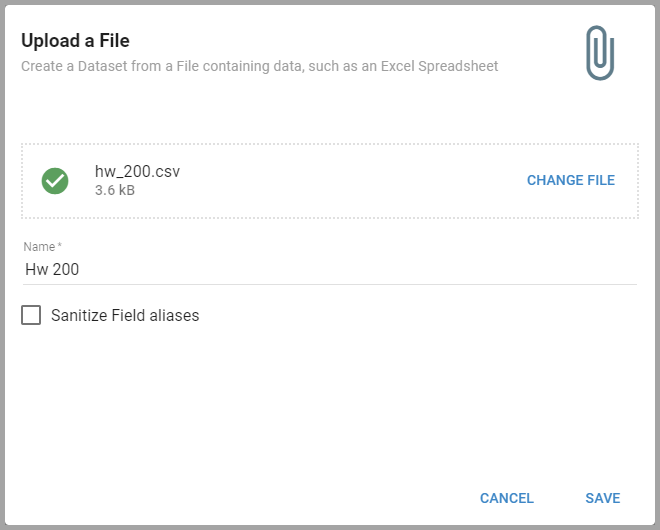
After selecting a file, type a name for the Dataset and click Save. Checking Sanitize Field aliases converts the file's column headers into safe, snake-case Field aliases for the resulting Dataset.
Editing or replacing a file inside the Query editor renames all of the Field aliases.
When using the Dataset Designer, the next step is to add Fields to the Dataset. For more on editing and interacting with the Query component of Datasets, see the Queries section of the Help Center.
Web Query Designer
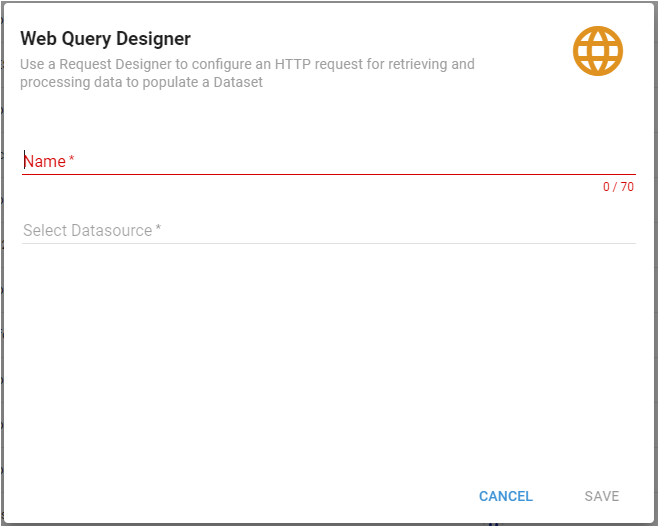
The Web Query Designer uses a Request Designer to configure an HTTP request that retrieves and processes data to populate a Dataset. Name the Dataset and connect to a REST Web API Datasource to create it. See Creating a Web Query Dataset.
Northwind Orders
If the Northwind Orders feature is enabled in Informer, you can create a sample Dataset from the information in Northwind Orders. All it requires is a name (the default is Northwind Orders). Use this Dataset to experiment with the features of Informer 5.