Creating a Web Datasource
A Web Datasource connects Informer to a REST web service, so you can pull data from SaaS tools and other external systems that are not installed in your environment. The driver connects to a REST endpoint with a URL and authentication credentials.
Create the Datasource
Click New, hover Datasource, and select REST Web API under the WEB category.
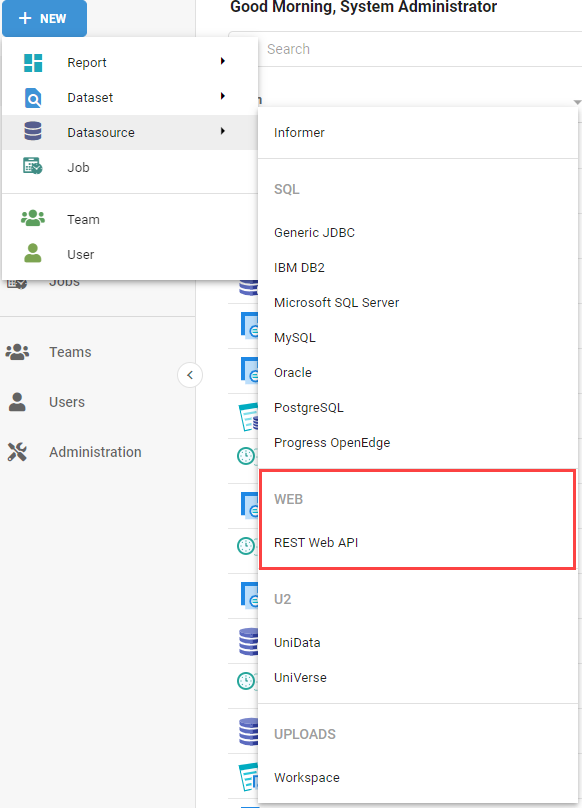
Then fill in the connection details:
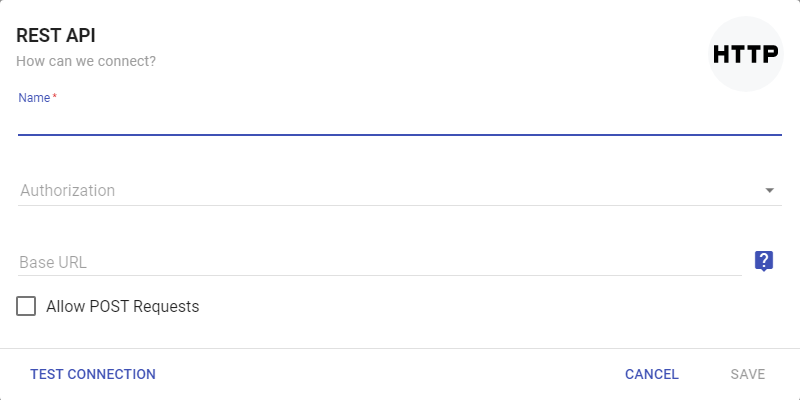
- Name: a name for this Datasource.
- Authorization: how to authenticate to the REST endpoint (see Types of authorization).
- Base URL: the URL Informer issues requests to. It should not include individual routes or parameters, for example
https://myinformer.myorganization.com, nothttps://myinformer.myorganization.com/api/datasets?token=xyz. - Allow POST Requests: check to let Informer issue POST requests (which may let it change web data).
- Strict Response Content Negotiation: enforces that the response's
Content-Typeheader matches the request'sAcceptheader before the response parser runs, which keeps unhandled response structures from reaching the parser. Enabled by default; disable it only if the web service ignoresAcceptheaders or omitsContent-Typeheaders. With it on, a web Query should set anAcceptheader matching the parser's expected structure (application/jsonis the default), and a missingContent-Typereturns a 406 error while an unacceptable one returns a 415. - Timeouts & Timers:
- Request Timeout: the maximum round-trip time, in milliseconds, Informer waits for any single request (including auth and token requests). Should be well below the streamed record timeout. Default
5000, minimum1000. - Streamed Record Timeout: the maximum time, in seconds, allowed before the first record streams, or between any two records once streaming starts. If it expires, the stream stops, results are discarded, and the run ends with a timeout error. Should be well above the request timeout. Default
1800(30 minutes), minimum60. - Default 429-status Retry Interval: the retry delay, in seconds, when a 429 (Too Many Requests) response arrives with no
Retry-Afterheader. Default10, minimum1.
- Request Timeout: the maximum round-trip time, in milliseconds, Informer waits for any single request (including auth and token requests). Should be well below the streamed record timeout. Default
Types of authorization
The Web Datasource supports five authorization types: API Key, Basic Auth, Bearer Token, No Authorization, and OAuth v2.0. Each has its own required fields. The base URL is prepended as-is to the endpoints configured for Datasets or mapped metadata; if absent, you supply the full request URL per Dataset. The base URL must follow the WHATWG URL Standard:
- It should include the protocol (required), hostname (required), port (optional), and pathname (optional).
- It should not include authentication (use the Datasource auth driver), search or query (use query params), or a hash (ignored).
API Key: a private alphanumeric key (the Value, typically 20-128 characters) under a named Key, placed either in the request headers or the query params (the Location).
Basic Auth: a Username / Email and a Credential (an API token, password, or similar). An API token is preferable to a password because it is manageable, traceable, easily revoked, and can be set to expire.
Bearer Token: a single private Token that grants access to the REST API. Often used with OAuth v2.0.
No Authorization: no additional authorization; Informer connects to the endpoint directly.
OAuth v2.0: authorizes Informer's access with a token, without Informer needing the user's email or password.
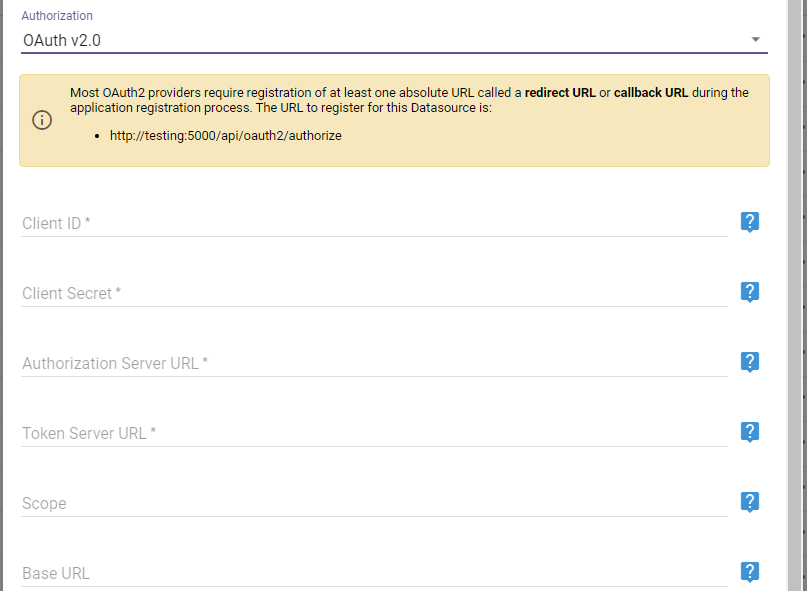
Most OAuth2 providers require registering a redirect (callback) URL during app registration. The URL to register for this Datasource is http://<INFORMER>/api/oauth2/authorize.
- Client ID and Client Secret: from registering the application with the provider.
- Authorization Server URL: the provider's authorization endpoint, used to obtain an authorization grant.
- Token Server URL: the provider's token endpoint, used to exchange a grant or refresh token for an access token. It must support Basic HTTP authentication.
- Scope: a space-delimited set of values that varies by provider (may be empty if allowed). Granted scopes may differ from those requested, and this value updates if so.
The Authorization Server and Token Server URLs must be secured with TLS (HTTPS).
Connection settings
A Web Datasource has extra settings under the Connection section of its Settings page.
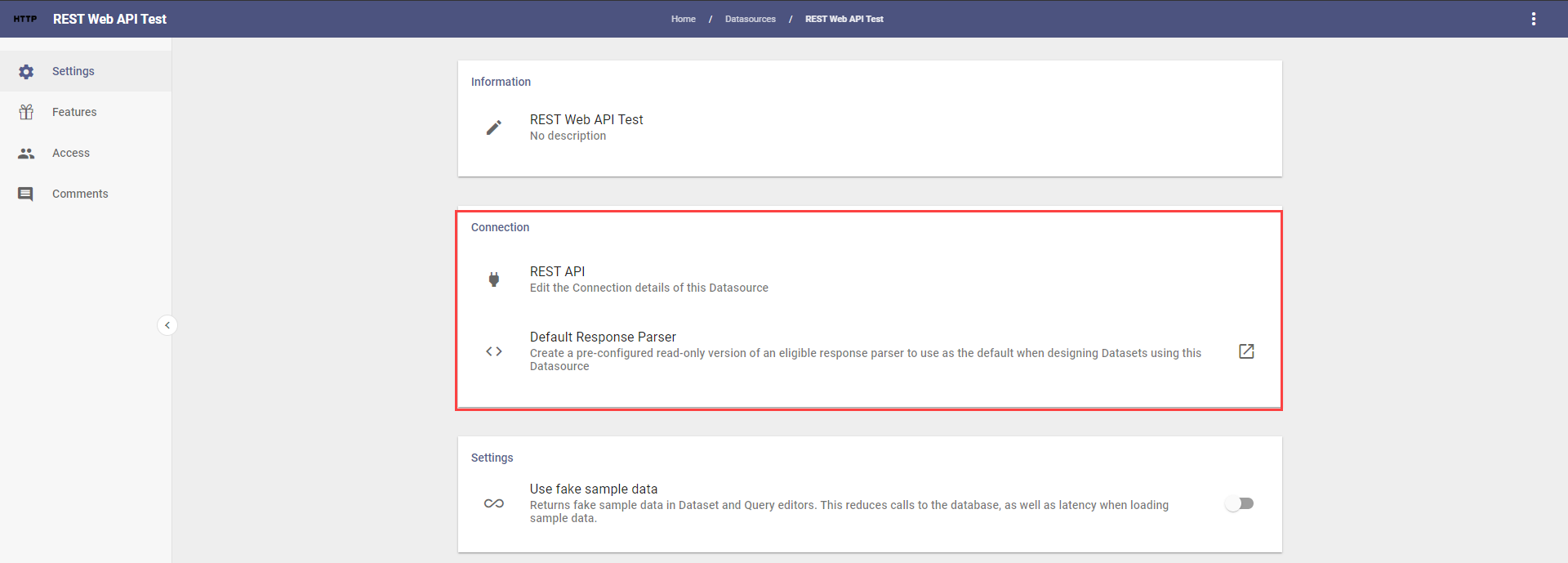
- REST API: edit the Datasource's connection details.
- Default Response Parser: create a default response parser to use when designing Datasets from this Datasource.
Default Response Parser
The Default Response Parser assumes a full, non-paged response: array-like data produces one row per array value, and non-array data yields a single-row result.
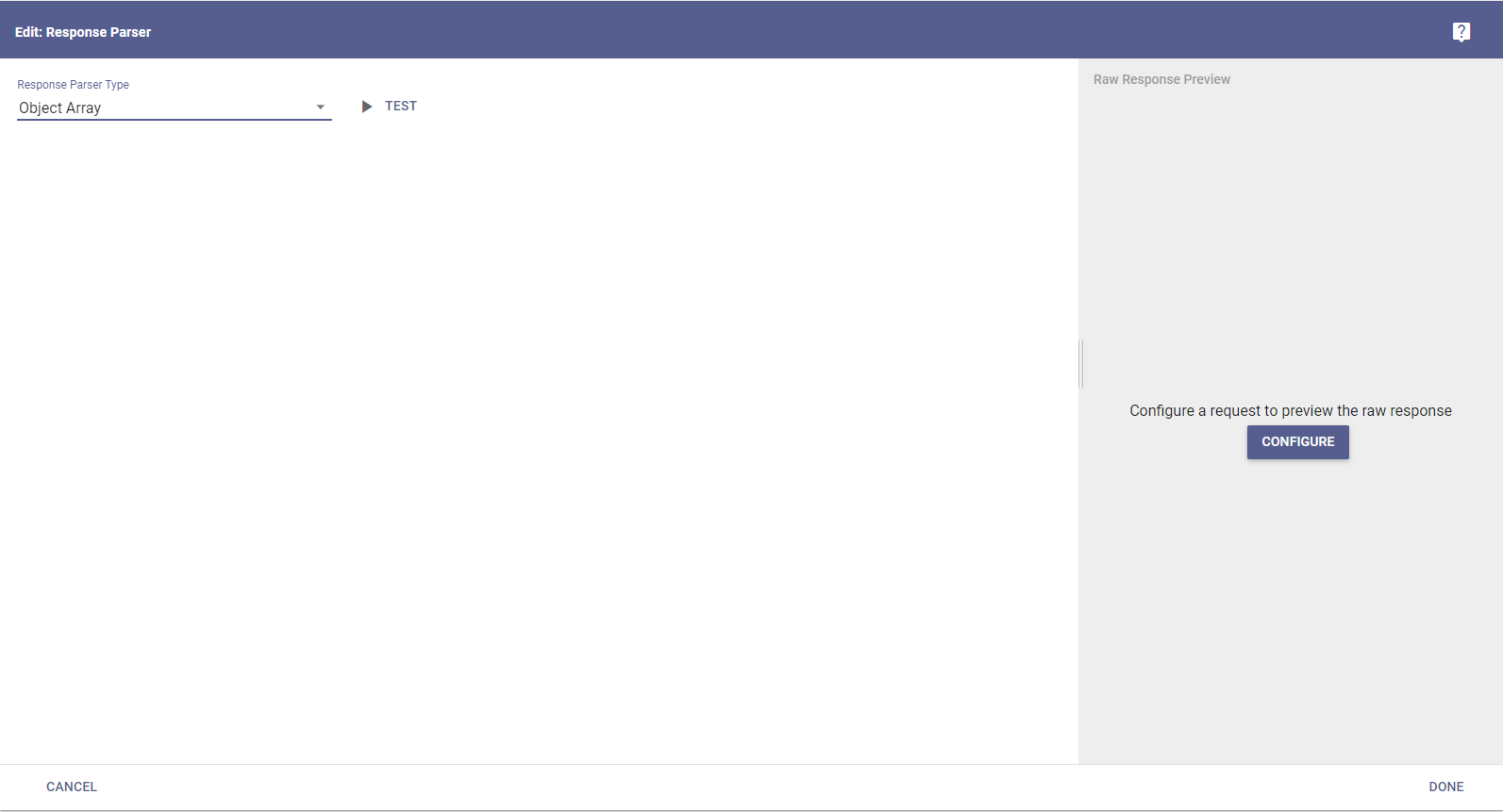
The parser has two types, JSON Object Array and Custom Script, and is written in JavaScript that runs after each response. It processes each response to push rows, configure metadata, and schedule further requests (useful for paged responses).
Available variables:
- response: the complete response from the most recent request.
- response.data: the response payload.
- response.config: the config used to send the request.
- requestNum: how many responses have been processed so far (0-based).
Available functions:
- push(Object[] rows): push rows of data downstream.
- next(Object requestConfig): schedule another request with the given config.
- isFirstResponse(): whether this is the first response.
- setFields(Object metadata): configure metadata about the streaming Fields, keyed by Field alias (only while processing the first response).
Utilities: _ (collection utils), moment (date utils), inflect (text and labeling utils), logger (logging via trace/debug/info), and xml (XML parsing, via new xml.XMLParser().parse(...)).
A required input sets the maximum time, in milliseconds, for a single script execution, so the parser cannot time out too soon or run indefinitely (default 10000).
Once a parser type is selected, click Test or Configure to test it.
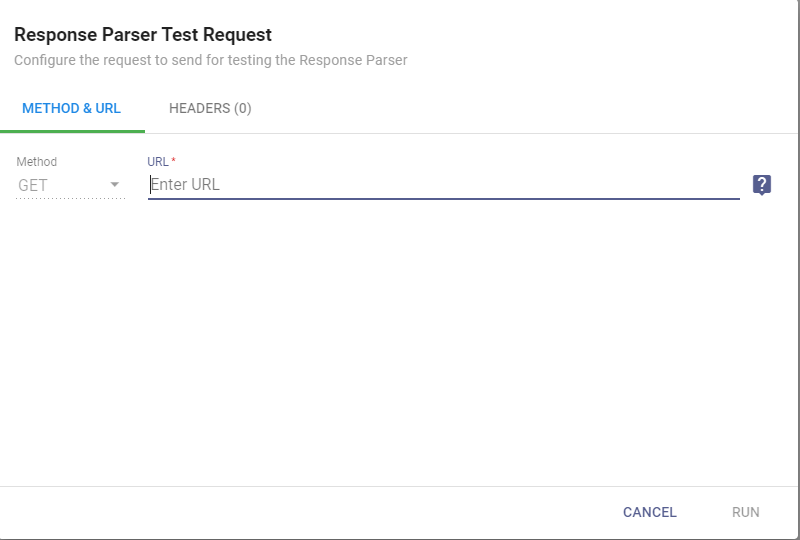
This window has Method & URL (the absolute URL to request, following the same rules as the Base URL) and Headers (custom labels and values). Click Run to preview the data in the Raw Response Preview panel, which you can copy or refresh as you make changes.
After entering the connection details, click Test Connection to verify, then save. Then scan the Datasource. See Scanning a Datasource.