Creating a Workspace
A Workspace is a static Datasource built from one or more spreadsheets. Informer scans the fields and rows from each uploaded spreadsheet and creates a Datasource with a table per spreadsheet. Users can then write Queries against the data without hitting a live database.
Create the Workspace
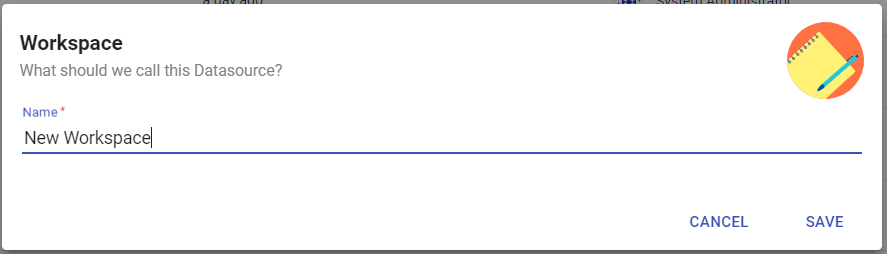
Click + New, then Workspace under Datasources. Give it a name and click Save.
Import data
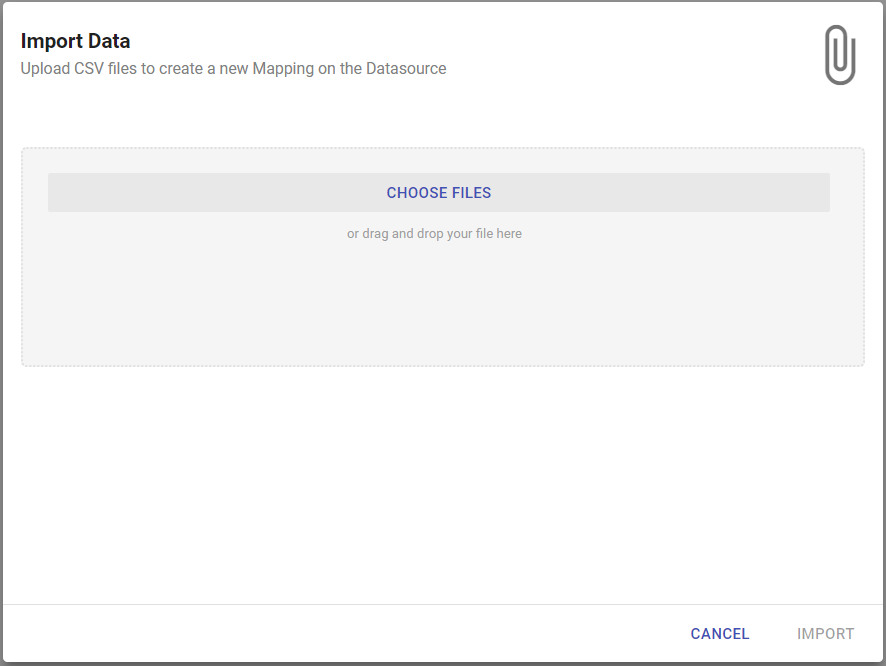
To upload a file, open the Workspace's Actions menu (the three vertical dots) and choose Import Data. Drag a file into the dotted box, or click Choose Files and select it.
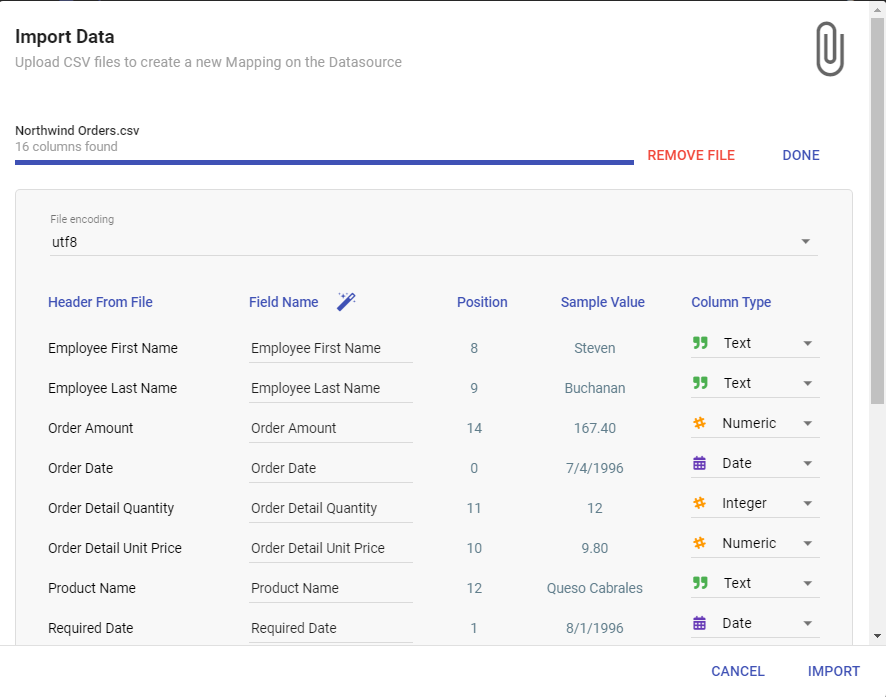
Files that are not UTF-8 encoded take significantly more resources to upload. Reformatting to UTF-8 speeds it up.
Informer assigns a data type to each Field from its values. Click Configure to review and change the assigned types. If a Field name has special characters like quotes, click Sanitize Alias (the magic-wand icon) to make it safe for Informer. Click Import to finish, and Informer scans in the data. To add more files, click Import Data again.