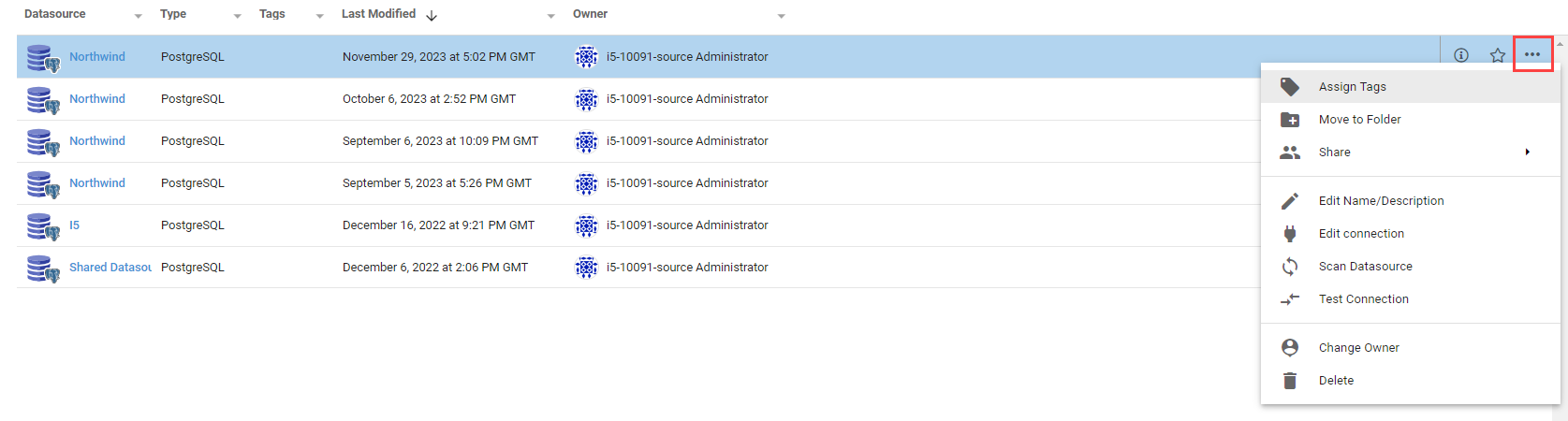
Datasource Actions overview
Click the ... on a row in the Datasource listing page to open the Actions menu, which collects the ways to modify the selected Datasource.
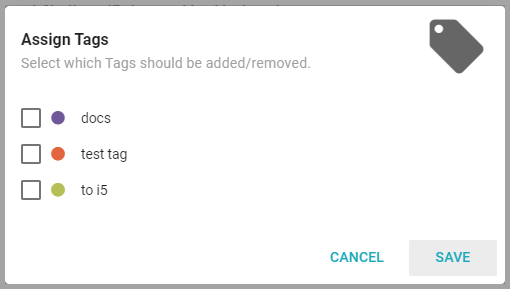
Assign Tags
Assign Tags assigns existing tags to a Datasource.
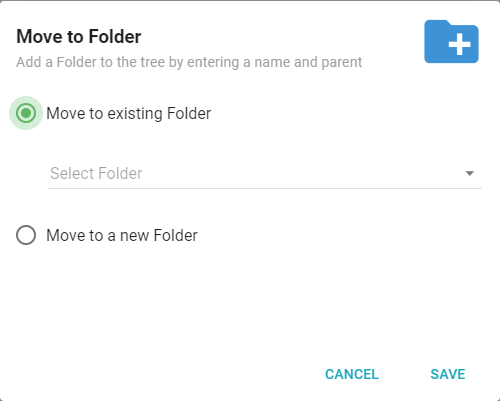
Move to Folder
Move to Folder moves the Datasource to a new or existing folder.
Share
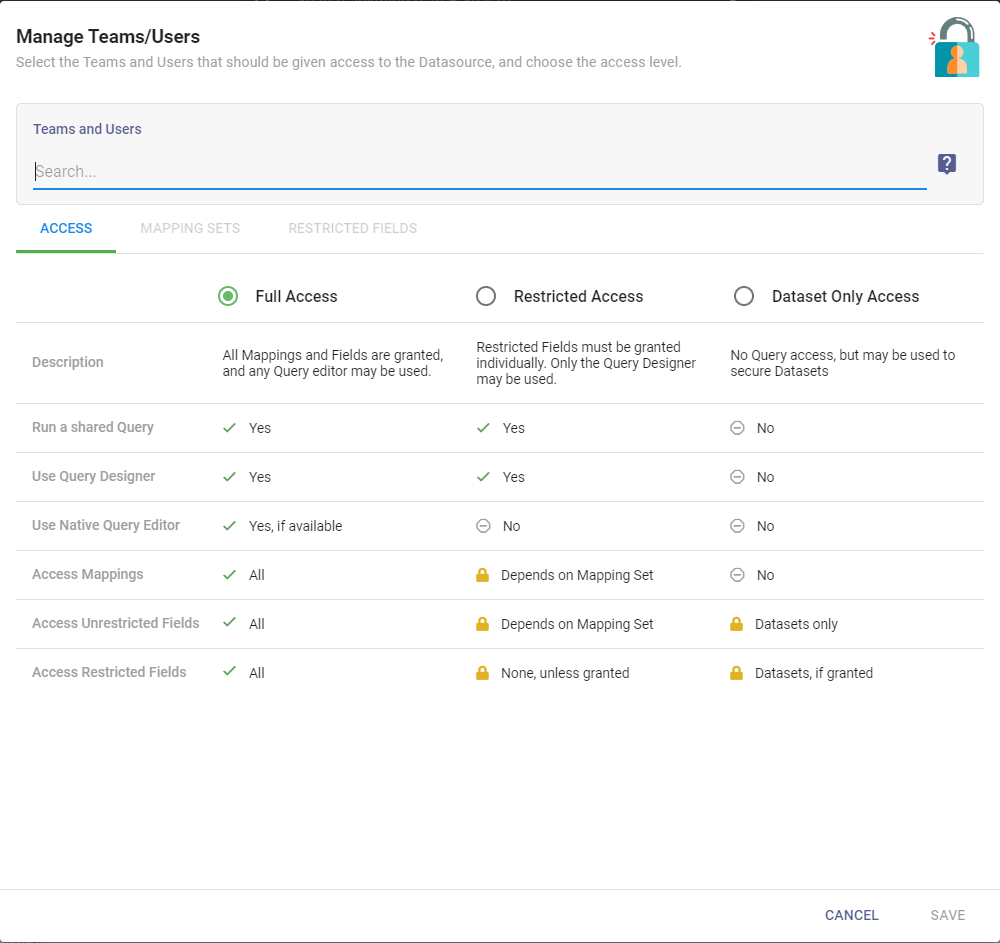
Share (Add Shares to Teams/Users) opens the Manage Teams/Users dialog, where you select the Teams and Users to grant access to the Datasource and choose their access level. See Datasource access for what each level grants.
Edit Name/Description
Edit Name/Description changes the Datasource's name or description.
Edit Connection
Edit Connection opens the Datasource's connection page to make changes. See the Overview articles for each kind of connection.
Rebuild Subroutines
Rebuild Subroutines rebuilds all of the Datasource's connected subroutines. It is available only on Multi-value Datasources.
Scan Datasource
Scan Datasource updates the Datasource's Mappings. See Scanning a Datasource.
Test Connection
Test Connection checks whether Informer can connect to the Datasource. A green message appears in the bottom left on success, or a red message with the error on failure.
Change Owner
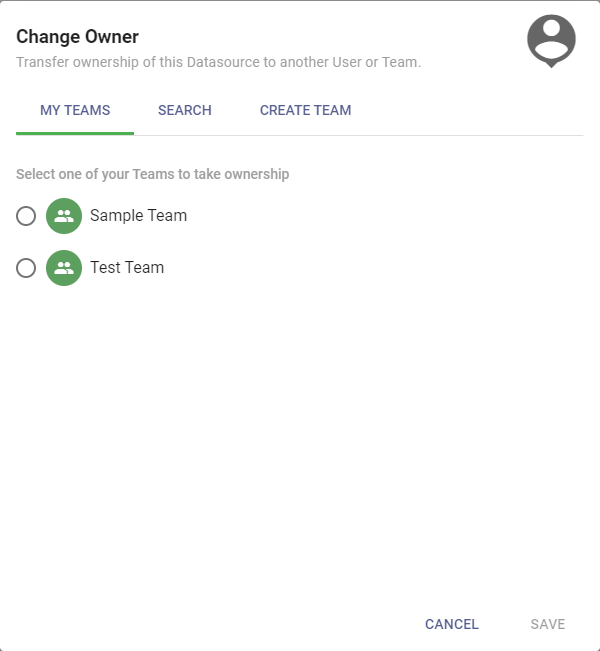
Change Owner opens a dialog to transfer ownership of the Datasource to another Team or User. See Datasource access.
Delete
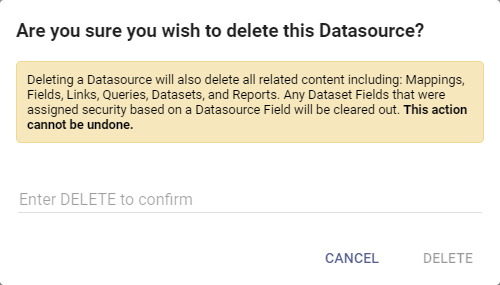
Delete opens a dialog that requires typing DELETE to permanently remove the Datasource. Deleting a Datasource also deletes all related content: Mappings, Fields, Links, Queries, Datasets, and Reports. Any Dataset Fields secured by a Datasource Field have that security cleared. This cannot be undone.
If a Datasource's driver is missing or unavailable, the Datasource can still be deleted by a user with the right permissions.