Datasource Ownership and Access
There are two ways to grant Users or Teams access to a DatasourceA connection from Informer to a database or other system of record, such as PostgreSQL, SQL Server, or UniVerse.: sharing or giving ownership.
For Users to build Datasets and Ad hoc Queries, or to run Ad hoc Queries, they need access to the Datasource. The best practice is to grant access by sharing it, which grants read-only access.
Ownership
The owner of a Datasource has full access and can update Mappings, Fields, Links, Mapping Sets, and Mapping Suites. The owner can also update access to the Datasource. The best practice is to have the System Administrator own Datasources, unless a Datasource is used only by specific Teams, or it is a Workspace where Users on the same Team need to update it.
Change Owner
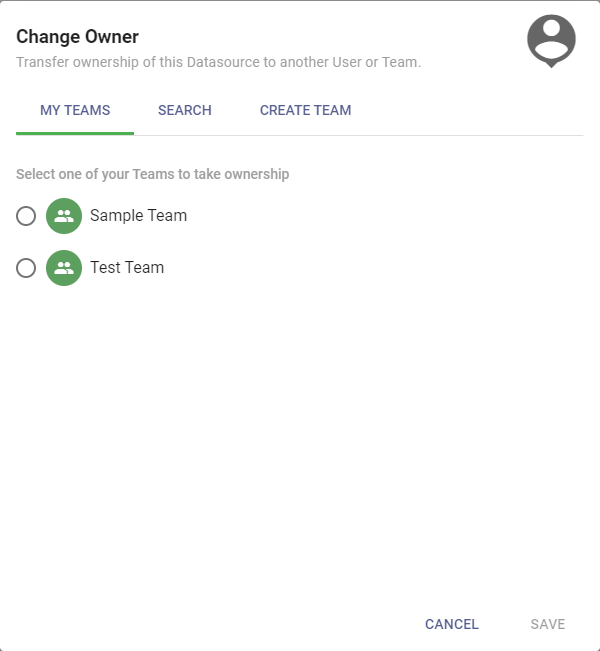
Change Owner grants ownership of a Datasource to a Team in which the User is an Admin. The User granting ownership must be the owner and have Admin access to the Datasource. Super Users are the exception: they can share with any User or Team.
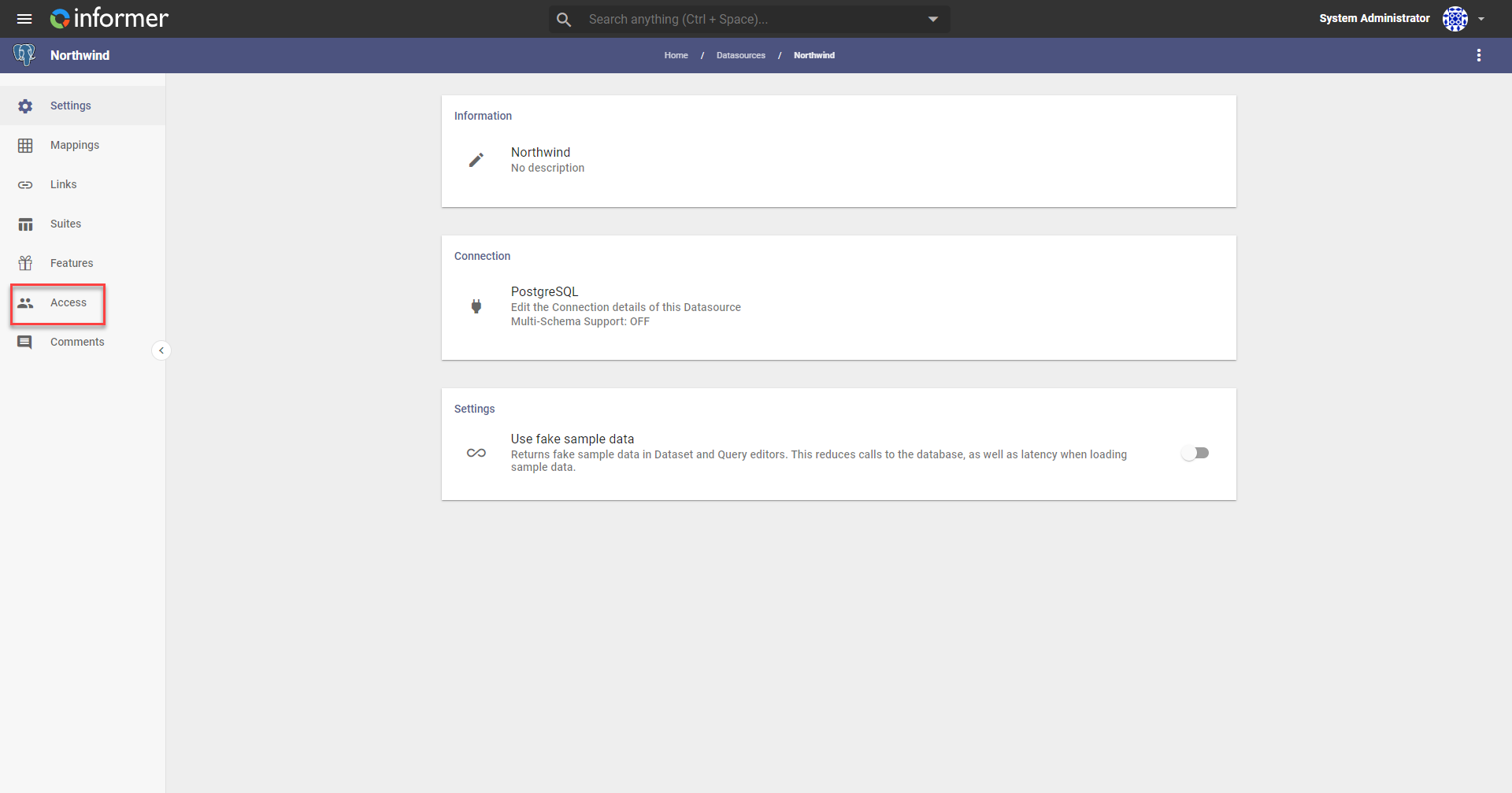
From a Datasource, click the Access icon in the left panel.
Click Owner, choose from the list of available Teams where the owner is an Admin, and click Save.
Sharing
Sharing a Datasource with a User or Team grants read-only access. This lets Users and Teams build Datasets and Ad hoc Queries and run Ad hoc Queries.
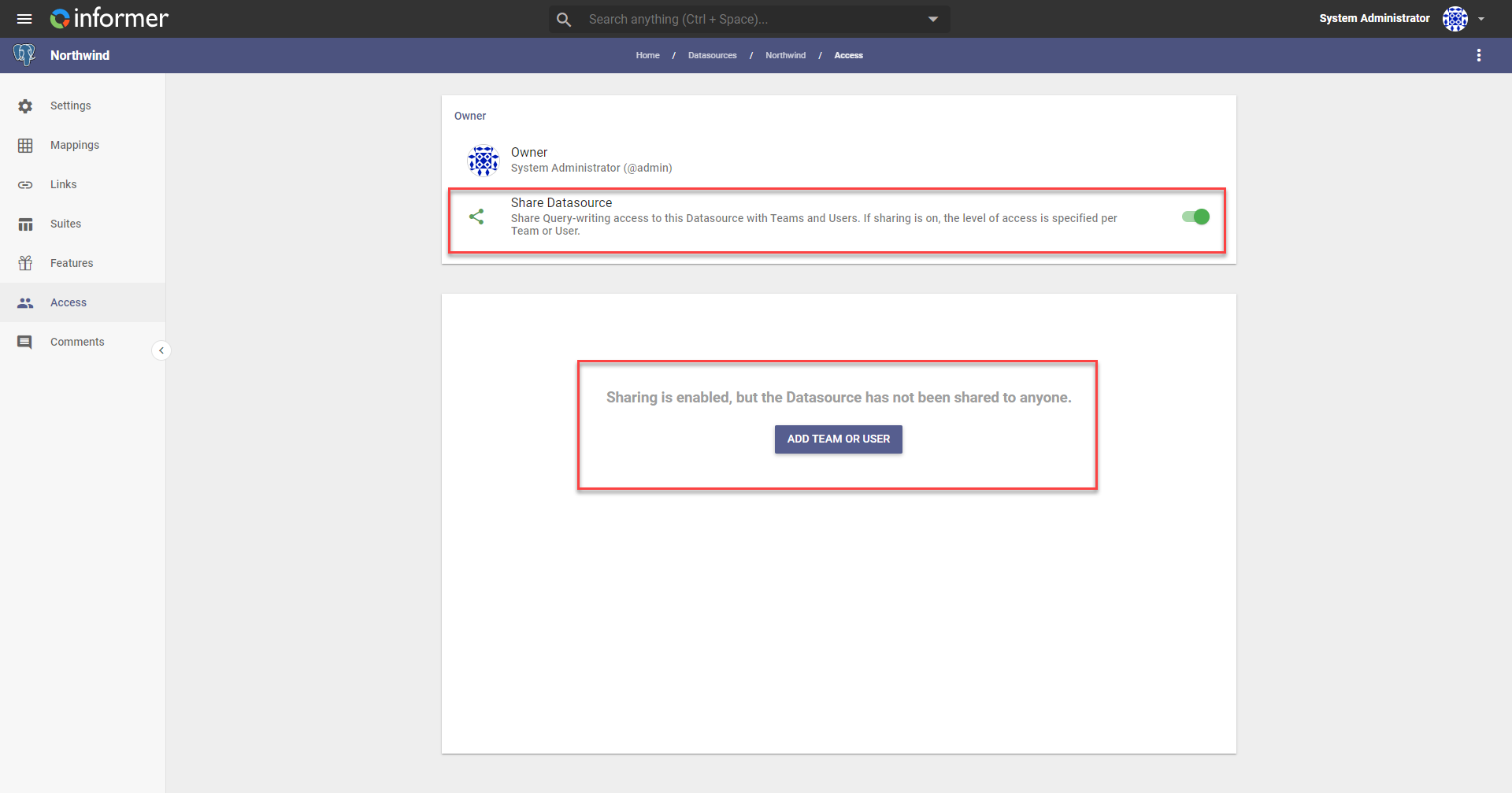
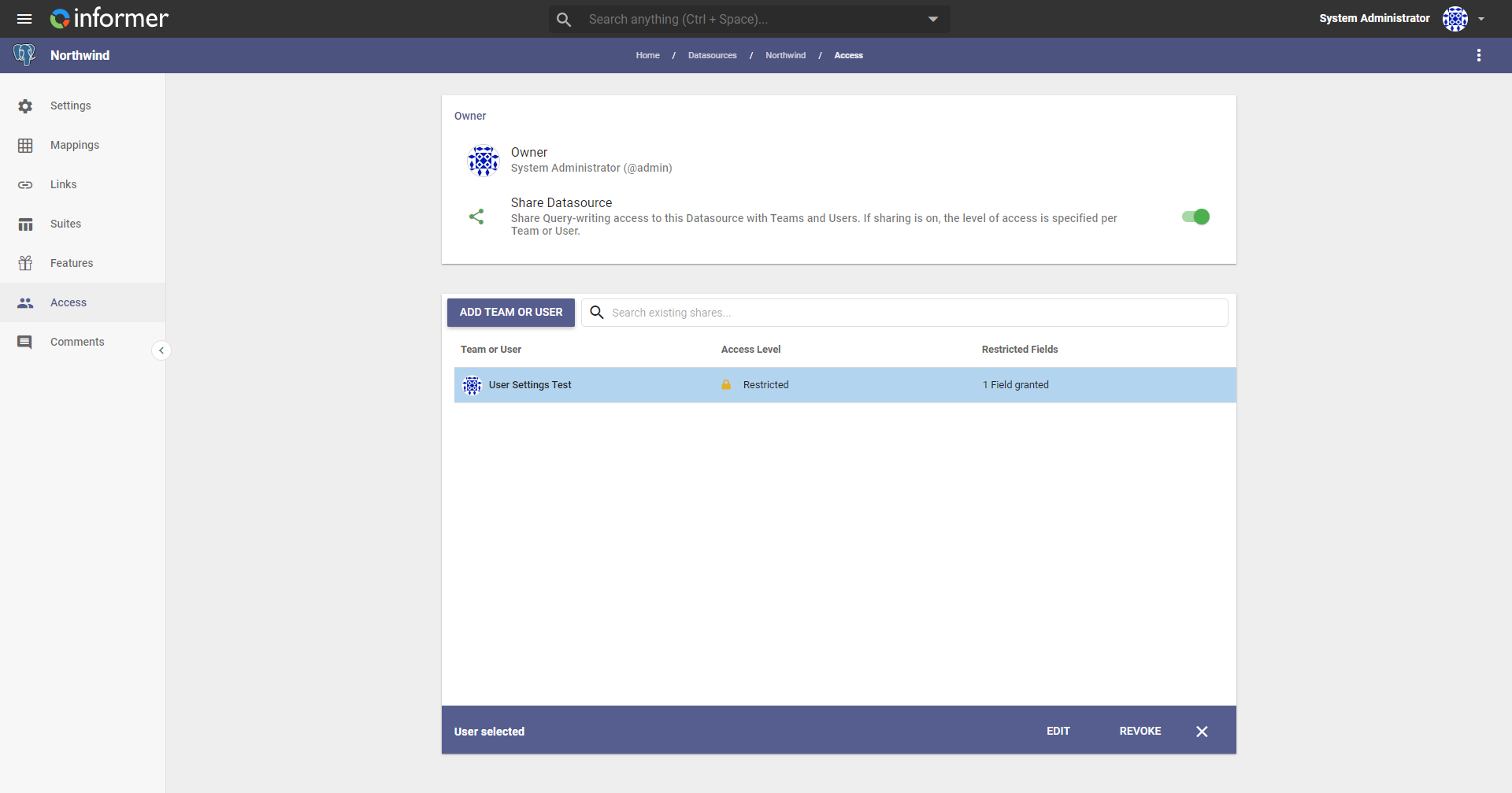
To share a Datasource, a Team must own it, and the User sharing it must be an Admin on the owning Team. Super Users are the exception: they can share with any User or Team. From a Datasource, click the Access icon in the left panel, click the Share Datasource toggle to enable sharing, and click Add Team or User.
Manage Teams/Users
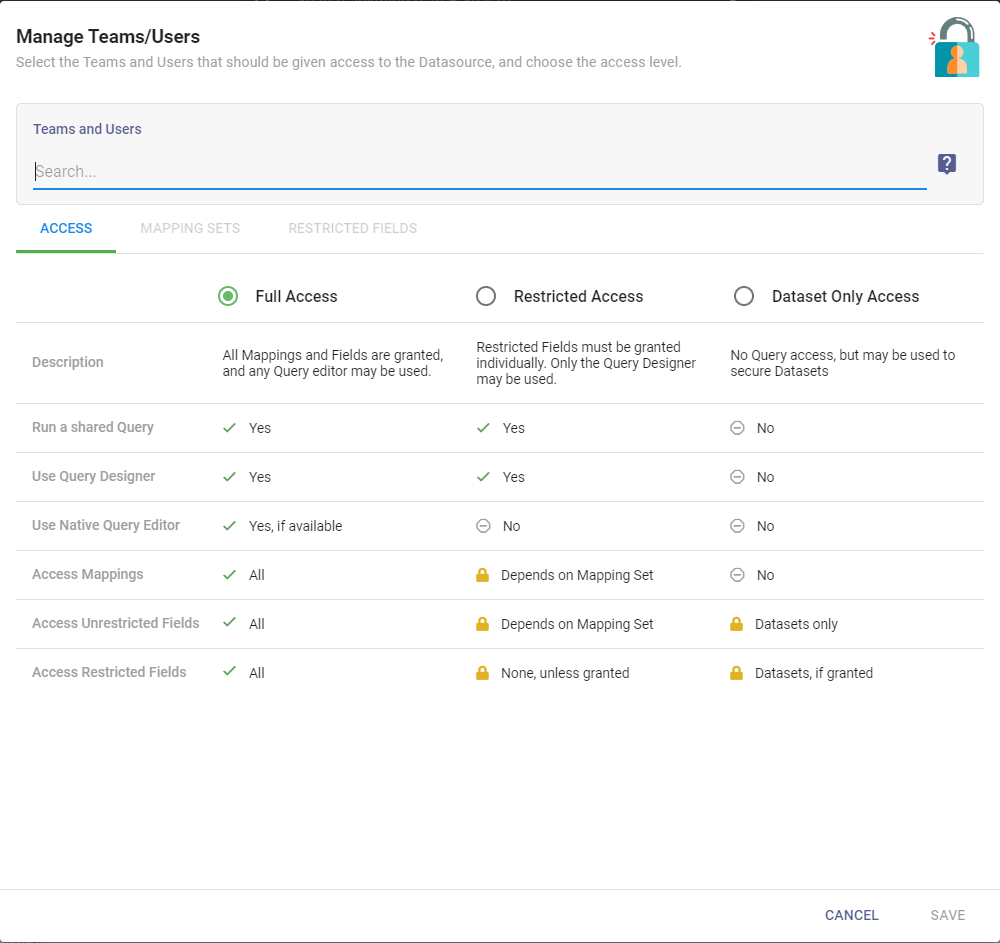
Select the Users and Teams to grant access to, and choose the access level.
Teams and Users
Begin typing the name of the Users or Teams that need access.
Access
Choose the level of access to the Datasource for the selected Users and Teams:
- Full Access grants access to all Mappings and Fields, and any query editor (Query Designer or Native SQL Query) is available.
- Restricted Access: all Mappings are available, restricted Fields must be explicitly granted, and only the Query Designer is available.
- Dataset Only Access does not grant Query access; recipients see only Datasets shared with them. By default, restricted Fields on those Datasets are hidden, and access to them must be explicitly granted.
Mapping Sets
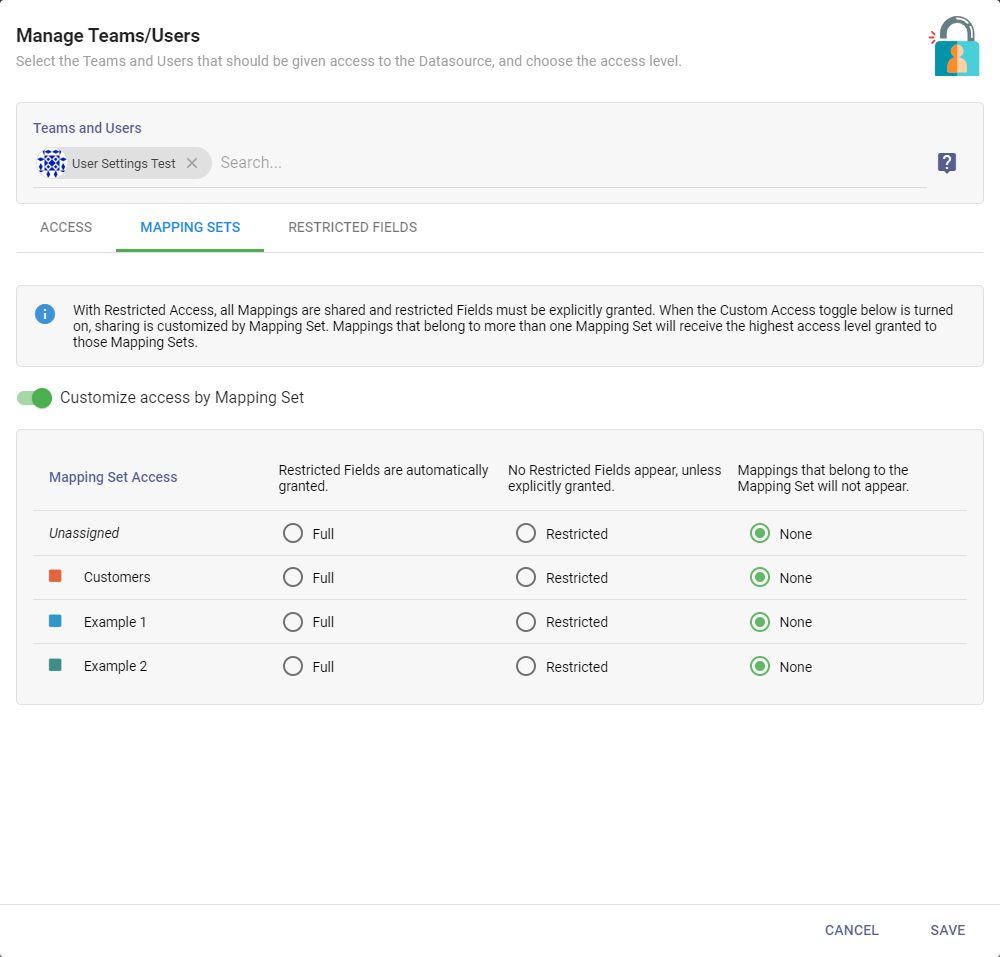
With Restricted Access, all Mappings are available and restricted Fields must be explicitly granted. Click Customize access by Mapping Set to grant access based on Mapping Sets. Mappings that are not in a Mapping Set are not shared, and a Mapping in more than one Mapping Set receives the highest level of access granted by any of them.
See Mapping Sets and restricted Fields for how to set up Mapping Sets.
Options to grant Mapping Set access:
- Full: restricted Fields are automatically granted for all Mappings in the Mapping Set.
- Restricted: no restricted Fields appear for any Mapping in the Mapping Set unless explicitly granted.
- None: Mappings in the Mapping Set do not appear. This is the default.
Restricted Fields
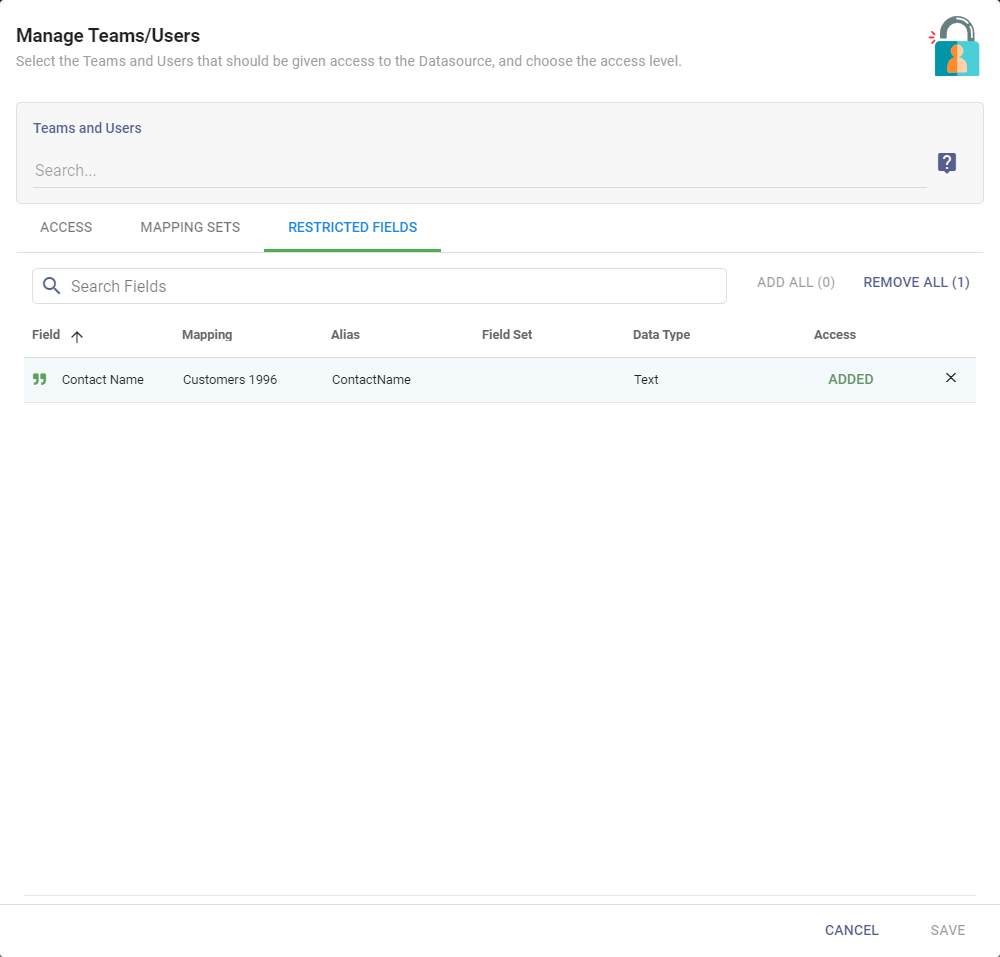
Explicitly grant access to restricted Fields for a User or Team. Search for the Field or Field Set and click Add to grant the User or Team access to that Field.
A list of Users and Teams and their access displays for each Datasource, including the Team or User name, access level, and restricted Fields.
Web Datasources do not have Mappings or Fields. Share those Datasources only with Full Access.
To understand more about security, Users, and Teams, see Teams and Users.