Mapping Sets and restricted Fields
Mapping Sets are organizational tools, like folders, that group similar Mappings. Each set has a name, color, and icon. A set can contain many Mappings, and a Mapping can belong to several sets.
Managing Mapping Sets
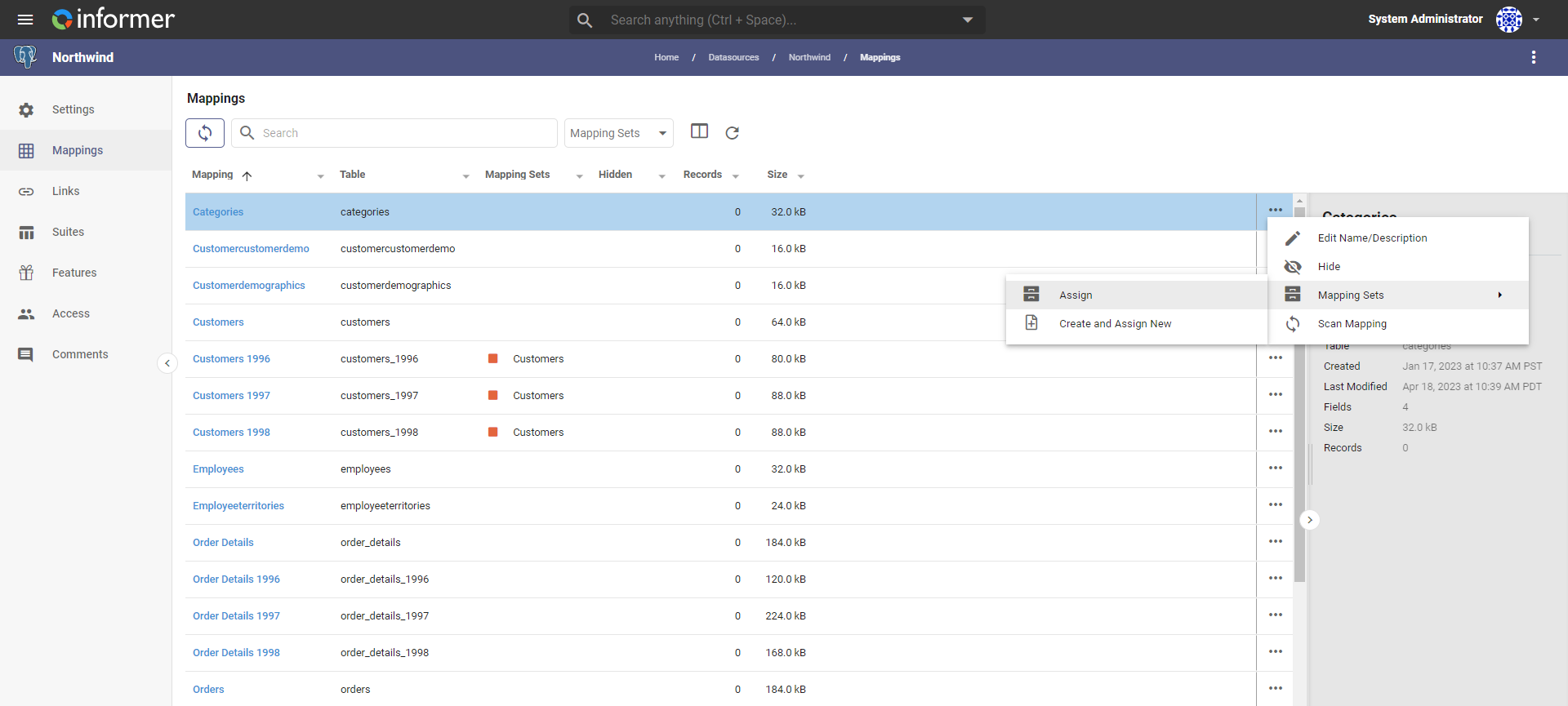
To create or delete sets, open any Datasource and choose Manage Mapping Sets from the Mapping Sets dropdown. Alternatively, select the Mappings to add to a set, click the ... Actions menu, hover over Mapping Sets, and choose Assign or Create and Assign New.
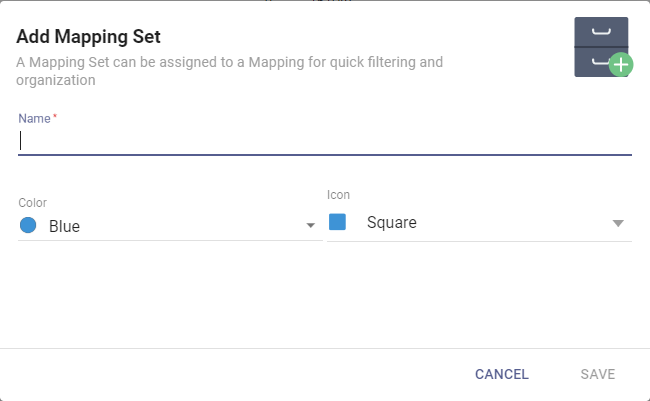
To add a set, click + New, enter a name, choose a color and icon, and click Apply. To edit a set, click its name and modify it; to remove it, click Delete. Click Apply.
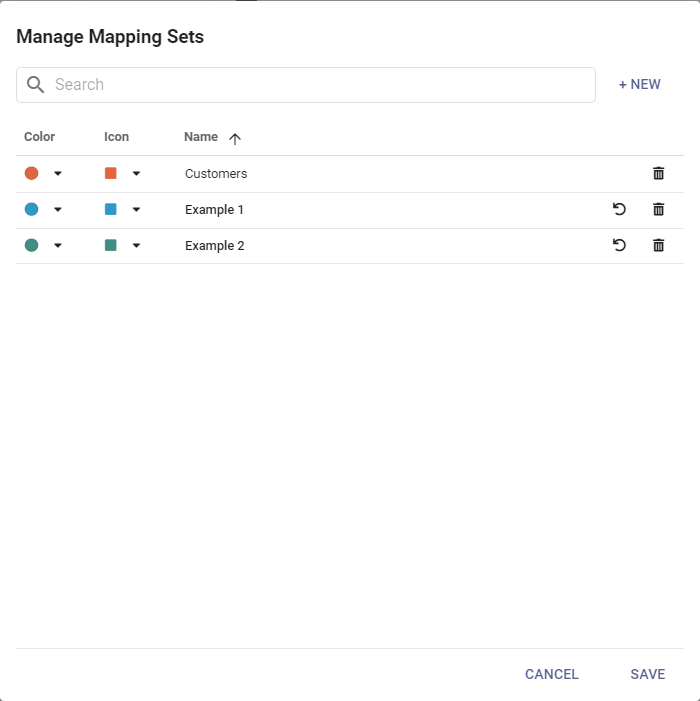
The Mapping Sets management page
Choosing Manage Mapping Sets from the Mapping Sets dropdown lists all existing Mapping Sets to create, edit, or delete.
Adding Mappings to a set
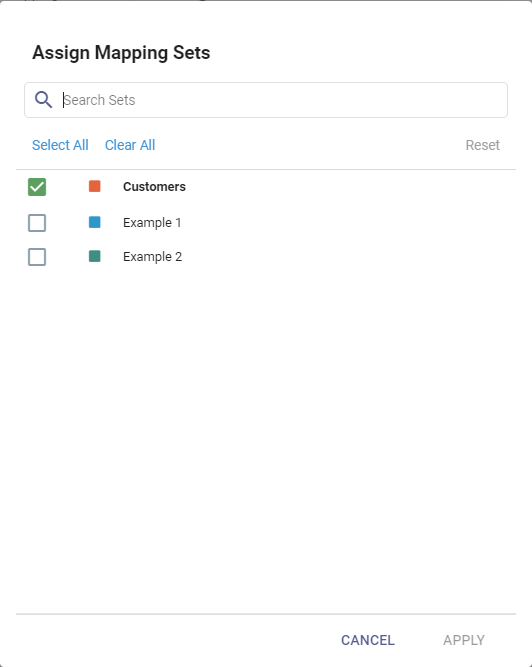
To add a Mapping to a set, select the Mapping, click the ... Actions menu, choose Mapping Sets then Assign, check the sets to add it to, and click Apply.
Filtering Mappings by set
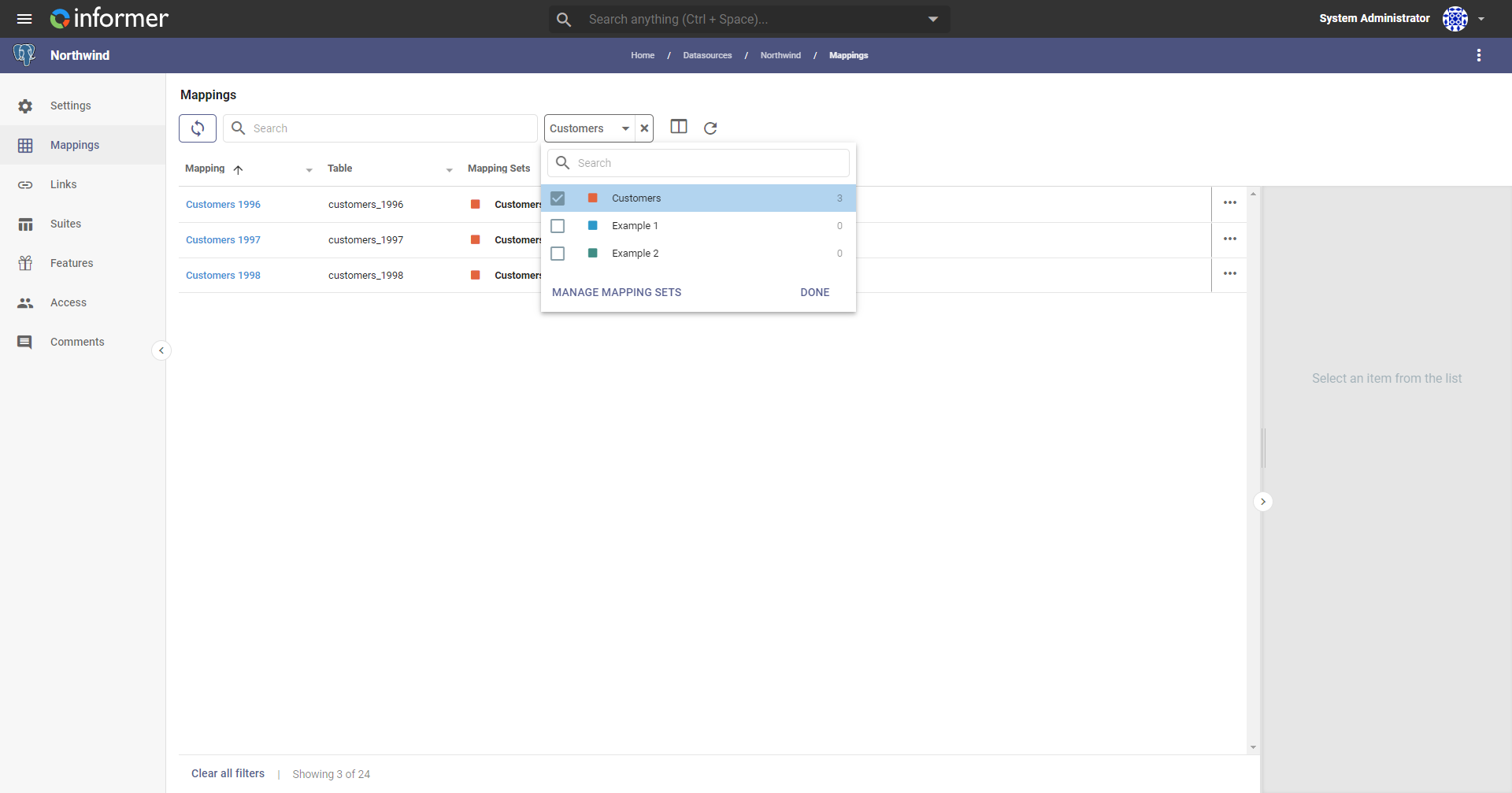
To filter the Mappings list by set, open the Datasource and choose a set from the Mapping Sets dropdown.
Restricted Fields
Restricted Fields control access to sensitive data, such as an SSN. Whether a restricted Field is visible when building a Query or viewing results depends on the access the user or Team has to the Datasource. To restrict a Field:
- Open a Datasource.
- Open the Mapping.
- Select the Field to restrict.
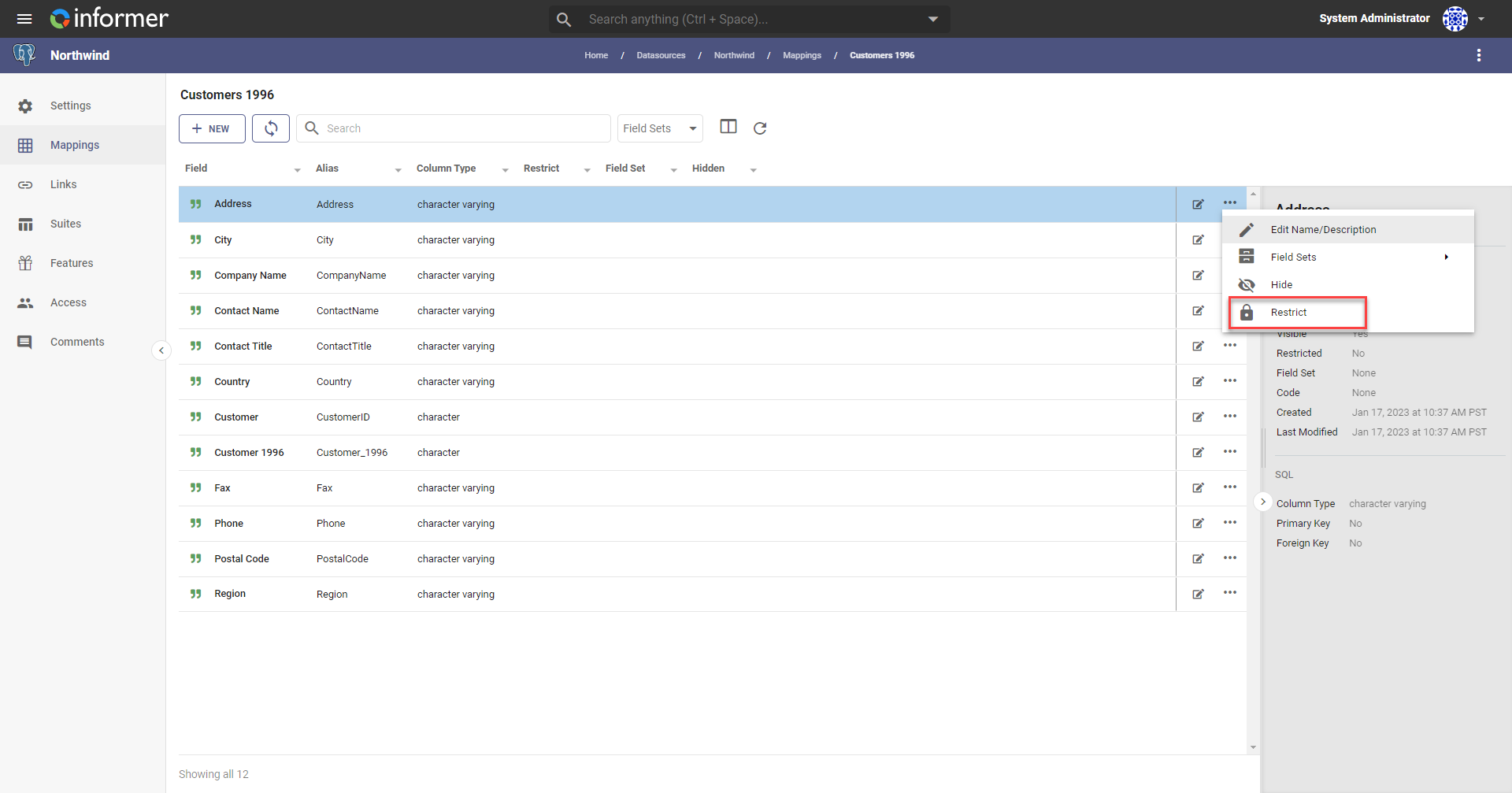
- Click the ... Actions menu and choose Restrict.
Grant access to restricted Fields to users and Teams when sharing the Datasource (see Datasource access).
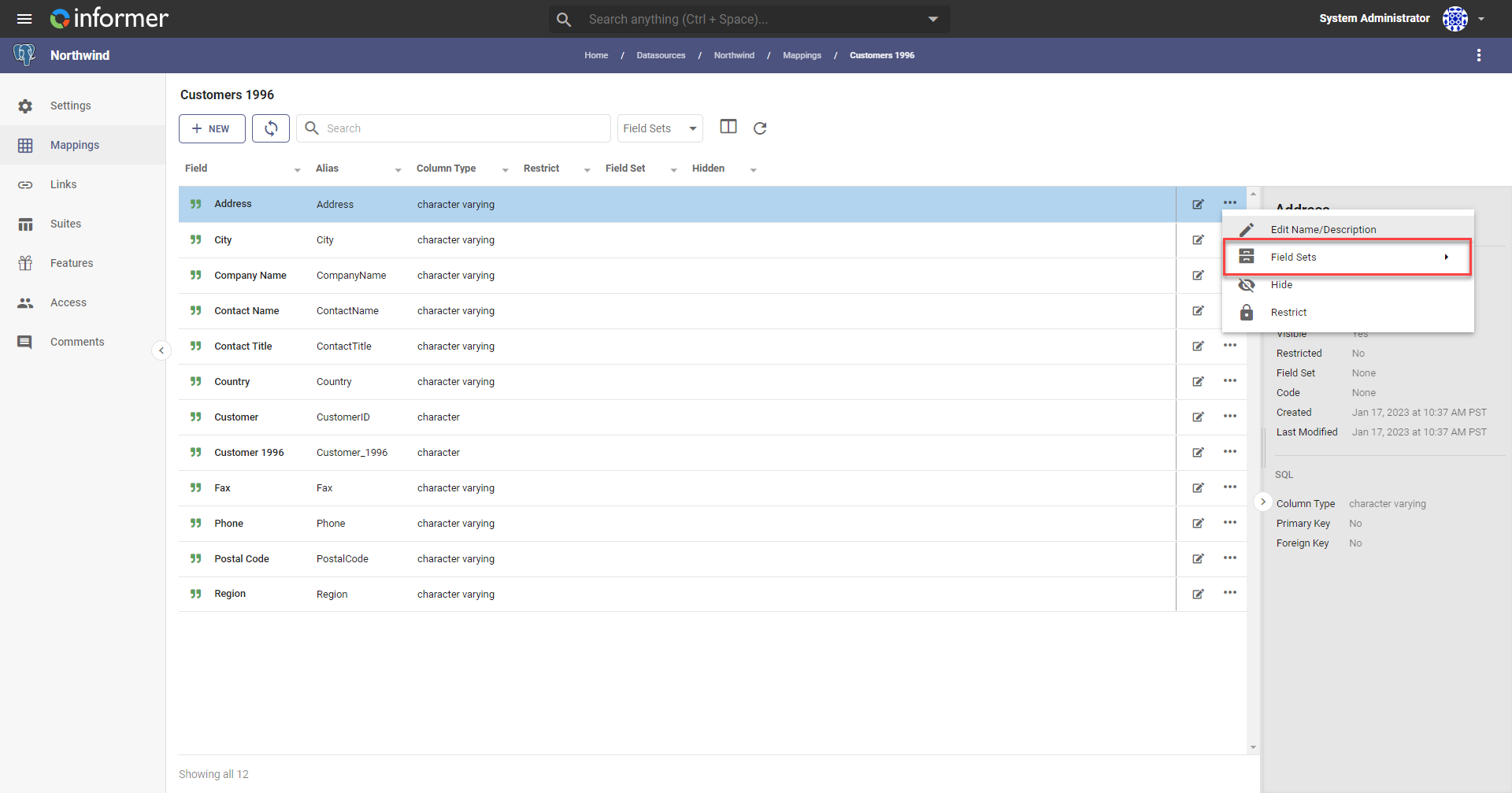
Field Sets
Field Sets organize Fields for quick access. Unlike restricted Fields, they have no effect on security; they exist only to group Fields. To assign or create a Field Set, select a Mapping, click the ... Actions menu, choose Field Sets, and pick an existing set, add a new one, or manage them.