Linking Mappings
Linking two Mappings lets a single Query pull data from both. To create Links:
- Open the Datasource.
- Click Links in the left panel.
- Click + New.
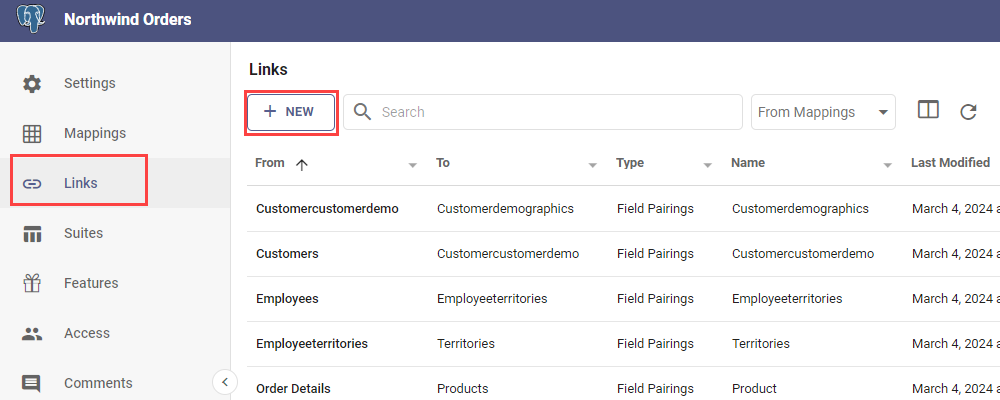
The kind of Link you can create depends on the Datasource.
Field Pairings
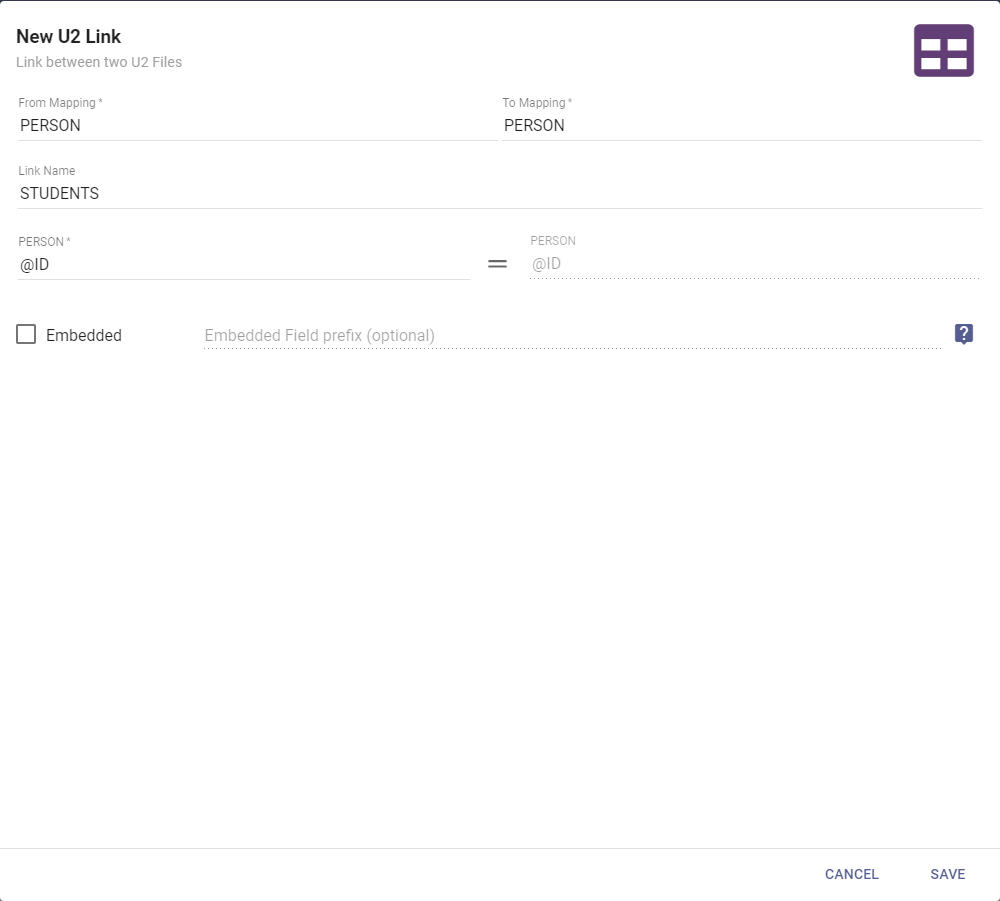
U2 Link
- On the Links page, click + New and select U2.
- Set the From Mapping and To Mapping (the U2 files to link).
- Provide a Link Name (how the Link appears in the Query Designer; defaults to the To Mapping's name).
- Select the Field in the From Mapping to match the @ID Field in the To Mapping.
- Optionally Embed the Link so all Fields from the To Mapping appear as if they belong to the From Mapping in the Field chooser, with a prefix added to their labels.
- Click Save.
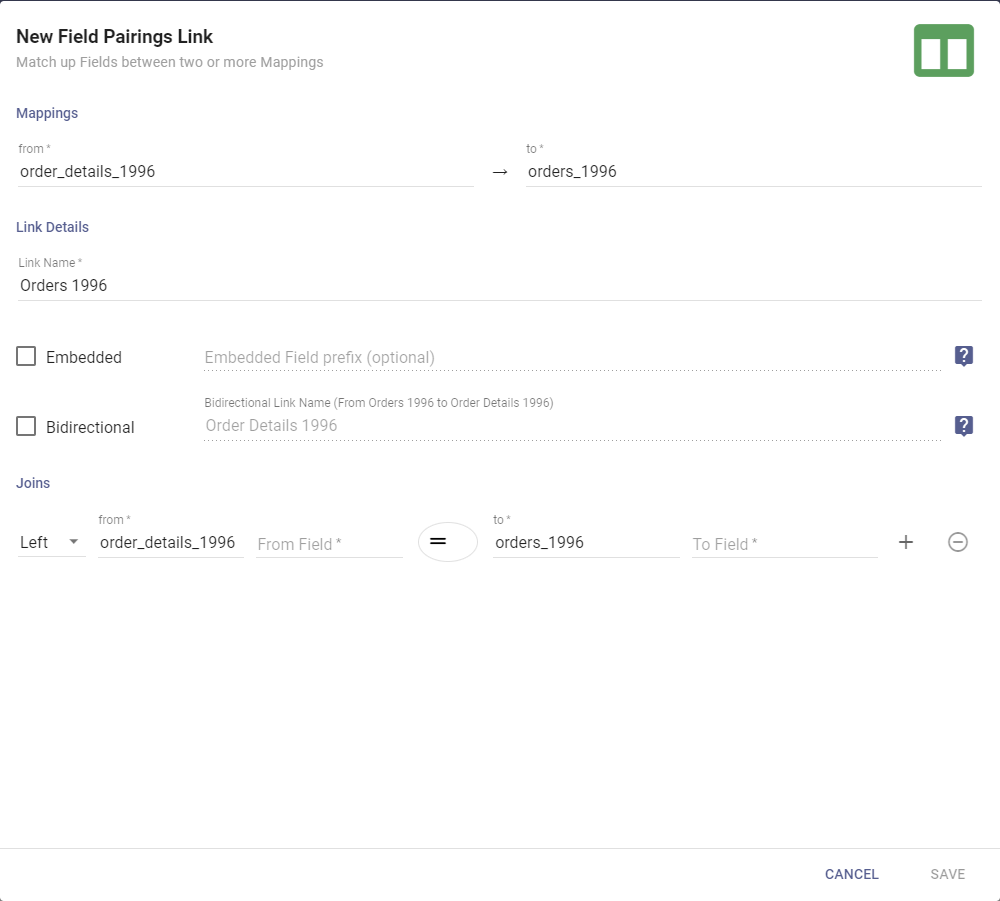
SQL Link Field Pairing
- Set the From Mapping and To Mapping (the SQL tables to link).
- Provide a Link Name (defaults to the To Mapping's name).
- Optionally Embed the Link (as above).
- To create the reverse Link at the same time (swapping From and To), check Bidirectional and name the reverse Link.
- By default the Link uses a single Field-pairing JOIN. You can add more JOINs or literal criteria.
- For a Field pairing, choose the JOIN type (LEFT, INNER, or RIGHT), then pick the From Field and To Field with common data.
- For literal criteria, choose a Mapping and Field to evaluate, then an operator and a value to compare against when the Link is followed.
- Click Save.
note
The Add literal option appears only after you fill in the pairing Fields.
Remote Datasource
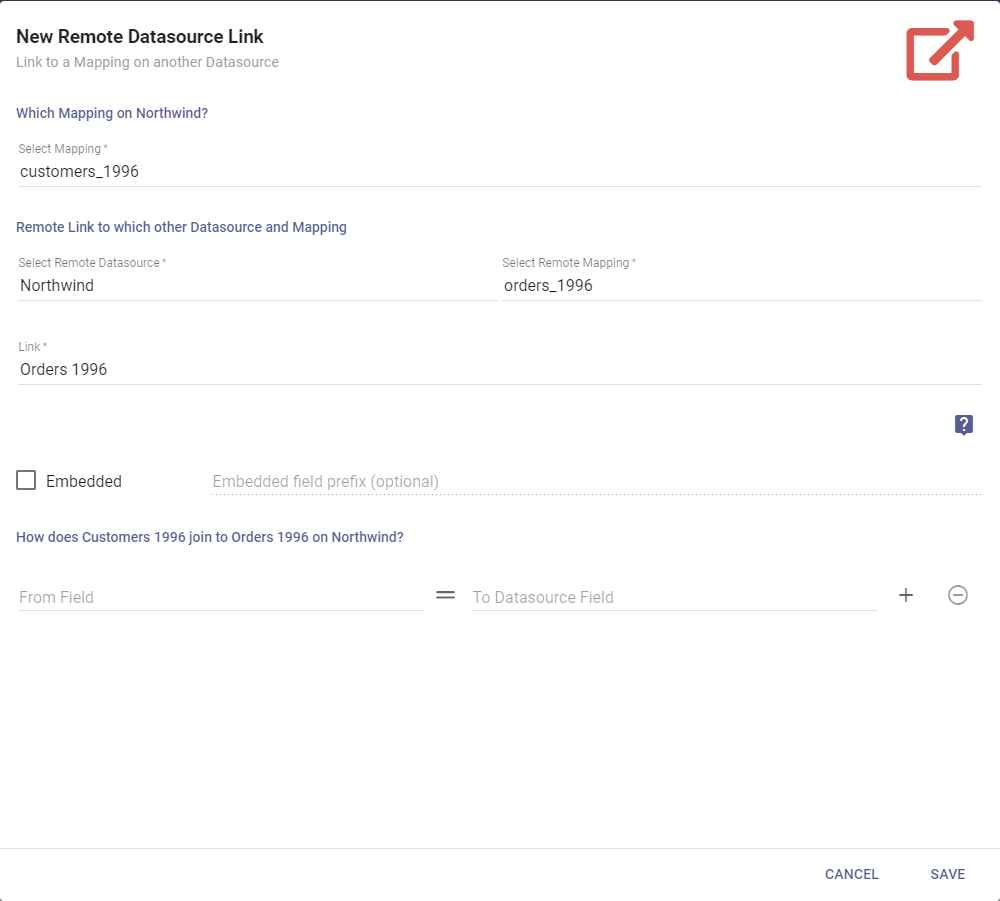
A Remote Datasource link connects a Mapping to a Mapping on a different Datasource. Remote Field links cannot be used directly as Query criteria; to work around that you can:
- Apply post-Query Filters to the data.
- Use a Power Script Flow Step to drop data after the Query returns but before it displays.
- Build a second Dataset against the remote Datasource with the criteria, then use a Fields from another Dataset Flow Step to pull its filtered data into the main Dataset.
To create one:
- On the Links page, click + New and select Remote Datasource.
- Set the local Mapping, the Remote Datasource and Remote Mapping, and pair the From Field to the To Datasource Field (the Fields should be the same data type).
- Provide a Link Name (defaults to the To Mapping's name).
SQL Link
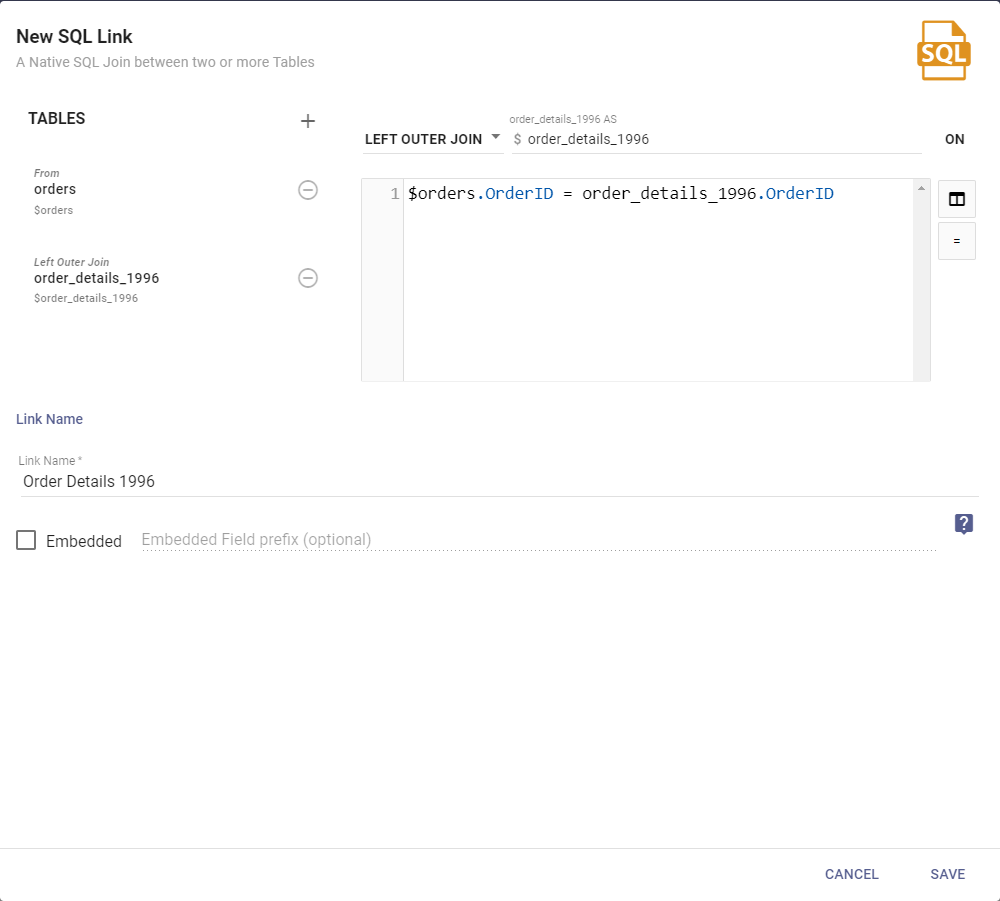
A SQL Link joins Mappings with SQL statements instead of the graphical pairing UI.
- On the Links page, click + New and select SQL.
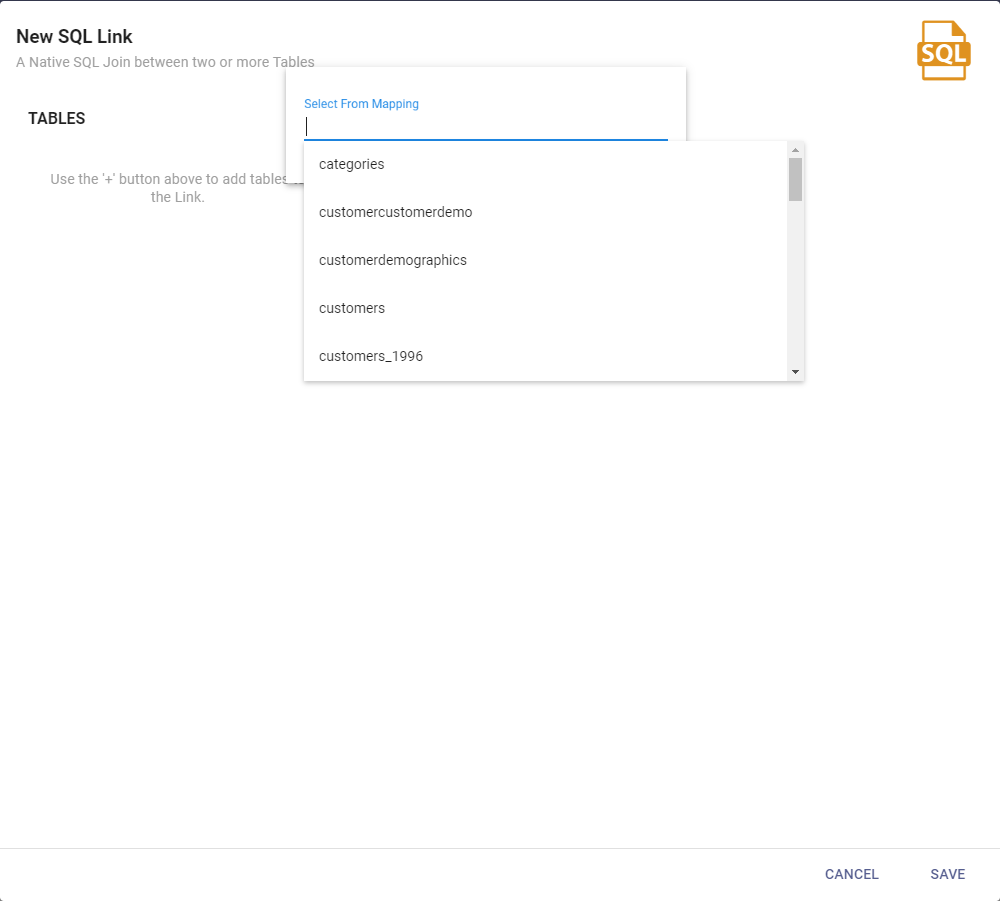
- Add tables with the + button, choosing from the dropdown.
- Choose the Fields from the Field chooser on the right, and set the JOIN.
To edit a Link, double-click it and reconfigure it.
Also available through the REST API
Everything on this page is built on Informer's public REST API, the same one the product uses, so your scripts and integrations can do it too. Developer reference: Datasources.