Mapping Suites
A Mapping Suite is a set of related Mappings separated by a common attribute. For example, general-ledger summary and detail Mappings are often split into one Mapping per fiscal year. A template Mapping defines the columns, and Queries run against the template using the right year at run time, so you do not need separate Mappings and Reports for every year.
Creating a Mapping Suite
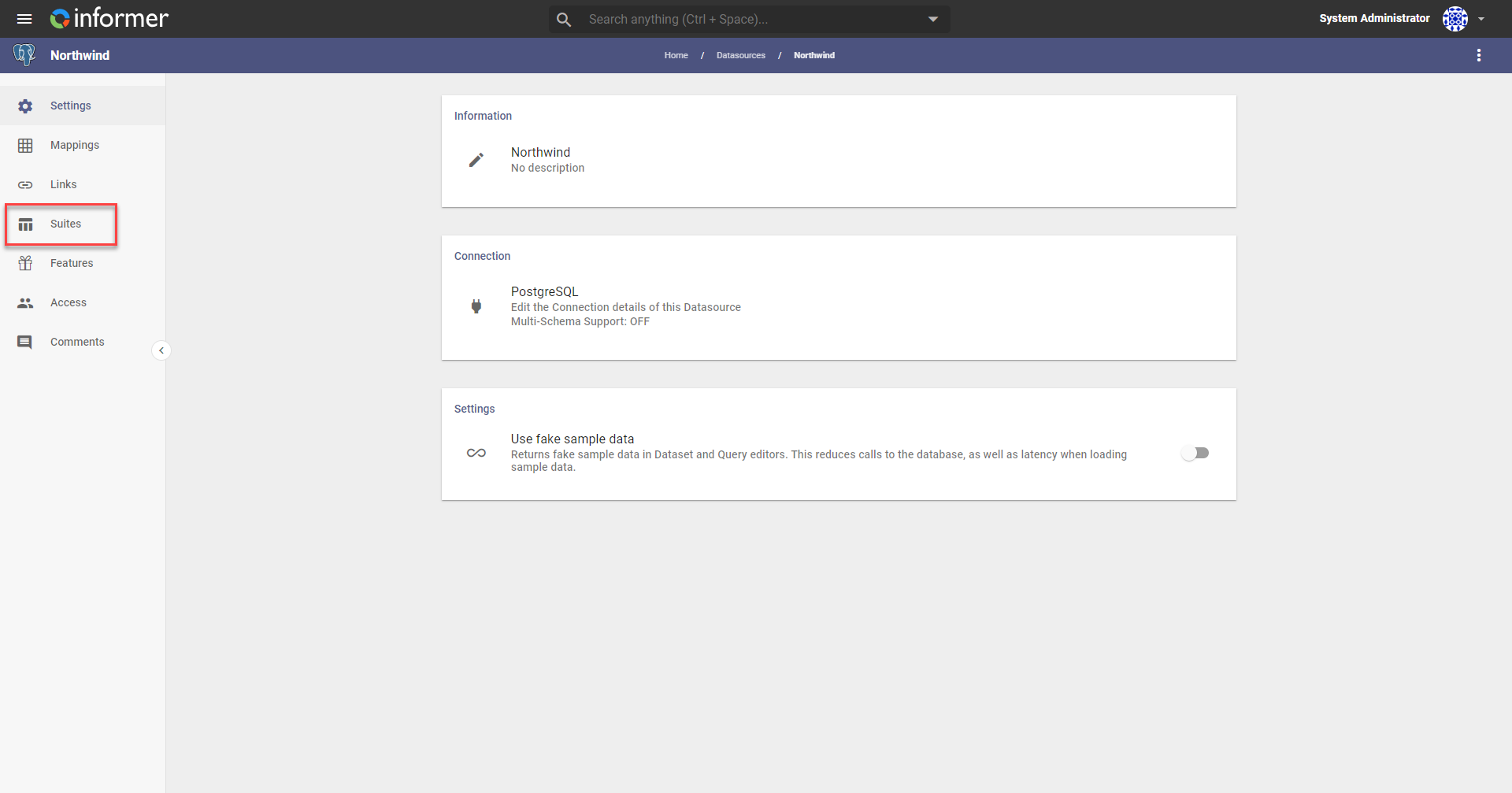
Open the Datasource and click the Suites icon in the left panel.
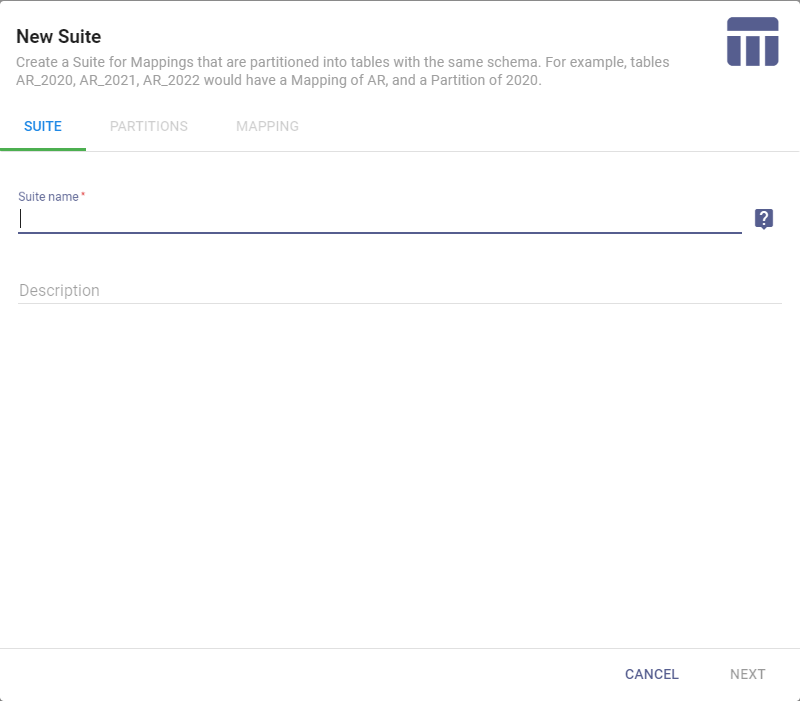
Click New Suite and enter a name and description.
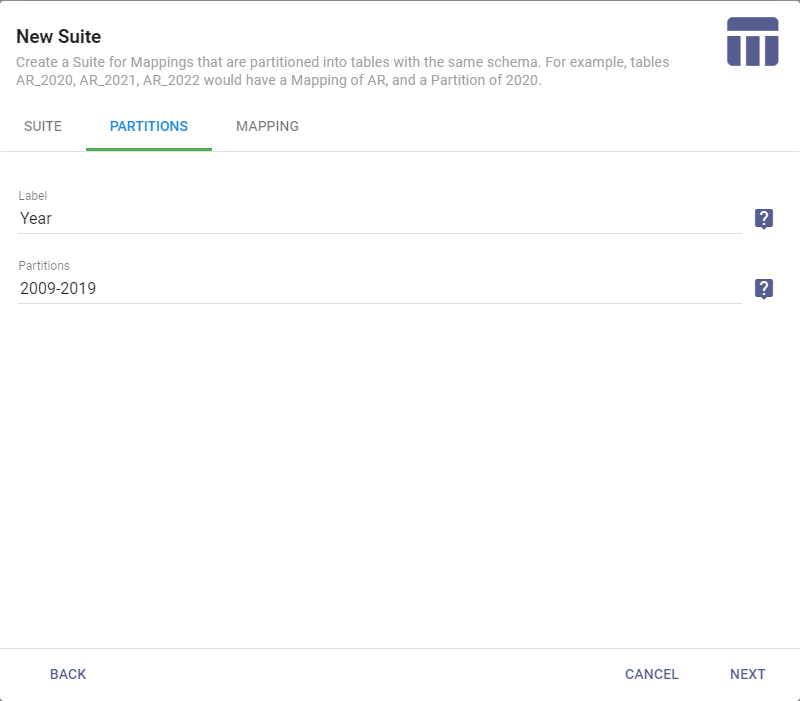
On the Partitions tab, enter a Label describing how the data is separated (Year is the most common), then the partitions. Specify individual values, a range with a hyphen, or a comma-separated list.
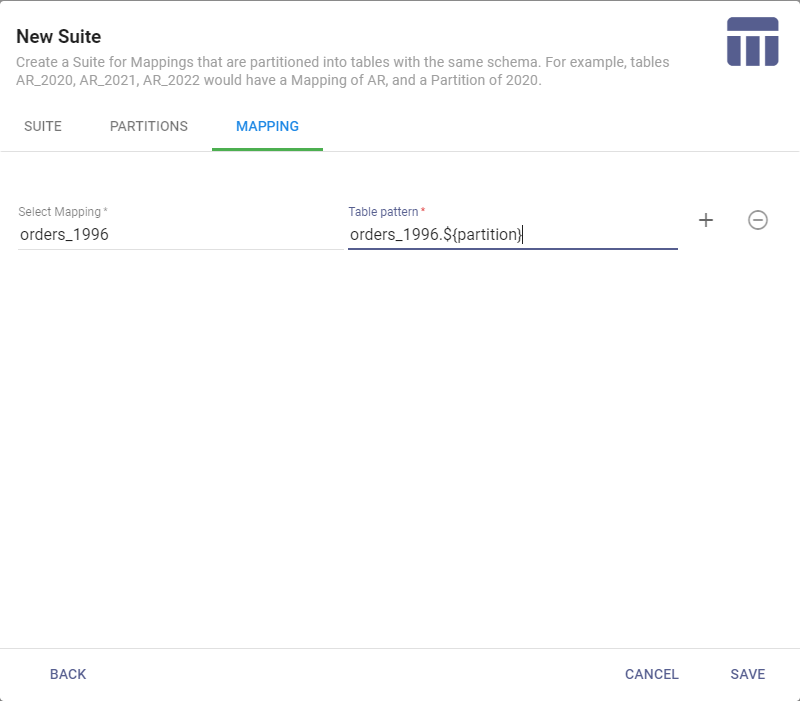
On the Mapping tab, select the parent Mapping and set the Table pattern, which references the partitions. For example, a parent Mapping of orders_1996 with the pattern orders_1996.${partition} resolves to orders_1996.2009, orders_1996.2010, and so on.
After saving, the Suite lists its partitions. To add another partition, click + New. To change the default partition, select it, click Actions in the lower-right corner, and choose Set as Default.
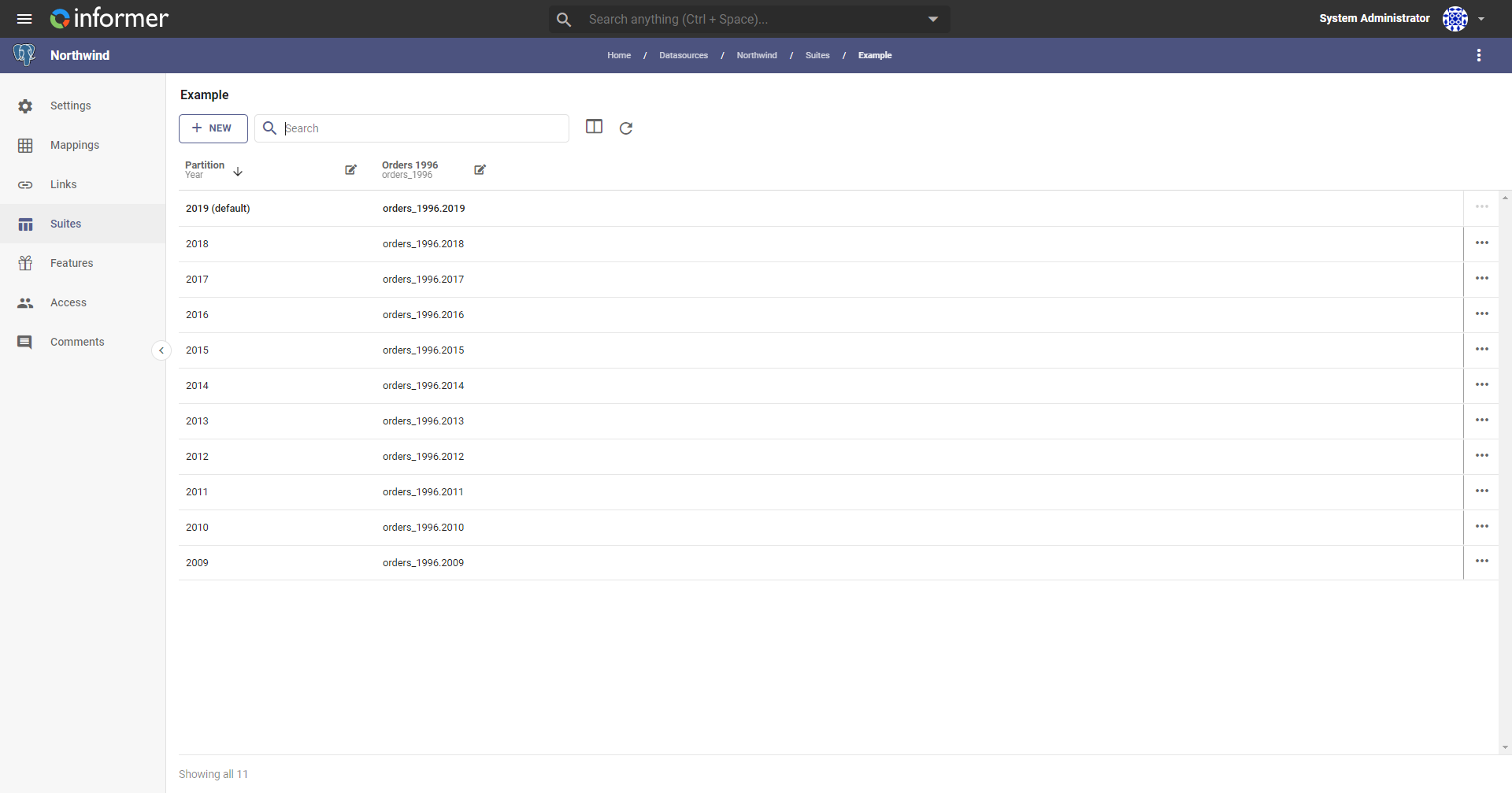
The default partition cannot be an empty Mapping or file.
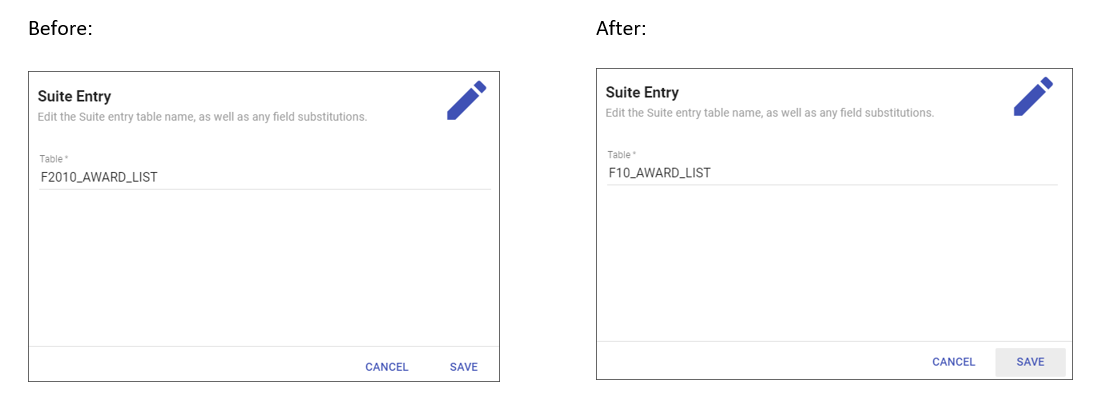
To edit an entry's table name or field substitution, double-click it. For example, if the Suite uses a four-digit year but the table uses a two-digit one, change the table name to match.
Using a Mapping Suite
Create a Query and select a Mapping that belongs to a Suite (for example GLA.FYR). The Query's Suite Options offer how to resolve the partition:
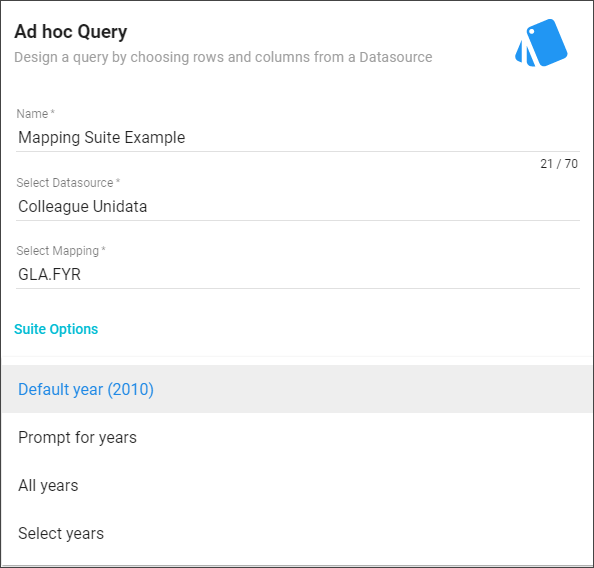
- Default year: returns data using the Suite's default partition.
- Prompt for years: asks for the partition(s) at run time.
- All years: returns data from every partition.
- Select years: runs against the specific partitions you choose.
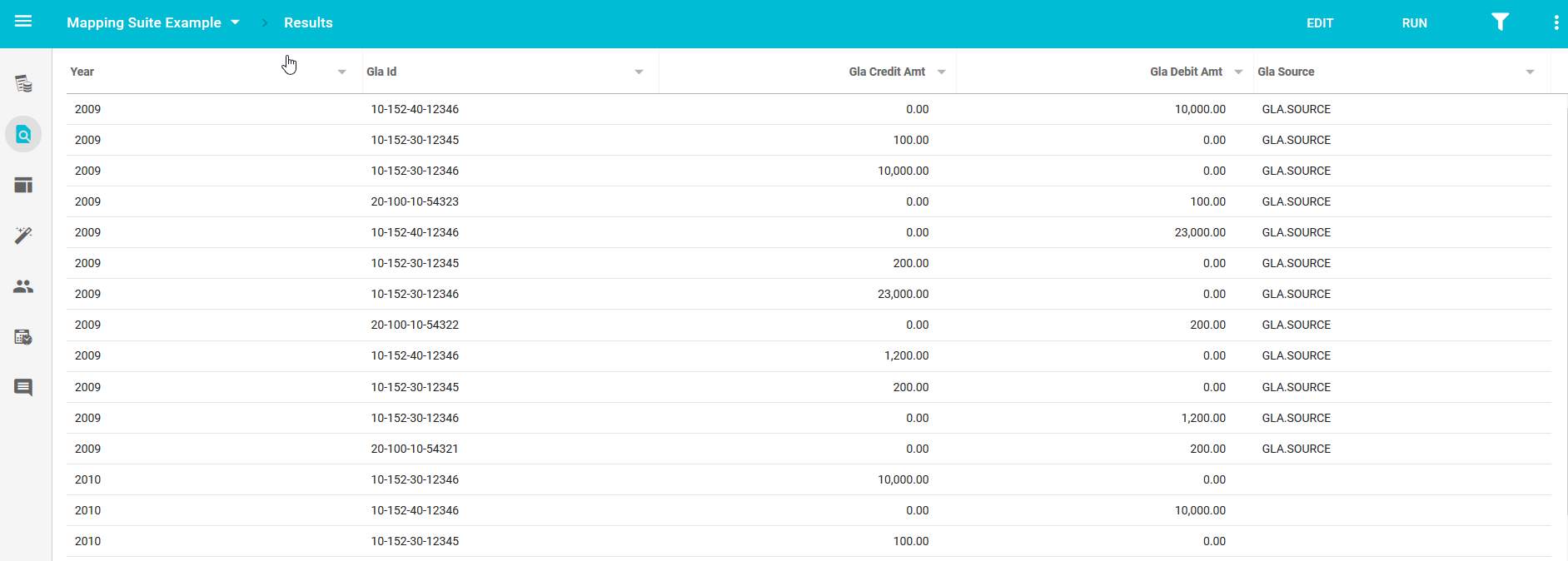
The partition appears as a column in the results, so you can group, sort, and filter by it.