Custom Field Expressions
Sometimes a Field needs a database-level function before it is useful in reporting: a U2 TRANS subroutine to pull Fields from one file into another, or a SQL SUBSTRING to extract the ID from a compound key. Custom Field Expressions let you create these Fields inside Informer without touching the underlying database.
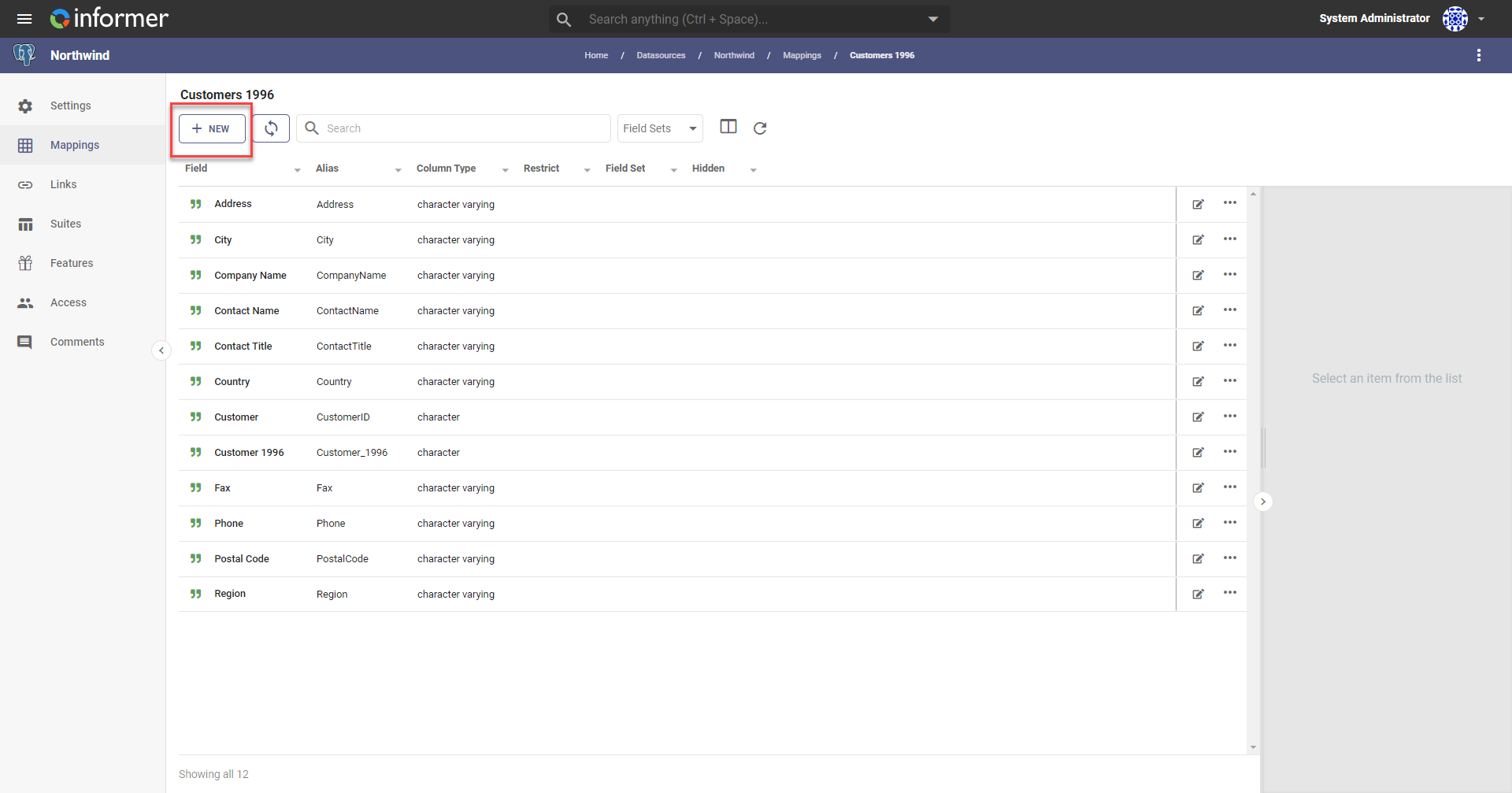
To create one, click + New while viewing the Fields in a Mapping.
In the panel, enter the Field's name, alias, and data type, and the data type the expression returns. In the Expression box, write an expression in the Datasource's native query language; when a Query using this Field runs, the expression is inserted directly into the query statement. The Insert Keyword button beside the box inserts keywords without typos. A few keywords evaluate at Query run time:
| Keyword | Resolves to |
|---|---|
${CURRENT_USER} | The username of the Informer user running the Query (useful for simulating row-level security). |
${DATASOURCE_OWNER} | The username of the user who owns the Datasource behind the Query (useful for simulating row-level security). |
${MAPPING_ALIAS} | The Mapping the Field belongs to (useful when the same Field name, like ID, appears across several Mappings). |
${QUERY_LANGUAGE} | The string informer (useful when developing custom plugins). |
${SUITE_PARTITION} | With Mapping Suites, the partition value for the Mapping in the suite (for example, 2010). |
For example, a TA Student ID Field on the TA_ACYR Mapping uses the ${MAPPING_ALIAS} and ${SUITE_PARTITION} keywords:
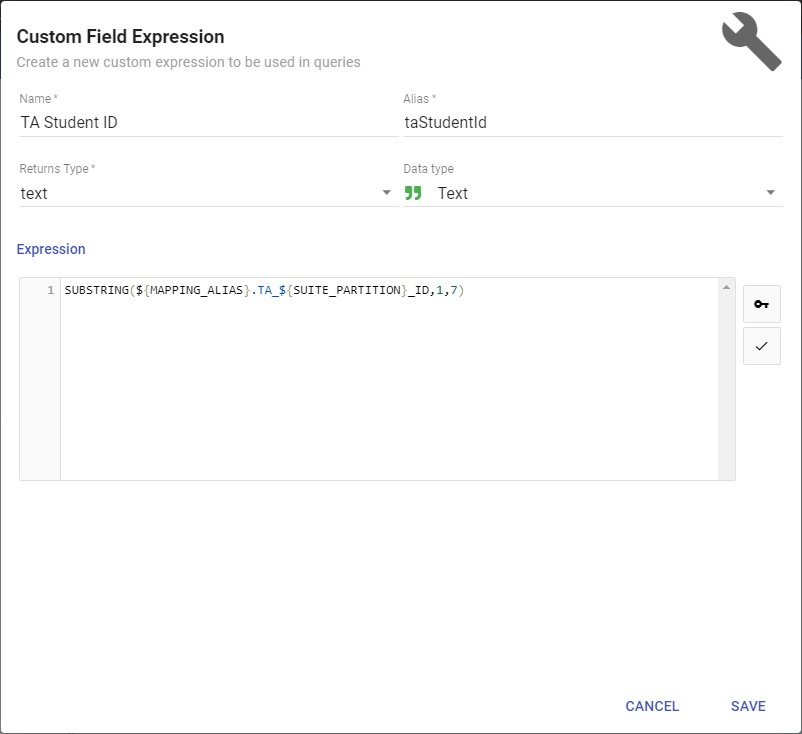
Because this Field belongs to the base table of a Mapping Suite, the keywords resolve to the right Mapping alias and partition, so the code inserted into the Query becomes:
SUBSTRING(TA_2010.TA_2010_ID,1,7)
The Test Expression button beside the box runs the expression and shows sample results below it.