Query Actions overview
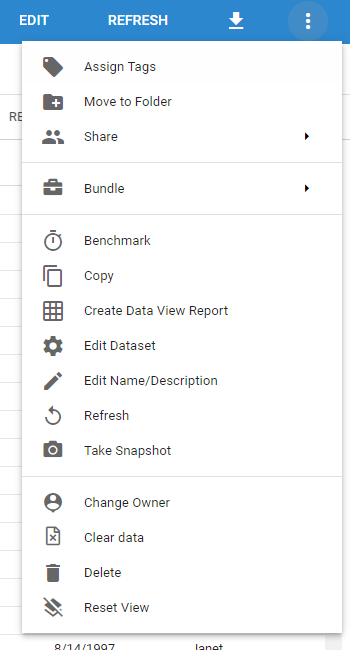
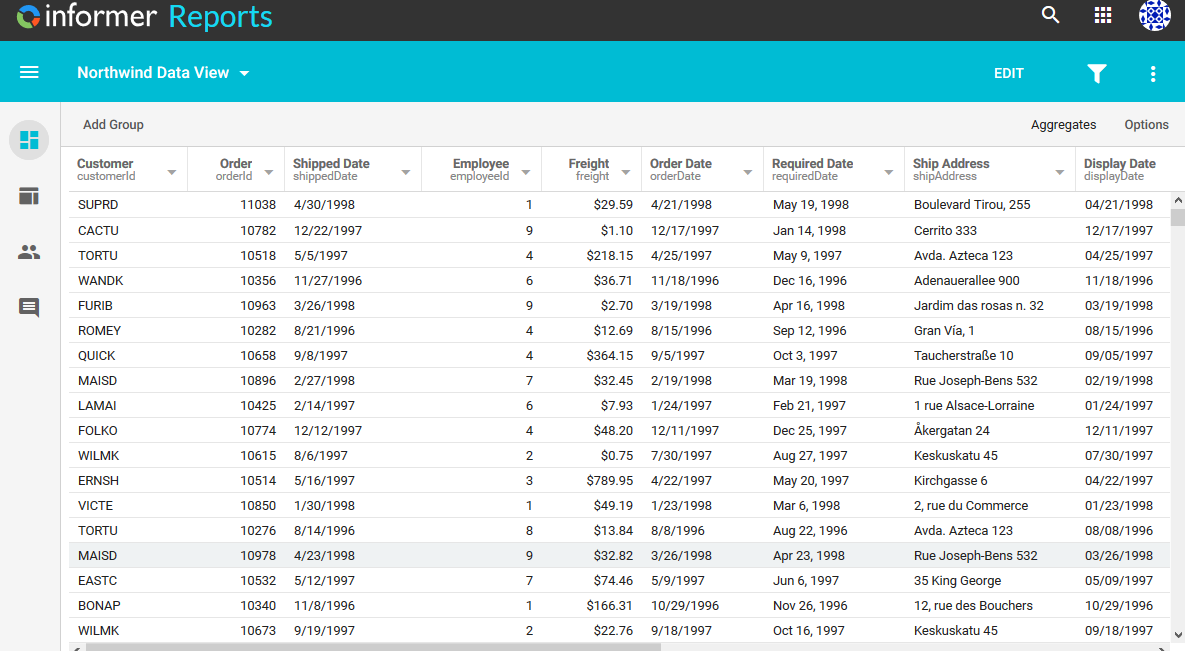
The Actions menu contains options for viewing, modifying, and distributing a Query's data. Access it from the Dataset listing page for Dataset Queries, or the Reports listing for Ad hoc Queries: select the Query, then click the three vertical dots in the top-right corner.
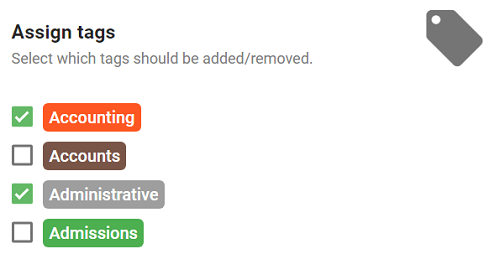
Assign Tags
Assign Tags attaches existing tags to a Query. See Organizing content for more, including how to make new tags.
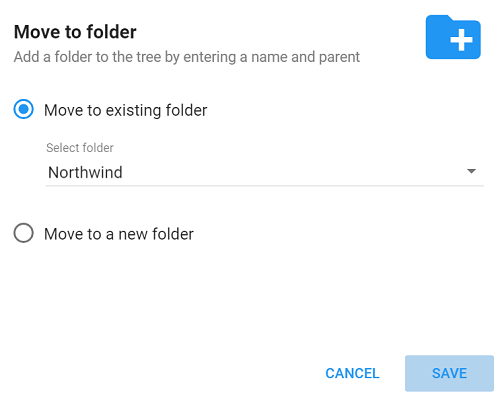
Move to Folder
Move to Folder moves the Query to a new or existing folder. See Organizing content.
Share
Share has options to share the Query or its Fields with other Users.
- Add Shares to Users/Teams: lets the owner share the Query with other Users or Teams. Existing sharing for the specified Users and Teams is overwritten. You can also set row-level security here, so the shared Dataset appears to contain only the records after the Filter is applied.
- Create a Query Token: enables sharing data with authorized users outside Informer 5. The token dialog generates a ready-made request (cURL, HTTPie, or token only) that calls the Query's export endpoint. See the developer API documentation for details.
- Grant/Revoke Field Access to Reports: toggles whether Fields from the Query can be used in Reports regardless of inherited security.
Bundle
- Add to Bundle: exports the selected Query to an existing or new Bundle.
- Bundle and Download: immediately creates a bundle of the Query and downloads the file.
- Bundle and Deploy to Tenant: exports the selected Query and imports it to one or more Tenants.
See Bundling for more.
Benchmark
Benchmark helps identify bottlenecks in a Query's performance. It can test parts of the refresh, such as Index Results and Flow Steps. Benchmark refreshes do not show or save the results. See Benchmarking.
Copy
Copy creates a copy of the current Query. See Copying, deleting, and renaming.
Create Data View Report
Create Data View Report generates a Data View Report using the current Dataset result set. This is only available on Datasets.
If the Query is an Ad hoc Query, this option instead reads Create Dataset and generates a Dataset using the current Ad hoc Query result set. The new Dataset has the same Query as the Ad hoc Query it was built from.
Edit
Edit opens the Query's Edit page. Edit is also available from the Edit button in the top-right corner.
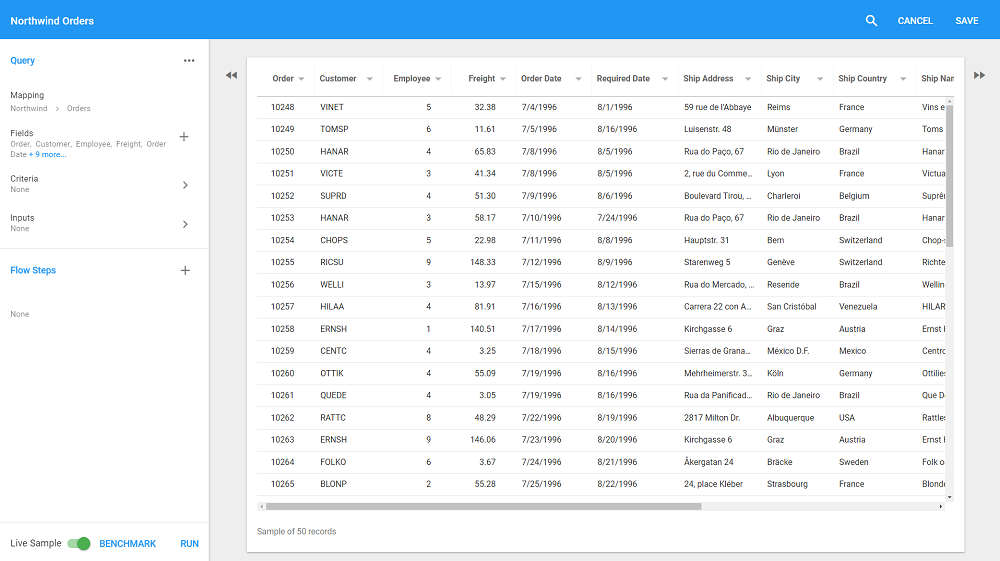
Edit Name/Description
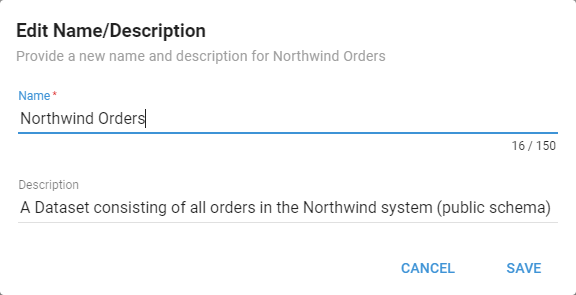
Edit Name/Description updates the Query's name or description. See Copying, deleting, and renaming.
Refresh
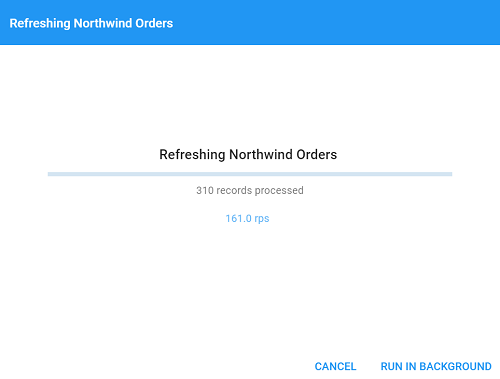
Refresh runs the Query, pulling in the latest data.
Take Snapshot
Take Snapshot creates a Snapshot of the current Query or Dataset results. A Snapshot is mainly identified by when its data was updated, but a label helps locate it. See Snapshots.
Change Owner
Change Owner gives ownership of the Query to another Team or User. See Dataset Ownership and Access.
Clear User Settings
Clear User Settings resets the user-specific settings in the Query to the defaults.
Clear Data
Clear data removes all the data within a Dataset. This is only available on Datasets.
Delete
Delete permanently removes a Query from the system. See Copying, deleting, and renaming.
Reset View
Reset View sets the grid back to the original view of the underlying data after you make changes to the display grid.