Organizing content
As you add more content to Informer 5, it can be challenging to find everything. Tags and folders are two ways to organize content.
Tags
Tags mark a Query with a given attribute. You can use them to filter the Queries shown on the Dataset listing page and the Reports listing.
Managing tags
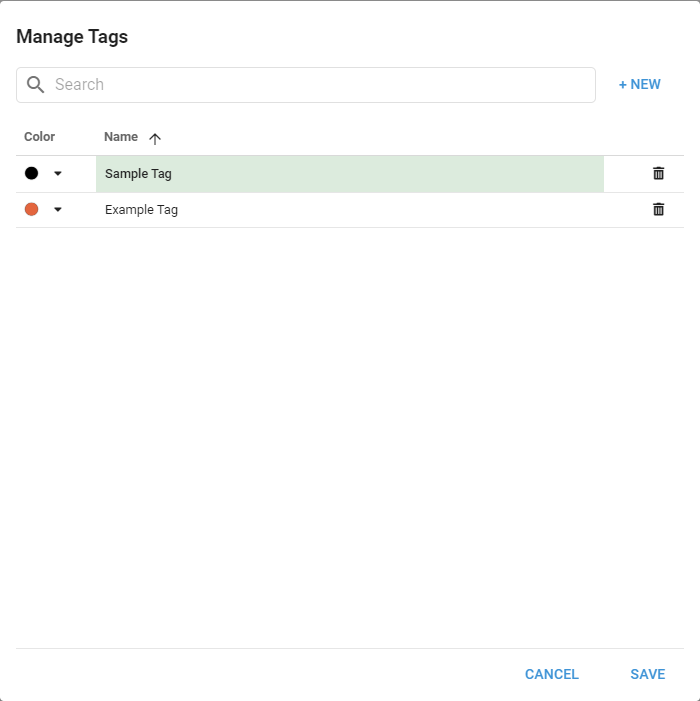
To make a tag, go to the Dataset or Reports listing, open the Tags dropdown, and click Manage Tags.

In the Manage Tags window you can add, edit, and delete tags. Click + New to add a tag, choose a color and name, and click Save. To edit a tag, click its name and change the color or name, then click Save. To delete a tag, click the trash can icon and confirm.
Assigning tags
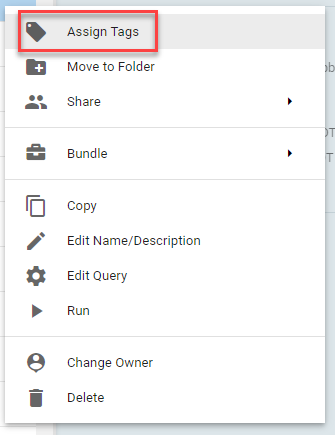
To use a tag, assign it to a Query. Select a Query on the Dataset or Reports listing and click Actions, or from the Query content page click the three vertical dots. From the Actions menu, open the tags window, check the tags to assign, and click Save.
Using tags to filter Queries
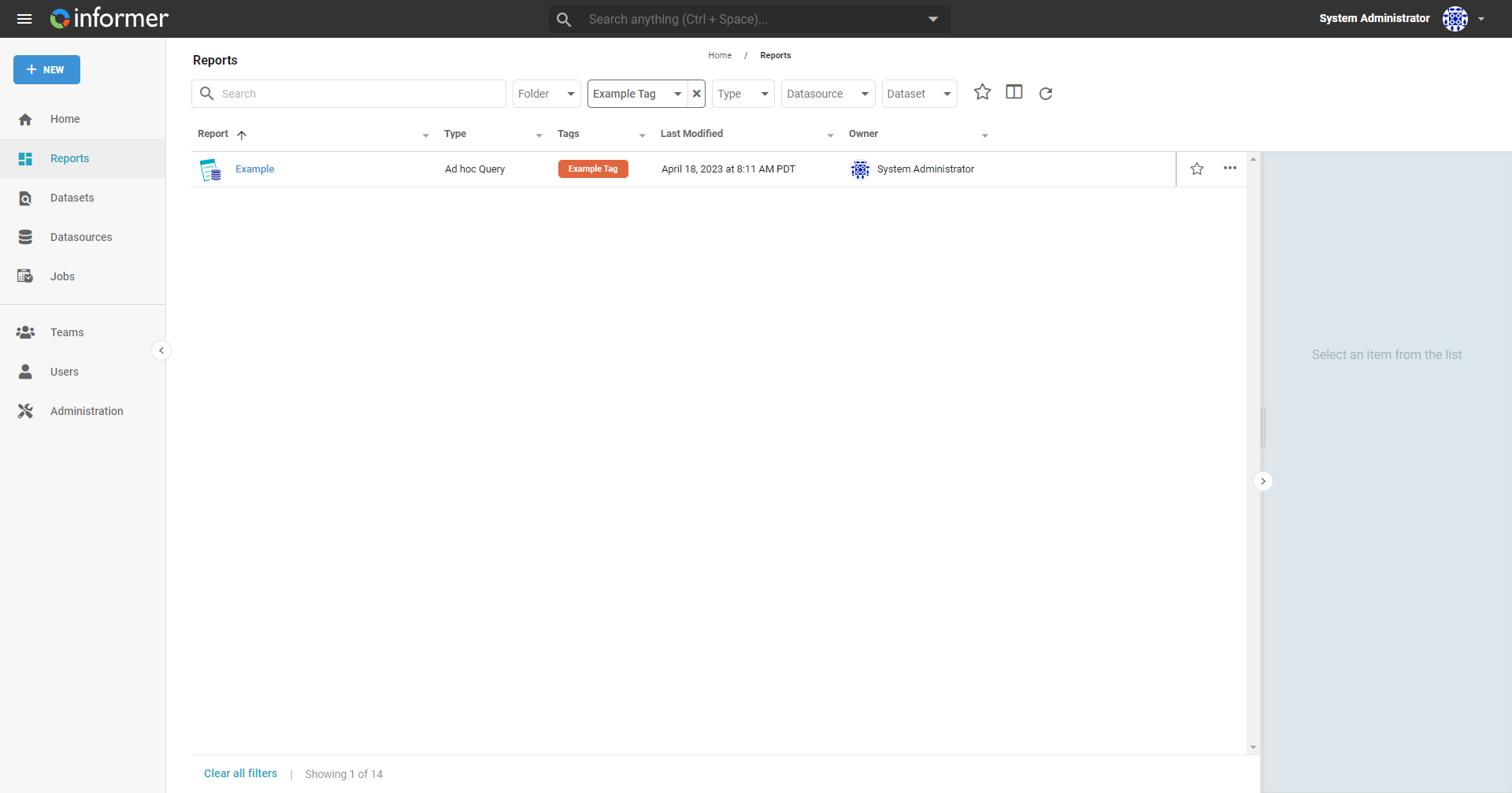
With Queries assigned to tags, open the Tags dropdown at the top of the listing and select a tag to add it to the filter. Apply as many tags as you need; only Queries that contain every selected tag display. Click the X next to a tag to remove it from the filter.
Folders
Folders provide hierarchical structure, helping you locate Queries quickly.
Adding folders
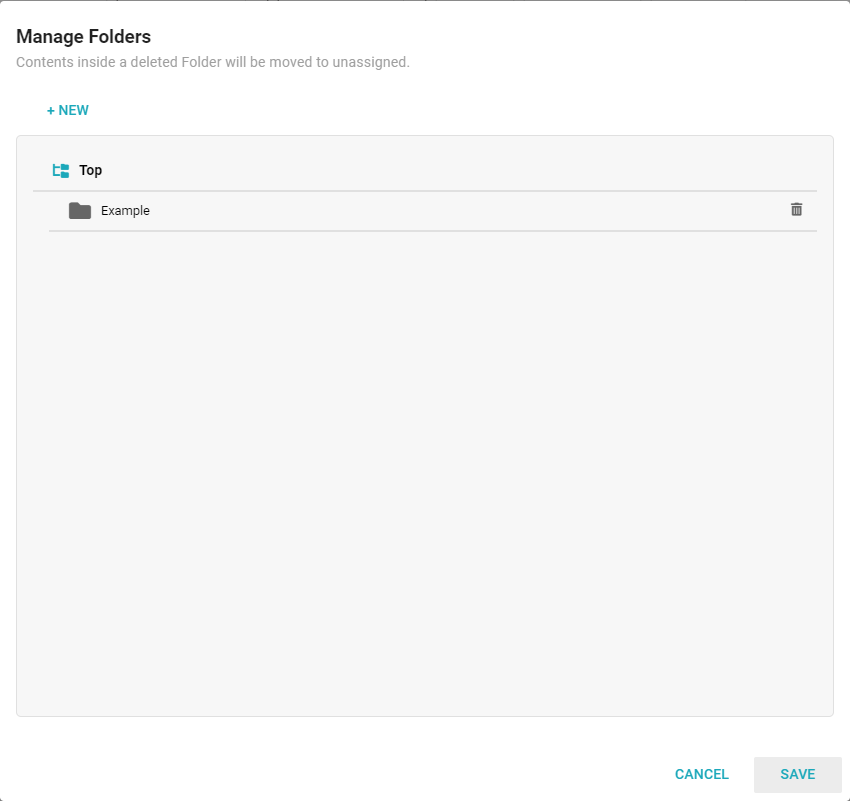
Go to the Dataset or Reports listing, click the Folders dropdown, and select Manage Folders. Click + New, enter a name, select a parent folder if needed, and click Save.
Managing folders
To rename, delete, or add a subfolder, select the folder under Folders in the left panel, click the ... icon, and choose the option.
Deleting a folder does not delete the Queries it contains.
Moving Queries to a folder
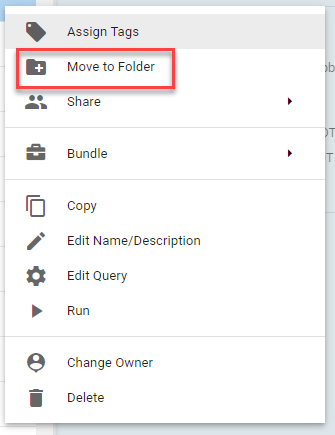
Select the Query on the Dataset or Reports listing and click the ... at the right of the row to open the Actions menu, then click Move to folder.
Removing Queries from a folder
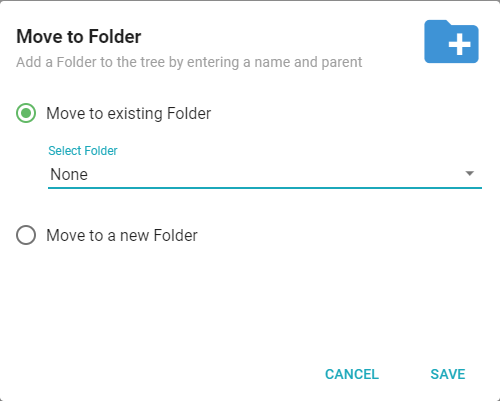
Follow the steps for moving a Query to a folder, and select None as the destination.
Using folders to filter Queries
To view the Queries in a folder, go to the Dataset or Reports listing, click Folders in the left panel, and select the folder. Expand subfolders by clicking the > to the left of the parent folder.