Dataset Ownership and Access
Informer 5.4 introduced changes in Field security to bolster data governance. These changes affect how Dashboard, Comparison Board, and Data View Reports function. They do not affect Ad hoc Query Reports.
There are three ways to grant access to a Dataset's information: giving ownership, granting Field access, or sharing.
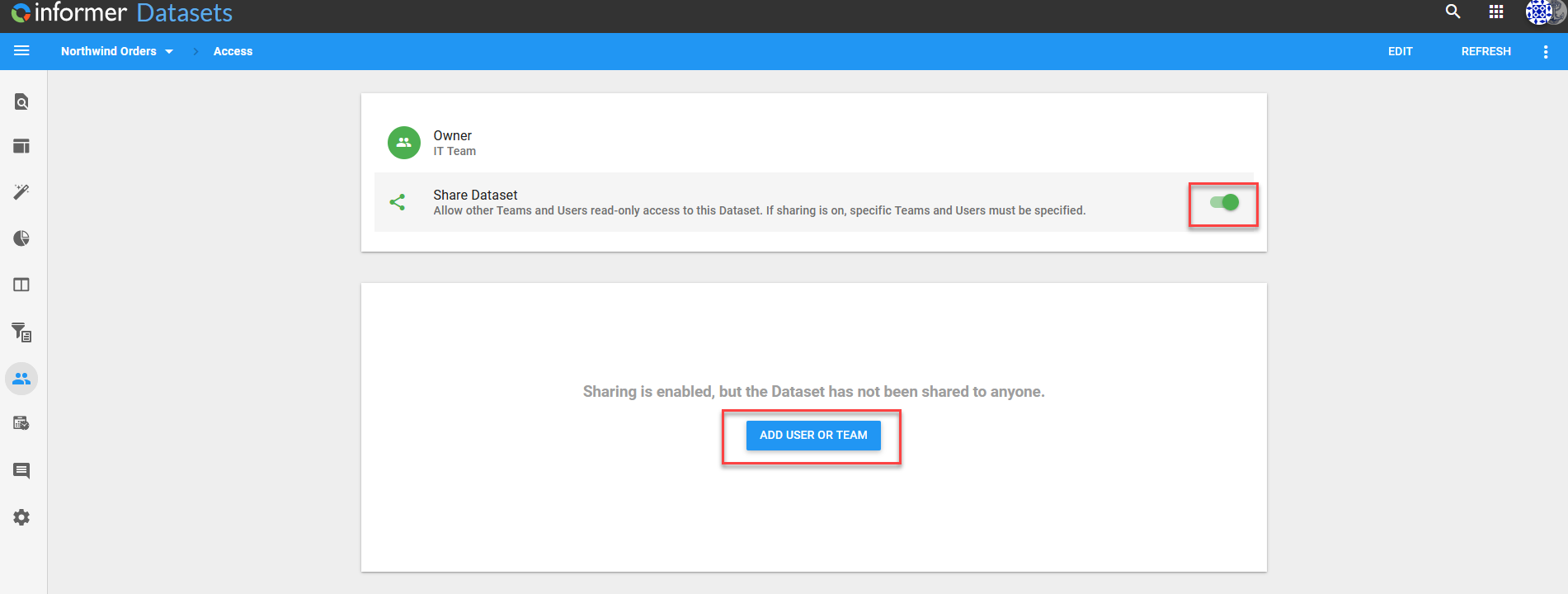
To reach the ownership and sharing options, click the Access icon in the left panel while viewing a Dataset.
Ownership
The default owner of a Dataset is its creator. The owner has full access and can change the owner to another User or Team.
To have Edit access to Datasets, Users must belong to a Team that owns the Dataset and have the role of Data Wizard or greater. Super Users are the exception: they can share with any User or Team.
If a Native SQL Query is shared with a User or Team that has access to run Queries against the Datasource, they can run that Native Query.
When changing ownership to a Team the creator is not a member of, the creator no longer has access to the Dataset.
Change Owner
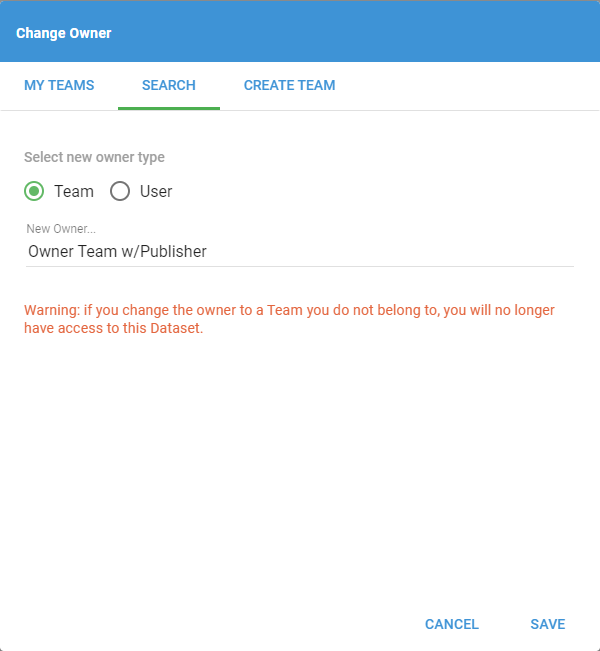
Change Owner grants ownership of a Dataset to a Team in which the User is a Data Wizard or greater. The User granting ownership must be the owner or have Publisher access to the Dataset.
Click Owner, choose from the list of available Teams where the owner is a Data Wizard or greater, and click Save.
Field Access in Reports
Prior to Informer 5.4, Users and Teams could view any Fields in shared Reports built off Datasets. The Field-security-based data governance model introduced in Informer 5.4 affects how Reports function after upgrading from earlier versions of Informer 5.
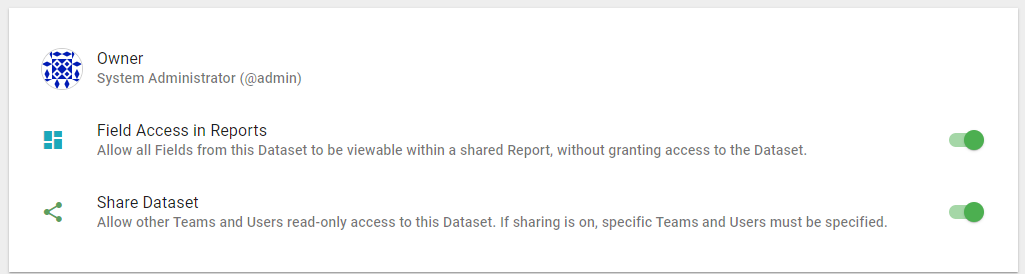
Informer 5.4.1 introduced the Field Access in Reports setting and changed the default behavior of Dashboard, Comparison Board, and Data View Reports. The setting allows all Fields from a Dataset to be viewable within any shared Report, without granting direct access to the Dataset. This is how shared Reports functioned before Dataset Field security was introduced in 5.4.0.
If a Dashboard, Comparison Board, or Data View Report exists and the Users and Teams with access to it need to see all of the Report's Fields, there are two choices: toggle on Field Access in Reports, or share the Datasets with those Users or Teams.
Click the Field Access in Reports toggle to enable it. The setting is disabled by default.
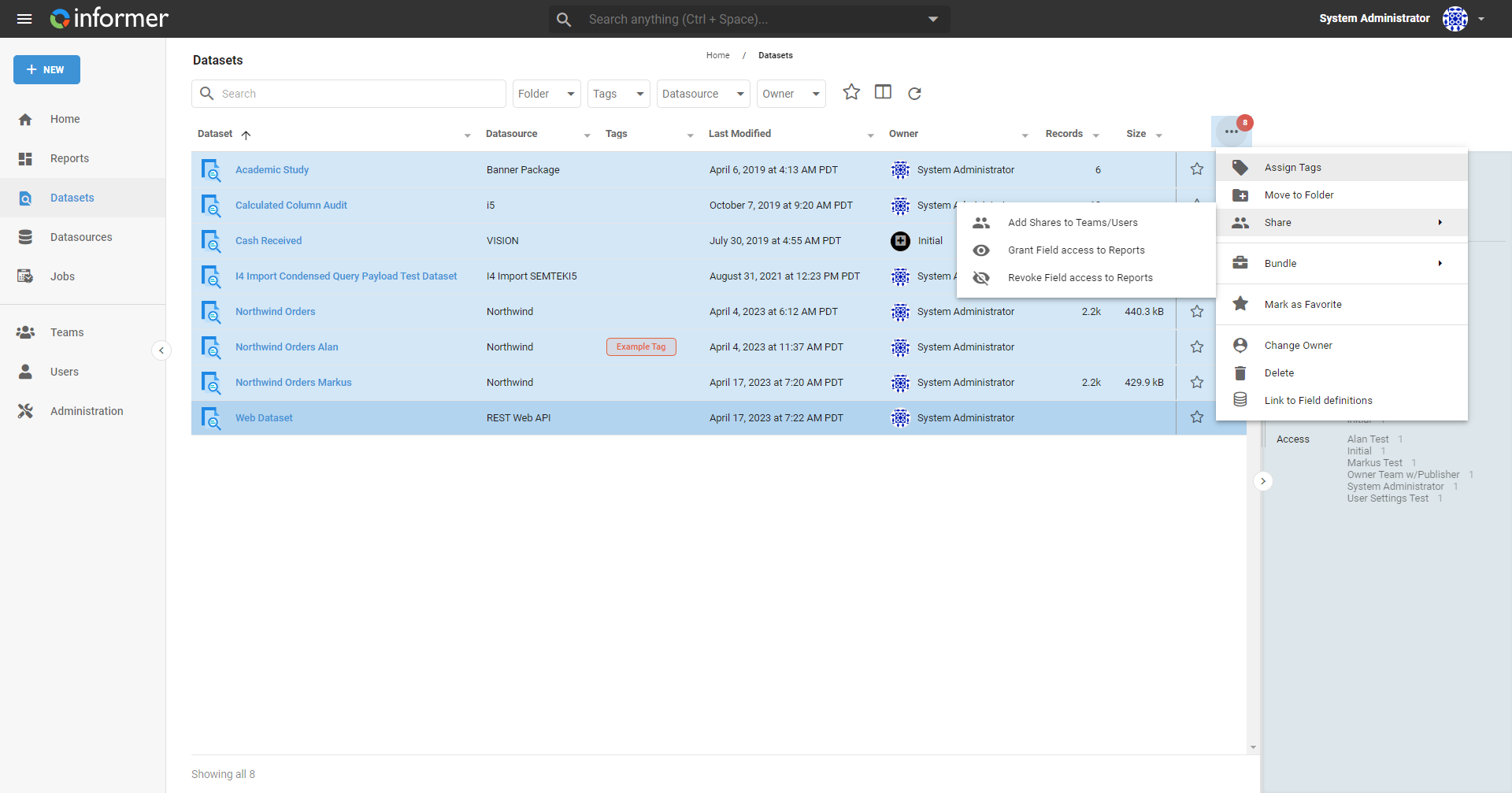
To enable it across many Datasets at once, highlight all the Datasets on the Dataset listing page (click the first Dataset, then hold Shift and click the last), then choose Grant Field access to Reports from the Actions menu.
Sharing
Sharing a Dataset with a Team or User grants read-only access to the data and Visuals, allowing the creation of Filters, Jobs, and Reports (Dashboards, Comparison Boards, and Data Views).
The owner must change the Dataset's ownership to a Team before sharing it outside the owning Team. The User must have a role of Publisher or higher in the owning Team to share with other Teams. Super Users are the exception: they can share with any User or Team.
Click the Share Dataset toggle to enable sharing, then click Add User or Team.
Add User or Team
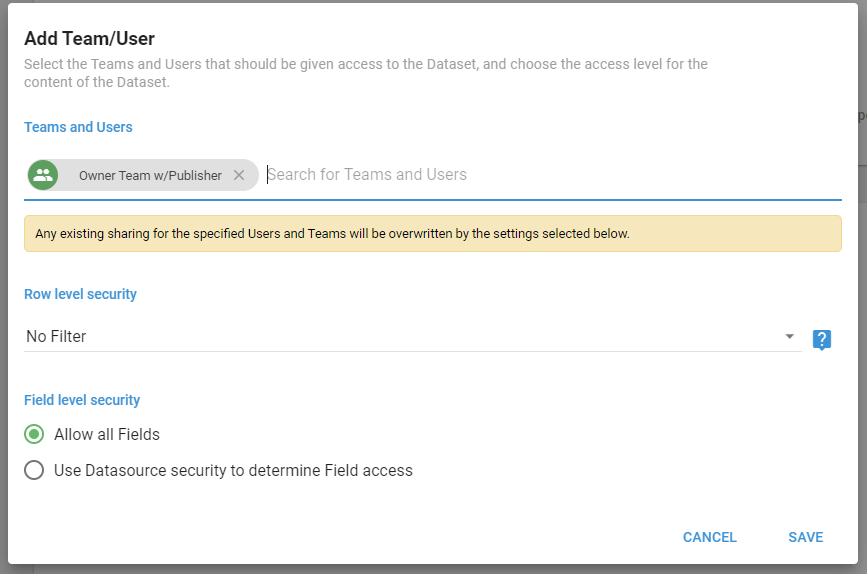
Select the Users and Teams that need access to the Dataset and choose their access level for reading its content.
Users and Teams
Begin typing the name of the Users or Teams that need access.
Row-level security
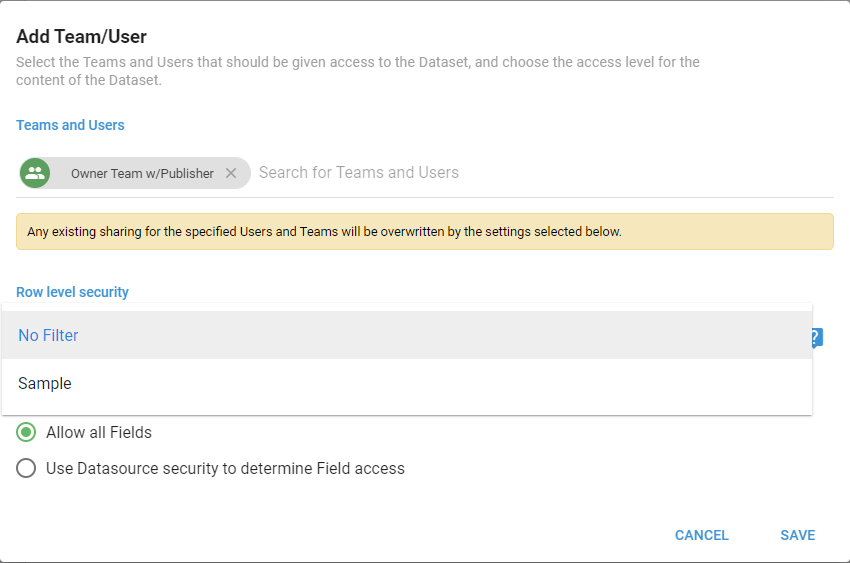
Use an existing saved filter to limit a User or Team's access to Query results. With a saved filter chosen, the shared Dataset appears to contain only the records that remain after the filter is applied. This filter applies to any Report (Dashboard, Comparison Board, Data View) built off the Dataset.
Field-level security
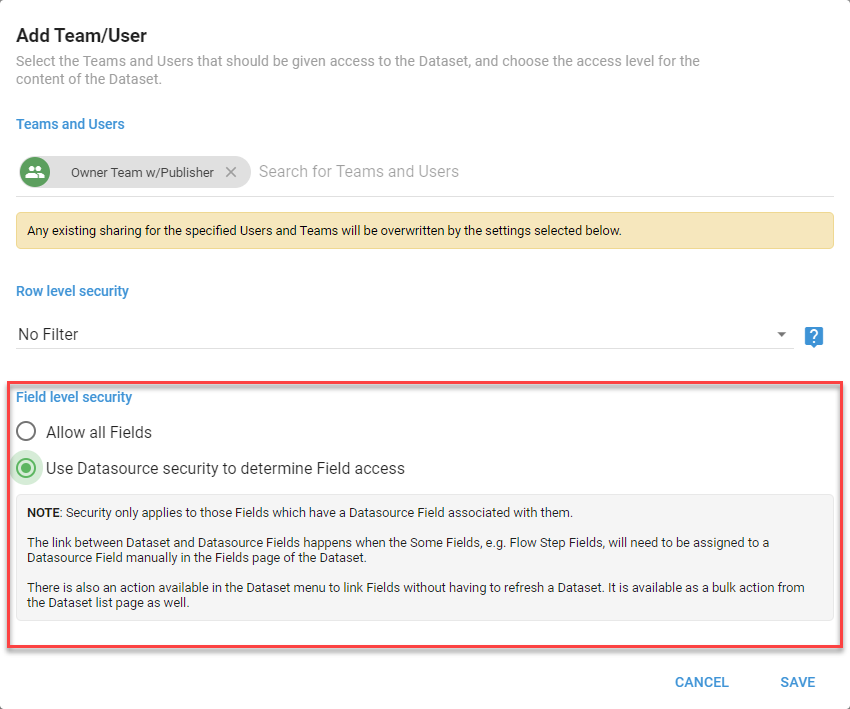
Choose to allow Users and Teams to access all Fields, or use Datasource security to determine Field access.
Removing access
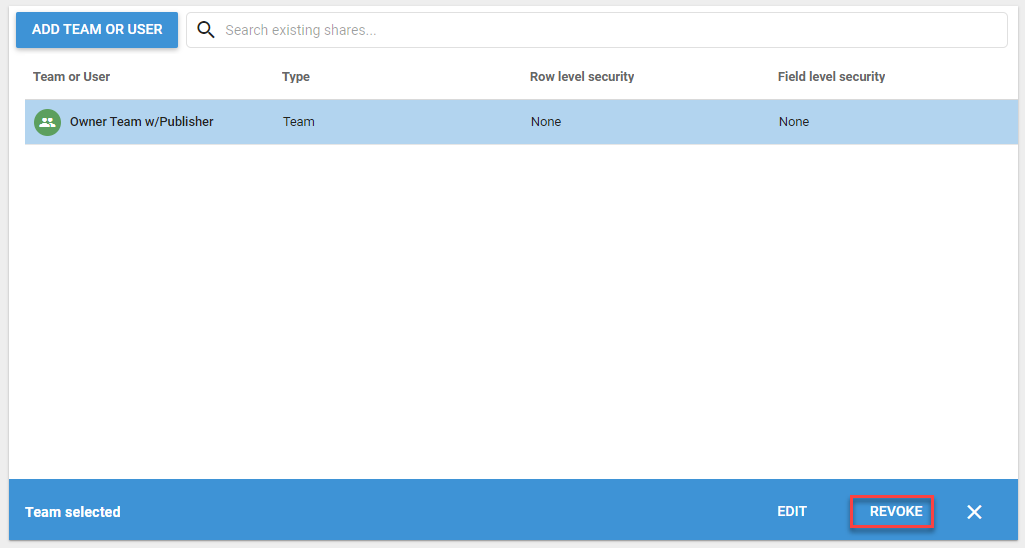
To remove shared access for a User or Team, click the User or Team to remove and click Revoke.