Save to File System
The Save to File System Action sends file exports to a specified network drive. Verify that the Informer server and the destination directory are accessible to one another. The account running the Informer application at the server level also needs the right permissions to write files to this directory.
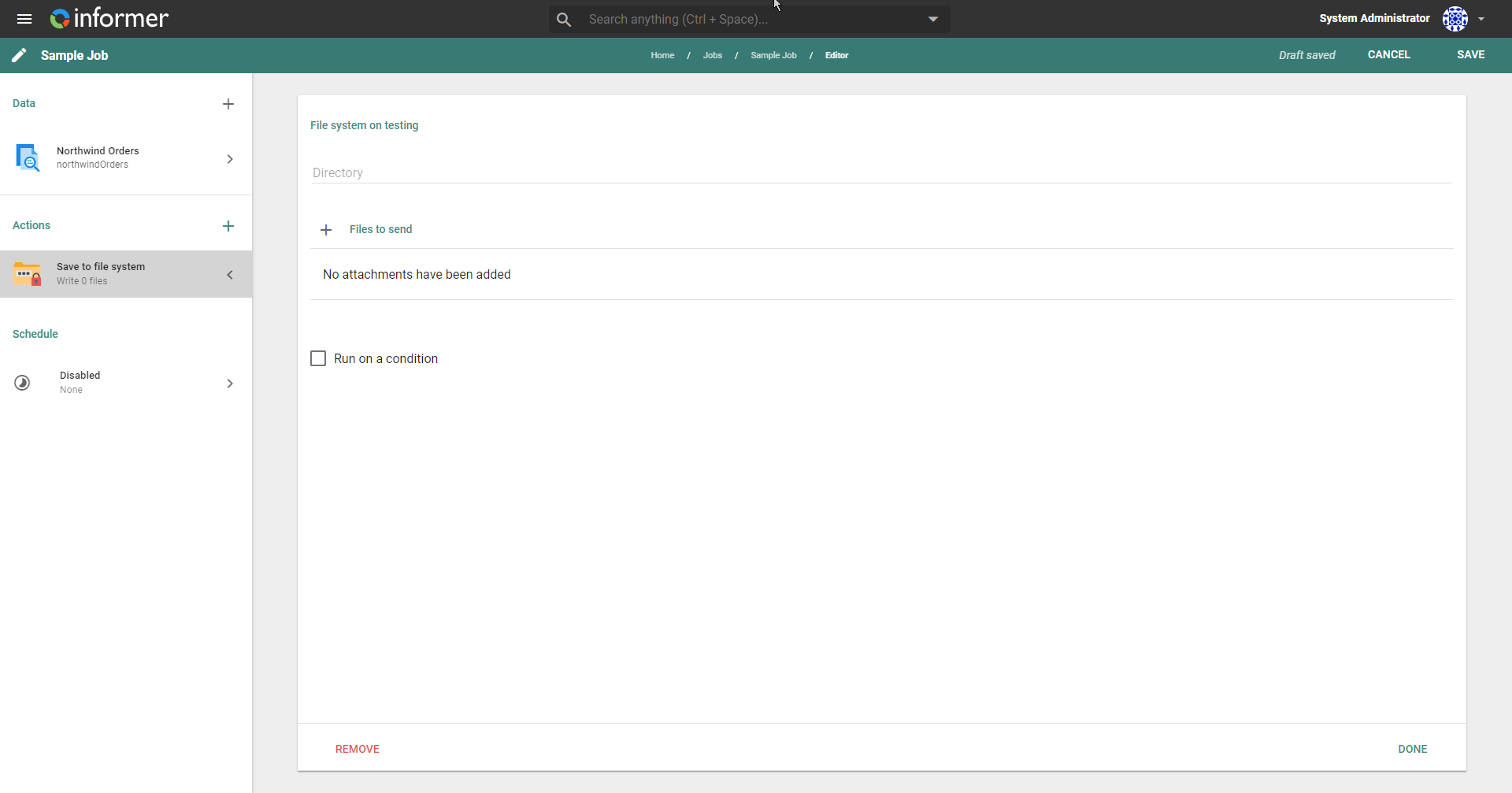
After adding the Action to a Job, fill in the Directory form with the desired network location. This network location is relative to the Informer server, not to any client machine accessing the Informer application.
Directory Path Requirements
For security reasons, the file system Action enforces strict directory path restrictions. The directory path is rejected if it meets any of the following criteria.
Path format requirements
- A directory path is required and cannot be empty.
- Only absolute paths are permitted.
- Paths using traversal segments such as
/./or/../are forbidden, even if they resolve to a valid location.
Protected directory restrictions
- The path cannot write to any directory used by the Informer server application or its dependencies.
If your directory path violates any of these restrictions, you receive an error message in the Job History and must reconfigure the path before the Job can be saved or successfully executed.
Existing Jobs with restricted paths become non-functional and require reconfiguration with compliant directory paths.
Files to send
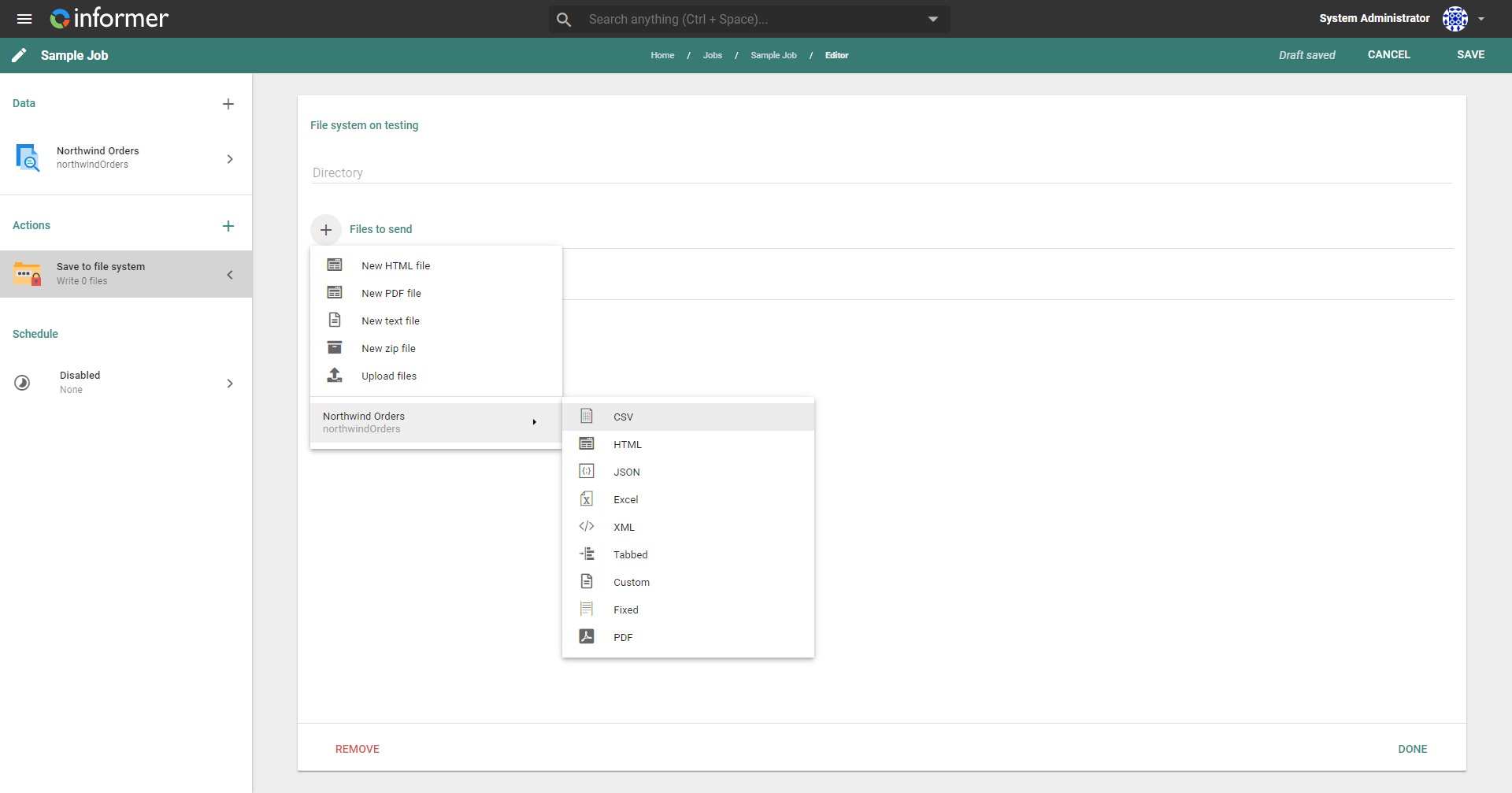
To configure the files to send to this network location, click the + icon next to the Files to send header. Attachments can be static HTML files, PDFs, text files, client-uploaded files, or ZIP files containing any of those types. These static file types provide a WYSIWYG editor to create the file.
The Job's data components also allow for file export. The configurable options for each export file type are the same as when exporting a file directly from the Query results (see Exporting). For more on naming conventions, see How to Export a File using a Custom Naming Convention.
Zip attachments
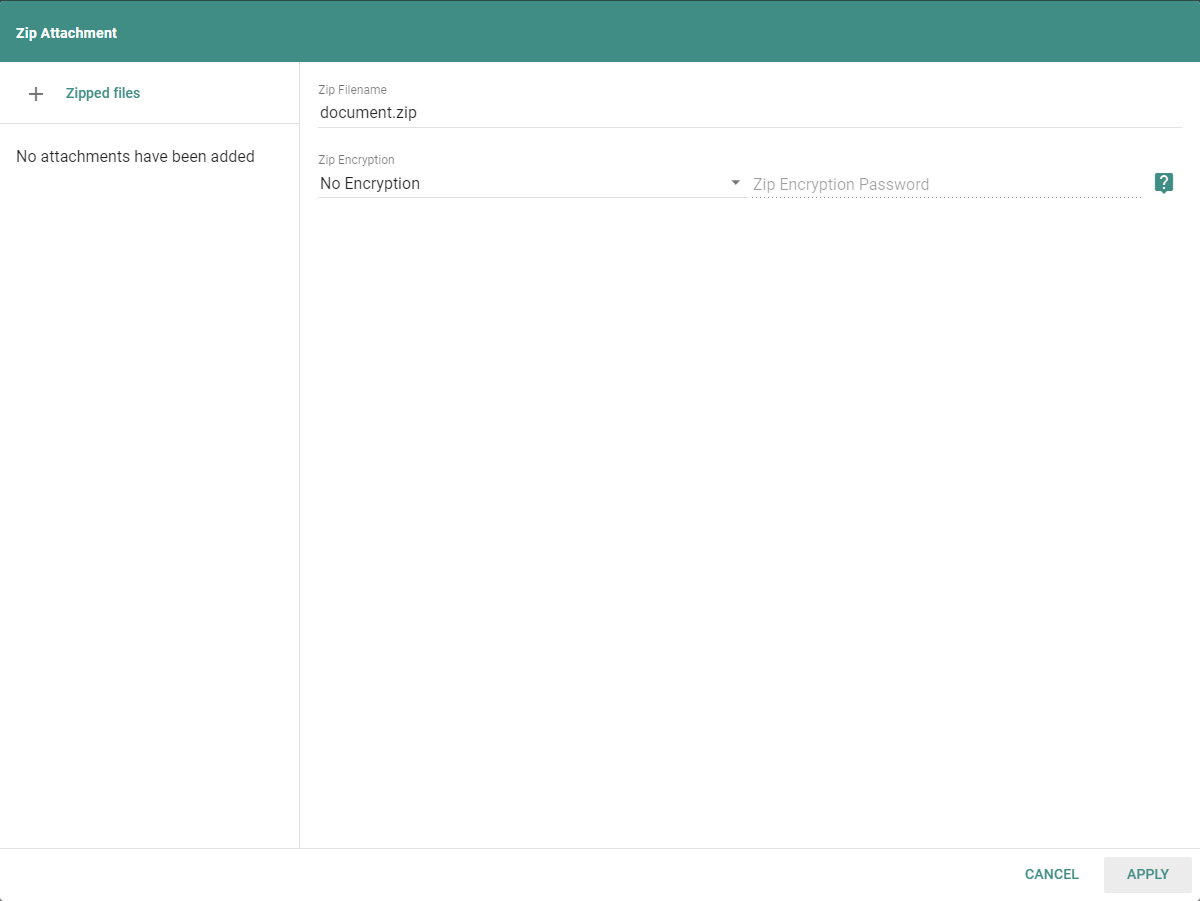
A Zip file attachment is configurable with or without encryption. Enter an encryption type and password to use this option. There are two types of encryption, Zip 2.0 and AES 256.
- Zip 2.0: most modern operating systems can open this encryption type without special software (less secure).
- AES 256: this option uses 256-bit encryption and likely needs additional software to open, such as 7-Zip or WinRAR (most secure).
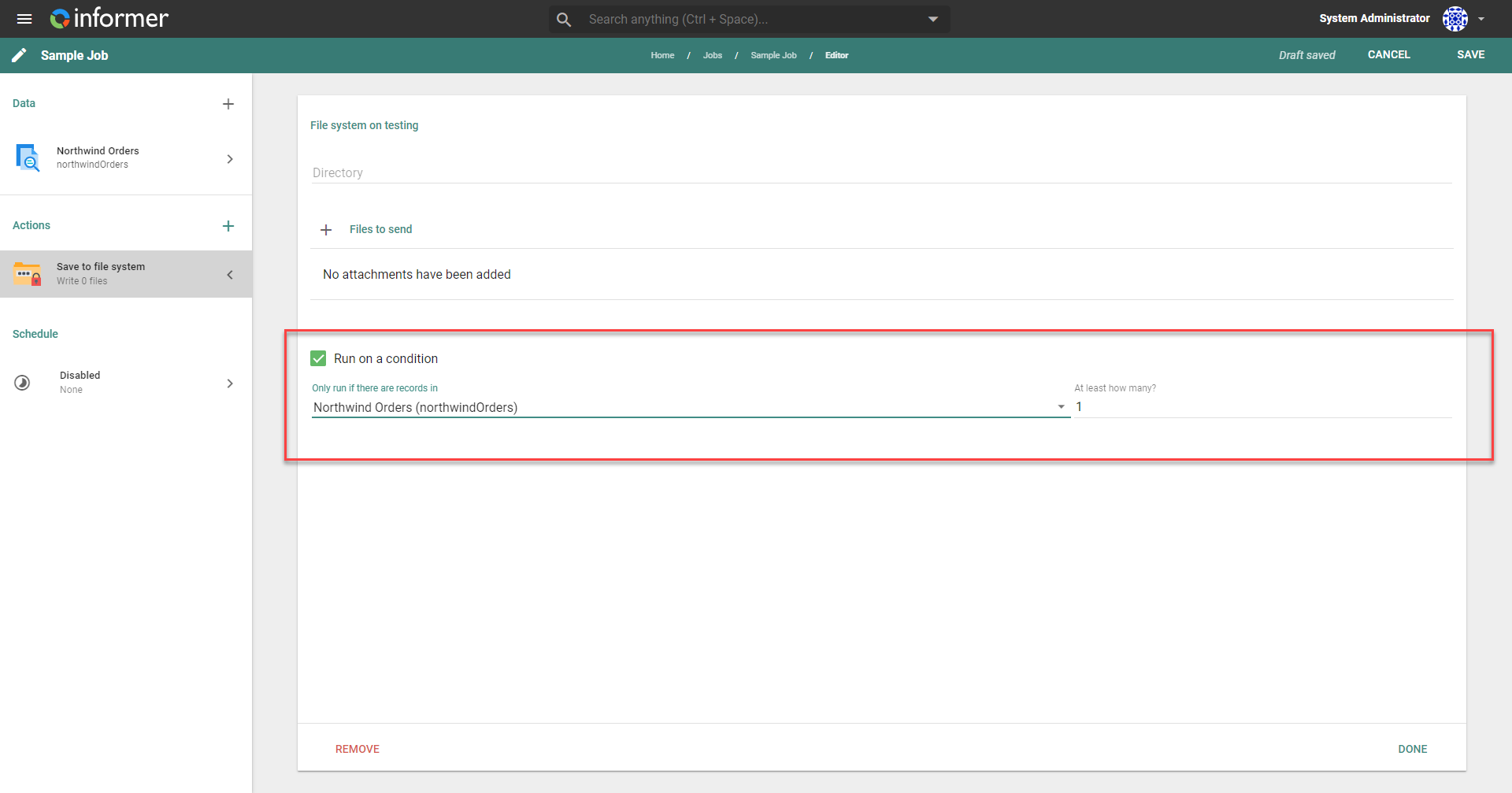
Run on a condition
The Run on a condition checkbox configures this Action to run only when a specific number of records come back from a specific data component. This is helpful when you do not want to send out files containing zero records.