Adding Actions to a Job
In addition to refreshing data, a Job can perform added steps. Actions defined on a Job execute a set of tasks after any data refresh. For example, a single Job can perform all of these Actions:
- Send an email to the Director of Sales, Northern Division, with content sourced from the filtered Dataset "Northern Sales".
- Send similar emails to the South, East, and West Directors of Sales.
- Store the results of the "Northern Sales" Dataset as an export file on a network drive.
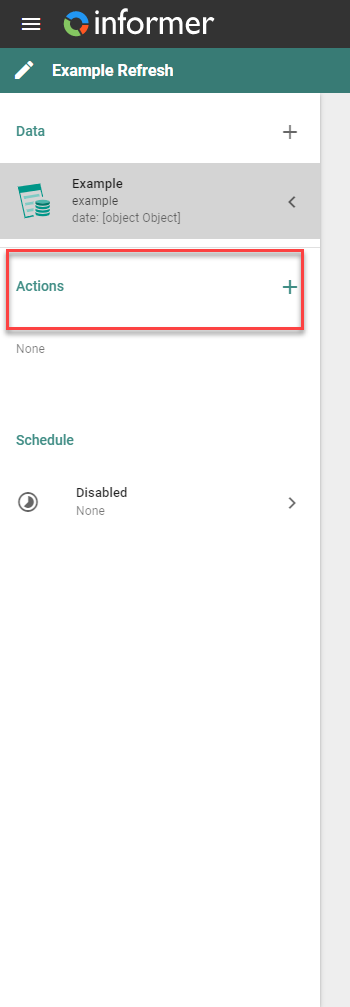
To add an Action to a Job, click either the Add Action button in the middle of the Job view page or the + icon to the right of the Actions header in the left-side panel on the edit page of a Job.
Choose the Action type from the menu.
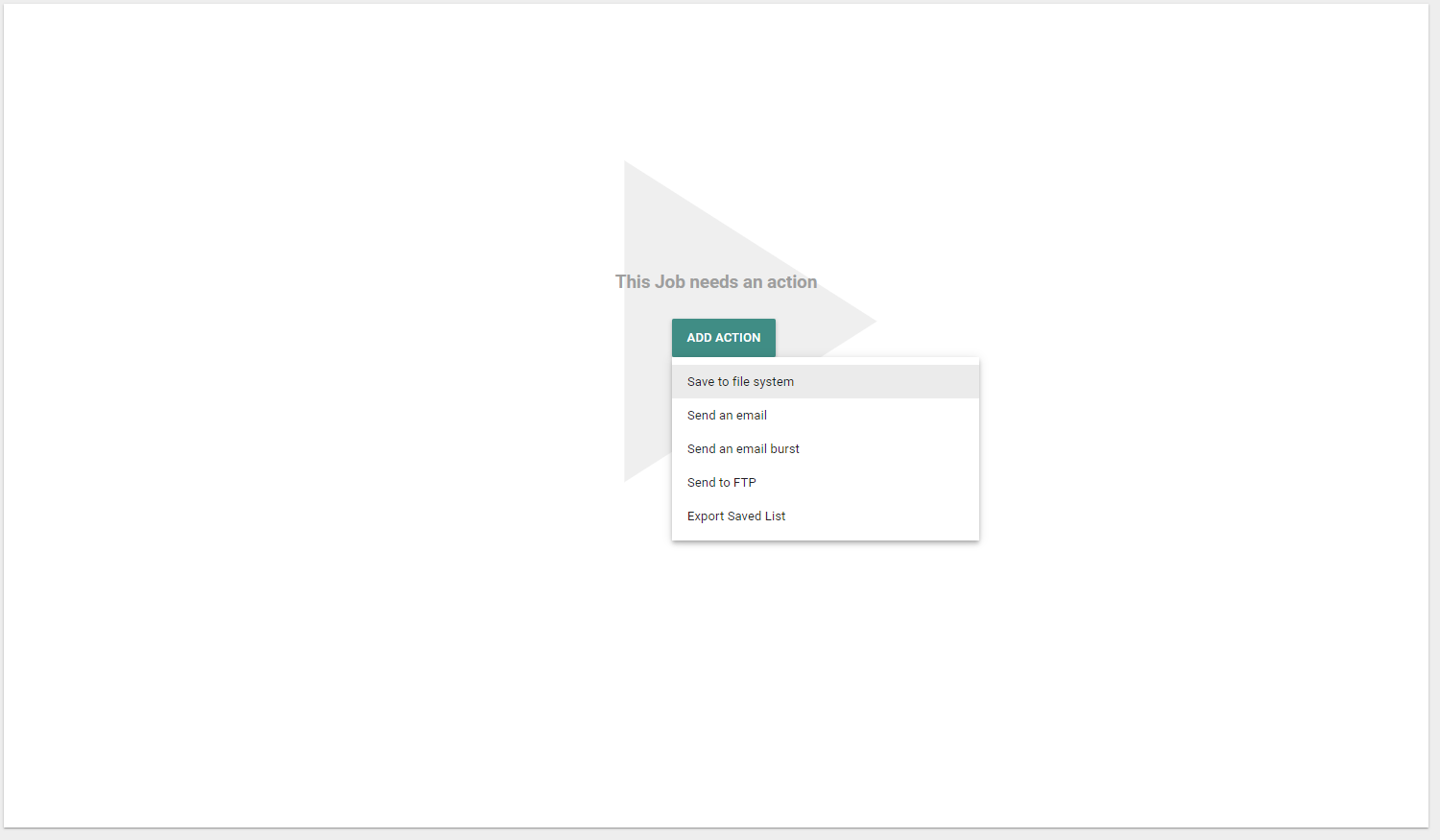
The following Actions are available:
- Save to File System: save files to a file system connected to the Informer server.
- Send an Email: use a rich email editor to send an email with content sourced from the data components of the Job.
- Send an Email Burst: send multiple emails at once, based on unique email addresses in the data components of the Job.
- Send to FTP: establish and send files via an FTP, FTPS, or SFTP connection.
- Export Saved List: save values to a list on a U2 Datasource.
- Batch Upload: group data and upload one file per group to FTP or a cloud Drive.
- Upload to Drive: upload files to a OneDrive or Google Drive Library or Integration.
Attachments can also be created for each Job. To configure email attachments, click the + icon next to Attachments. Attachments can be static HTML files, PDFs, text files, client-uploaded files, or ZIP files containing any of those types. These static file types provide a WYSIWYG editor to create the file. Attachments can also be files exported from the data components of the Job.