Jobs Best Practices
Informer can filter data and display it in a number of different ways without any manual interaction beyond the initial setup of a Job. These are recommended methods for configuring Jobs. Following these best practices lets you set up Jobs to run efficiently.
User permissions
Managing Jobs is restricted to system Administrators, Super Users, and Users with the Jobs permission. It is advisable to restrict the ability to edit Jobs to a small group of users to maintain control of Jobs. This streamlines processes and avoids potential conflicts or resource allocation issues.
Data refresh
When using Jobs to refresh a Dataset, there are a few things to keep in mind to get the best use of Informer and the queried Datasource.
- When refreshing a Dataset, ensure that no two Jobs refresh the same Dataset at the same time or in close fire intervals. Often there is no need to refresh a Dataset more than once during a working session. Only if the data is expected to change over a certain amount of time would the data need to be reindexed within the same session.
- Technically, the reason not to refresh the same Dataset back to back or simultaneously is that two independent Jobs refreshing the same Dataset at or near the same time have a high chance of a race condition, resulting in a failed Job execution.
- Another potential situation is intentionally adding the same Dataset to a Job more than once and unintentionally turning on the refresh flag for more than one copy.
These practices help reduce unnecessary load on the Datasource server and on Informer's network connection to the server.
Reusing Datasets
Adding a Dataset to a Job multiple times is also a best practice. This allows unique filters and Actions for each of the additional Datasets. Ensure the first Dataset in the Job is set to refresh, and that all subsequent copies do not refresh the data, since that could lead to a similar problem as in the Data refresh section above. Because the data is already indexed within Informer, there is no need to fetch it again. Apply the filters to each subsequent Dataset and perform a unique Action with each result set without returning to the Datasource.
Order of operations
Multiple Datasets and Actions can compose the body of a Job. Each asset of a Job has a fire order, and that order is top-down. All Data assets fire top-down, followed by the Actions, which also fire top-down. Consider the position of each data asset and Action when building a Job.
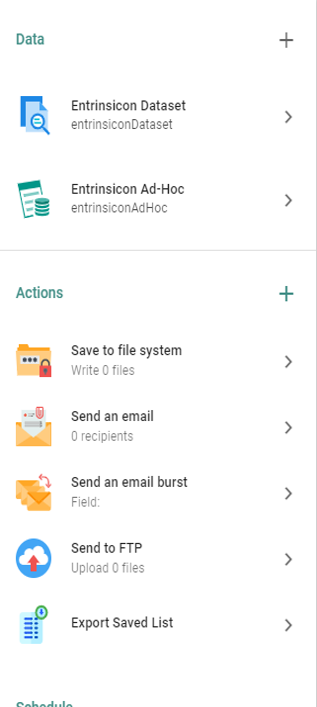
For instance, in the figure above "Entrinsicon Dataset" runs first, then "Entrinsicon Ad-Hoc," and after that all of the Actions run in order from "Save to file system" to "Export Saved List."
Actions
When sharing data files with Informer, choose the correct Job Action based on the size of the data and the intended recipients. See Actions within a Job for more information.
Smaller Datasets
Sending data via an email Action is best suited for smaller Datasets.
- Send an Email: a convenient option for smaller data that needs immediate attention or review. It is not suitable for large Datasets due to size limitations and potential security concerns.
- Send an Email Burst: use this to send multiple files efficiently. It distributes data to various recipients in a single Action, streamlining the process for smaller Datasets.
Larger Datasets
Informer has options for large Dataset distribution as well. Choose the correct Action depending on the intended audience.
- Save to File System: when dealing with large Datasets that need to remain within the network, this Action is secure and capable of handling big data, ensuring that large files are easily accessible to authorized users without leaving the network.
- Send to FTP: for sending large data files externally, this Action is suited for big data and provides a reliable way to share files with external parties.
Job load
The ability to add multiple assets to one Job means a single Job can become resource-intensive. Create a unique Job for each required task rather than adding too many Actions to one Job.
Scheduling
Space out fire times so that multiple Jobs do not run at the same time. Preventing longer-running Jobs from queuing up relieves network and Datasource resources. When possible, use off-hour fire times.
Keep in mind how frequently a Job runs compared to how long it takes to run. For instance, if a Job takes 10 minutes to run and has a fire interval of 15 minutes, this leaves little room for error if a refresh takes longer due to data size, network connection, or load on the Datasource.
Find a frequency that balances how often a Job refreshes against how often the data changes and when Users need the data. The Job History is an excellent resource for troubleshooting Jobs and determining when Jobs should run based on known run times.