Giving a chat context
A new chat can see nothing: no Datasets, no documents, no Assistants. Everything below is opt-in, per conversation, from the Context half of the Settings & Tools menu. That's a feature, not a limitation: you always know exactly what the AI is looking at, and a tightly briefed chat gives sharper answers than one drowning in loosely related data.
Assistants
Assistants opens Choose Assistants, where you hand the conversation to one or more configured AssistantsA configured AI persona with its own instructions, knowledge, and tools. Chats can be powered by an Assistant tailored to a specific job, like answering HR questions or analyzing sales data.: an AI persona your team built for a job, with its own instructions, knowledge, and skillsA reusable capability an Assistant can be given, packaging instructions and tools for a specific task..
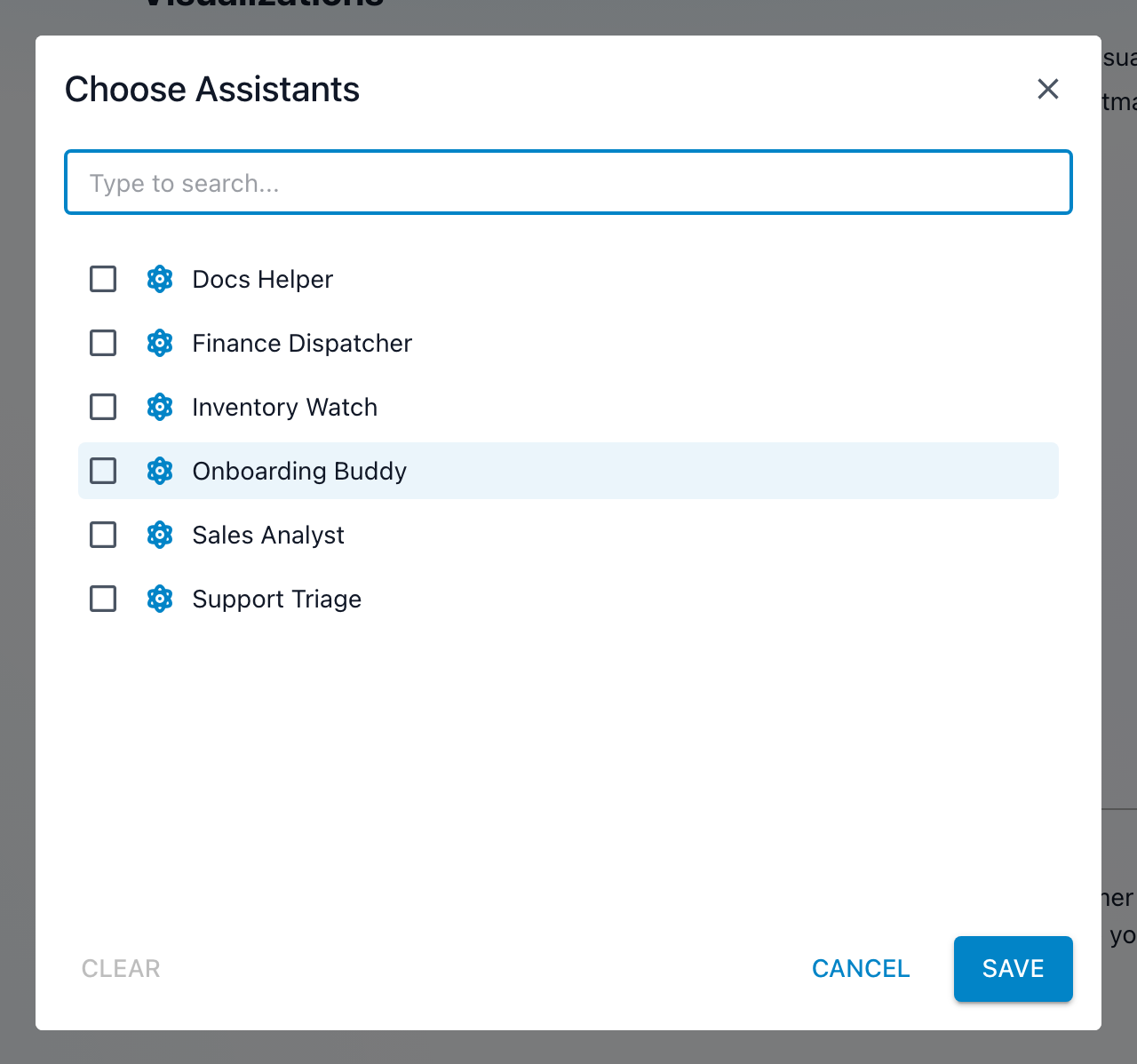
The list shows every Assistant you can use; search to narrow it, and check as many as fit the conversation. Two kinds behave differently:
- Specialist Assistants answer directly in their area: a Sales Analyst that knows your pipeline, a Support Triage that drafts replies in your voice.
- Dispatcher Assistants route your question to other specialist Assistants and combine their answers, ask one question, get the marketing Assistant's and the finance Assistant's take in a single reply.
Datasets
Datasets opens Choose Datasets, where you pick which DatasetsA saved, queryable collection of data pulled from one or more Datasources. Datasets are the foundation for reports, dashboards, and AI data analysis. the chat may query. The AI can then aggregate, filter, and reason over that data in plain language: "average order value by month, this year against last", and answer with charts and tables, not just text.
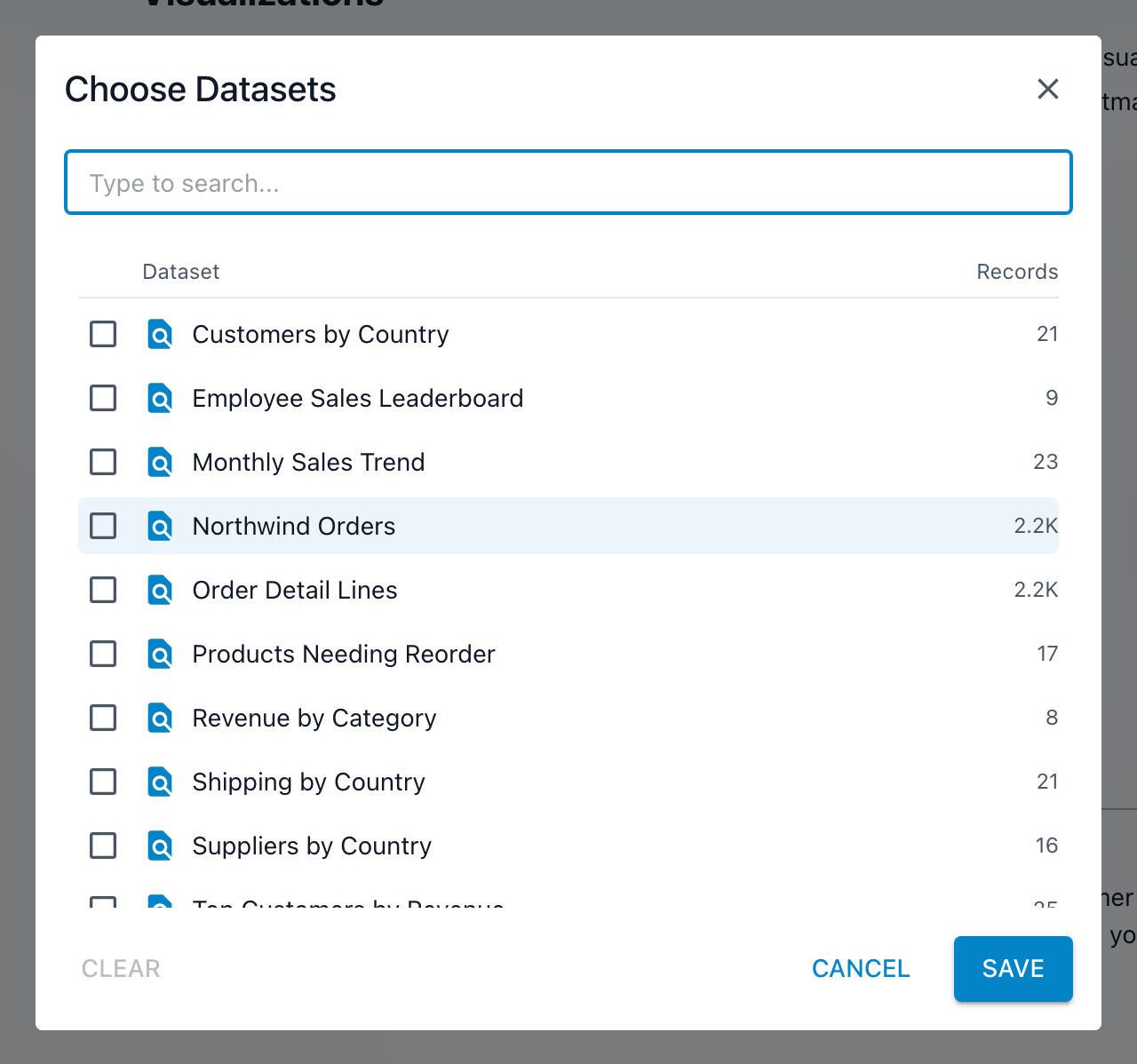
Each row shows the Dataset's record count, so you can tell the big tables from the small ones. Search the list when it's long, and when you have favorites a Show favorites only filter narrows it to the Datasets you've starred. Pick the few that matter to the question; a chat briefed on two relevant Datasets answers more sharply than one pointed at ten.
Libraries
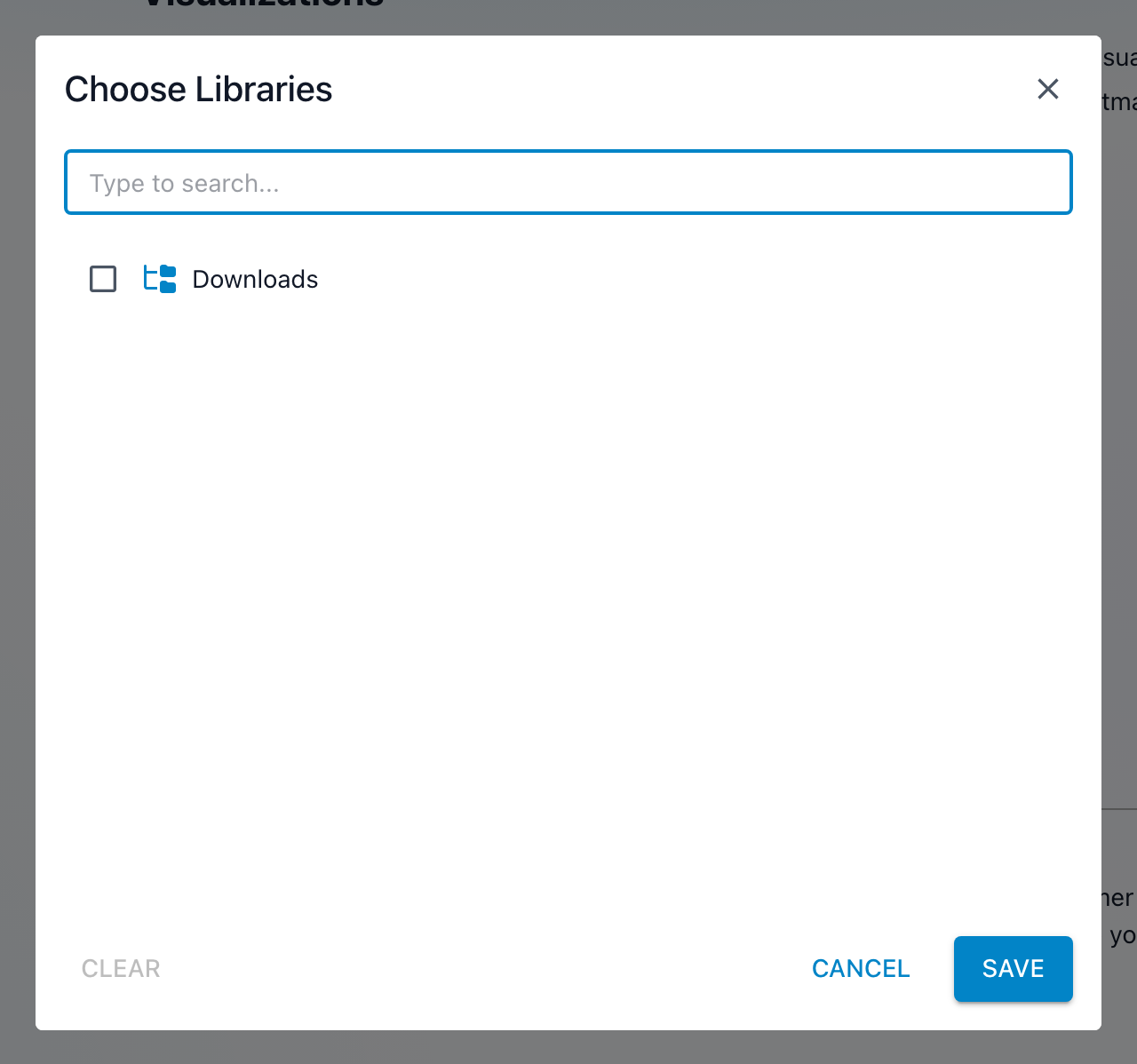
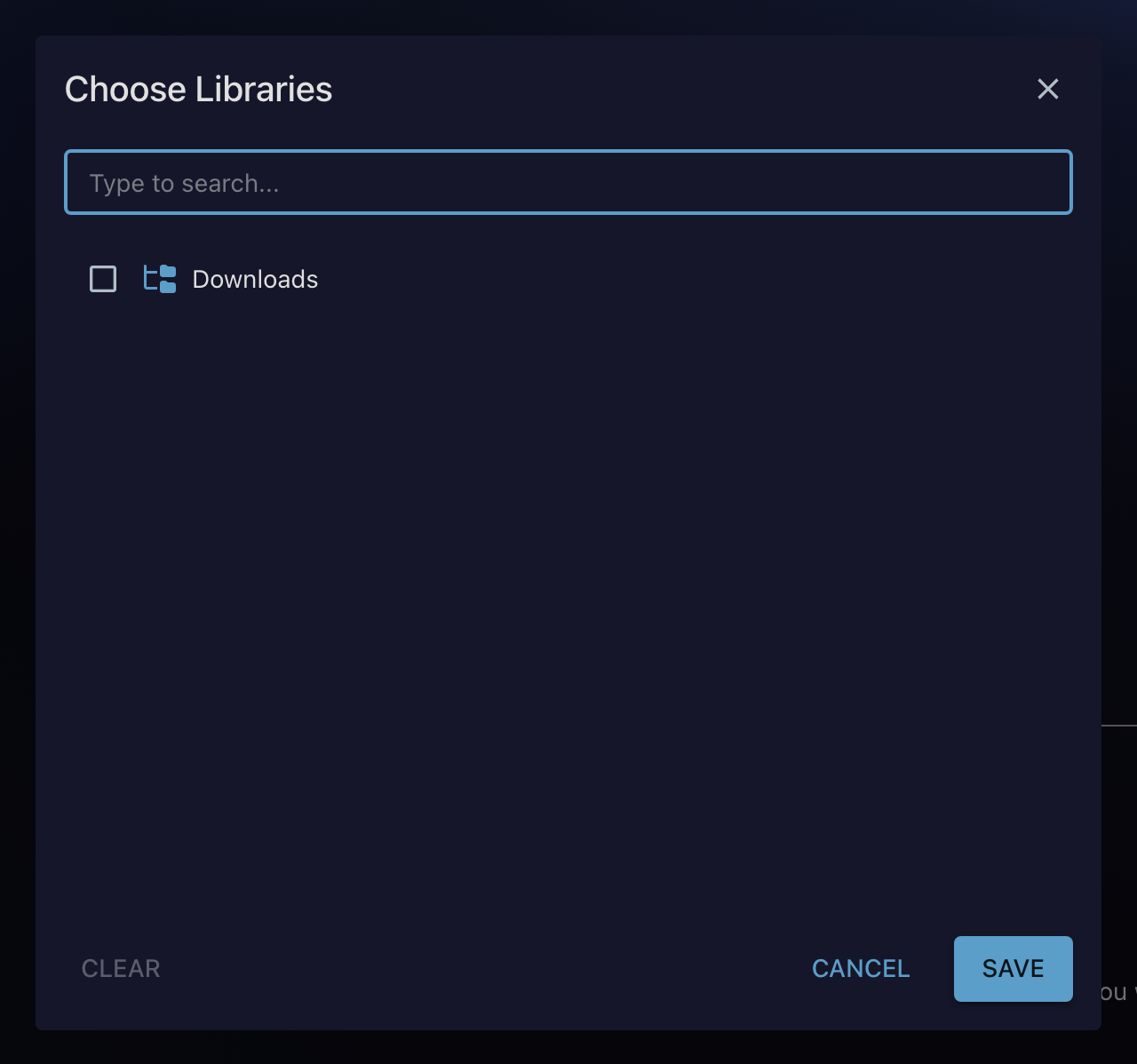
Libraries opens Choose Libraries, letting the chat read documents from your librariesA managed collection of files (documents, spreadsheets, PDFs) that Informer indexes so Assistants and chats can use them as knowledge.: policies, manuals, contracts. Ask "what does our travel policy say about rental cars?" and the answer comes from the document, not from the model's general knowledge.
Instructions
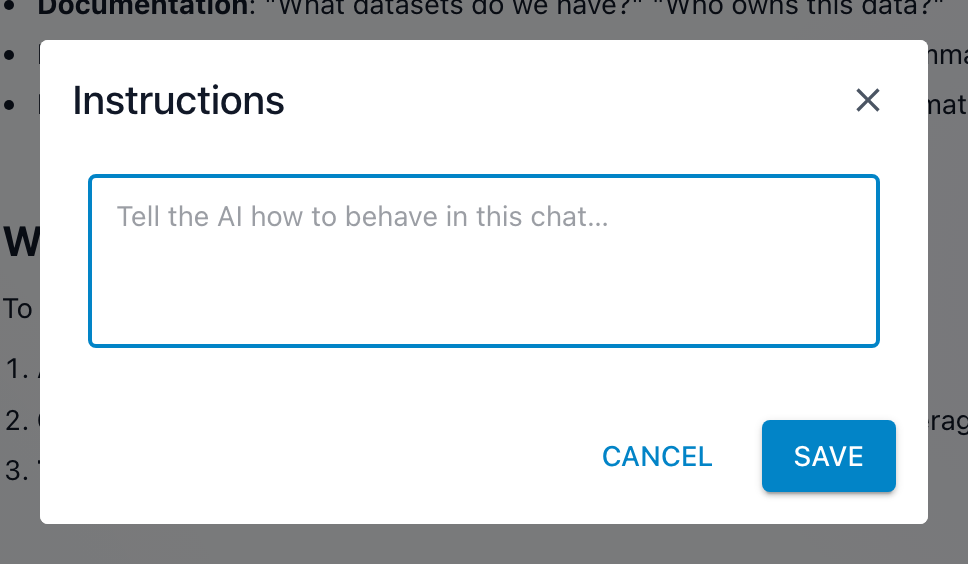
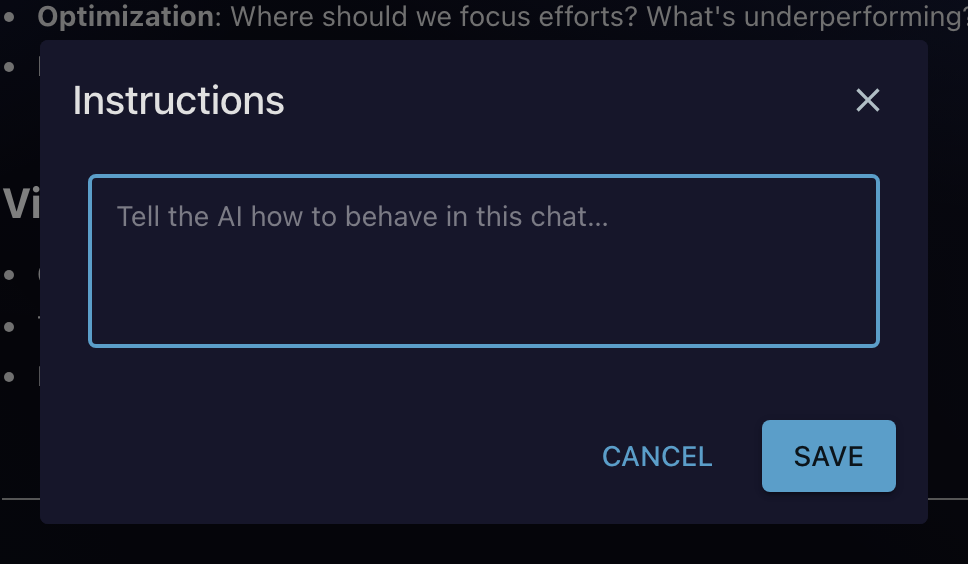
Instructions gives the chat standing guidance that shapes every answer in the conversation ("Tell the AI how to behave in this chat…" is the prompt you'll see). Use it for things you'd otherwise repeat: "always answer in bullet points", "we call customers members", "amounts are in CAD". The instructions show as a chip on the conversation; remove the chip to drop them.
Attach File
Attach File uploads a document straight into the conversation. You can attach virtually any file; what matters is what the chat can read:
- Images (PNG, JPEG, GIF, WebP) go straight into the conversation, automatically compressed on the way.
- Documents and data are processed on your server so the chat can read them: PDF, Word (docx), Excel, CSV, JSON, Markdown, and plain-text files including HTML, XML, YAML, and source code.
Larger files upload in the background with a progress indicator, then the chat can quote, summarize, and answer questions about them.
Nothing carries over from your last chat, and changing the selection mid-conversation is normal: add a second Dataset when the topic widens, drop a library when it starts adding noise.
Troubleshooting
- "The chat says it can't see my data." Open Settings & Tools and check what's actually selected; a new chat starts empty.
- A Dataset is missing from the picker. You can only attach Datasets you have access to in Informer. If it's not listed, ask the Dataset's owner to share it.
- An attached file isn't being read. Check the type against the list above, and give a large file a moment: it's processed on the server after the upload finishes.