Choosing the right model
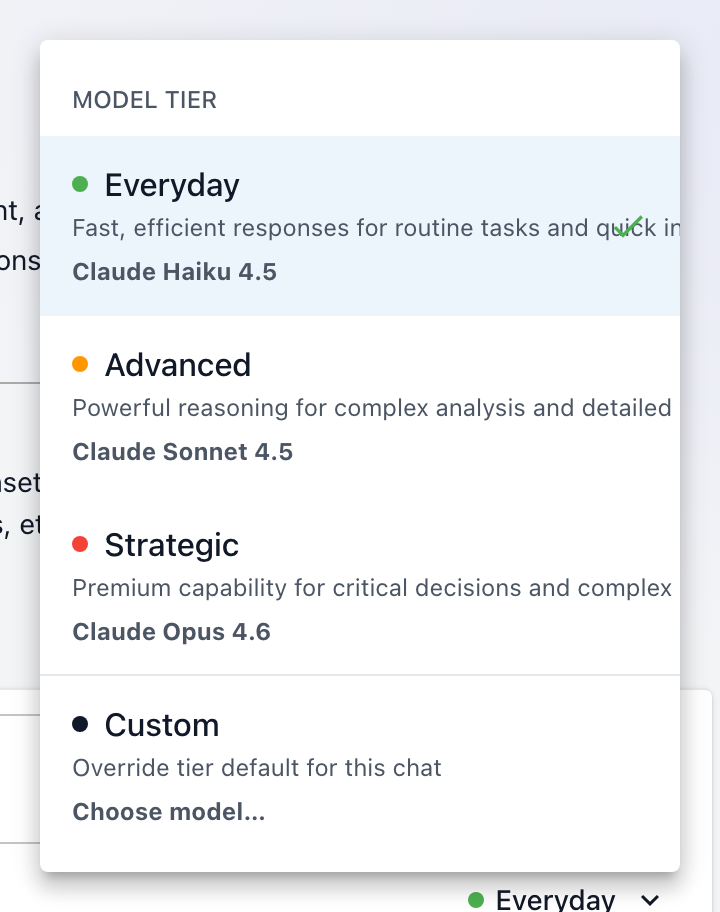
Each chat runs on a Model tierA quality level for the AI model behind a chat: Everyday for fast, lightweight tasks, Advanced for challenging multi-step work, and Strategic for the most complex jobs. Higher tiers reason more deeply; lower tiers respond faster and use fewer credits.. Open Choose AI Model from the chat's controls and pick the tier that fits the job; the choice sticks for that conversation, and you can change it mid-chat.
The three tiers
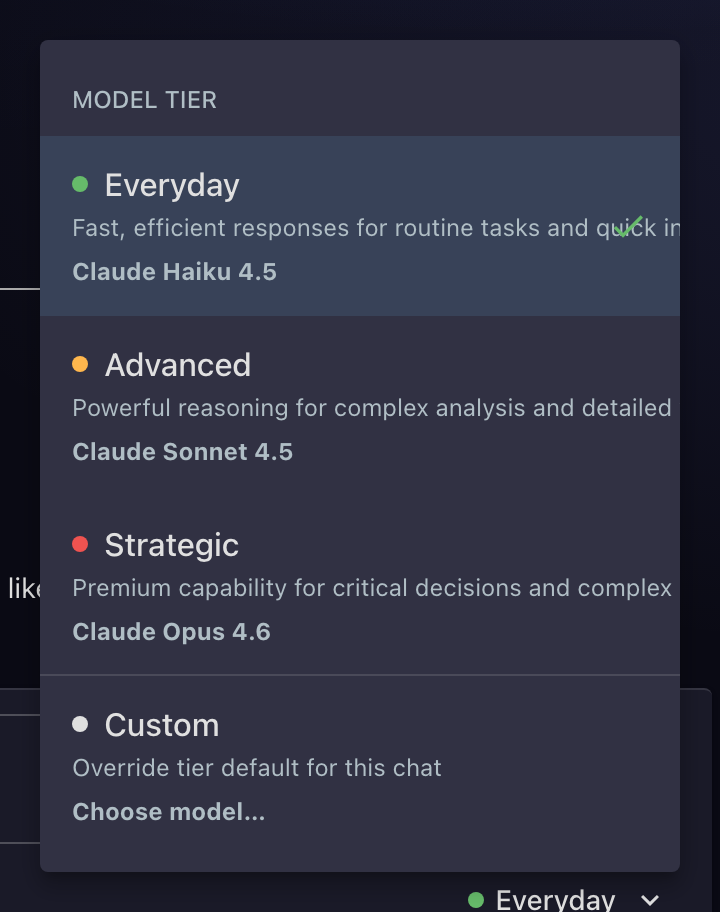
Fast, efficient responses for routine tasks and quick interactions. Summaries, quick lookups, rewording.
Powerful reasoning for complex analysis and detailed work. Questions that have to hold several threads at once.
Premium capability for critical decisions and complex problem-solving. Deep reasoning, intricate data questions, building things.
The tier names stay stable even as the underlying AI models improve, so "Advanced" is always the current advanced model, and a chat you set up once keeps getting better without you touching it.
Your organization may also expose models outside the tiers under Other Models. The dialog is searchable when the list gets long; type a model's name or part of its description.
Why not always use Strategic?
Higher tiers reason more deeply and take longer, and they spend more of your organization's AI credits per answer. Matching the tier to the task is the practical move:
- "Reword this paragraph for a customer email": Everyday answers in seconds.
- "Compare this quarter's returns by region and explain the outliers": Advanced is built for it.
- "Design a scoring model for at-risk accounts from these three Datasets": Strategic.
Who can use which tier
Which tiers you can pick is set per user by your administrator, through usage profiles under AI & Billing. A tier outside your profile shows a lock with a note naming who can help: "Your AI & Billing admin can grant access to Strategic models." Ask your administrator if you need it.
Some surfaces fix the model deliberately. The App builder always uses Strategic, because app-building involves long, multi-step plans and code generation that lower tiers degrade, so it doesn't offer a model picker at all.
Troubleshooting
- Answers feel slow. Check the tier: Strategic deliberately takes its time. If the question is routine, switch the chat to Everyday.
- Answers feel shallow or lose the thread. The opposite trade: move up a tier and re-ask.
- A tier is locked. Your usage profile doesn't include it. The lock's caption names who can grant access (your AI & Billing admin).
- "No models available." Your administrator hasn't enabled any models for your profile yet.