Sharing Apps
Open an App's admin panel (the settings icon in its title bar) and go to the Sharing tab. Everything about who can see the App lives behind one switch.
The sharing switch
At the top of the tab sits the master toggle:
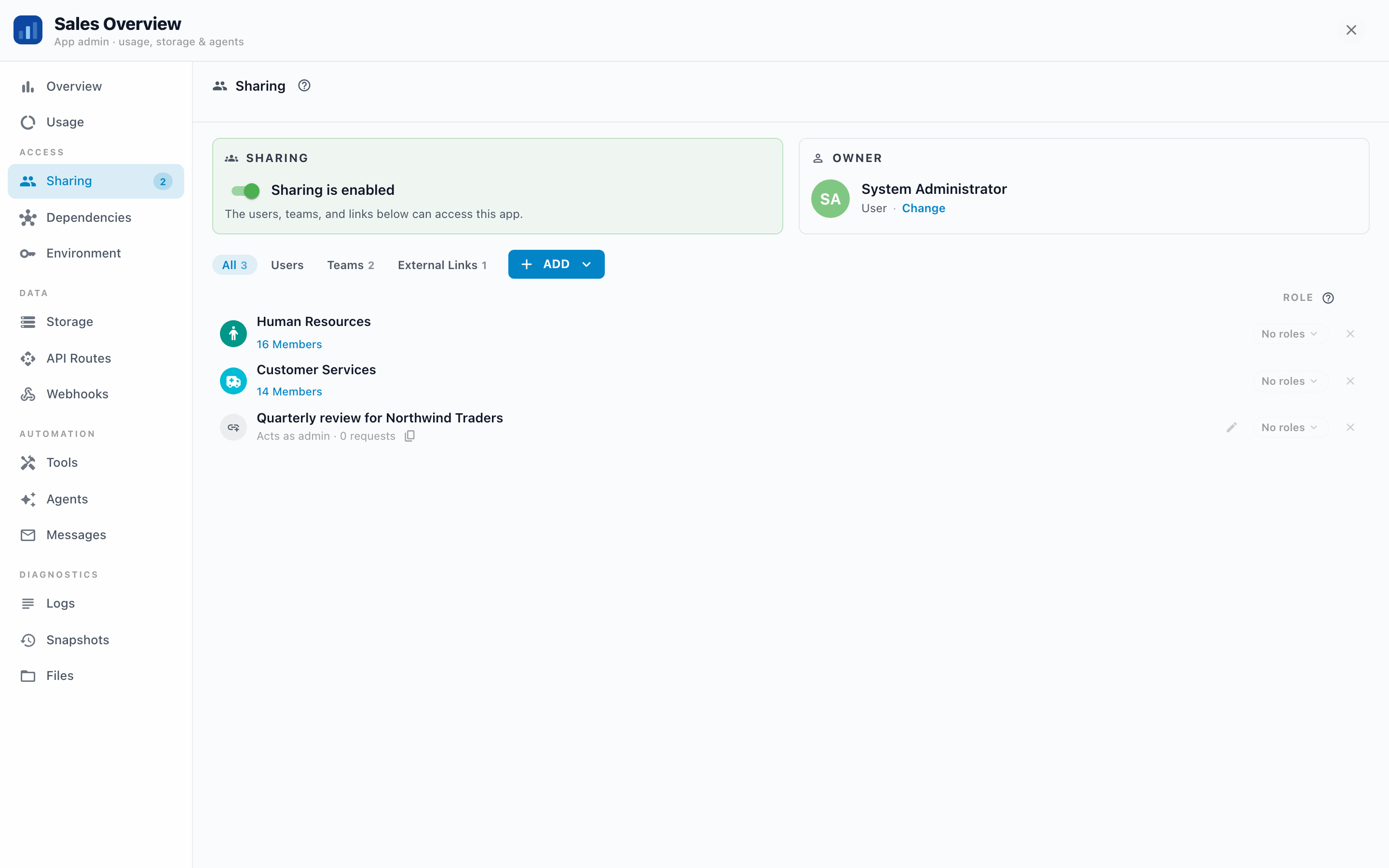
- Sharing is enabled: "The users, teams, and links below can access this app."
- Sharing is disabled: "Toggle on to share this app with users, teams, or links." Only you (the owner) can open the App, and existing external links stop working.
The switch is the single source of truth: if it's off, nothing below it grants access, full stop. Your grants aren't deleted, though. They're saved but inactive, so you can switch sharing off during a rework and back on later without rebuilding the list.
Sharing inside your organization
With sharing on, add people from the Add menu:
- Add users: pick individual teammates.
- Add a team: everyone on the team gets access.
- Add Everyone: every signed-in user on your tenant.
Everyone you add can open the App. Remove a share and that access is revoked.
The tab's filter chips (All, Users, Teams, External Links) and the search box ("Search users, teams, or links…") keep long lists manageable.
Roles
A role is a named set of abilities defined by the App: think Viewer, Approver, Manager. Roles let you control not just whether someone is in, but what they can do once inside. The App's own screens decide what each role unlocks; an expenses App might show the approval queue only to Approvers, for example.
How roles work on the Sharing tab:
- Each share row has a role picker. Pick a role from the dropdown on a user, team, or external link row. You can change it any time.
- No role means default access. A person with no role assigned gets the App's baseline behavior, whatever the App shows when no role applies.
- Everyone-shares carry roles too. When you share with Everyone, the roles you pick apply to everyone added that way.
- External links carry roles in the link. Choose the roles when creating the link; different links can carry different roles.
- The App's owner and publishers hold every role. If you can administer the App, you automatically act with all of its roles, so you can always see everything the App can show.
Where do roles come from? The App defines them: whoever built the App declares its roles, with names and descriptions, as part of the App itself. If an App has no roles, the Sharing tab says so ("This app has no roles defined yet, so everyone you add gets the app's default access") and everyone gets the same experience. Want roles in your own App? See Apps for developers or ask the AI for them while building.
Sharing with the outside world
Create external link generates a URL that works without an Informer login, for a customer, a vendor, a wall display. Each link can carry a description, an optional network restriction (host or IP range), and roles, and you can revoke it at any moment.
External links act as you, so they deserve their own page: see External links for the full picture, including how to lock a link down to one network and what "acts as you" means in practice.