Settings
The Settings page is the landing page for Administration and holds the configurable options, build, and license information for Informer. Use the panel on the right side of the screen to navigate between the different Settings sections.
About
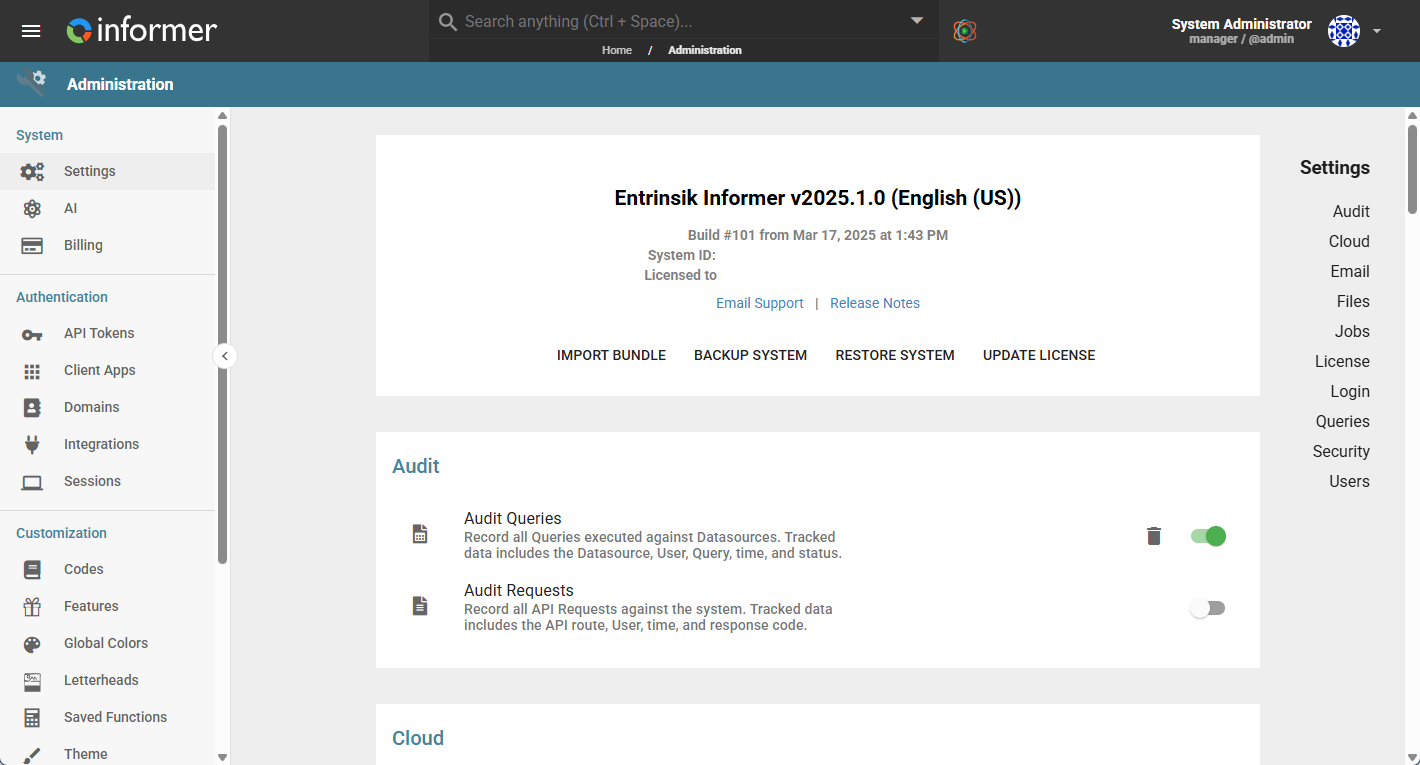
The About section at the top of the Settings page contains the deployment's build, version, and basic license information, along with the system actions (Import Bundle, Backup System, Restore System, and Update License). See About, Backup, and License for details.
Audit
The Audit options in Informer cover Queries and Reports. See System Audit for more information.
Cloud
The Cloud section lets Users enable and configure sharing Reports to the cloud. Enabling this setting opens a dialog to enter:
- URL: The URL of the destination Informer instance where Reports will be shared publicly.
- Access Token: The Token provided for the destination Informer.
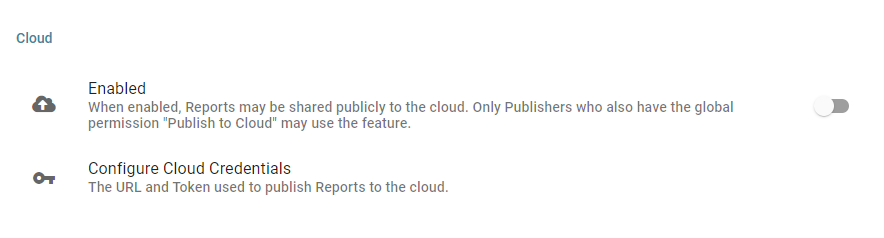
After enabling the option, Configure Cloud Credentials opens the dialog so Users can edit the URL or Access Token.
Email
Configure an SMTP connection so Informer can send emails. See Email Server Settings for more information.
Exports
Configure Export settings for Informer.
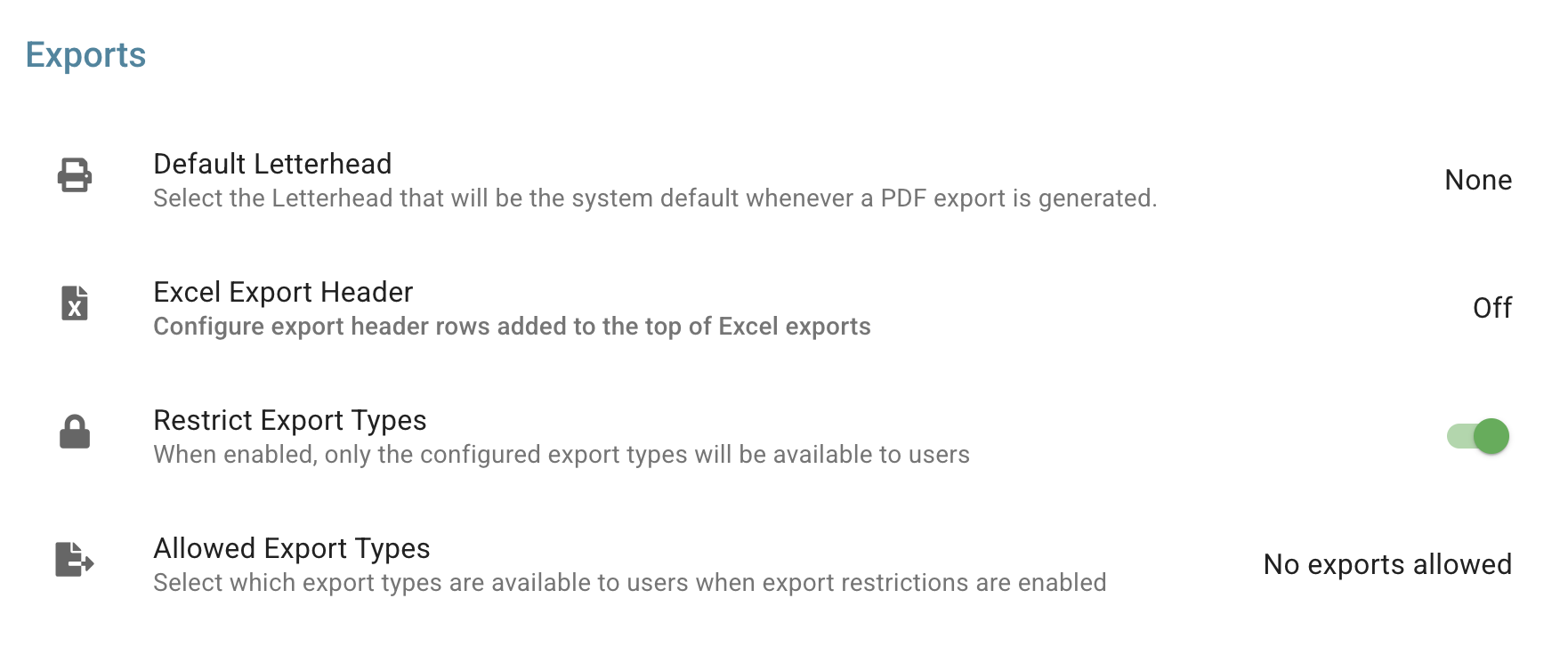
- Default Letterhead: Select the Letterhead to use as the system default whenever a PDF export is generated.
- Excel Export Header: Configure header rows that appear at the top of Excel exports. Users can specify their organization name to include in the export header and set whether headers are included by default in all exports. For an example of how to configure an Excel Export Header, see Exporting.
- Restrict Export Types: When enabled, only the export types selected in Allowed Export Types are available to Users when exporting a Dataset or Query. All other export types are hidden from the export options.
- Allowed Export Types: Select which export types are available to Users when exporting a Dataset or Query while Restrict Export Types is enabled.
Files
Configure File settings for Informer.

- Max Upload File Size: Set the largest file size in megabytes (MB) allowed for asset uploads, such as profile photos and Template assets. This setting does not apply to Workspace or Dataset uploads. The default is 20 MB.
Jobs
Configure system-wide Job settings.
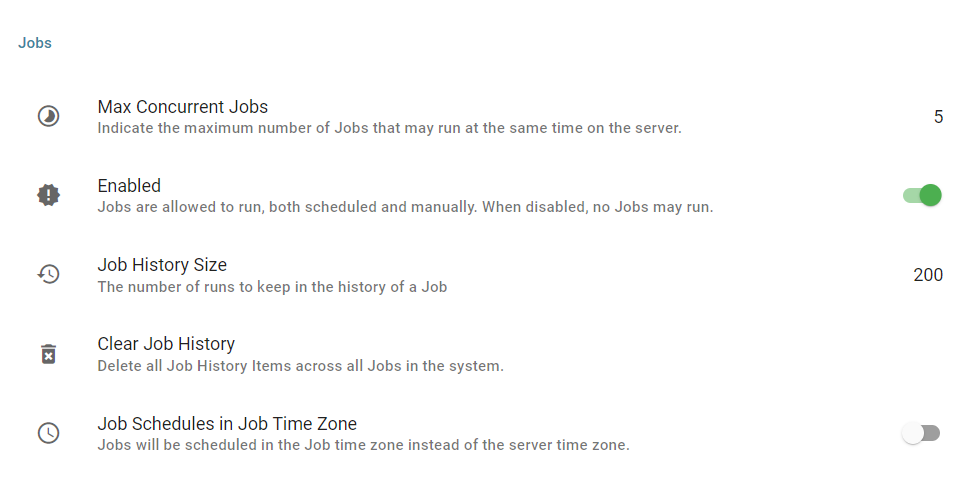
- Max Concurrent Jobs: Changes the number of Jobs the system can run at the same time.
- On multi-Tenant deployments, this value lets the Manager Tenant limit the number of concurrent Jobs across all of their Tenants. Super Users can see this value in the License section of the Settings page. Individual Tenants on multi-Tenant deployments can have their Max Concurrent Jobs set via the License Manager.
- Jobs Enabled: Enables or disables all scheduled Jobs system-wide.
- Job History Size: Limits the number of log files in each Job's history list.
- Clear Job History: Deletes all Job History items across all Jobs in Informer. See Job History for more information.
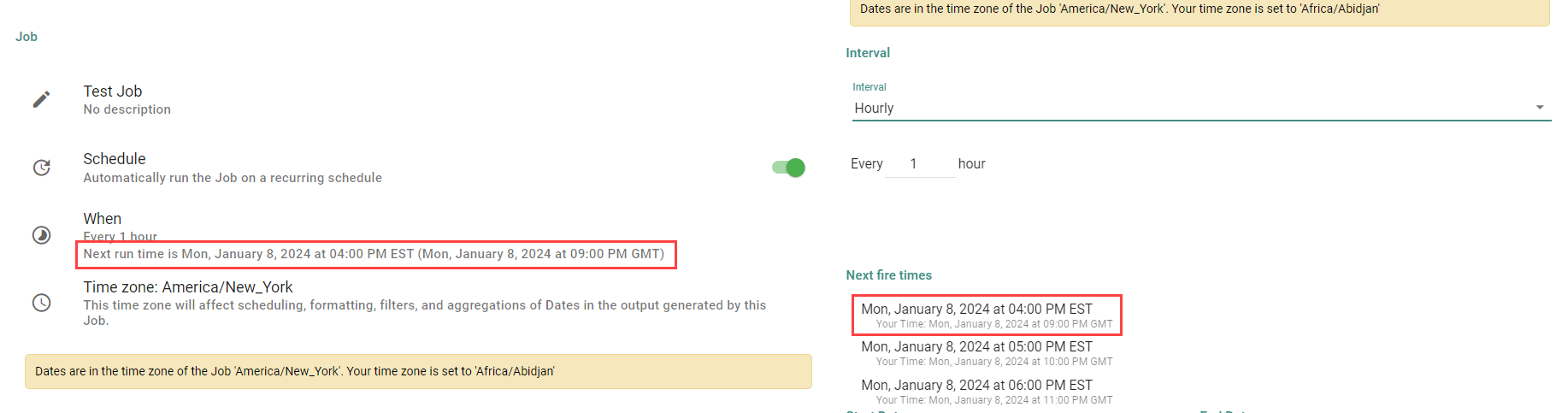
- Job Schedules in Job Time Zone: Toggle to have Jobs scheduled in the time zone of the Job instead of the time zone of the Informer server. A Job's time zone is set on the Job Detail page. See Scheduling a Job for more information.
- For example, if the Informer server's time zone is UTC 0, the Job's time zone is UTC -4, and the Job is scheduled to run at 4:00 PM, then with this setting enabled the Job runs at 4:00 PM UTC -4.
- Once enabled, the time zone of both the Job and the Informer server is reflected on the Job Detail page in the When section and in the Job schedule's Next Fire Time section.
License
The License section lists information regarding the Informer deployment's license, including the Max Concurrent Jobs limit and who controls it. See About, Backup, and License for more information.
Login
Options to configure system-wide Login settings.
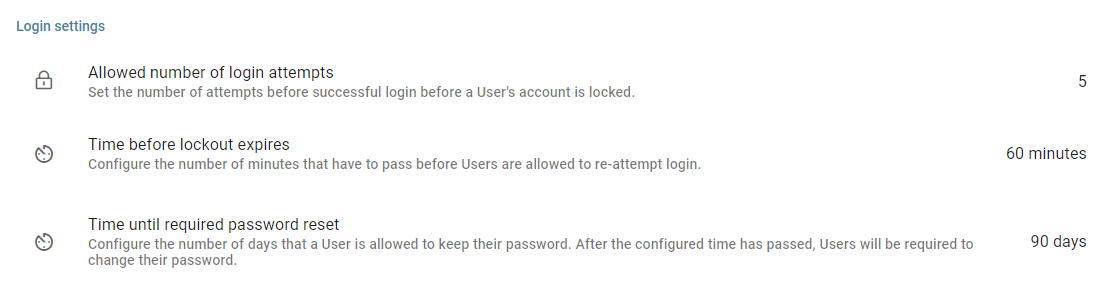
- Allowed number of login attempts: The number of login attempts a User is allowed before the account is locked. This setting can be set to allow an unlimited number of attempts.
- Time before lockout expires: How long, in minutes, until a locked account is allowed to re-attempt to log in.
- Time until required password reset: The number of days a User is allowed to keep their password before they are required to change it.
Queries
Configure system-wide Queries settings.

- Ad-hoc Query results expiration: Sets how long Ad hoc Query results remain available after executing the Query.
Security
Configurable Security settings in Informer.
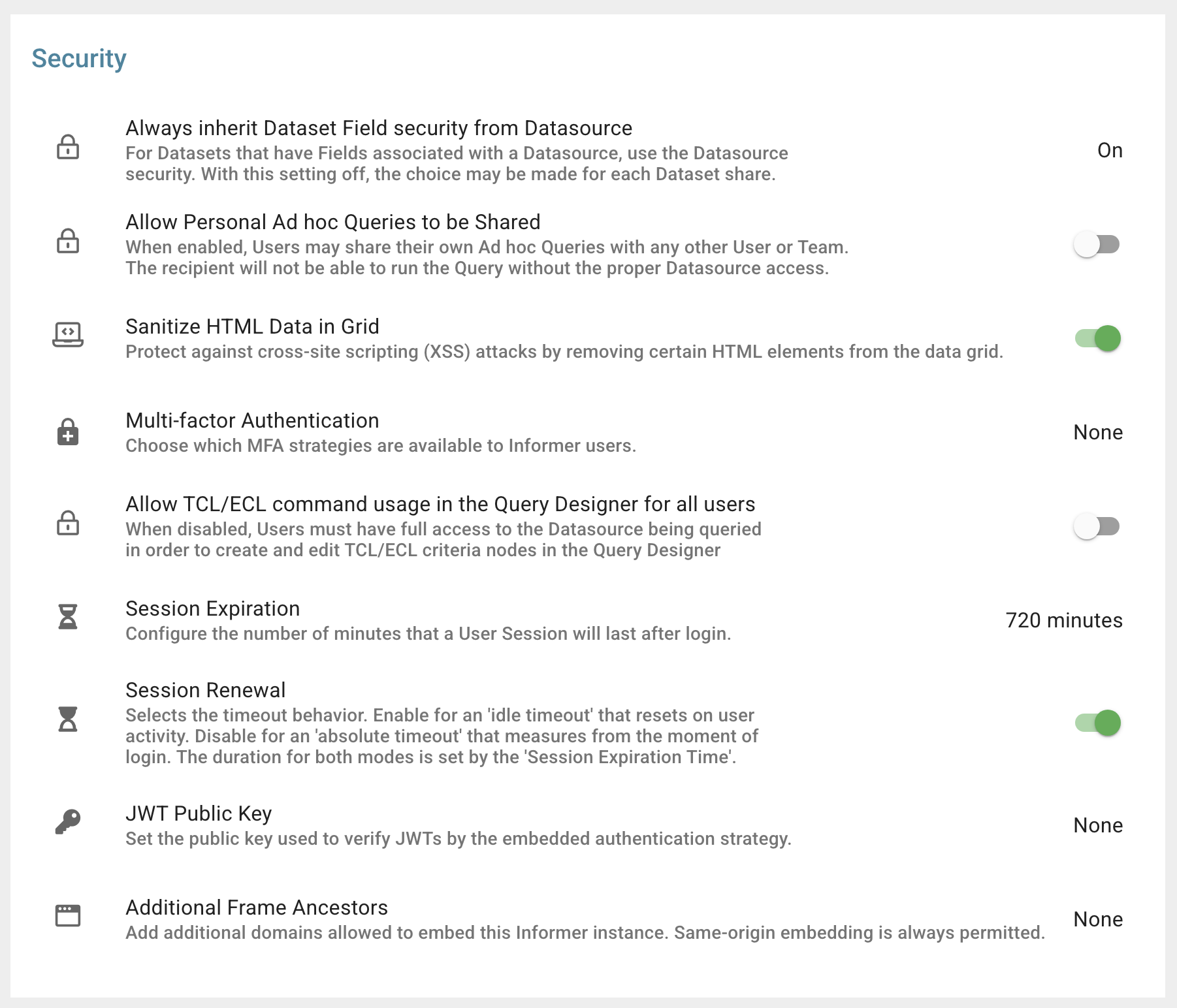
- Always inherit Dataset Field security from Datasource: Lets Datasets with Fields associated with a Datasource use the Datasource security. While turned on, all security settings are inherited from the Datasource and the Dataset must adhere to them. While turned off, you decide how secure a Dataset is when it is shared.
- Allow Personal Ad hoc Queries to be Shared: Allows Users to share their Ad hoc Queries with any other User or Team. The recipient cannot run the Query without the proper Datasource access.
- Sanitize HTML Data in Grid: Removes vulnerable HTML elements from the data grid. Enabled by default. Note that this affects any custom HTML styling applied to a cell's value via JavaScript.
- Multi-factor Authentication: Enables Multi-Factor Authentication (MFA) for local Informer Users. Clicking this option opens the MFA settings screen, where you can enable MFA strategies including Time-based One-Time Passwords (TOTP), Lightweight Directory Access Protocol (LDAP), and Active Directory (AD). Once enabled, Users can change their profile's MFA settings from the profile drop-down.
- Allow TCL/ECL command usage in the Query Designer for all Users: Controls whether all Users may add or edit TCL/ECL Blocks in the Query Designer for U2 Datasources. When turned on, any User who can edit a Query may add or edit TCL/ECL Blocks. When turned off, only Users with Full Access to the Datasource being queried may add or edit TCL/ECL Blocks; other Users do not see the TCL/ECL Block option in the Criteria drop-down, and existing TCL/ECL Blocks open in a read-only state with a warning.
- Session Expiration: Sets the length of time, in minutes, that a User's session lasts before Informer logs the User out. The default is 720 minutes (6 hours).
- Session Renewal: When enabled, allows Users to renew a session by interacting with the system. Disabled by default.
- Cross Tenant Access (only visible on non-manager Tenants): Allows the Manager Tenant to impersonate the Tenant. Disabled by default. This option is not visible from the Manager Tenant or while impersonating a Tenant; a User must be logged in directly to the Tenant to see it.
- JWT Public Key: Sets the public key used to verify JWTs by the embedded authentication strategy. When using the embedding strategy for single sign-on, a JWT must be provided to lazily create a User and session. This public key verifies the token created using your private key.
- Additional Frame Ancestors: Specify additional Domains that are allowed to embed this Informer instance in frames or iframes. This prevents clickjacking attacks while allowing legitimate embedding. Same-origin embedding (
'self') is always included automatically.
Users
The Users section provides the following configurable defaults and requirements.
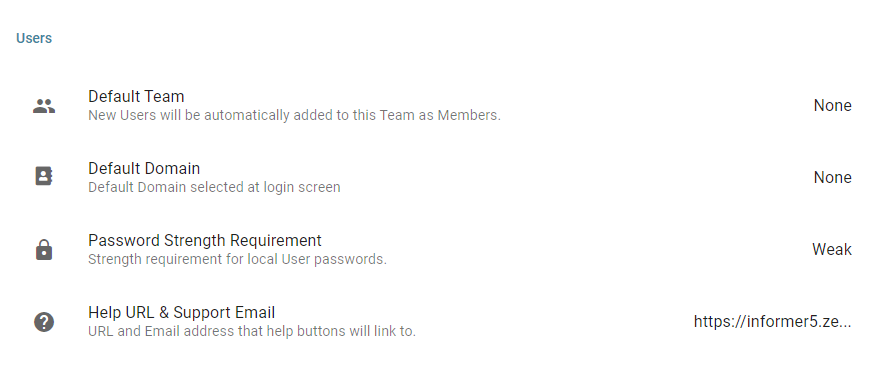
- Default Team: Sets a Team that newly-created Users are automatically added to. A default Team lets new Users view parts of Informer without any extra setup.
- Default Domain: Auto-selects the chosen Domain when Users load the login screen.
- Password Strength Requirement: Sets the minimum strength required for User passwords. Available options are Weak, Fair, Moderate, and Strong.
- Help URL/Email Address: Changes the URL and email address used for help services.