Search Clusters
The Search Clusters feature lets administrators view and manage the ElasticSearch or OpenSearch instances connected to Informer. In multi-Tenant deployments, administrators can distribute Tenants across multiple Search Clusters to improve performance and reduce bottlenecks.
Note: Search Clusters are a new feature introduced in Informer 2025.2.9. Organizations upgrading from previous versions automatically have an Initial Search Cluster created using their existing deployment-level ElasticSearch or OpenSearch connection and credentials.
Search Cluster information
To access the Search Clusters page, navigate to the Administration section of Informer and select Search Clusters. Here, administrators can view, manage, and add new Search Clusters.
Each Search Cluster row displays the following information:
- Search Cluster: Name and icon indicating the Search Cluster type (ElasticSearch or OpenSearch).
- Variant: The Search Cluster variant (ElasticSearch or OpenSearch, plus version).
- Endpoint: The URL endpoint where the ElasticSearch or OpenSearch instance can be accessed.
- Username: Authentication username for cluster access (if using authentication).
- Create Users: Indicates whether Informer automatically provisions Users and Roles within the ElasticSearch or OpenSearch instance.
- Assigned Tenants: Number of Tenants currently using this Search Cluster.
Adding a new Search Cluster
To add a new Search Cluster, select + New on the Search Clusters list page. The New Search Cluster dialog lets administrators configure connections to ElasticSearch or OpenSearch instances. The dialog is organized into Basic and Advanced configuration tabs: all the fields on the Basic tab are required, while the Advanced tab contains a code editor that should only be used for more complex scenarios.
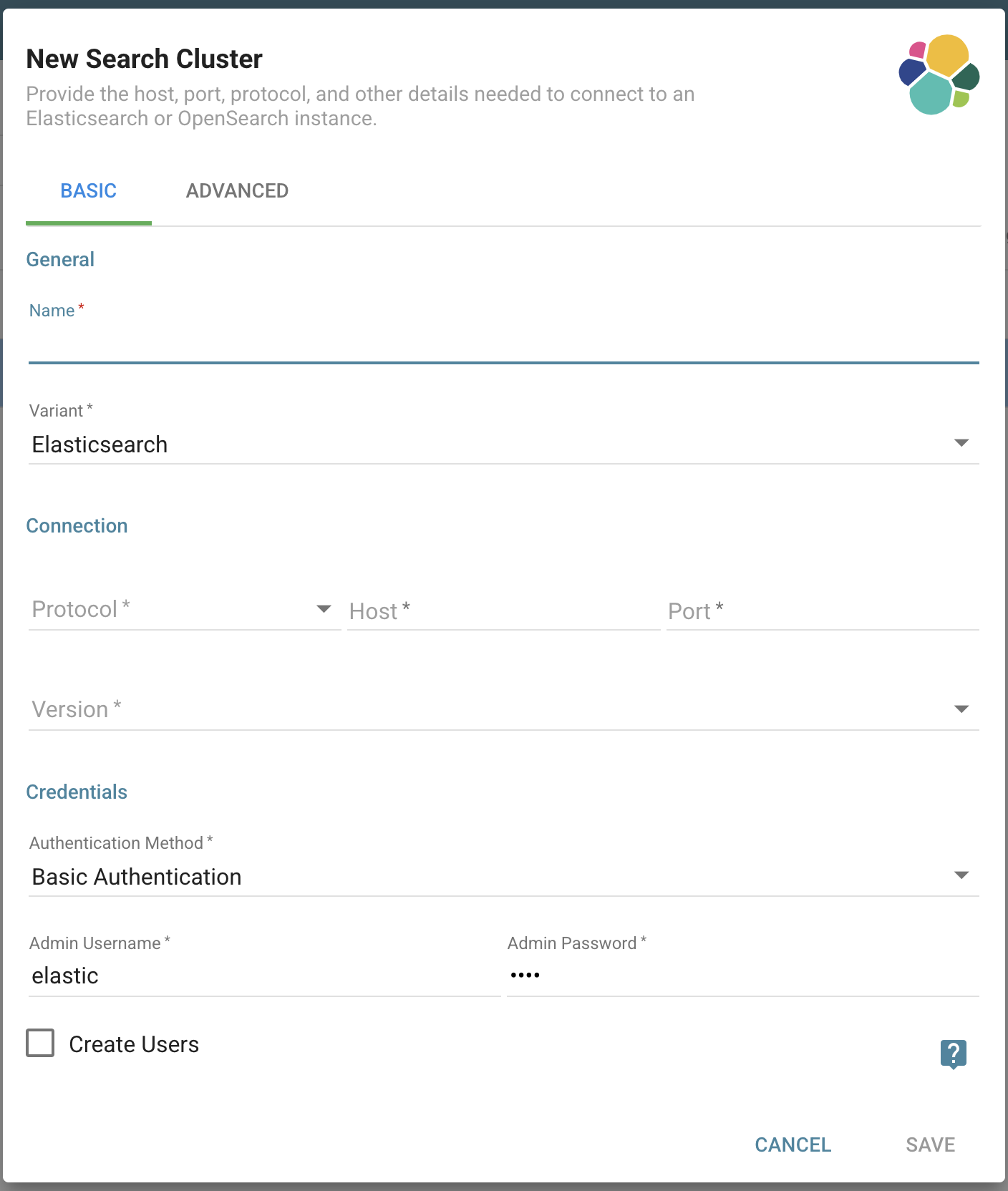
Basic configuration options
General
- Name: Enter any name for the Search Cluster.
- Variant: A dropdown to choose ElasticSearch or OpenSearch.
Connection
- Protocol: A dropdown for the network protocol used to connect to your ElasticSearch or OpenSearch instance.
- http: Unencrypted connection (typically for local or internal use).
- https: Encrypted connection (recommended for production and typically required when using security).
- Host: The hostname or network address of your ElasticSearch or OpenSearch instance.
- Port: The network port number your ElasticSearch or OpenSearch instance is listening on.
- Version: The specific version of your ElasticSearch instance (OpenSearch does not require version selection).
Credentials
- Authentication Method: Select the authentication method used to connect to your instance.
- Basic Authentication: Connect with a username and password.
- No Authentication: Connect without credentials.
- Admin Username: If using Basic Authentication, enter the admin username for your instance.
- Admin Password: If using Basic Authentication, enter the admin password for your instance.
- Create Users: When enabled, Informer provisions dedicated Users and Roles in the ElasticSearch or OpenSearch instance for each assigned Tenant. Each Tenant is granted full read/write access to only their own data. In multi-Tenant deployments, the Manager Tenant is granted access to all data across the cluster.
Advanced configuration options
A code editor is included on the Advanced tab for more complex deployment scenarios. For more information on advanced connection options, reference the ElasticSearch documentation and the OpenSearch documentation.
Actions
To access the Actions menu, select a Search Cluster in the list page and click ... on the right of the row. This displays a menu of actions available for the selected Search Cluster:
- Delete: Deletes the Search Cluster. Only available for Search Clusters that are not assigned to any Tenants.
- Edit: Edit the name, host, port, protocol, variant, version, credentials, and other details.
- Rebuild Security: Delete and recreate all Users and Roles for all Tenants assigned to this Search Cluster. Useful after editing a Search Cluster to ensure proper User access and Role permissions are applied.
- Set as the Manager Tenant's Search Cluster: Reassign the Search Cluster used for the Manager Tenant. Note that changing the Search Cluster for any Tenant causes all indexed data to become inaccessible.
- Test Connection: Tests the connection between Informer and the selected Search Cluster. Sends a single verification request to confirm the Search Cluster is reachable and that its configuration matches what Informer expects. Returns an error if the cluster is unreachable or misconfigured.
For more Search Cluster-related actions, see the Multitenancy article.