Email Server Settings
Configure an email server for use in Jobs through the Email section of the Settings page. Toggling on the Email setting loads the Mail window.
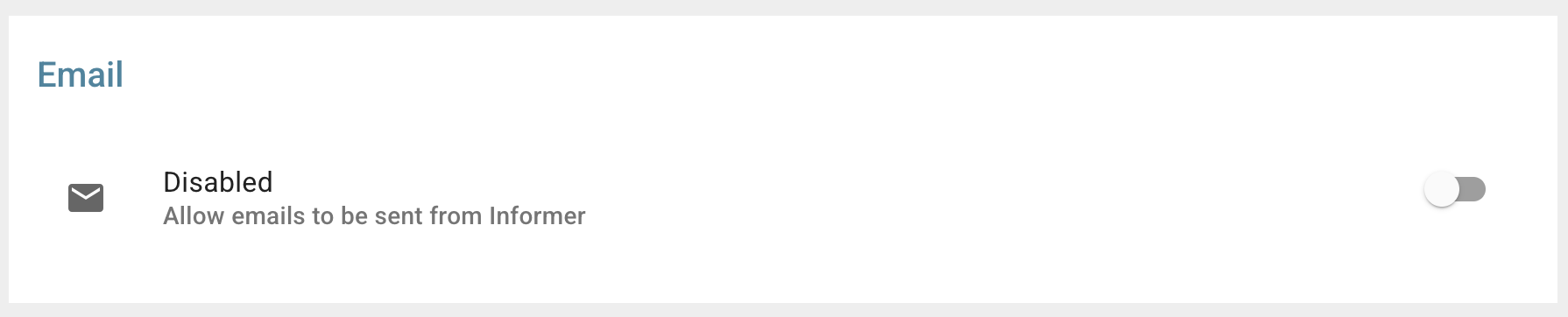
Use this window to set up an SMTP connection for automated email services.
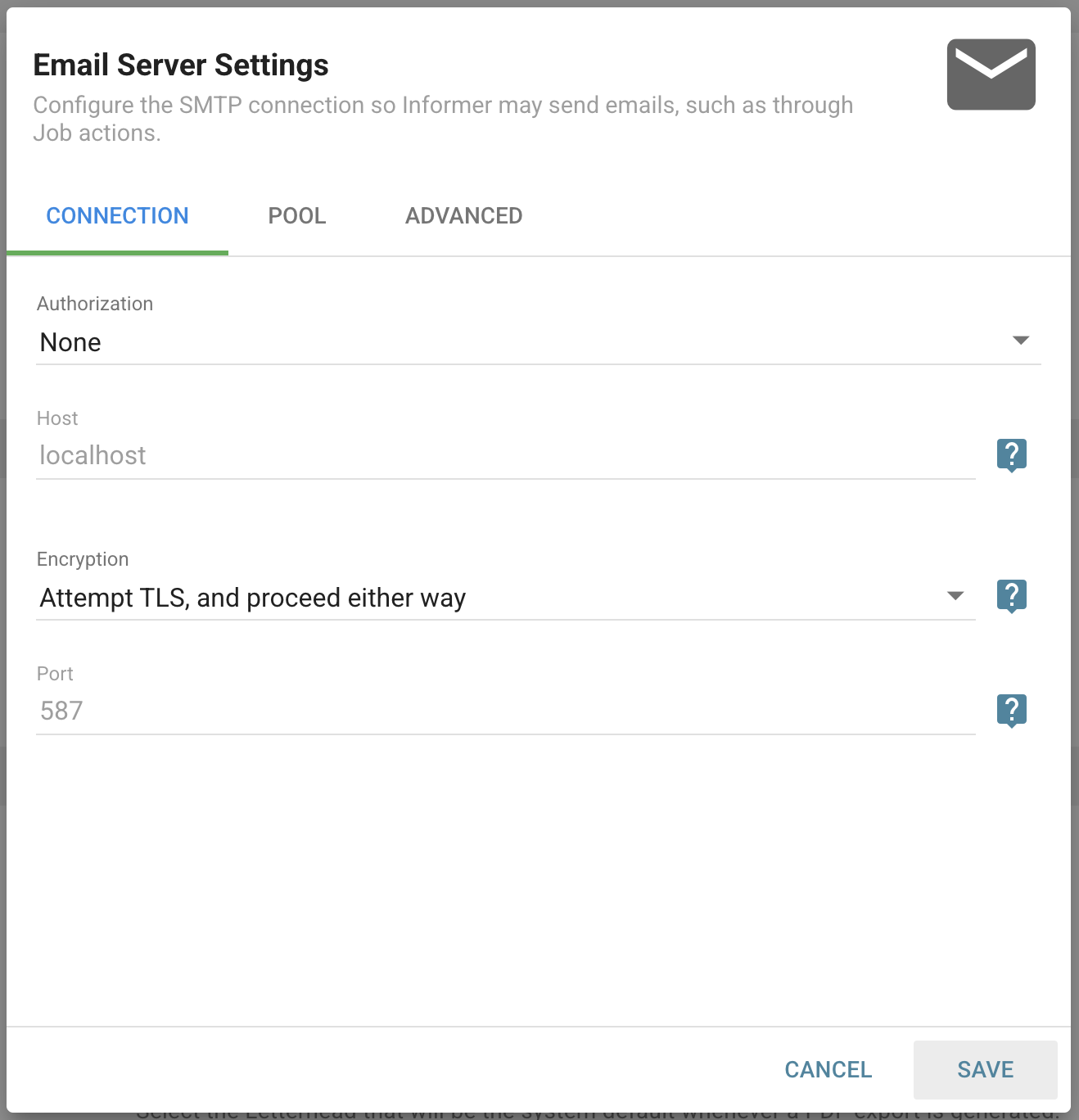
At the top of the form are three tabs: Connection, Pool, and Advanced. After filling in the necessary fields, click Test Connection to verify a successful connection. Click Save if the information is valid to finish the configuration, or change any fields as needed and test the connection again.
Connection
Enter the SMTP configuration information.
- Authorization: Choose your method of authentication. Options include Basic Auth, Google Account, Microsoft Personal Account, Microsoft Professional Account, or Other (OAuth2).
- Basic Auth:
- Host: Set the hostname or IP address of the SMTP server. The default is
localhost. - Port: Configure the port number on the host. The default is 587, or 465 if secured.
- Authenticate: If authentication is needed, check this and enter a username and password.
- Encryption: Select the encryption method for Transport Layer Security (TLS), commonly referred to as SSL, if required.
- Host: Set the hostname or IP address of the SMTP server. The default is
- Google and Microsoft Accounts:
- Username: Enter your username for the application. After entering and saving the username, a new Email Authorization connection option opens a window that prompts for login information to the selected service.
- Other (OAuth2):
- Host: Set the hostname or IP address of the SMTP server. The default is
localhost. - Client ID: A public identifier for the application, used to identify the client making the request. It is issued to your application during the OAuth registration process.
- Client Secret: A private key known only to the application and the authorization server. Used to prove the application's identity. It is issued to your application during the OAuth registration process.
- Username: Your username for the application.
- Scope: A list of permissions the application is requesting. Can include read, write, delete, and so on.
- API Base URI: The base URI of the API that your OAuth client will be accessing.
- Authorization URI: The URI where Users are redirected to authenticate and authorize your application.
- Token URI: The URI where your application exchanges the authorization code for an access token.
- Revocation URI: The URI where your application can revoke an access token.
- Encryption: Select the encryption method for TLS, if required.
- Port: Configure the port number on the host. The default is 587, or 465 if secured.
- Host: Set the hostname or IP address of the SMTP server. The default is
- Basic Auth:
Pool
Used to send multiple emails with a single connection instead of creating a new connection for each email.
- Use Pooled Connection: Enable this feature. Pooling uses a single connection to send multiple messages instead of creating a new connection for every email.
- Max Connections: Enter the allowed number of simultaneous connections. The default is 5.
- Max Messages per Connection: Enter the maximum number of messages allowed over a single connection. The default is 100. A new connection is established after reaching the set value.
- Message Rate Limit: If desired, set a rate limit to pause sending after reaching the set value. The default is unlimited. Sending pauses until the end of a messaging interval if the number of messages sent reaches this value during that interval, then resumes when the next interval starts. Note: This value is shared across all active connections, so once this limit is reached, all connections are paused until the end of the current messaging interval.
- Messaging Interval (ms): The duration of the messaging interval in milliseconds for measuring the rate limit. The default is 1000 ms (1 second). This setting has no effect unless a message rate limit is also configured.
Advanced
Sets advanced settings for connecting to a proxy server.
- Default "From:" Address: A default email address to use when a User sets up an email-related Job action but has no email address configured on their profile.
- Always use the default "From:" address when sending emails: Email-related actions in Jobs always use this email address as the "From:" address, ignoring any email addresses configured in the User's profile.
- Proxy: Enter an HTTP proxy URL, for example
http://proxy-host:1234. - Client Name: An optional hostname for Informer, used to identify itself to the proxy server. The default is the hostname of the Informer server.
- Connection Timeout (ms): The amount of time Informer waits to establish a connection.
- Greeting Timeout (ms): The amount of time Informer waits for a greeting message after establishing a connection.
- Socket Timeout (ms): The amount of inactivity Informer allows before disconnecting.
Also available through the REST API
Everything on this page is built on Informer's public REST API, the same one the product uses, so your scripts and integrations can do it too. Developer reference: Tenant / Admin API.