AI
The AI section helps you manage and monitor your AI-related expenses. Here, you can add credit to your account balance, track your monthly spending, and control AI access by granting or revoking permissions for Teams and Users.
As of 2026.1, AI and Billing move out of Administration to a top-level AI & Billing surface: the React Settings you reach from the gear in Informer GO, or the AI & Billing item in the classic top navigation (which shows the same screen). See Settings: AI & Billing. This page describes the classic Administration view.
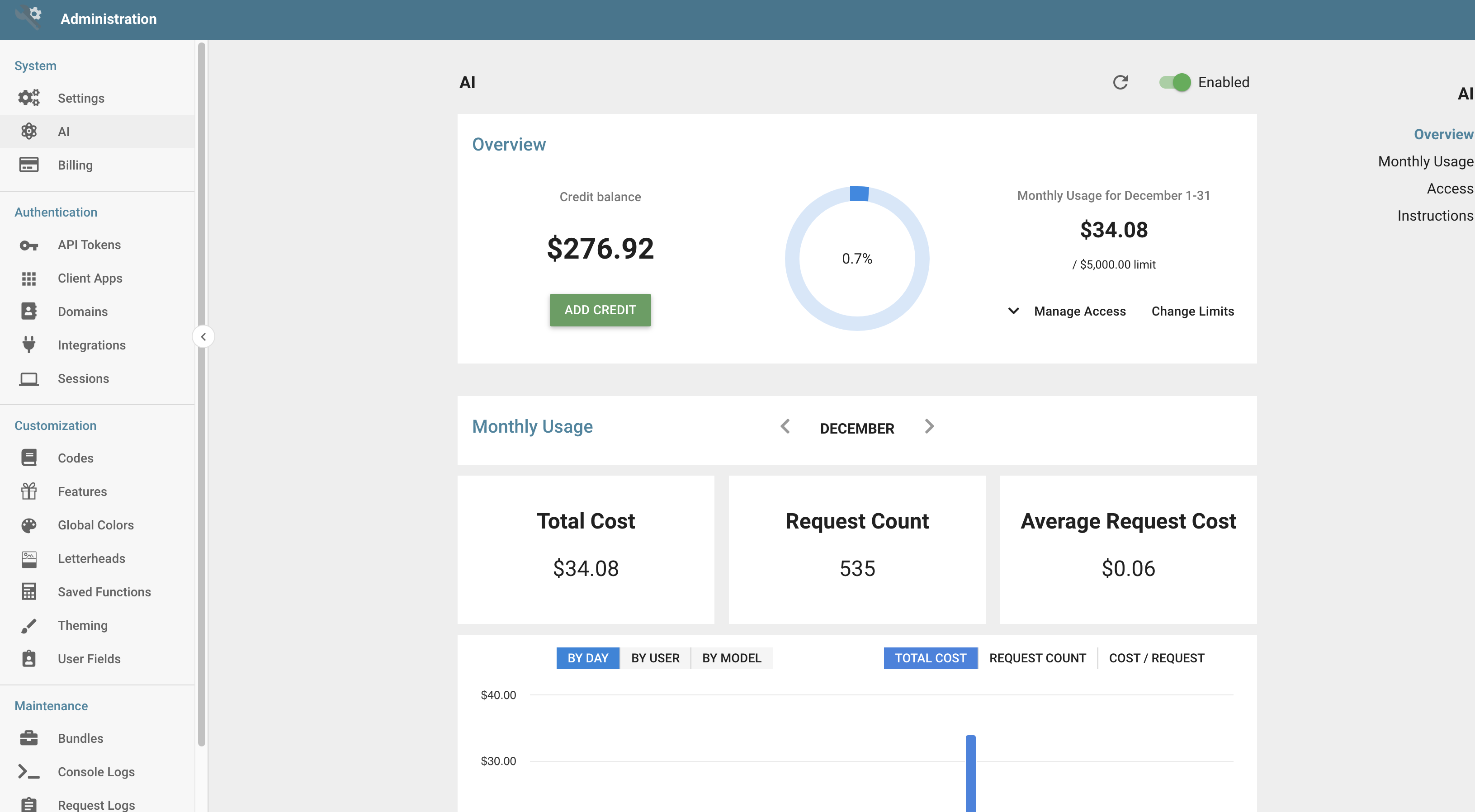
AI is no longer a licensed feature. It can simply be enabled or disabled via the toggle in the upper-right corner of the AI section. Depending on the status of AI and your account balance, different scenarios apply:
- AI is disabled: No AI-related features are available in Informer. This includes Copilot, Assistants, Magic Visual, and Libraries.
- AI is enabled and your account balance is 0: This is the "free tier" of AI. AI requests are rate-limited, allowing a certain number of AI requests per minute and per day.
- AI is enabled and your account has a positive balance: Each AI request deducts funds from your balance with no rate-limiting.
Note: Informer requires outbound internet access to function correctly, specifically for services such as AI, Billing, and the license manager. In Zero Trust or heavily restricted network environments, clients must allow network traffic to Informer's cloud services. Specifically, access to the following endpoint is required: api.informer.cloud.
Overview
The Overview section provides a comprehensive view of your AI-related spending for the month. From here, you can add credit to your balance, adjust the spending limit for Users with AI access, or track your current expenditure against the monthly limit.
Manage spending
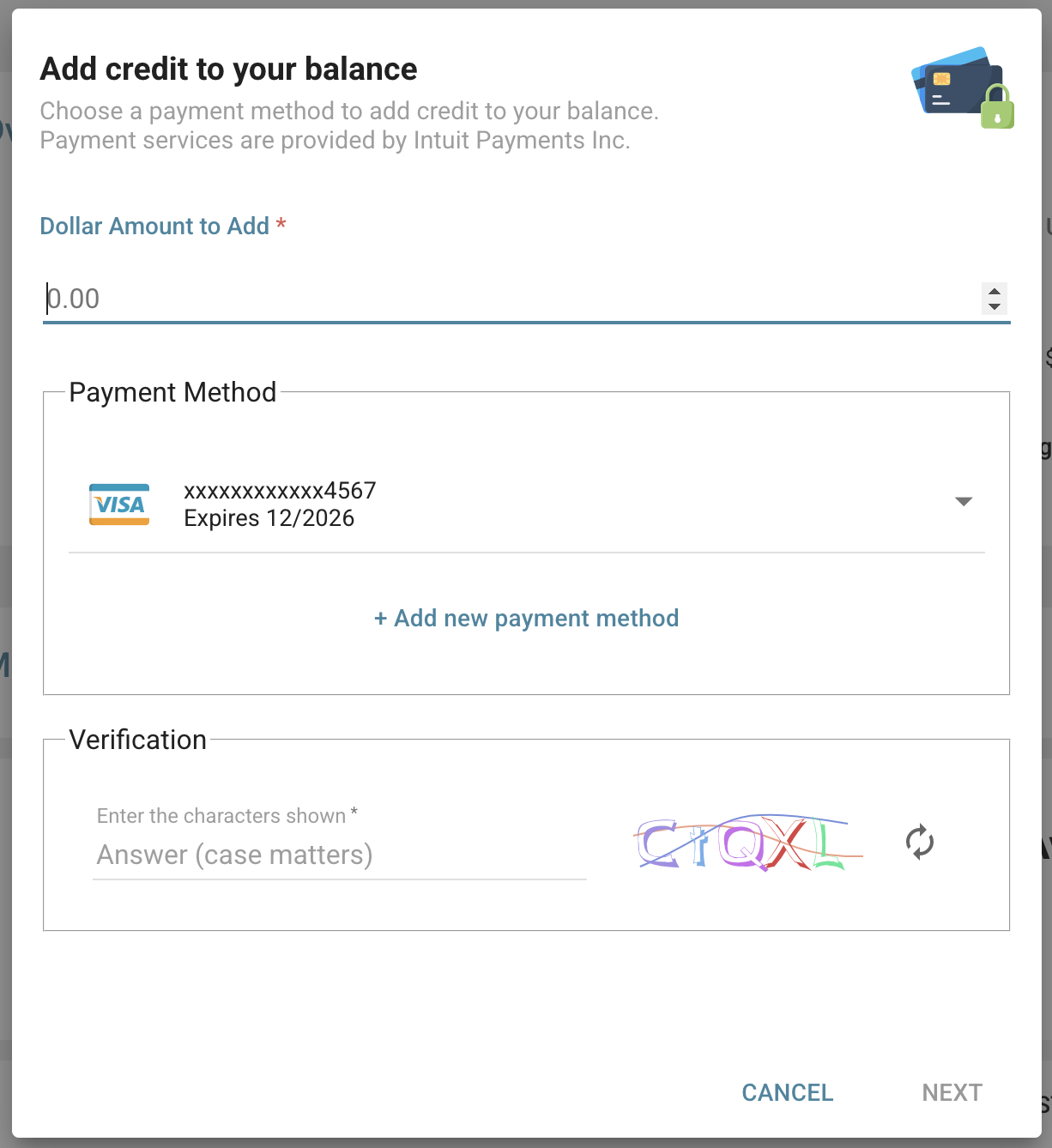
In the Overview section, click the Add Credit button to add funds to your balance. Enter the desired amount in dollars and then either choose an existing payment method (added via the Billing section) or add a new payment method.
Click the Change Limits button to set the maximum dollar amount that can be spent on AI features each month. This limit is shared across all Users and Teams in the system. To set an unlimited monthly budget, enter 0 as the dollar amount.
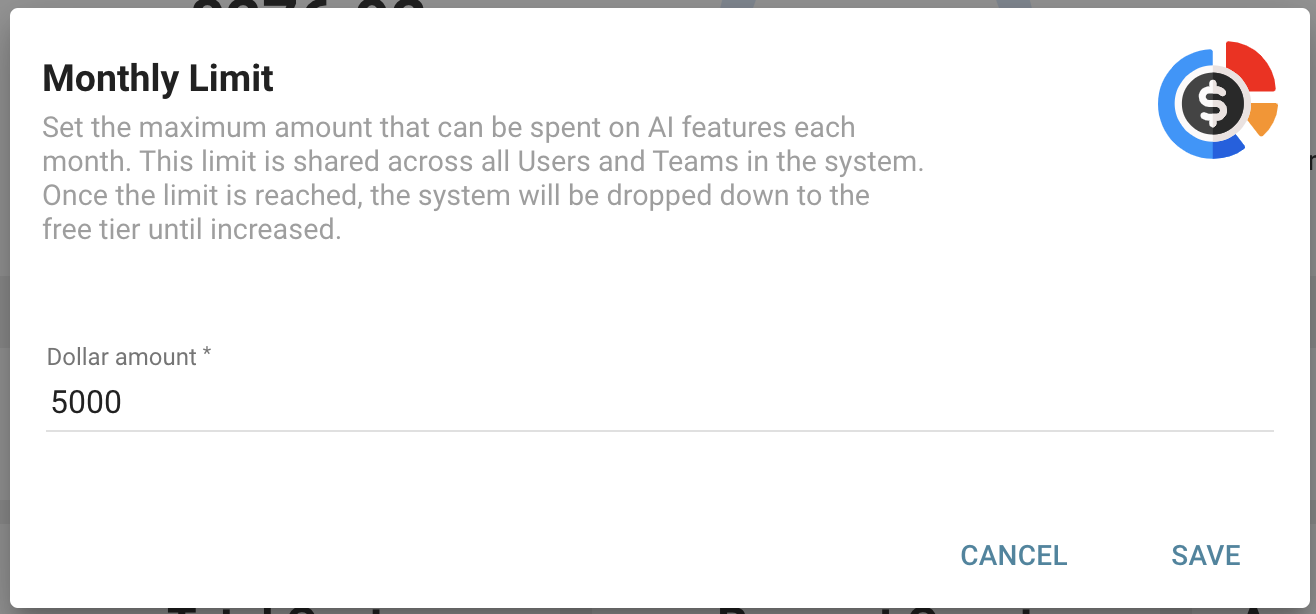
Once the monthly limit is reached, the system automatically reverts to the free tier until the limit is increased. In the free tier, AI requests are subject to rate limits based on your AI model, restricting you to a certain number of AI requests per minute and per day.
Monthly usage
In the Monthly Usage section, you can view the total amount spent on AI for the month, the number of AI requests, and the average cost per request. By default, a chart displays the total cost by day.
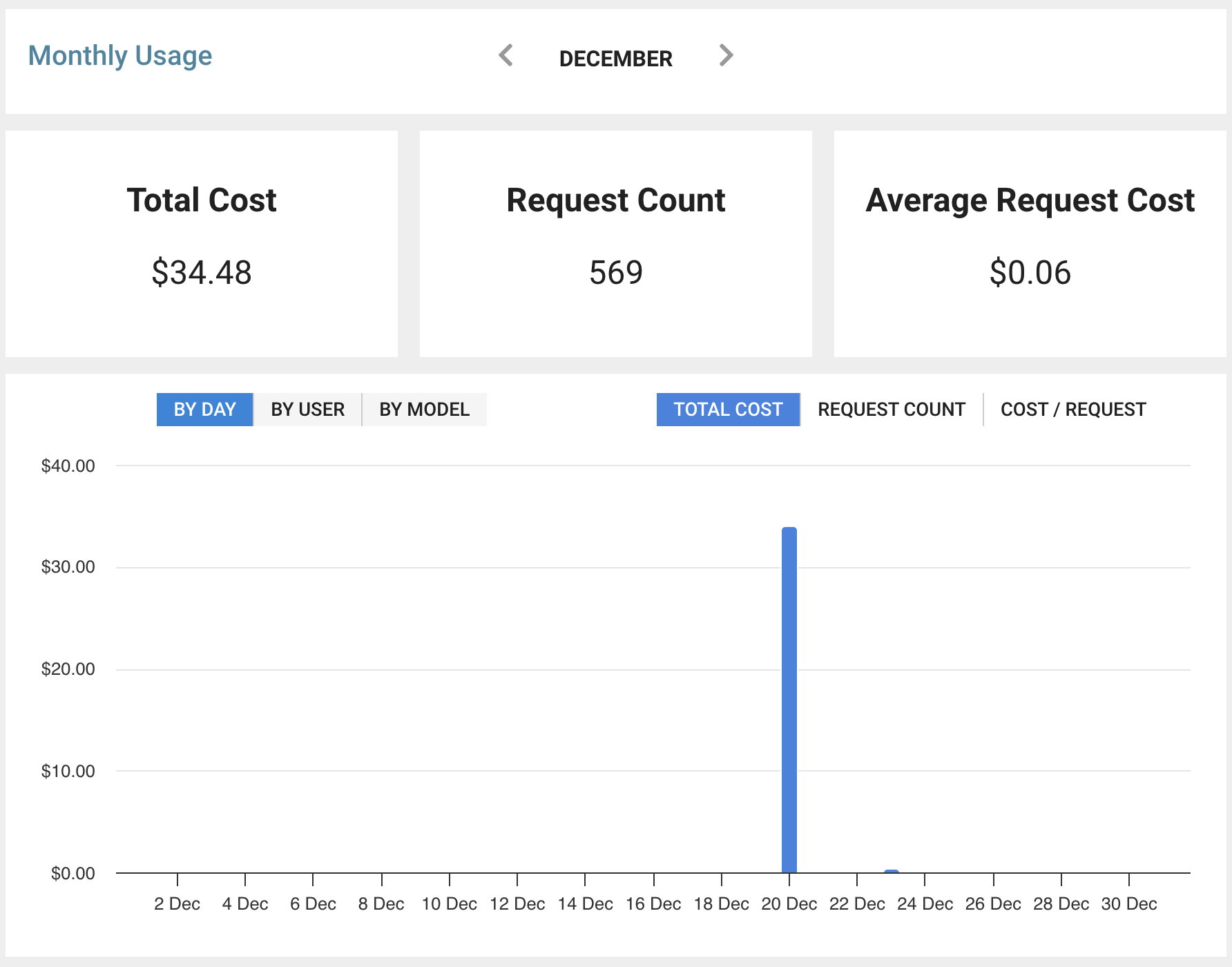
To gain deeper insights into your spending, customize the chart to display the total cost, request count, or cost per request on the y-axis, and choose between day, User, or AI model on the x-axis. This lets you explore your usage patterns, track spending trends, and identify which Users or AI models contribute to costs. The chart can also highlight spikes in spending or usage, providing useful insights for financial planning.
Access
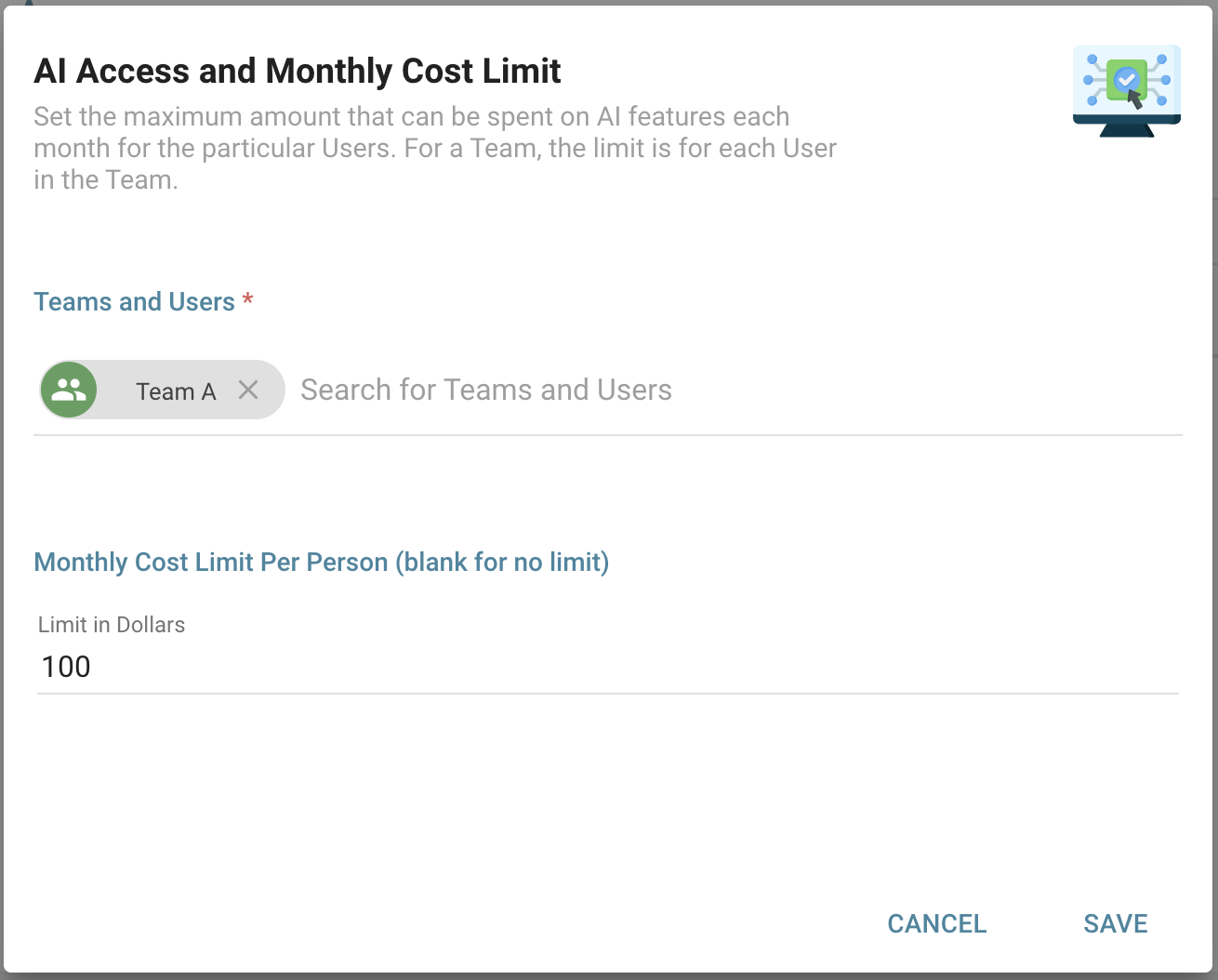
In the Access section, choose to grant all Users access to AI features or restrict access to specific Users and Teams. To limit access, select the Select Users and Teams radio button and click Add Users and Teams. From there, choose which Users or Teams should have access to AI features and set a monthly spending limit for each. To set no limit for a User or Team, leave the field blank.
Instructions
In the Instructions section, you can provide guidance for how the AI should respond to User queries. Add specific instructions for AI-powered features such as Copilot, Magic Visual, and AI Assistants, to ensure the AI tailors its responses appropriately. This helps guide the AI in delivering more accurate, context-sensitive answers based on the feature the User is interacting with.