Processors
Data Processors pull data from Datasets or Ad hoc Queries and make it available to the context. Add a Processor by clicking the + sign next to Processors on the Template editor. Select the Processor type, fill out the form to select the data, then provide additional details based on the type.
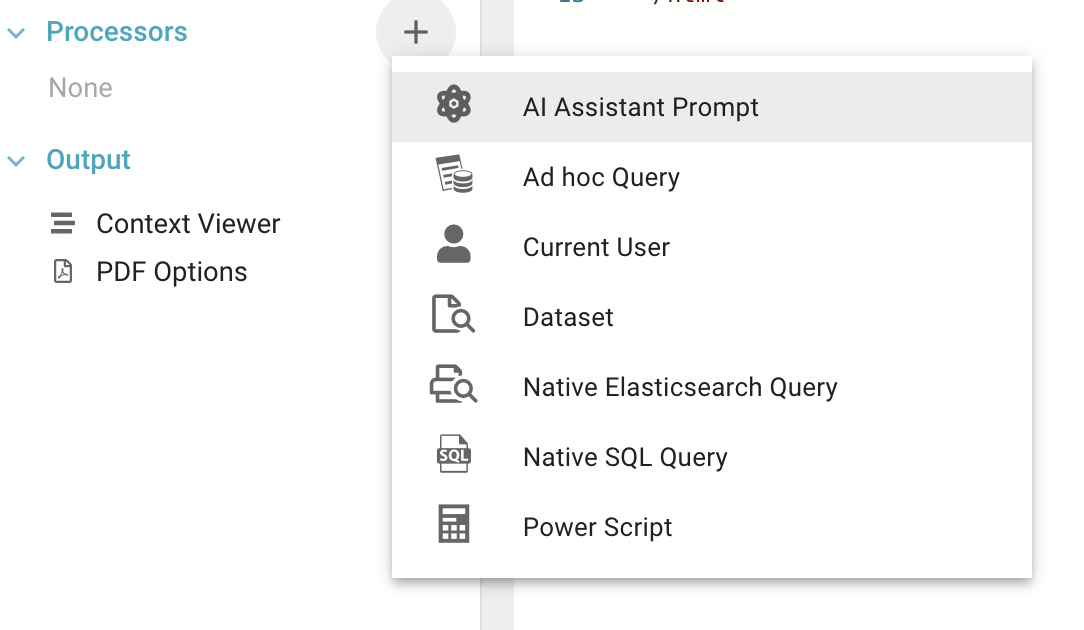
AI Assistant Prompt
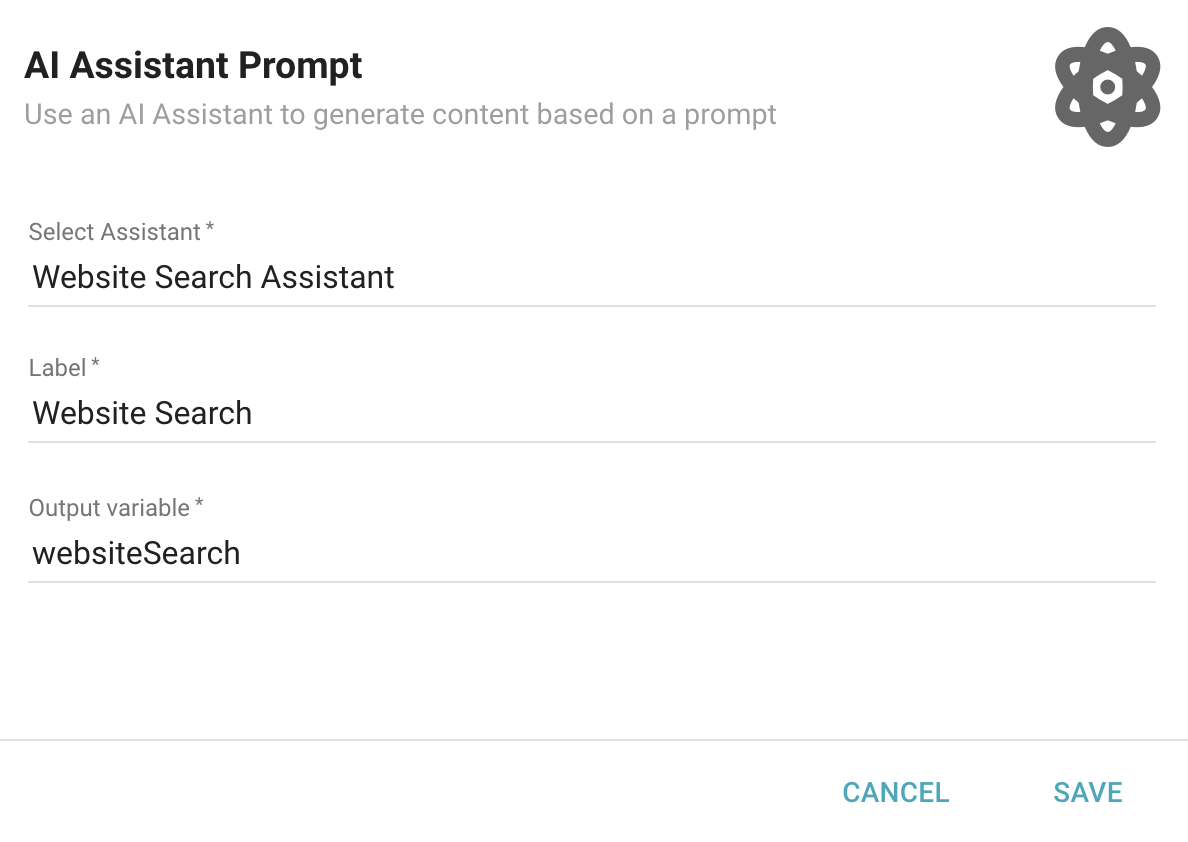
To configure an AI Assistant Prompt Processor, select the Assistant, give it a Label, and give it a unique Output variable. The Output variable is added to the Template's context and is how the data is accessed.
Assistants must be enabled to use the AI Assistant Prompt Processor.
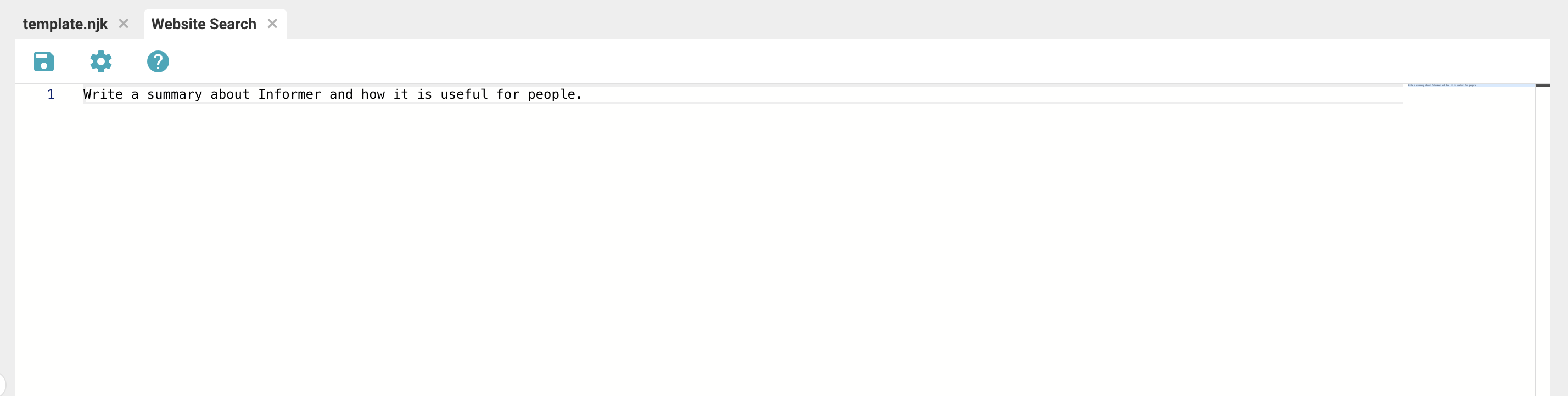
After saving, a new tab is added in the editor for the Processor. This tab is where you write the prompt for your Assistant. The prompt can be a question, a sentence, or a fragment, and should be specific to the content you want to generate.
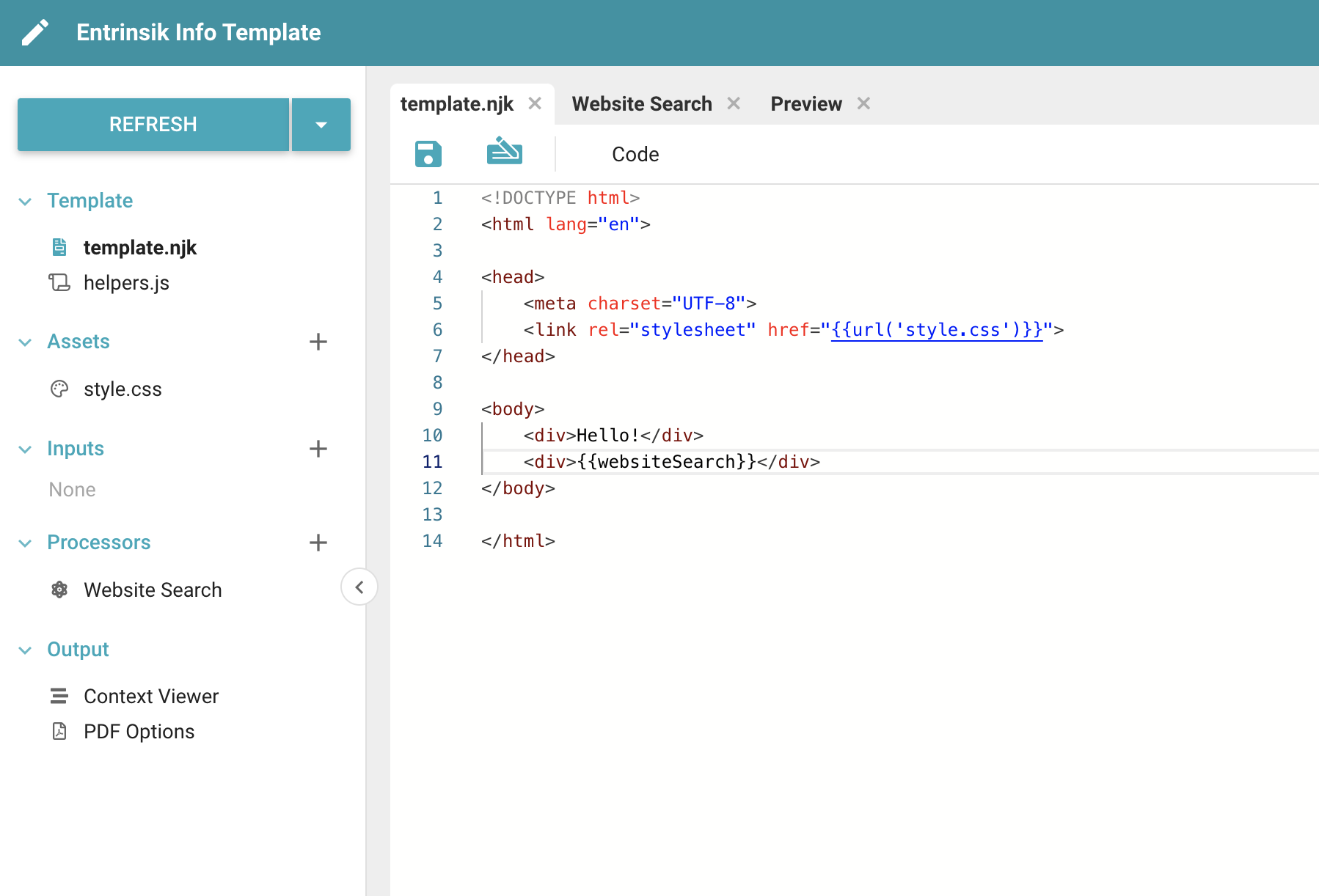
Save the prompt and navigate back to the template.njk tab. To access the generated content, use the Output variable you created. It is part of the Template's context.
Ad hoc Query
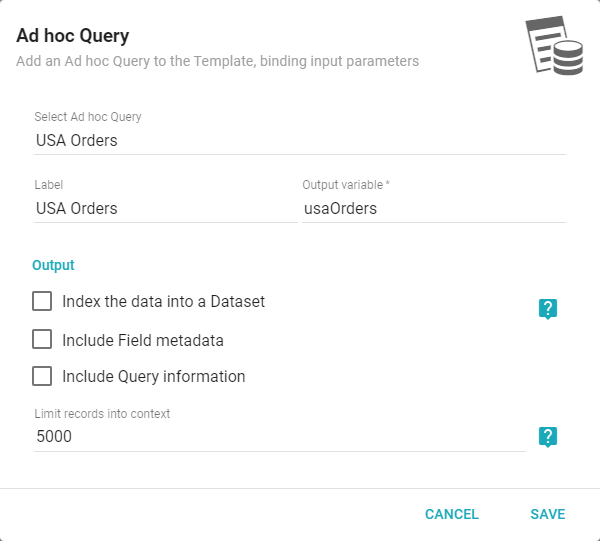
Select the Query, give it a Label (visible only in the editor), and give it a unique Output variable. The Output variable is its alias and is how the data is accessed, so use a valid JavaScript variable name. Select any output options:
- Index the data into a Dataset: indexing into a Dataset allows filters and view customizations (grouping, column chooser, aggregates) to change the output in the context. Otherwise, the data streams directly from the Datasource.
- Include Field metadata: adds the metadata of the Query's Fields to the context.
- Include Query information: adds data about the Query, such as its owner, tenant, and permissions.
- Limit records into context: too many records can cause performance issues. Filter and choose only the columns needed. The record limit is not reflected in the UI preview, only in the final context. Use
-1for no limit, but use discretion.
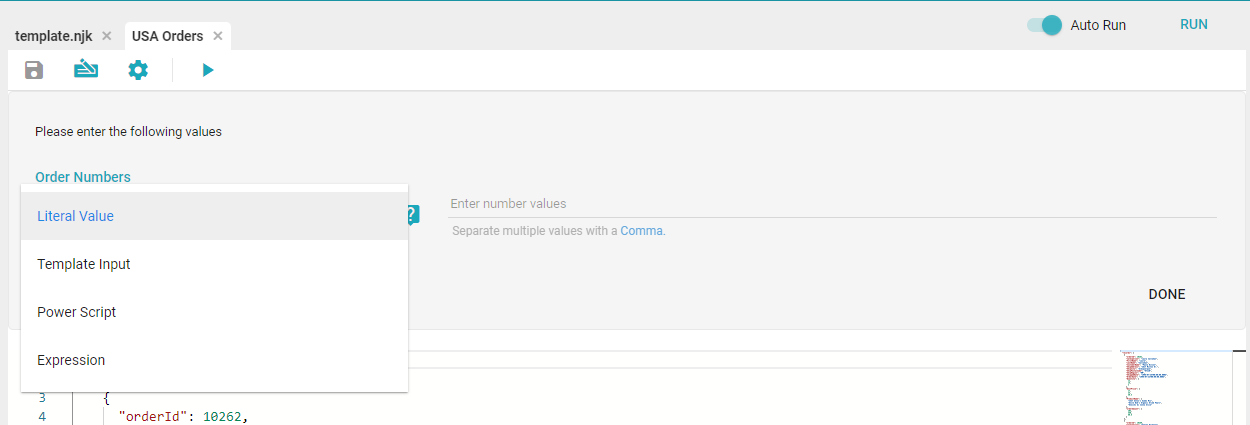
If the Ad hoc Query has Inputs, enter them on the new tab that opens. Populate Query Inputs with a matching Template Input, a literal value, or an expression. Click the save icon after configuring the Inputs.
Current User
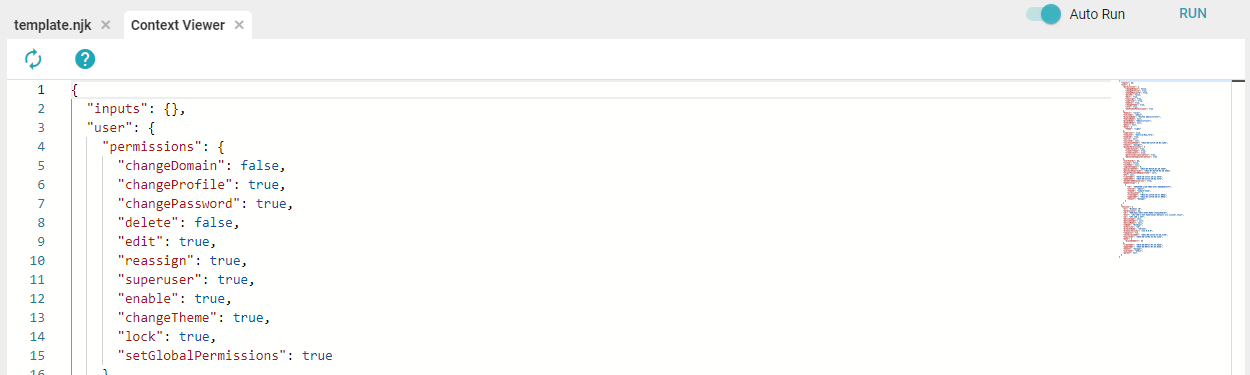
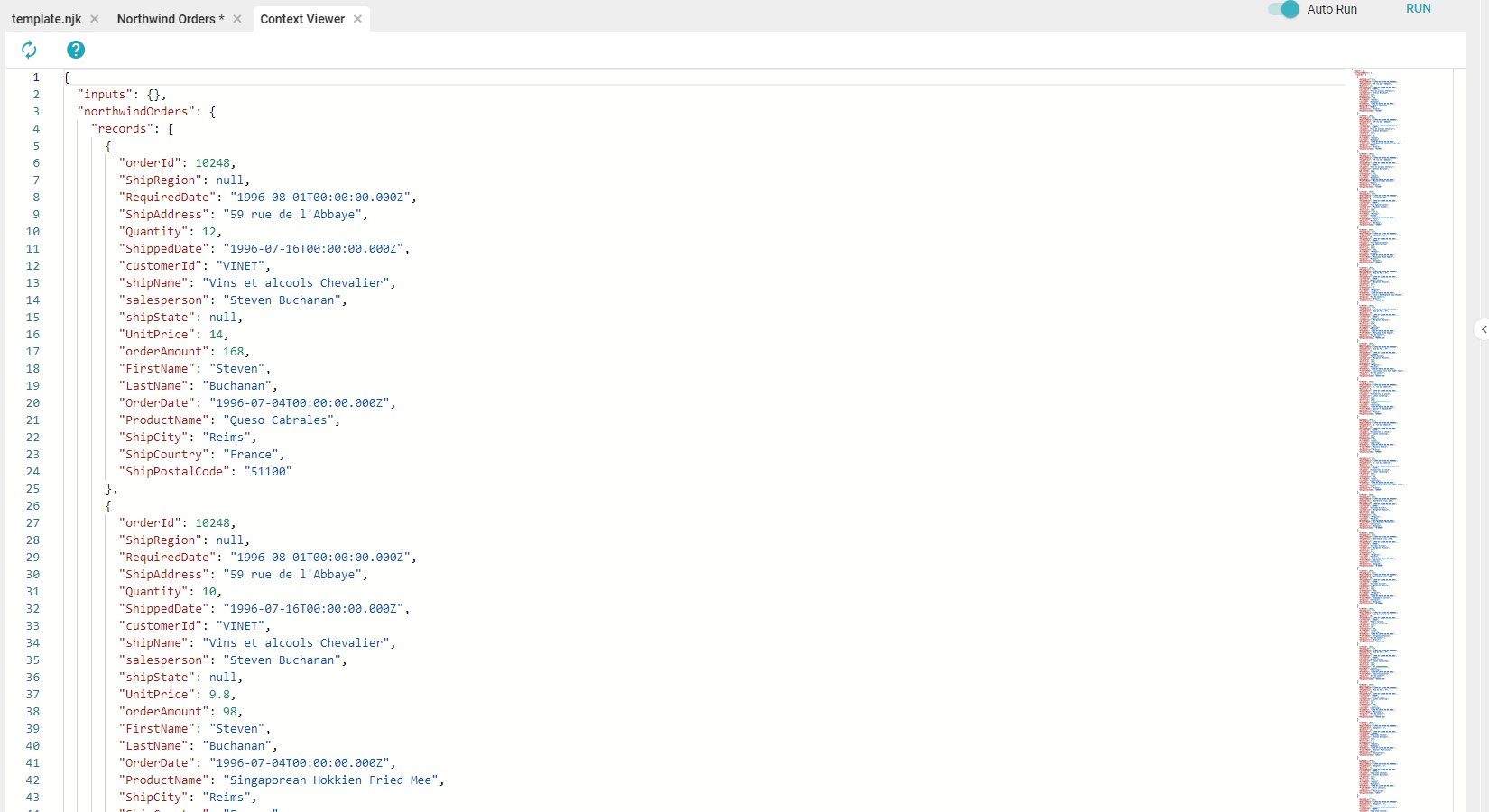
Adds the current User and session running the Template to the context, letting you use this data in the Template. Locate it in the Context Viewer.
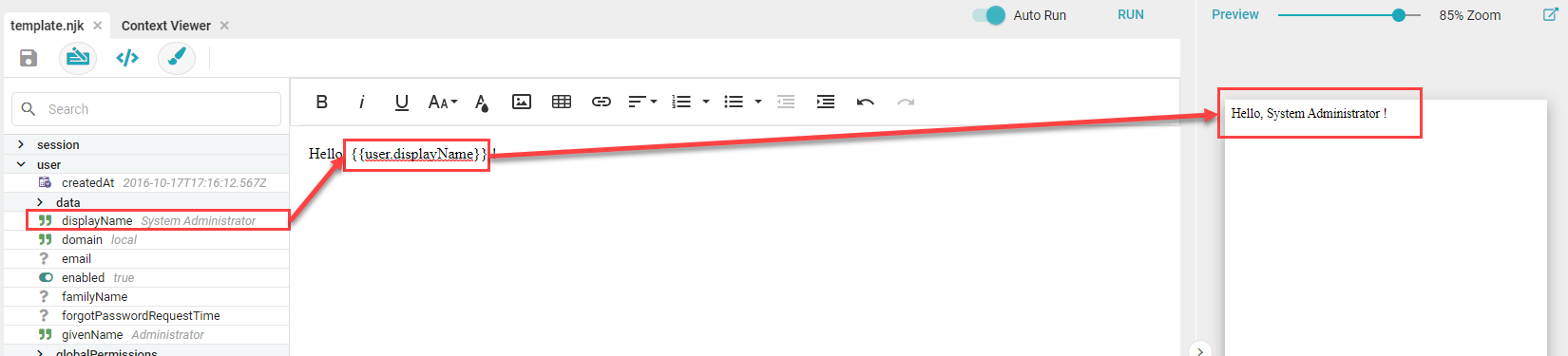
All User information can be added using the Insert Keyword button and selecting the desired field.
Dataset
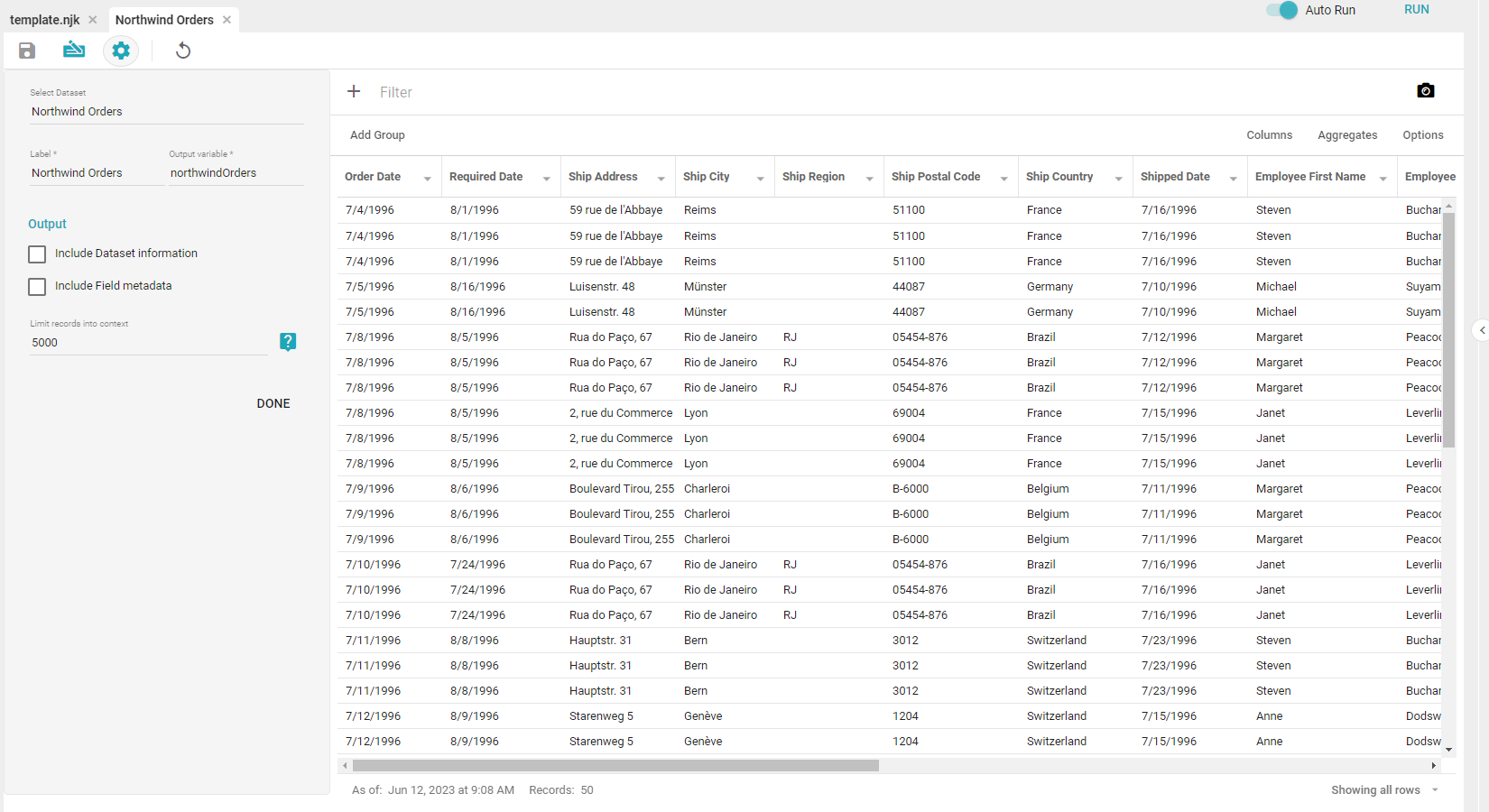
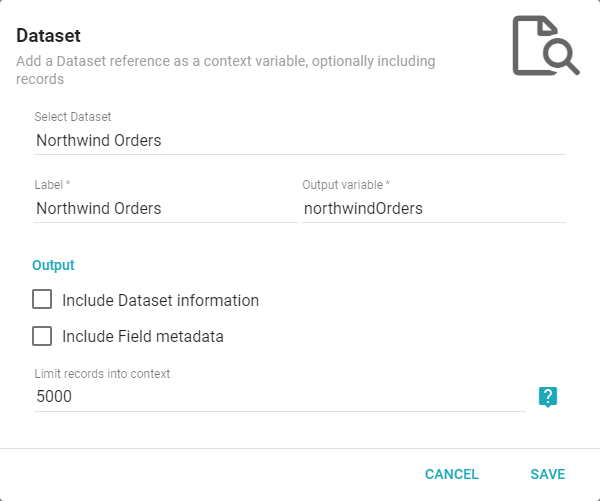
Select the Dataset, give it a Label (visible only in the editor), and give it a unique Output variable (use a valid JavaScript variable name). The Dataset Processor window shows the entire connected Dataset, which can be filtered and altered as if viewing it directly. Select any output options:
- Include Dataset information: adds data about the Dataset, such as its owner, tenant, and permissions.
- Include Field metadata: adds the metadata of the Dataset's Fields to the context.
Changes made here do not affect the underlying Dataset, only the Dataset as it is in the Template.
Native Elasticsearch Query Search
Select the Dataset, give it a Label, and give it a unique Output variable. On the new tab that opens, enter a valid Elasticsearch search string. This behaves like a Dataset Filter and limits the Dataset to a subset of its data.
Native SQL Query
Select a SQL Datasource, give the query a Label, and give it a unique Output variable. On the new tab that opens, enter a valid native SQL statement to run against the selected Datasource. To reference a Template Input in the SQL, use Nunjucks syntax to reference the input object from the context:
select * from orders where "ShipCountry" = '{{ inputs.ShipCountry }}';
The Native SQL Query Processor does not have access to Flow Steps. In most cases it is better to use a Query (Native SQL or otherwise) that already exists in Informer.
Power Script
Choose a Label and a timeout setting (in milliseconds) for the Power Script. Power Scripts for Templates serve a similar purpose to Power Scripts for Queries: manipulating data. Both use JavaScript and have access to the Lodash and moment libraries. However, Power Scripts for Templates are written differently and do not use the same reserved variables like $record. Rather than running once per row, a Template Power Script runs once and has access to all the data in the context.
Power Scripts for Templates access the context via the reserved variable $ctx, and most only make changes to the context. The most common data to access is from a Data Processor, via $ctx.<Data Processor Variable>.records.
For example, to sort the records by a lastName Field:
$ctx.sortedRows = _.sortBy($ctx.Example.records, [function(obj) { return obj.lastName; }]);
This sorts the data and stores it in $ctx.sortedRows. To create a grand total of all orderTotal values from a northwindOrders Dataset variable:
// Create and initialize the final result. It must be a new variable on $ctx to be displayed.
$ctx.grandTotal = 0;

// Do something for each row in $ctx.northwindOrders.records
for (var i in $ctx.northwindOrders.records) {
  $ctx.grandTotal += $ctx.northwindOrders.records[i].orderTotal;
}
Now, when injecting data, the value {{ grandTotal }} becomes available. In this way, Power Scripts can create or manipulate data and make it available to the Template.