Inputs
Templates can use Inputs, similar to Queries, either for data manipulation or for use with a Power Script. Add an Input to a Template by clicking the + sign next to Inputs on the Template editor.
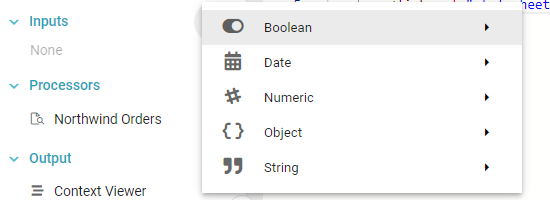
The options for adding an Input are similar to those when adding an Input to a Query, with one addition: Object Inputs. Object Inputs let you enter or paste a JSON object to be used in a Power Script.
Once a Template Input is created, it appears in the Context Viewer. You can use it with Processors or directly in the Template output.
Template Input defaults and locks
Template Input locks let Member Plus Users set default values for Inputs and lock them, ensuring critical values remain consistent and uneditable when a Template runs. This helps maintain data integrity, streamlines the User experience, and prevents accidental or unauthorized changes.
To configure Input locks, navigate to your Template and click the Settings tab, where you find the Input Defaults and Locks section.
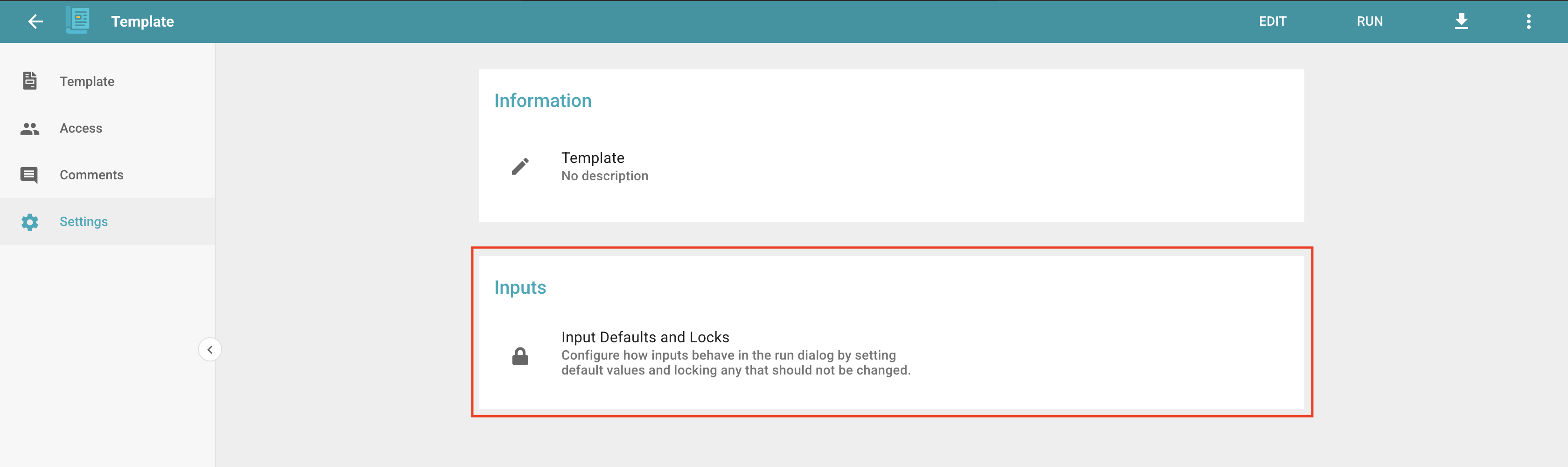
Click the Input Defaults and Locks section to set default values for each Input and choose which Inputs to lock.
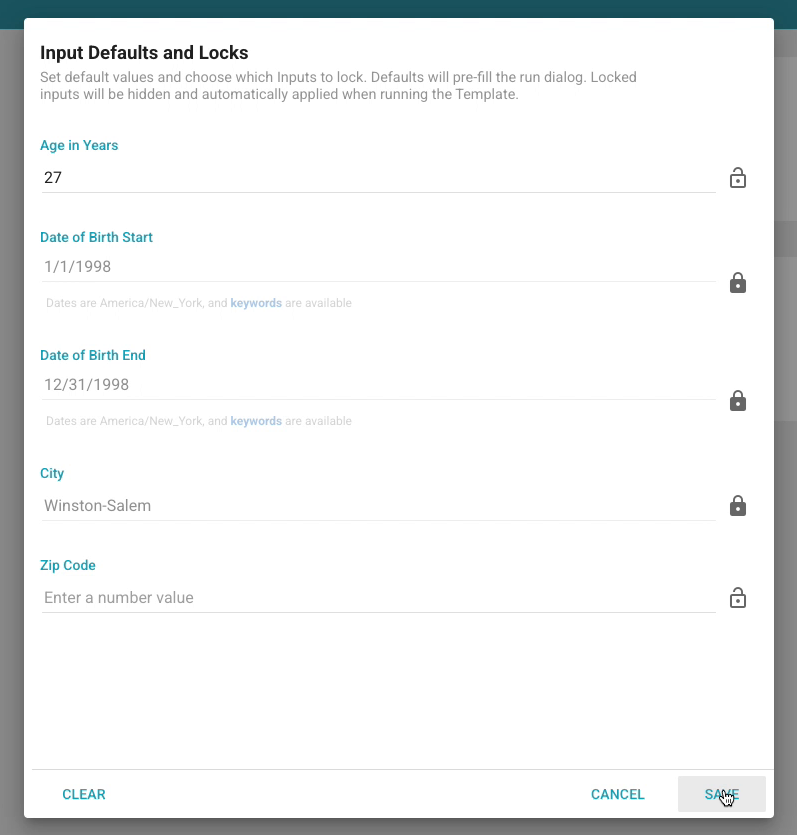
Click the lock icon next to any Input to lock it, and optionally enter default values for the Inputs you leave unlocked. Click Save to apply your changes.
When a User runs the Template, locked Inputs are hidden and their values are automatically applied, while unlocked Inputs are visible and editable.
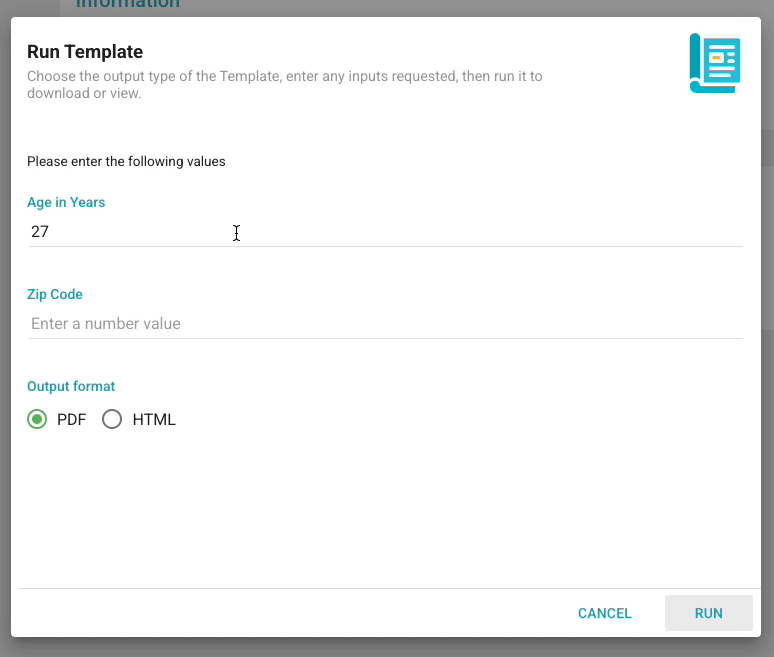
When the Template runs, locked Inputs are hidden from the run dialog, automatically applied, and cannot be changed. Unlocked Inputs appear in the run dialog, are pre-filled with their default values (if set), and can be edited.