Creating and viewing Templates
Creating a Template
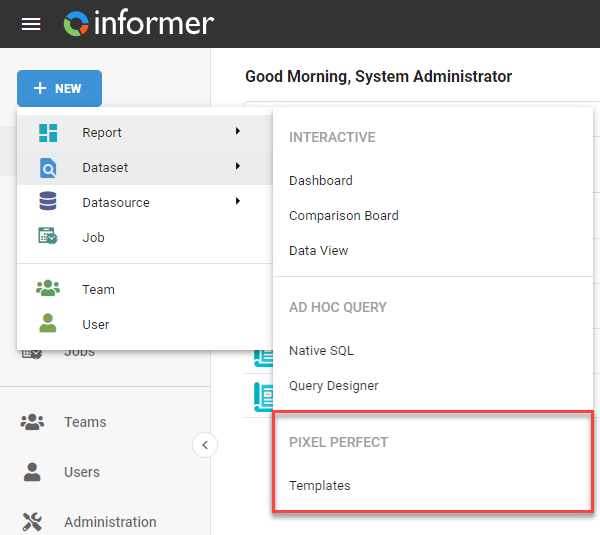
Create a new Template by clicking the + New button on the Home page. Select Reports and click Templates. Name the Template, give it an optional description, then click Save.
After saving, the Template editor opens for the new Template.
Viewing a Template
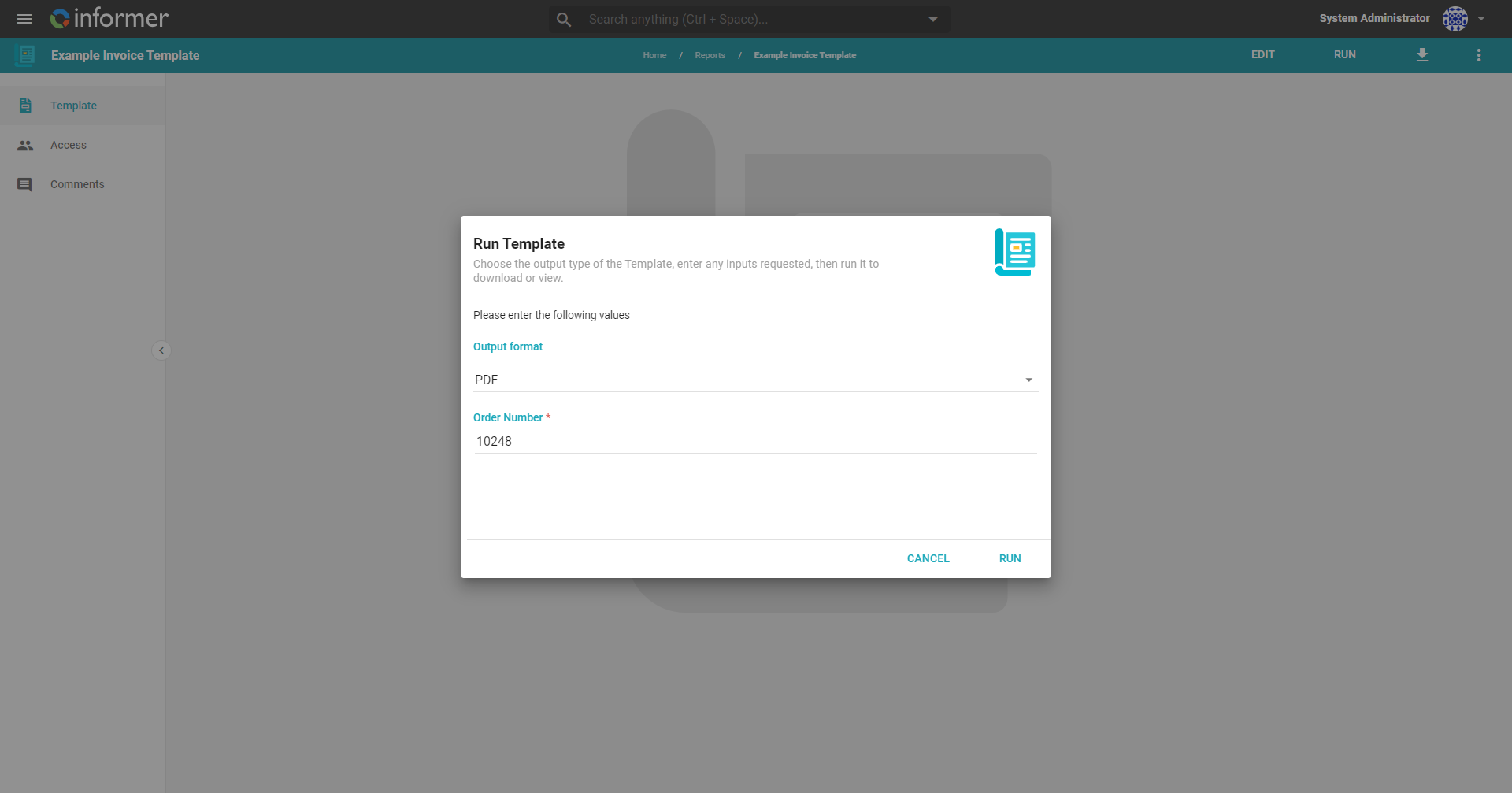
View a Template by double-clicking it from the Reports listing or the Home page. Click Run Template, select the output format (HTML or PDF), enter any required Inputs, and click Run.
This displays the Template, with options at the bottom of the screen:
- Change Parameters: change the values of the Inputs.
- Run Again: run the Template again with updated data.
- Open in New Window: display just the Template on its own, without Informer's border or options.
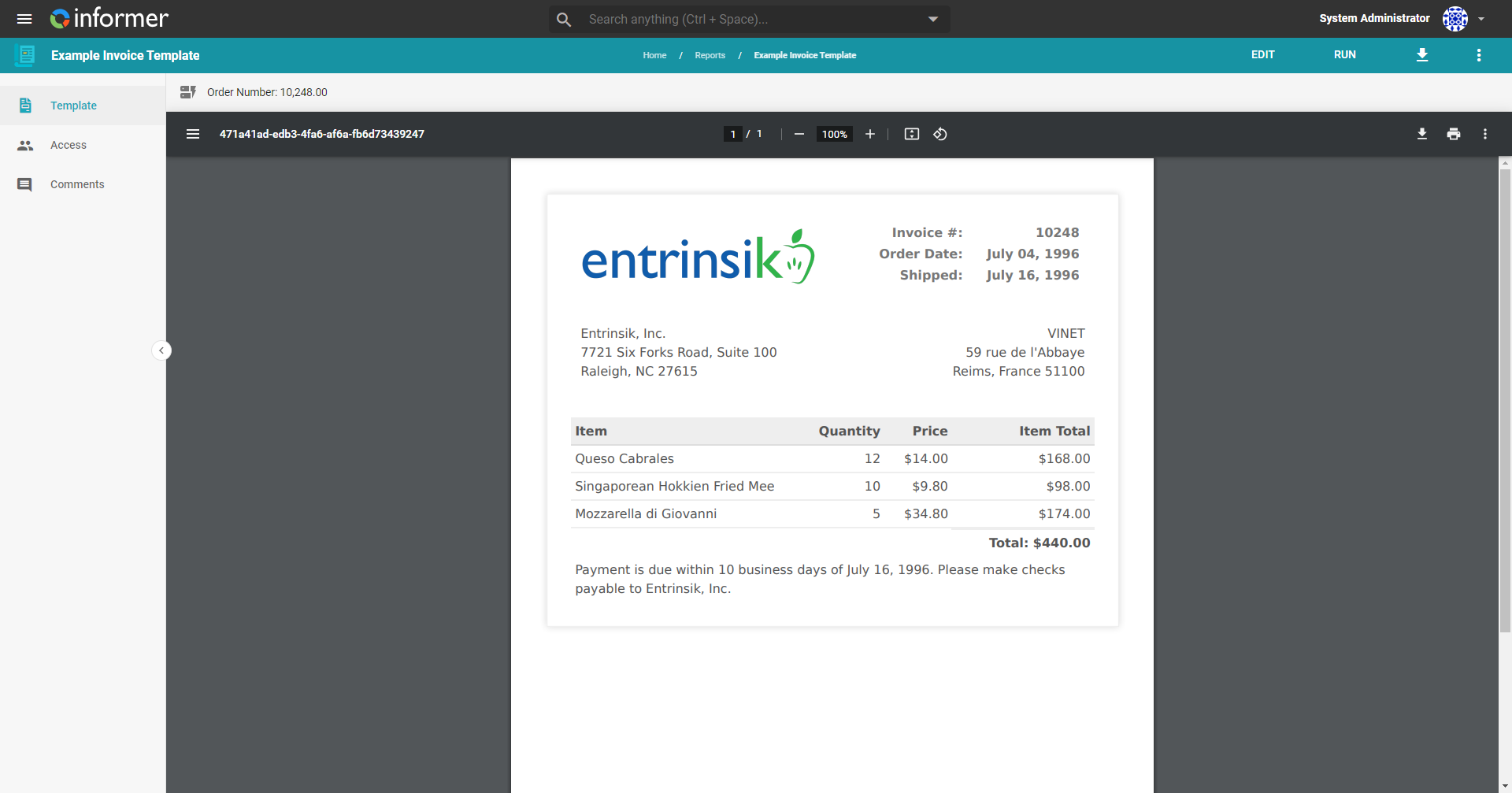
Change the access of the Template (change owner, or share a read-only version with other Users and Teams), comment on it, or return to the Template view using the options on the left side of the screen. The three dots in the top-right corner provide more options.
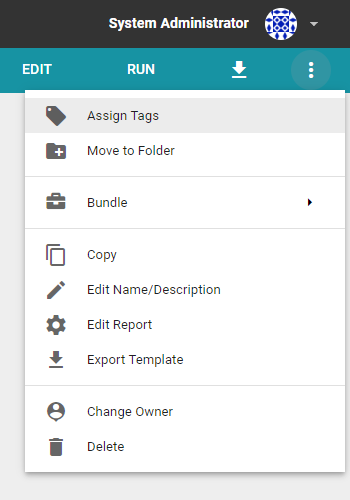
- Assign Tags: add Tags to the Template.
- Move to Folder: move the Template to a Folder.
- Bundle:
- Add to Bundle: adds the Template and its dependent content (such as any Dataset it uses) to a new or existing Bundle.
- Bundle and Download: adds the Template and its dependent content to a new Bundle and immediately downloads it.
- Bundle and Deploy to Tenant: adds the Template and its dependent content to a new Bundle and deploys it to a new or existing Tenant. You can overwrite the name, description, and input defaults and locks when deploying. This action is only available from an instance with Multitenancy enabled.
- Copy: copies the Template, making the current User the owner of the copy.
- Edit Name/Description: changes the name or description of the Template.
- Edit Report: opens the Template editor.
- Export: creates an HTML or PDF export of the Template with added Inputs.
- Change owner: changes the owner of the Template.
- Delete: deletes the Template. This cannot be undone.
Template downloads may be blocked by the browser's pop-up blocker. Change your browser settings to allow your Informer instance to use pop-ups and redirects.