How to create an Award Certificate Template
An Award Certificate is a document that recognizes a person for an achievement. In Informer, an Award Certificate can use Inputs and Assets to populate it.

This example is intended to be viewed as a PDF. The preview may not render in the intended way.
- Create a blank Template by clicking + New and selecting Templates under Reports. Enter a name and optional description, then click Save.
- Add Inputs by clicking the + button next to Inputs and selecting Input Box under the String menu. Fill out the dialog and click Save. Do this for each of the three Inputs:
recipient,firstManager, andsecondManager. - Add the Assets by clicking the + button next to Assets, selecting Upload Files, and adding a laurel image and a border image.
- Edit the
style.cssfile to position and size the border and laurel images. - Open the Code View and fill in
template.njkwith the HTML below. - Open PDF under Output and set the orientation to Landscape, all page margins to 0 mm, and the renderer to Puppeteer.
Example code
<!DOCTYPE html>
<html lang="en">
<head>
    <meta charset="UTF-8">
    <link rel="stylesheet" href="{{ url('style.css') }}">
</head>
<body>
    <div>
        <img src="{{ url('award_border.png') }}" class="border">
    </div>
    <center>
        <div class="information">
            <span style="font-size: 6em; font-weight:bold"><i>Certificate</i></span>
            <br>
            <span style="font-size: 3em; color: gold;">of Appreciation</span>
            <br><br>
            <span><i>This award is being presented to</i></span>
            <br><br>
            <span class="recipient"><b><i> {{ inputs.recipient }} </i></b></span>
            <hr>
            <br>
            <i>This certificate recognizes the above for their hard work and dedication to the company on </i>
            <br><br>
            <span style="font-size: 2em; font-weight:bold"> {{ moment().format('MMMM DD, YYYY') }} </span>
        </div>
        <div>
            <table>
                <tr>
                    <td>
                        <hr width="100%"><br>
                        <span><i> {{ inputs.firstManager }} </i></span>
                    </td>
                    <td>
                        <span><img src="{{ url('laurel.png') }}" height="180px" width="240px"></span>
                    </td>
                    <td>
                        <hr width="100%"><br>
                        <span><i> {{ inputs.secondManager }} </i></span>
                    </td>
                </tr>
            </table>
        </div>
    </center>
</body>
</html>
Creating a certificate this way relies on modifying Assets and Inputs. The Assets used are the border and laurel image files. Modify them in style.css by setting their position and size as a class and applying the class to the images in template.njk, or style them directly. For example, applying a border class to the border image:
<img src="{{ url('award_border.png') }}" class="border">
Or styling the laurel image directly:
<span><img src="{{ url('laurel.png') }}" height="180px" width="240px"></span>
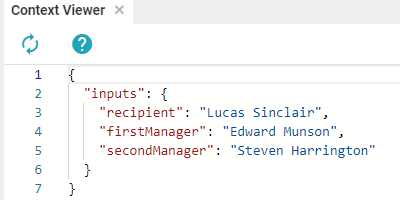
The Inputs populate the recipient's and managers' names. To use an Input directly in a Template, use inputs.inputName, where inputName is the alias of the Input:
{{ inputs.recipient }}
{{ inputs.firstManager }}
{{ inputs.secondManager }}
These can also be found in the Context Viewer.