Updating a User's Authentication Domain to SAML
This article outlines the process of moving user authentication from an Active Directory, LDAP, or the Local Domain to a SAML authentication-based Domain. This also applies to changing from one SAML IdP to another. Matching the username value for both the source and target Domains is the key requirement for a successful migration.
After establishing a successful trust relationship between Informer (SP) and the IdP, ensure the Informer username value for the SAML Domain aligns with the username format already in the system from the other Domains. From the Informer SAML Domain configuration page, find and edit the Fields tab (Domains > SAML Domain > Fields).
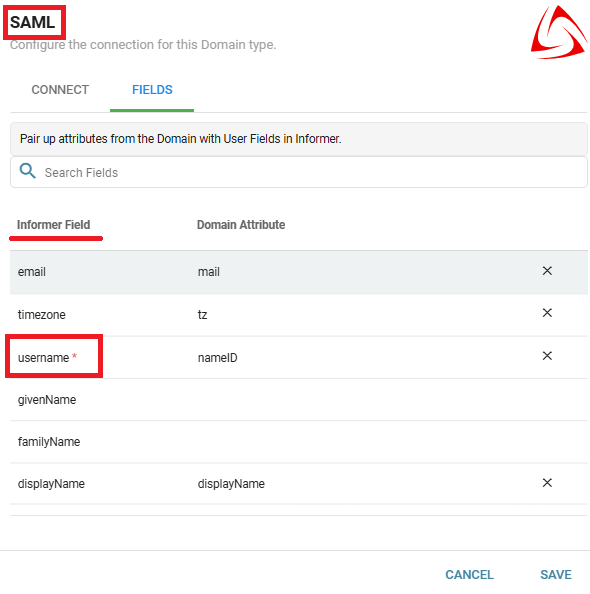
The corresponding Domain Attribute value is what Informer uses as the username for users sourced from the SAML Domain. This may need to be changed based on the username value for the current users slated for migration.
From the Users screen, inspect the current username format. Use the Domain filter at the top of the screen to limit the view to the scope of the source Domain. Note the format and adjust the Informer SAML Domain attribute(s) to match.
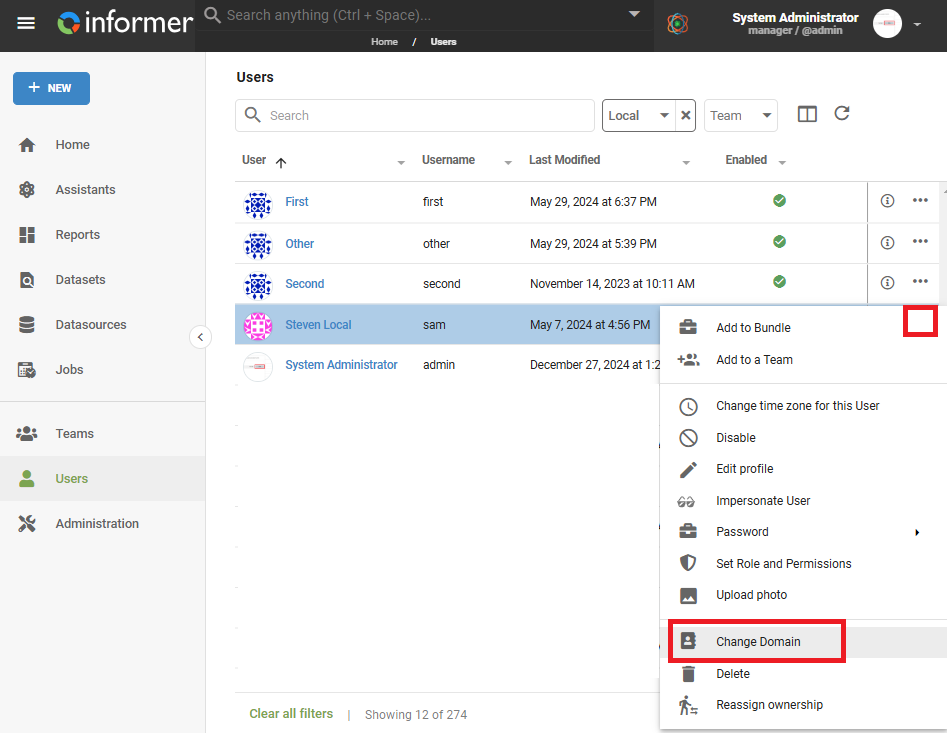
Once the username values for both the source and target Domain match, test migrating one user. From the Users screen, select one user, then choose Actions (...) > Change Domain and choose the target Domain.
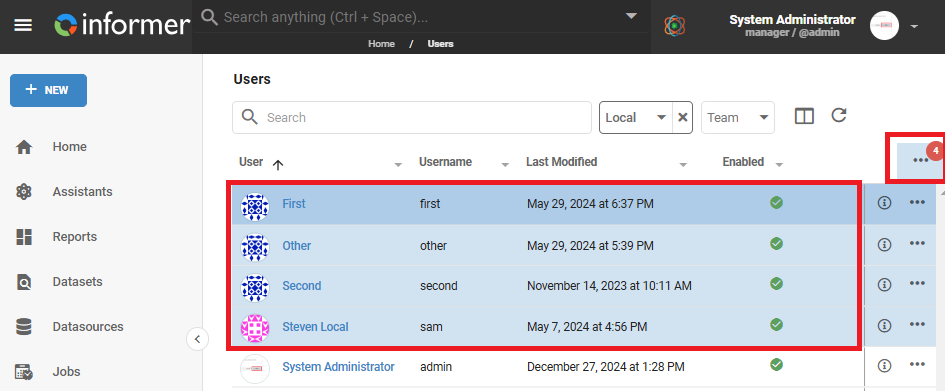
Next, test logging into the SAML Domain with the test user. A non-cached web browser session is advised for this step. After confirming login access and the correct Informer user profile alignment, migrate the remaining users in bulk to the SAML Domain. For bulk selection, hold Shift and/or Ctrl while clicking to select multiple users, which produces a bulk-selection operator in red.
Tips
- All users within all Domains in an Informer must be unique. If a user profile exists on the Local Domain that would match an authentication request to a SAML Domain on the same Informer, the login request fails with a duplicate key constraint error, because the user profile already exists in the Local Domain.
- Often, after adding another Domain like SAML to an Informer already using another user repository, the username value between the two Domains may not match, resulting in a new user profile for authenticating users on the SAML Domain. These are unique users based on the username value and only look like duplicates due to other similarities. Adjust the SAML username attribute to correct this.
- When working with a SAML Domain, ensure access to a Local Super User account to avoid locking yourself out of the system.
- Having a test SAML user account you can delete at will helps validate user attributes on profile creation and streamlines testing.
- User profiles are made just in time: when logging into a SAML Domain, if a user passes valid credentials to the IdP, is on the allowed list, and has no existing Informer profile, a profile is generated at initial login. This is also known as token-based authorization.
- Do not select the System Administrator account when applying bulk actions, as this limits the bulk operator functions. This account must always exist and be associated with the Local Domain.