Client ID and Client Secret for Google Drive Libraries
To connect Google Drive as a Library in Informer, you need to create your own Google Cloud project and set up OAuth credentials. This ensures maximum security and compliance with Google's requirements while giving you complete control over your Google Drive integration. Google requires applications that access user data to meet strict security standards; this integration puts you in control of your own OAuth application, so your data governance policies are maintained and your Google Drive access remains secure.
Create a Google Cloud project
Go to the Google Cloud Console and sign in. Click the Select a Project dropdown at the top, choose New Project, give your project a name, and click Create. Select your new project from the list.
Enable the Google Drive API
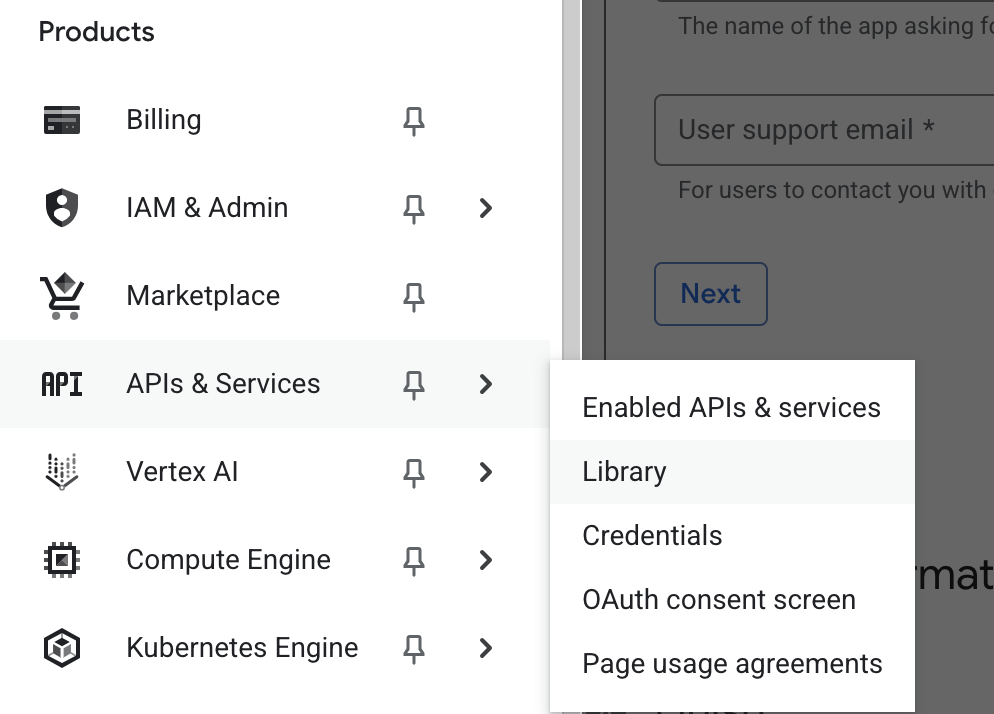
Open the left menu, click APIs & Services, then Library.
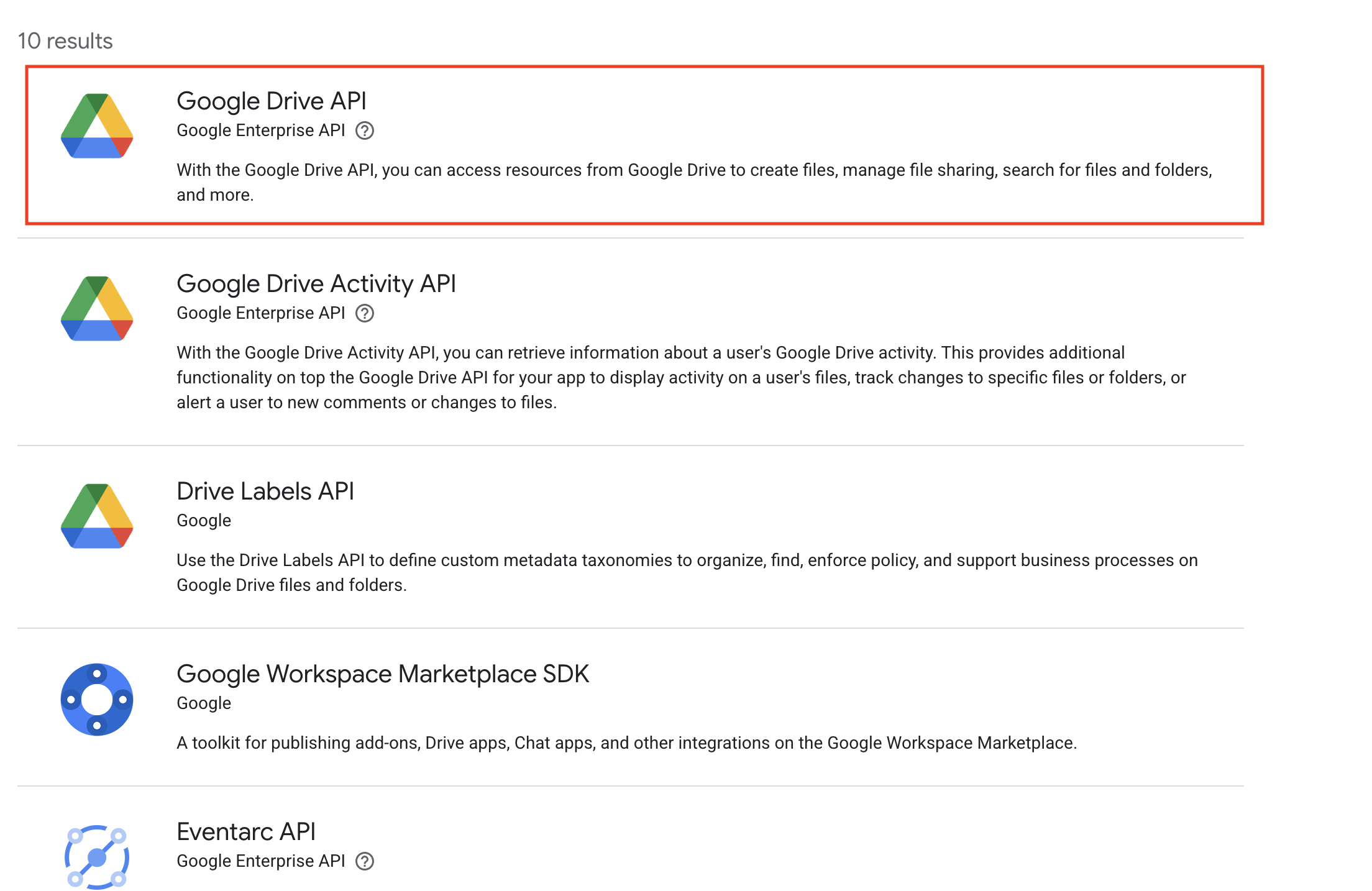
Search for the Google Drive API. Click the API, then click Enable.
Set up the OAuth consent screen
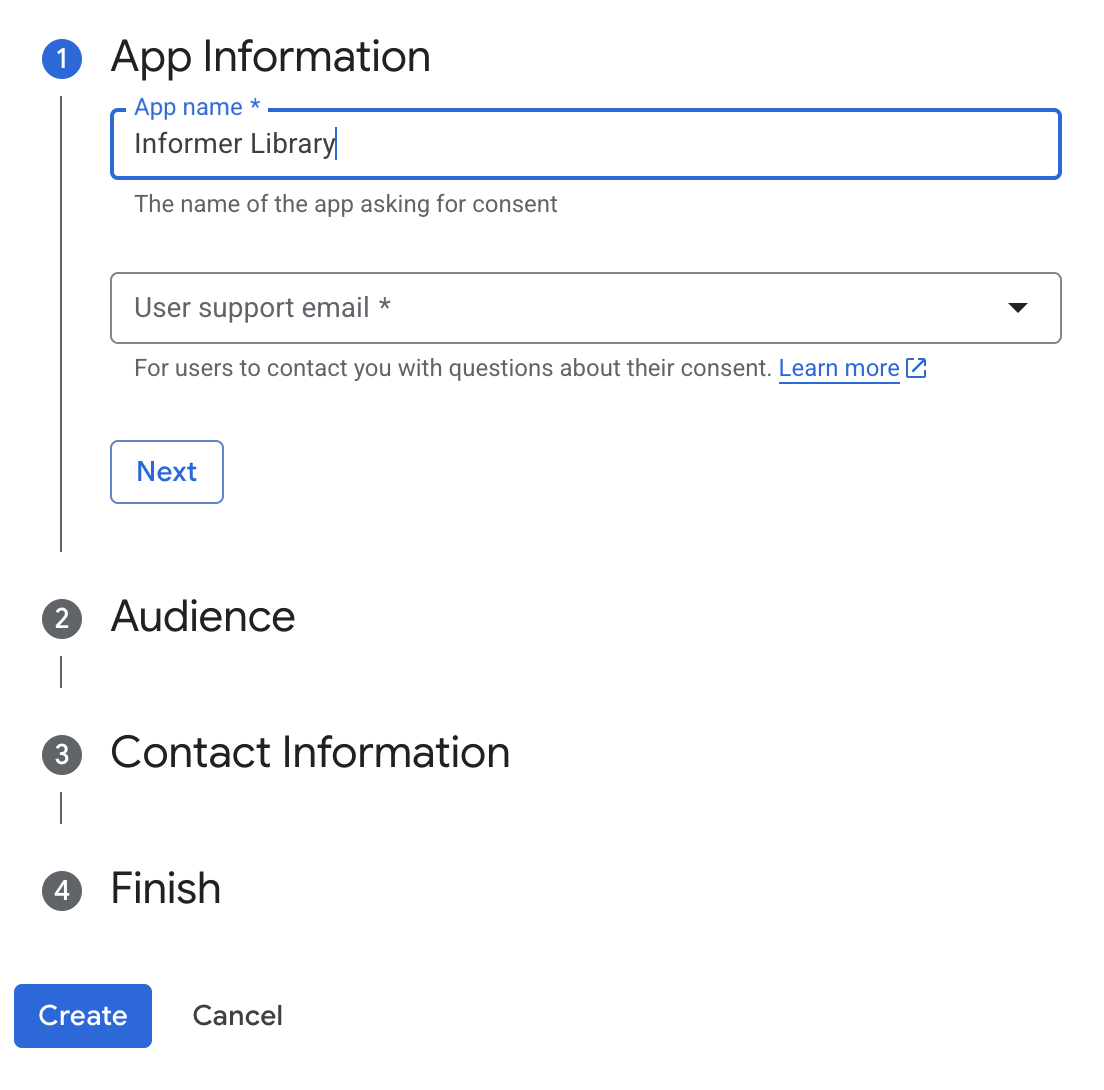
Click OAuth consent screen in the left menu and click Get Started. Fill in the required fields and save your changes.
Note: If you are part of a Workspace, choose Internal for your User Type. Otherwise, for personal Google Drive accounts, choose External.
Add yourself as a test user (for External User Type)
If you chose External as the User Type, you must add your email address as a test user before you can use the app. Otherwise, you will see an "access blocked" or "app not verified" error when you try to sign in.
On the left, click Audience, scroll down to Test users, click Add users, enter your Google email address, then click Save.
Note: If you selected Internal, you do not need to add test users.
Add scopes
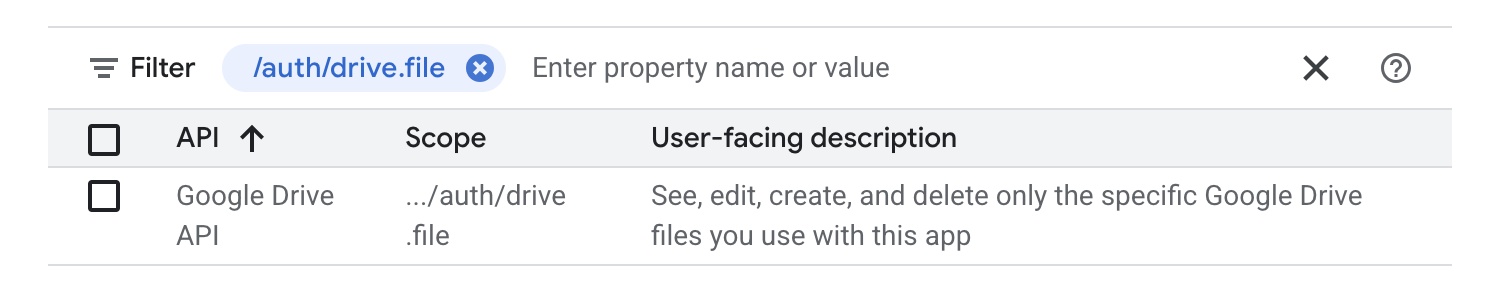
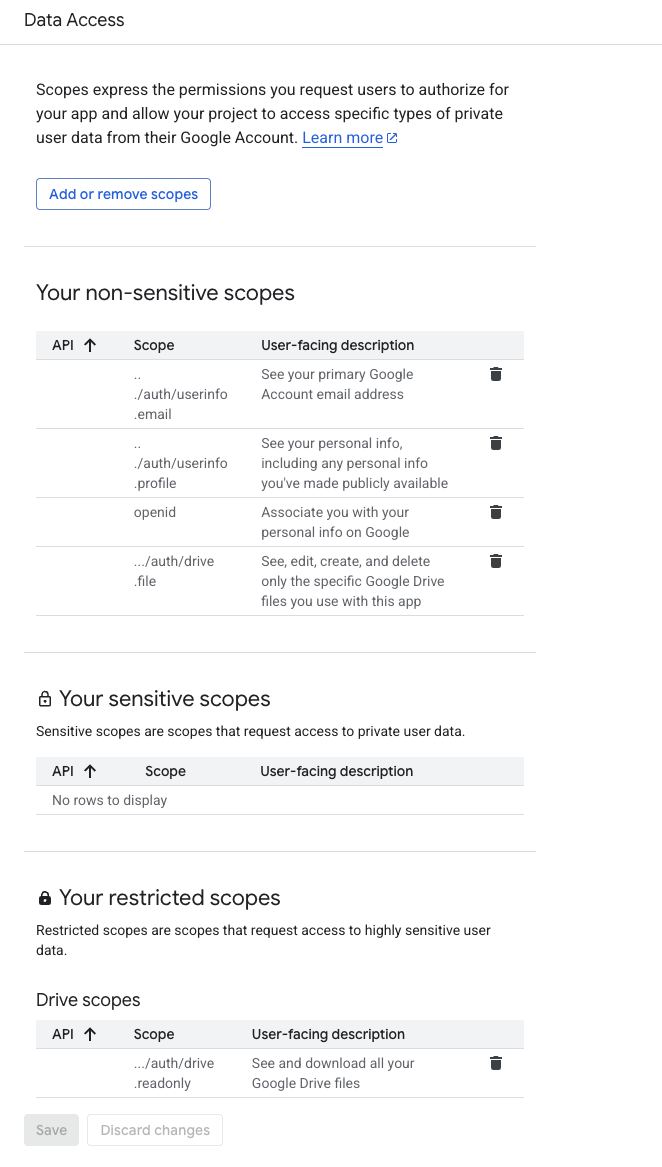
On the left, click Data Access, then Add or Remove Scopes. Add the following scopes, then click Update:
/auth/userinfo.email/auth/userinfo.profileopenid/auth/drive.file/auth/drive.readonly
Note: You may search for these scopes instead of looking through the list manually.
Get your Client ID and Secret
Open the left menu, click APIs & Services, then Credentials. Click Create Credentials and pick OAuth Client ID. Choose Web application for the application type and give it a name. Add the Redirect URI, which is https://api.informer.cloud/integration/callback.
Click Create. You will see your Client ID and Client Secret. Copy these and save them for use in Informer.