Connecting to Informer via OAuth Client Apps
OAuth Apps allow external applications to connect to Informer as a service provider. In this setup, Informer functions as the resource server, granting external applications access to its data or services through the OAuth protocol. This enables secure interactions where third-party applications access Informer's resources on behalf of a User, following the appropriate authorization process.
OAuth (Open Authentication) is an open protocol that allows secure authorization in a simple, standard way from web, mobile, and desktop applications. OAuth lets outside applications access information or perform actions in Informer on behalf of a User, without sharing the User's credentials (like username and password).
Super Users access OAuth Client Apps from the Administration page by clicking Client Apps in the left-hand menu under the Authentication heading.
OAuth workflow
OAuth lets Users permit outside applications to access Informer without sharing their login credentials directly. The basic OAuth workflow is:
- A User wants to grant access: An outside application wants to access information from the User's account in Informer.
- The outside application requests authorization: Instead of asking for the username and password, it redirects the User to the Informer login page.
- The User logs in to Informer: The User enters their Informer username and password.
- Granting permission: After logging in, Informer asks the User to grant permission for the outside application to access their account. If the User agrees, Informer generates a special token.
- The token is sent back to the app: This token is sent back to the outside application, confirming that the User has given permission.
- The outside application uses the token: The outside application can now use this token to access specific information or perform the actions the User permits.
The outside application never sees the User's actual Informer username and password.
Connecting to new OAuth Client Apps
After navigating to the OAuth Client Apps page, if there are no saved OAuth Apps, Users see a page with a New Client App button.
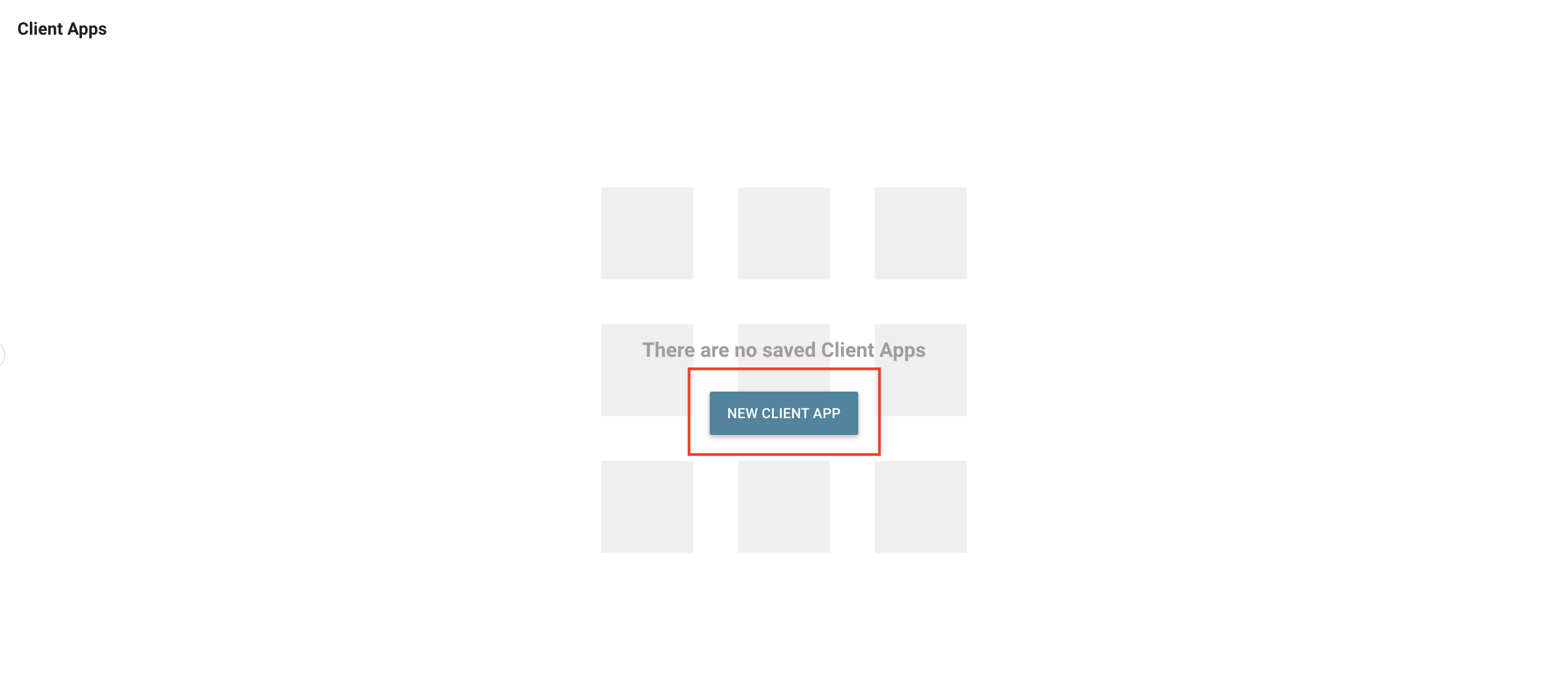
Create a new OAuth App by clicking the New Client App button and filling out the information in the dialog.
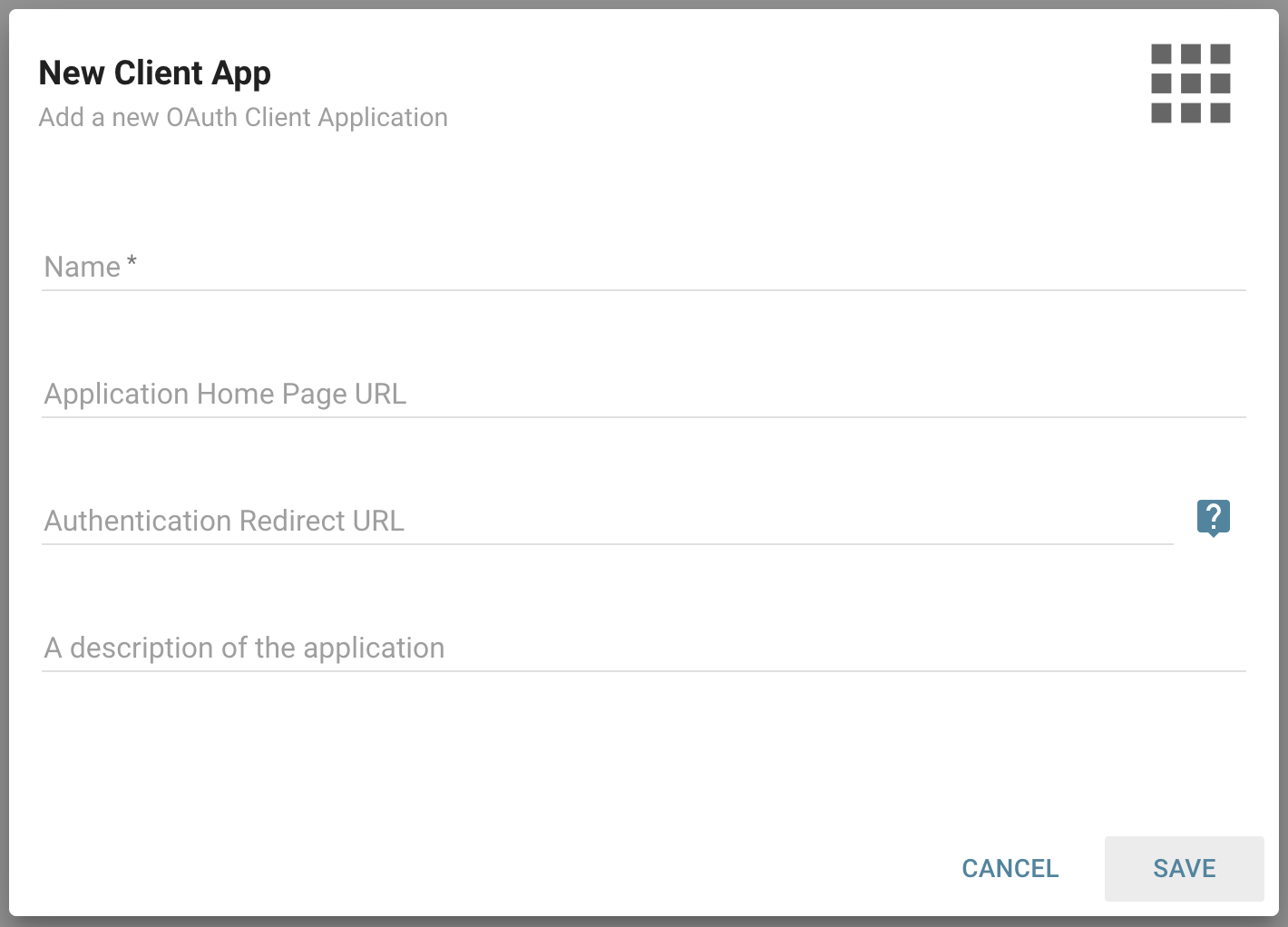
- Name: A name to identify the application. When initially creating the connection, Name is the only required field, so Users can come back later to enter the rest.
- Application Home Page URL: The home page of the outside application connecting to Informer.
- Authentication Redirect URL: The URL the User is redirected to after authenticating with the application.
- Specify multiple URLs by adding them one per line, pressing Enter at the end of each URL.
- The first URL is used as the default if the client application does not specify one.
- Description: A description of the application.
After entering the required information, click Save and the OAuth application's detail page opens.
Note: If the User skipped the URLs, they must be entered later to finish the connection.
OAuth detail page
The OAuth detail page shows the information associated with an OAuth App, allowing Users to edit the connection information and create or delete Client Secrets.
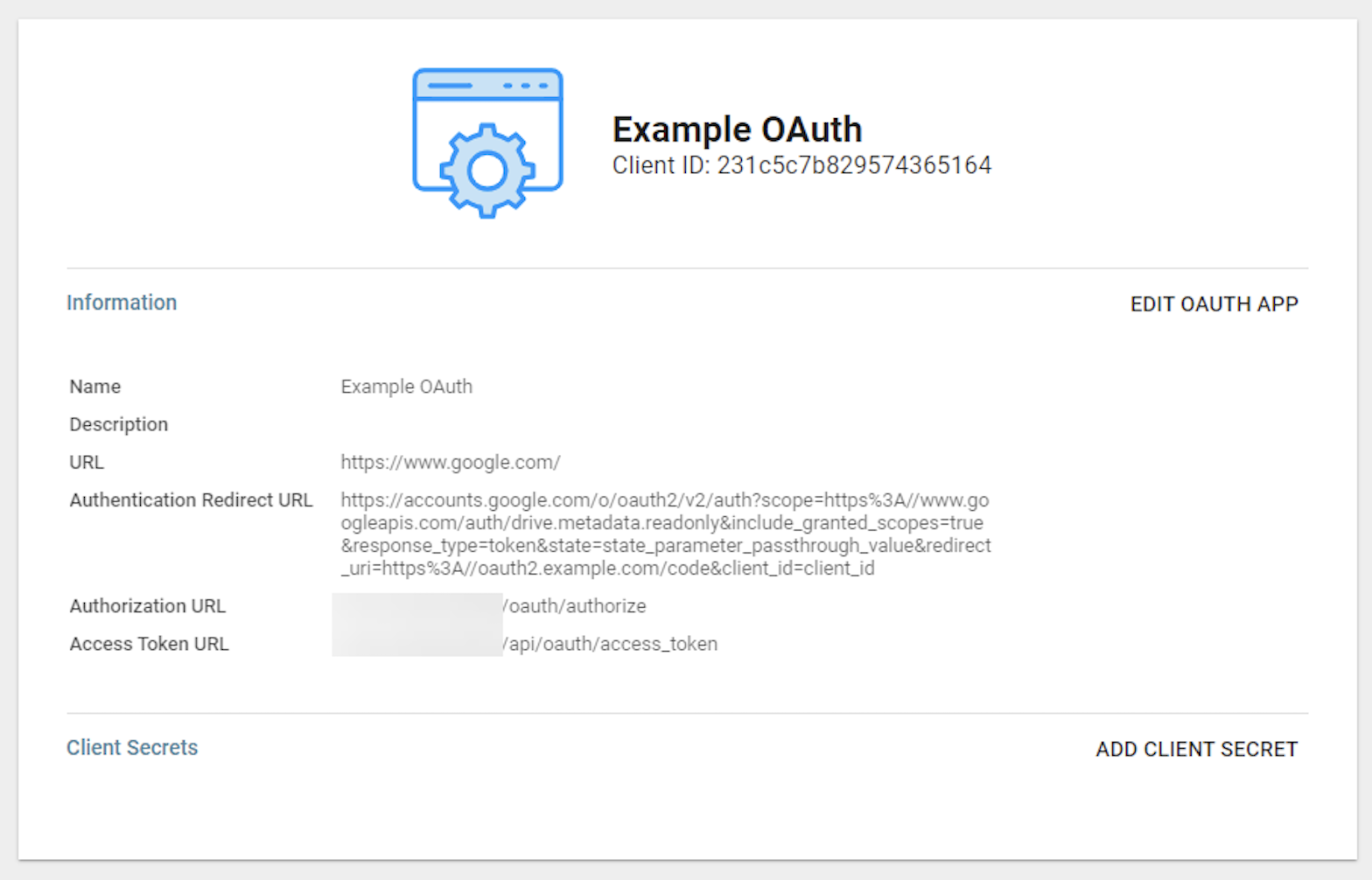
The top of the details shows an icon, the name of the OAuth App, and its Client ID. To change the icon, click the Upload Icon (pencil) button, drag and drop an image or choose a file, and the icon updates automatically. To revert to the default, click the Remove Icon (trash can) button.
The Client ID is a public identifier for applications, used in combination with the Client Secret to establish the connection between the outside application and Informer.
Information
Under the Client ID is a section for all of the OAuth App's connection information. Clicking the Edit OAuth App button at the top of this section lets Users make changes.
Client Secrets
A Client Secret is a confidential key used to secure communication between Informer and the OAuth provider; it is essentially the application's password for the connection. The Client Secrets section is empty when the OAuth App is first created and must be populated to finalize the connection. Click the Add Client Secret button to generate a new Client Secret. A window opens displaying the Client ID and Client Secret. Use the clipboard Copy buttons to copy them.
Note: The Client Secret must be copied from the popup dialog. After closing the dialog, Users cannot copy the secret again and must create a new one.
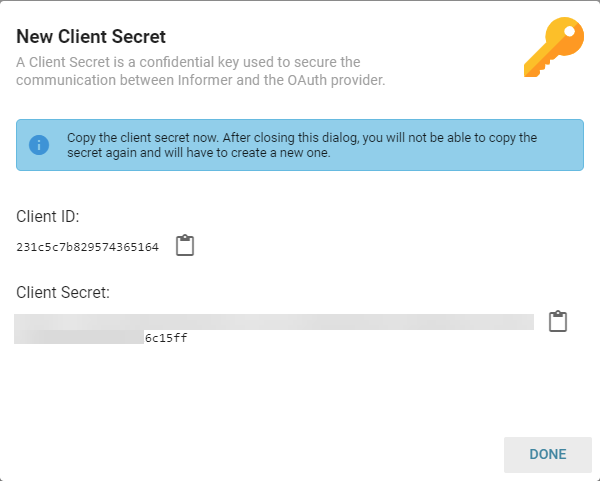
After clicking Done, Informer saves the Client Secret and displays a redacted version of it on the OAuth App detail page. The last eight characters remain visible.

Clicking the trash can icon next to a Client Secret deletes it.
Note: If there is only one Client Secret, it should not be deleted.
OAuth listing page
The OAuth listing page shows all the currently connected OAuth Apps and lets Users quickly view the connection information using the i information button or make changes using the ... action menu.
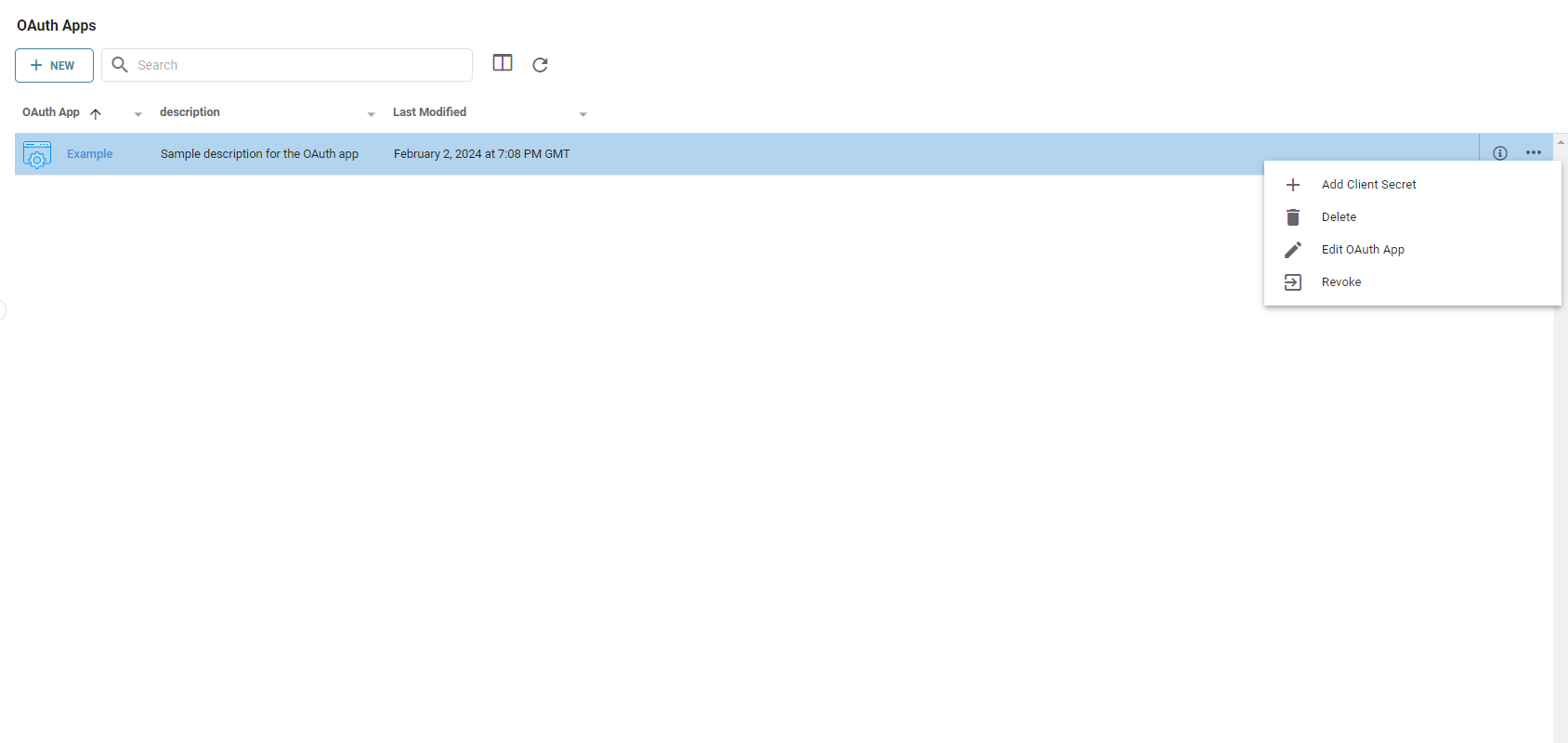
The action menu gives Users options to:
- Add Client Secret: Creates a new Client Secret and opens the popup dialog to copy it.
- Delete: Deletes the OAuth App, after a confirmation dialog.
- Edit OAuth App: Opens the Edit OAuth App dialog.
- Revoke: Revokes all User logins for the OAuth App, after a confirmation dialog.