Adding a Domain
Many organizations have a great deal of User information in their own Active Directories. By adding a Domain and using Informer's Domain Attribute Mapping feature, Super Users and Admins can have Informer pull that information for use in their deployment.
Once a Domain is set up, Users can log into Informer and carry over any information stored in their organization's directory.
Domain setup
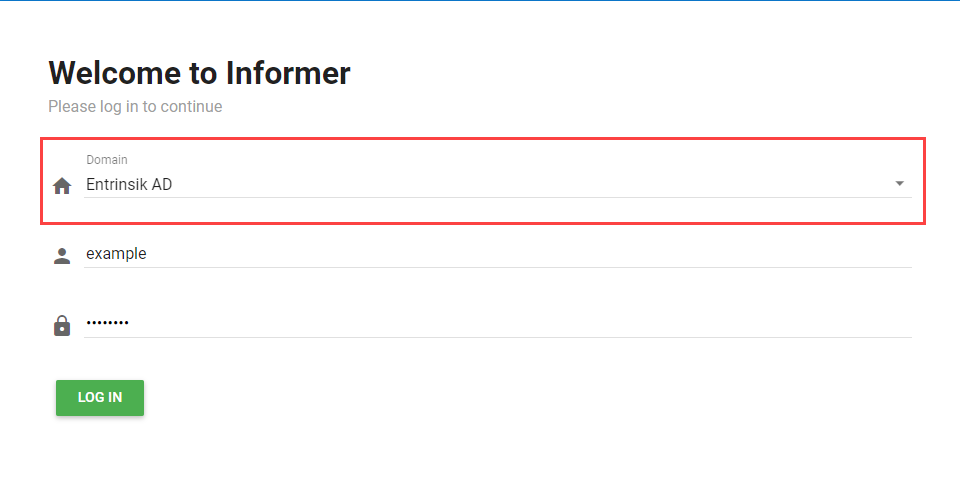
Domains allow Informer to authenticate its Users against a centralized directory service. Informer supports authenticating against Active Directory (AD) and LDAP directory services, as well as passing credentials to a SAML service provider. This article focuses on configuring an AD or LDAP Domain. For more information on configuring a SAML Domain, see Configuring a SAML Domain.
Informer uses AD and LDAP Domains for two main things: authenticating a User at login time, and adding Users to the system in bulk via a scan.
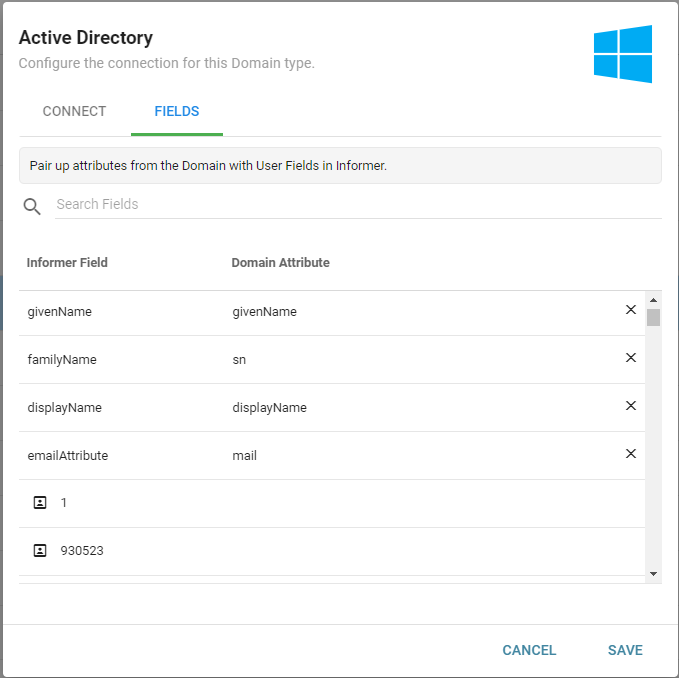
The Fields tab on the create/edit Domain dialog has text boxes for specifying the domain attributes for the User objects that come over to Informer. You can pull in additional fields associated with each user; if you already have user fields in your directory, you can bring them over.
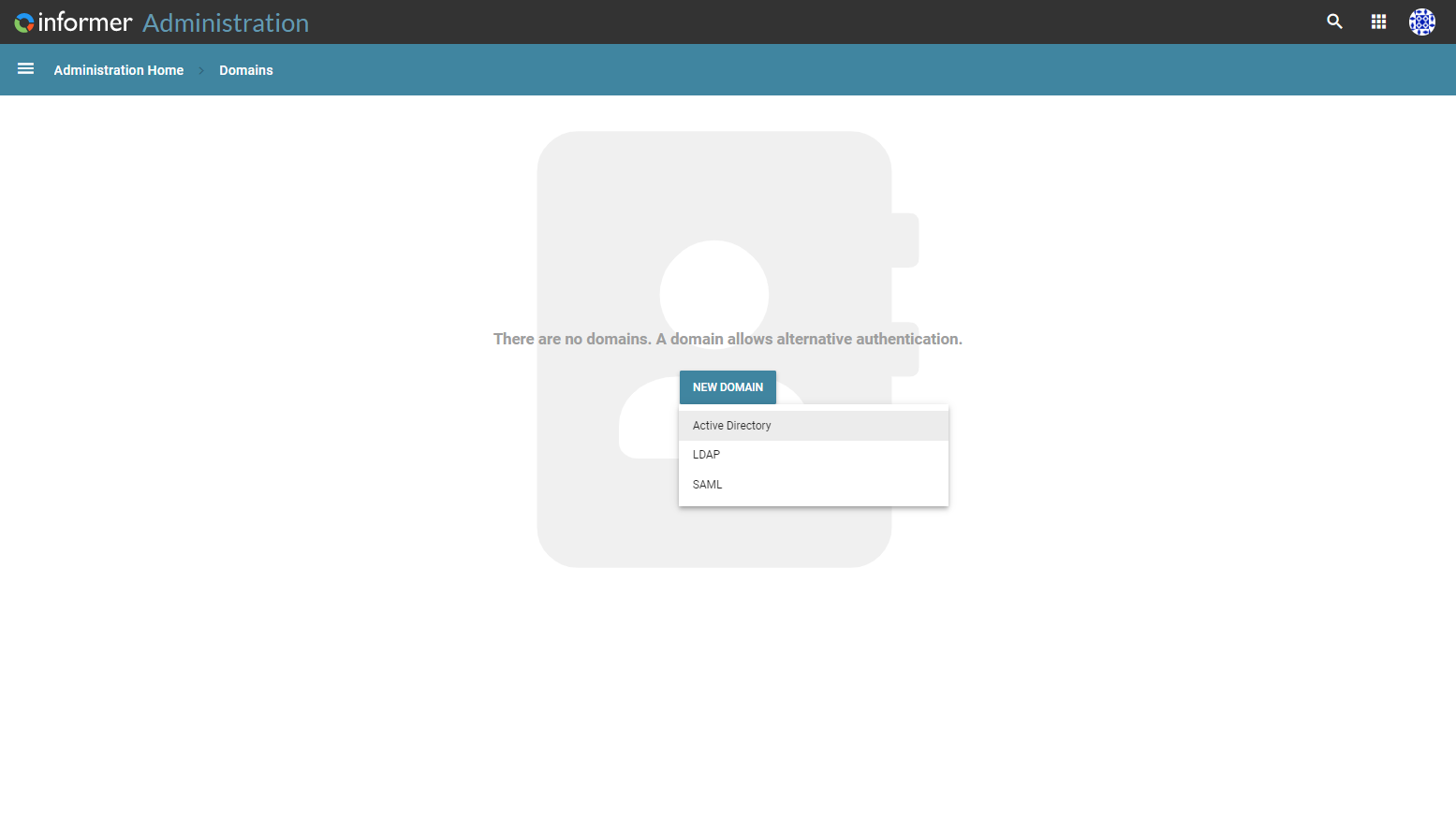
To set up a new Domain, go to the Administration page and click the Domains icon. Click the New Domain button, then select a Domain type. This opens a configuration form for the Domain.
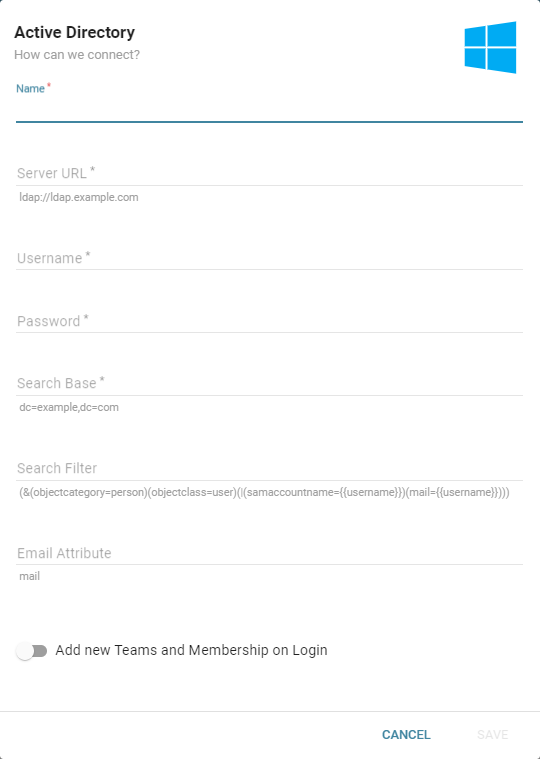
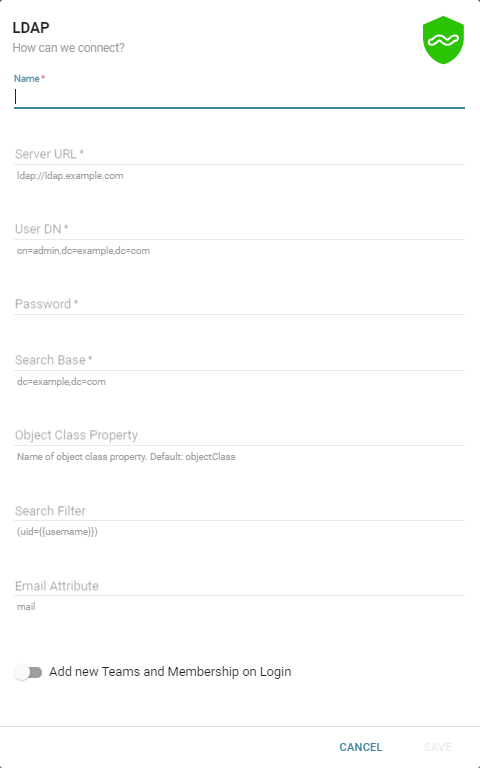
Fill out the configuration form with the proper values:
- Name: The name of the Domain as it should appear inside Informer and on the login page dropdown.
- Server URL: The address for the server hosting the directory service. It can be a fully qualified domain name or an IP address.
- Username / User DN: The user on the directory service that Informer will use to query that directory service.
- Password: The password for that user.
- Search Base: Defines the starting point for the user search in the directory tree. It should be wide enough to let Informer query for and return all the expected users.
- Object Class Property (LDAP Domains only): Sets how the object class is configured on the LDAP directory service. The default is
objectClass. - Search Filter: Defines the rest of the query that Informer runs against the directory service to authenticate a User at login time. Using the default text underneath this textbox results in a query that runs against the entire directory service, using the Search Base as a starting point. See the examples below.
- Email Attribute: Sets the name of the email attribute (if any) as it exists in the directory service. This maps a value from the directory's email attribute to the email attribute on the resulting Informer User.
To limit the directory service users allowed to log in as Informer Users, copy/paste the default filter just below the input and add additional search criteria. For example, to limit logins to users in a directory service group called Employees:
LDAP filter:
(&(memberOf=CN=Employees,DC=domain,DC=com)(uid={{username}}))
Active Directory filter:
(&(objectcategory=person)(objectclass=user)(memberOf=CN=Employees,DC=domain,DC=com)(|(samaccountname={{username}})(mail={{username}})))
If there are any uncertainties about what these values should be, contact an Active Directory or LDAP administrator.
Domain Attribute Mapping
When connecting to a Domain, Users can map attributes from the domain onto corresponding Informer Fields. After connecting to a Domain, click the Fields tab in the Domain settings menu. From this tab, search through User Fields in Informer and map them to the appropriate domain attribute by double-clicking under Domain Attribute in a Field's row and entering the correct attribute. This lets Informer pull the information for the selected User Field directly from the domain.