Client ID and Client Secret for Box Libraries
To get a Client ID and Client Secret for Box, you need to register a new application through the Box Developer Console.
Create a Box developer account
Go to the Box Developer Console and log in with your Box account. If you don't have a Box account yet, create one, then proceed with the steps below.
Create a new app
In the Developer Console, click the Custom App button to create a new app. Enter a name for your app (for example, "Box Library Integration").
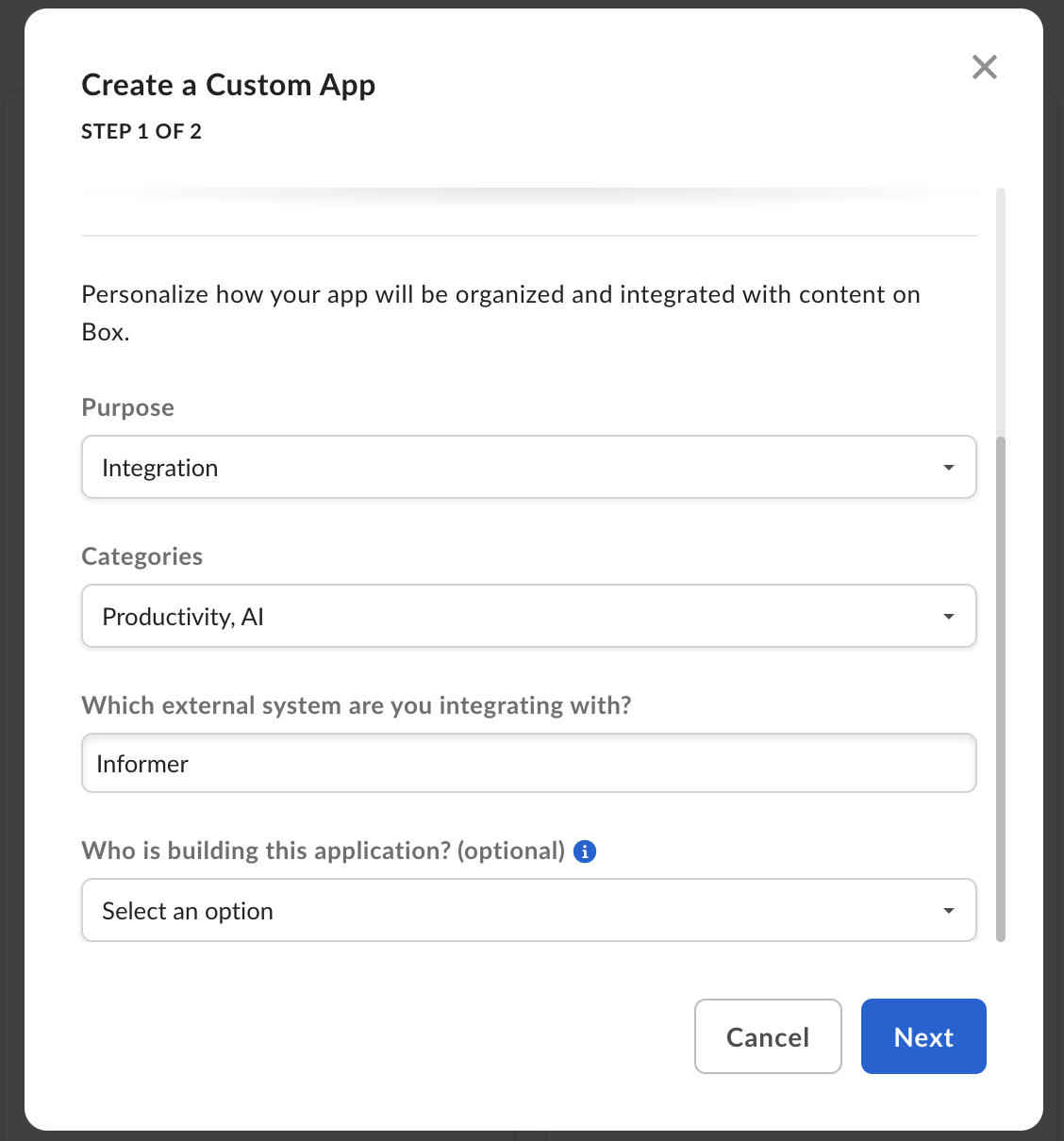
After entering the information, click Next. You are presented with several options for how to authenticate your app. Choose the User Authentication (OAuth 2.0) option, then click Create App.
Find the Client ID and Client Secret
After creating the app, you are taken to the app's settings page, where you configure more settings and retrieve the Client ID and Client Secret. In the App Settings section, you will see your Client ID and Client Secret. These are the credentials you use in Informer when creating your Box Library. Store these values in a safe place.
Set the Redirect URI
Under the OAuth 2.0 Credentials section, set your Redirect URI to https://api.informer.cloud/integration/callback.
Adjust application scopes
In the Application Scopes section, adjust your app's permissions depending on what kind of access your app needs to the Box API. At a minimum, give your app the following permissions:
- Read all files and folders stored in Box
- Write all files and folders stored in Box
Save your changes
After creating the app and setting up the credentials, save any changes you make. You should now be ready to use your Client ID and Client Secret to create a new Box Library in Informer.