Theme
The Theme section of the Administration page provides a user-friendly interface for managing the visual identity of your site. Super Users may write new custom CSS that overwrites Informer's original styles, or upload a new logo and icon.
To set Theme options, go to the Administration page and click the Theme icon in the navigation panel.
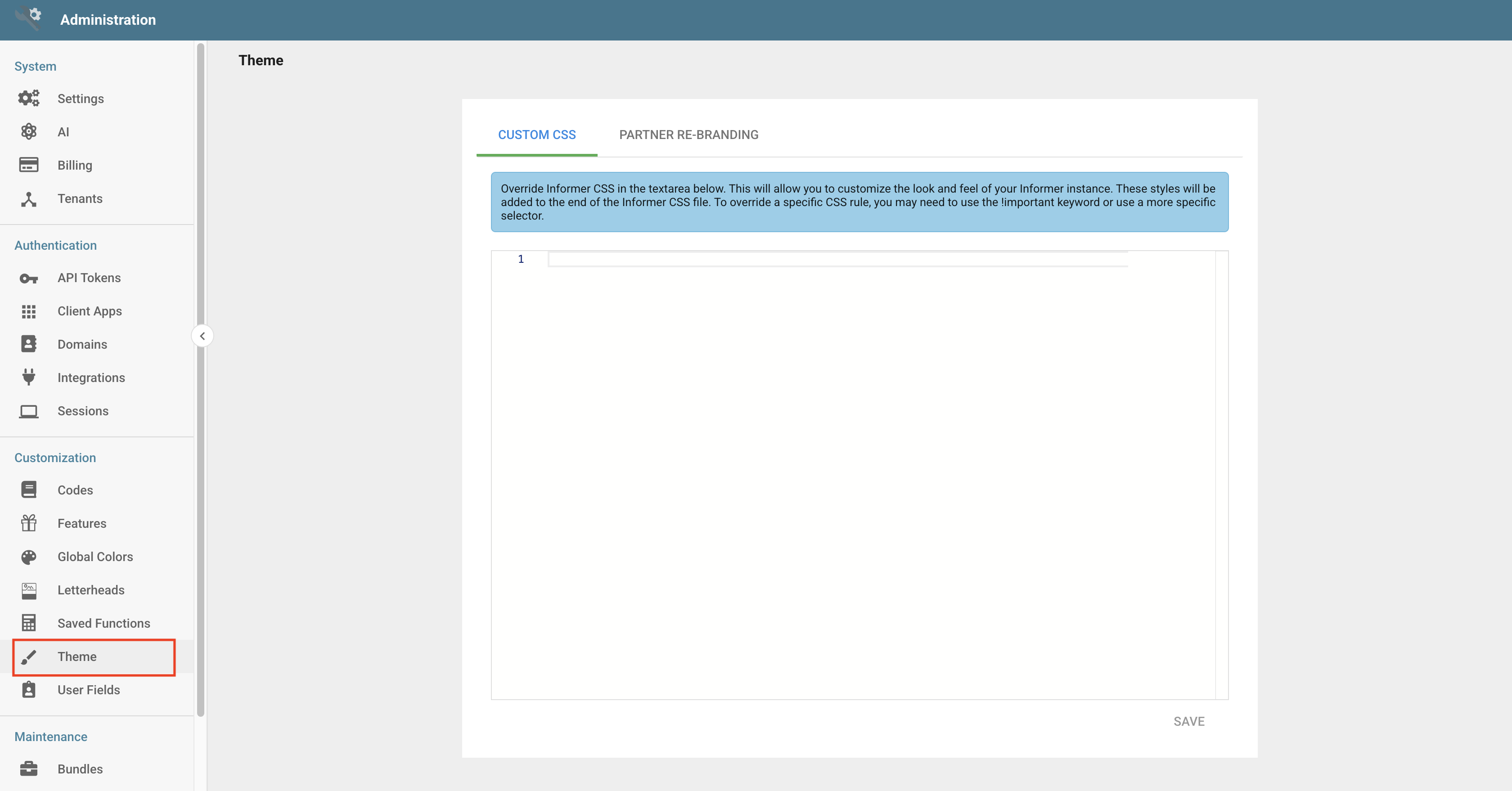
Writing custom CSS
To add custom CSS to Informer, enter your own CSS styles on the Custom CSS tab. These styles overwrite the default styles.
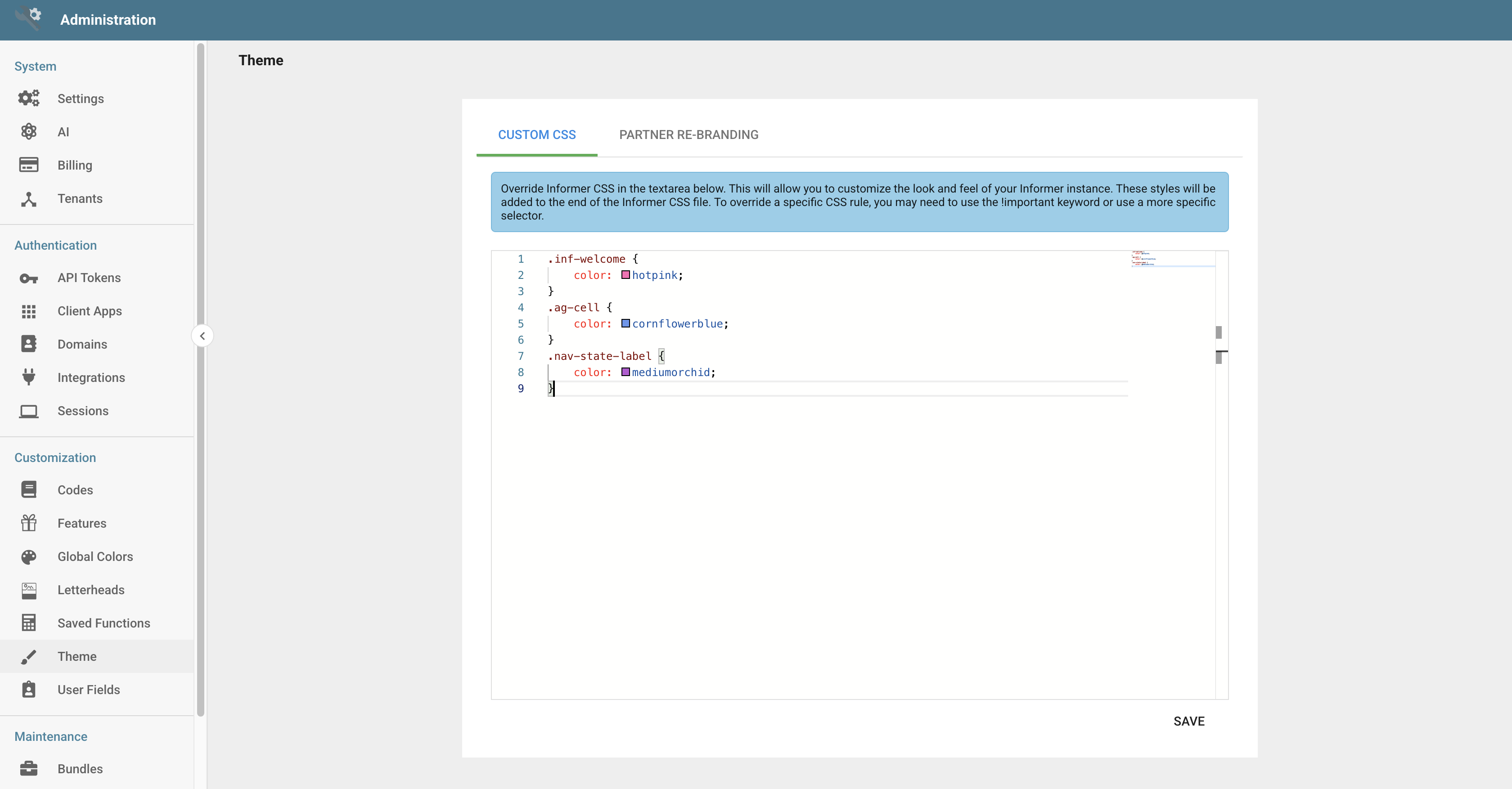
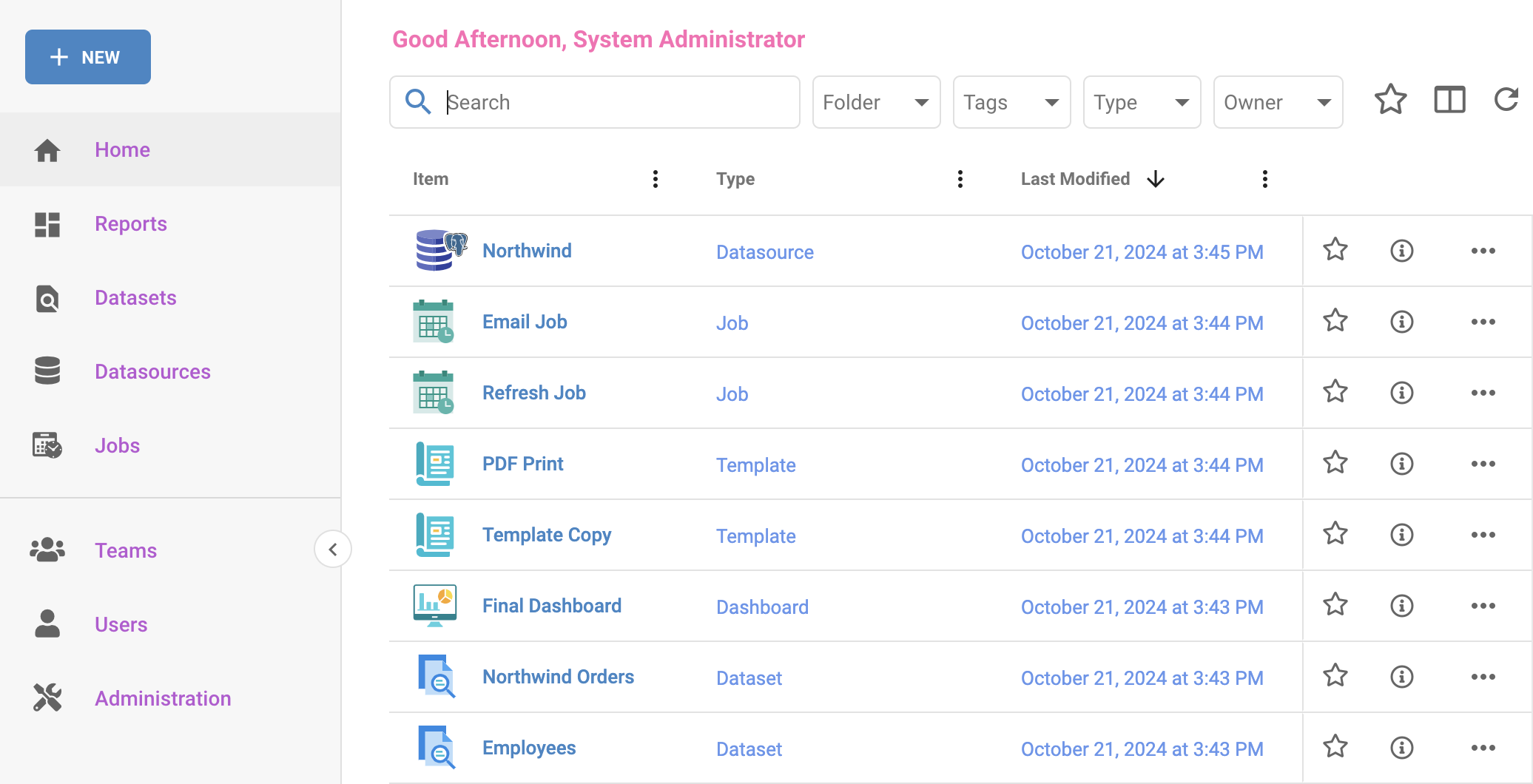
To see the styles applied, click the Save button in the bottom-right corner.
Customizing the logo
To upload a new logo, navigate to the Partner Re-Branding tab. Click the Choose Files button under Masthead Logo or drag and drop an image into the designated area. When the image finishes uploading, it is immediately displayed in the Theme section and in the masthead in place of "Informer."
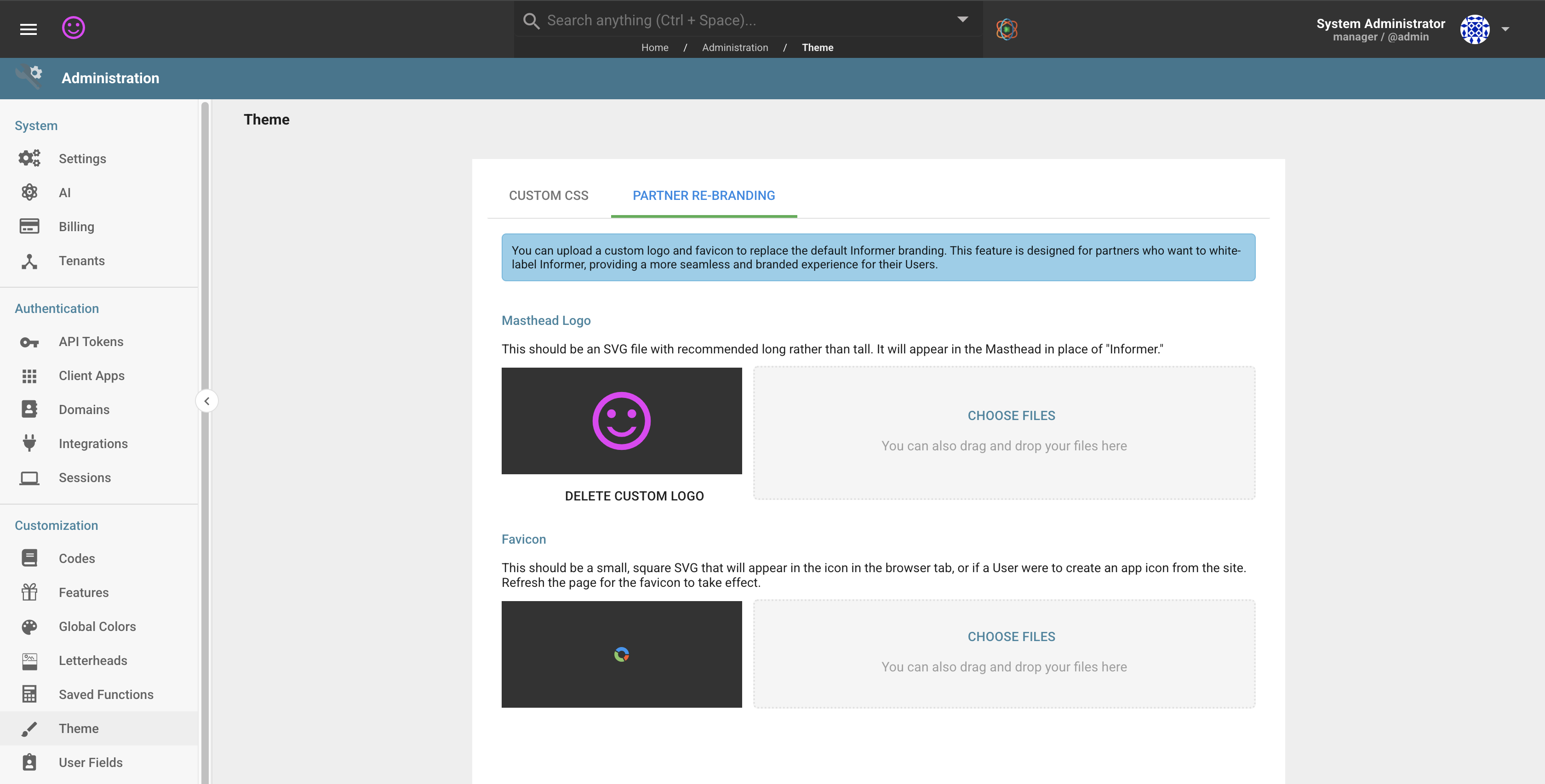
After a new logo is uploaded, a Delete Custom Logo option appears. Clicking it removes your logo and restores the default Informer logo.
Customizing the icon
Customizing the icon is similar to customizing the logo. To upload a new icon, click the Choose Files button under Favicon or drag and drop an image into the designated area. When the image finishes uploading, it is immediately displayed in the Theme section, but the browser needs to be refreshed before the icon is shown in place of Informer's default favicon.
After refreshing the page, the favicon shows up in your browser tab, history, bookmarks, and other places.

After a new icon is uploaded, a Delete Custom Icon option appears. Clicking it removes your icon and restores the default Informer icon.