Global Colors
Global colors allow custom color assignment to a specific value. This applies to all Visuals from each Dataset, allowing consistent representation of key values.
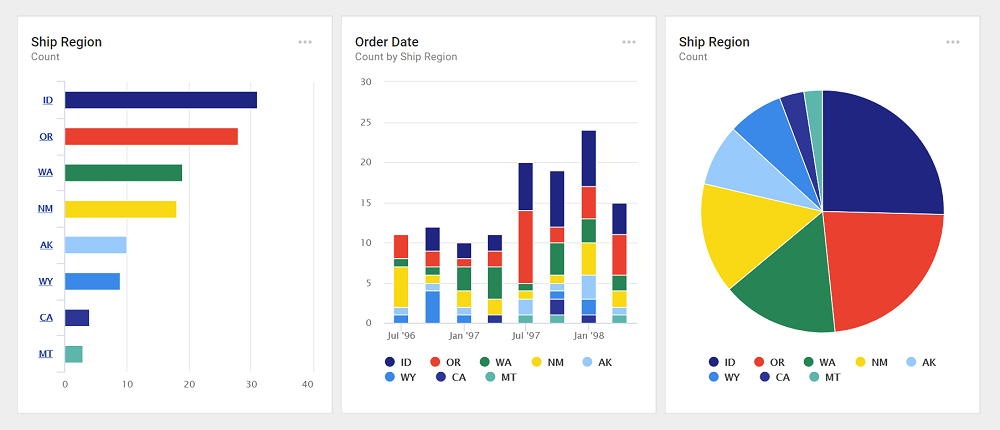
To set global colors, go to the Administration page and click the Global Colors icon in the navigation panel.
Adding a color
To add a new global color, click the New Color button in the top-left corner. Select Enter new colors to manually enter colors, or Import colors to upload a JSON file containing a list of colors to add.
Note: When using a value already associated with another color, the new color replaces the previous one.
Enter new colors
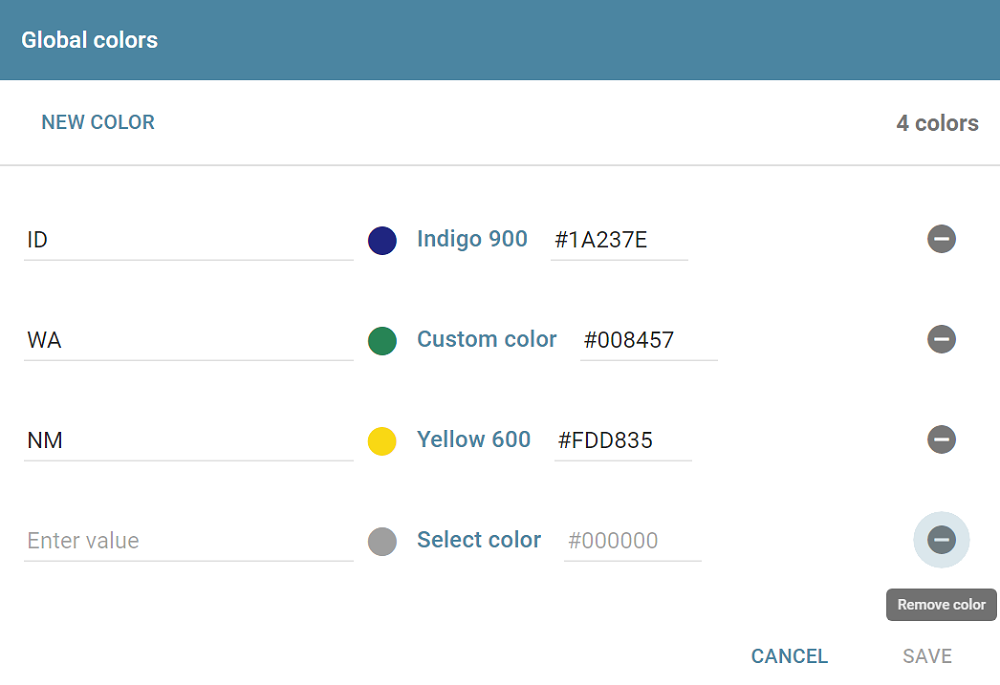
This option opens a window to add new global colors. Enter a value to associate the color with, then choose a color from the Select color dropdown or type a hexadecimal color code in the text box to the right to use a custom color. To remove a color from the list, click the - icon to the right. Click Save to add the selected colors.
Import colors
To add many colors at once, import a JSON file. This file must contain an array of objects in the format:
{"key": "<value>", "color": "<color>"}
For example, a JSON file containing the following would add three colors:
[{"key": "ID", "color": "indigo:900"}, {"key": "WA", "color": "#008457"}, {"key": "NM", "color": "yellow:600"}]
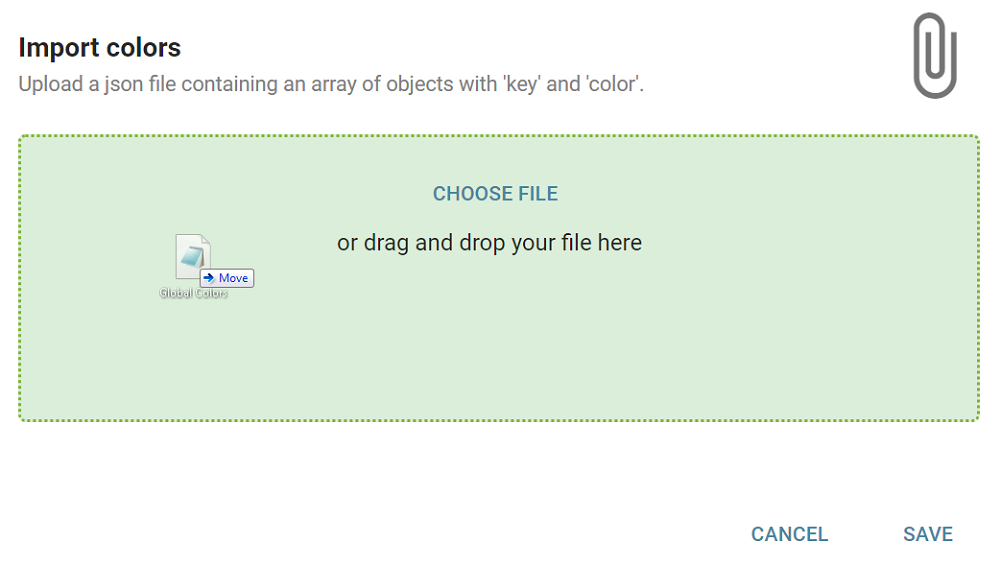
To upload a file, click Choose File and select the JSON file, or drag and drop the file into the gray box, which turns green to indicate correct placement.
Editing a color
To edit an existing global color, double-click it in the list. Enter a new value and color, then click Save.
Deleting a color
To delete a global color, select it, click Actions in the bottom-right corner, then select Delete. Confirm the action.