Saved Functions
Saved Functions allow reusable JavaScript code that can be referenced in Calculated Columns and Power Scripts. To create or modify a Saved Function, go to the Administration page and click the Saved Functions icon in the navigation panel.
The Saved Functions page lists all custom functions created within the system. To modify an existing function, double-click it in the list, change the fields as necessary, then click Save.
Note: To find a function in a specific namespace, click Namespaces in the left panel to list the available namespaces, then select the one containing the function.
Adding functions
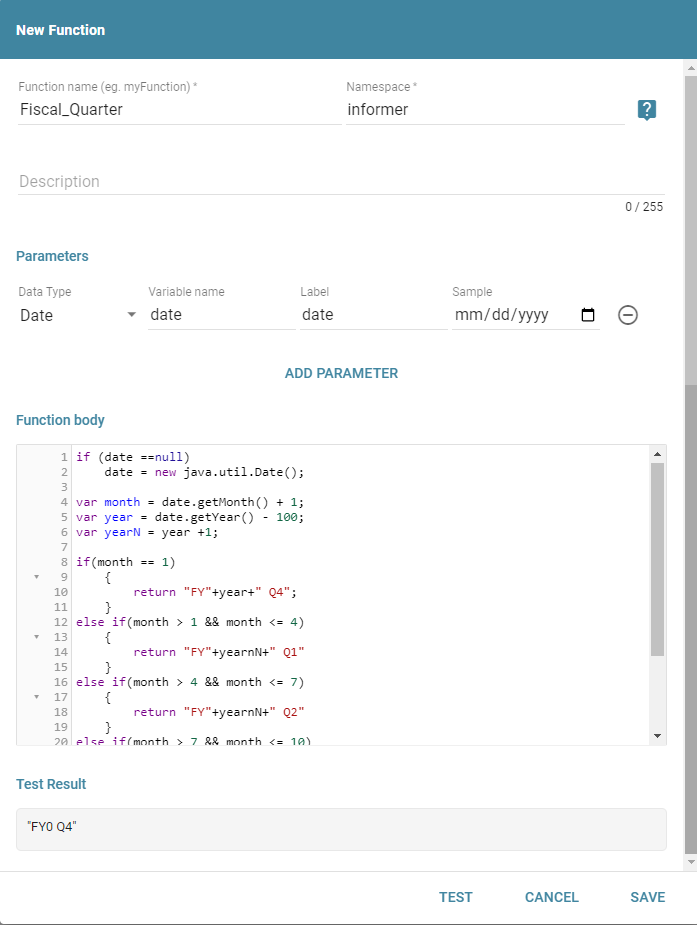
Click the New Function button in the top-left corner to add a new Saved Function. This opens a form to enter the information needed to create the function:
- Name - Name of the function, used in Calculated Fields and Power Scripts.
- Namespace - Container that stores similar functions. This is the function name under a namespace as used in a script, for example
informer.myFunction(). - Description - Tells users what the function does.
- Parameters - Values passed to the function when called. To add a parameter, click the Add Parameter button, select a data type, and enter a variable name with a label. The - icon to the right removes parameters that are not needed.
- Sample - A sample of data to use in testing the function.
- Function body - Procedures carried out by the function.
- Test Results - After clicking the Test button at the bottom of the window, a sample of the function results displays based on the Sample field.
Using a Saved Function
After adding a Saved Function to Informer, it can be used in Queries. To add a Saved Function to a Query:
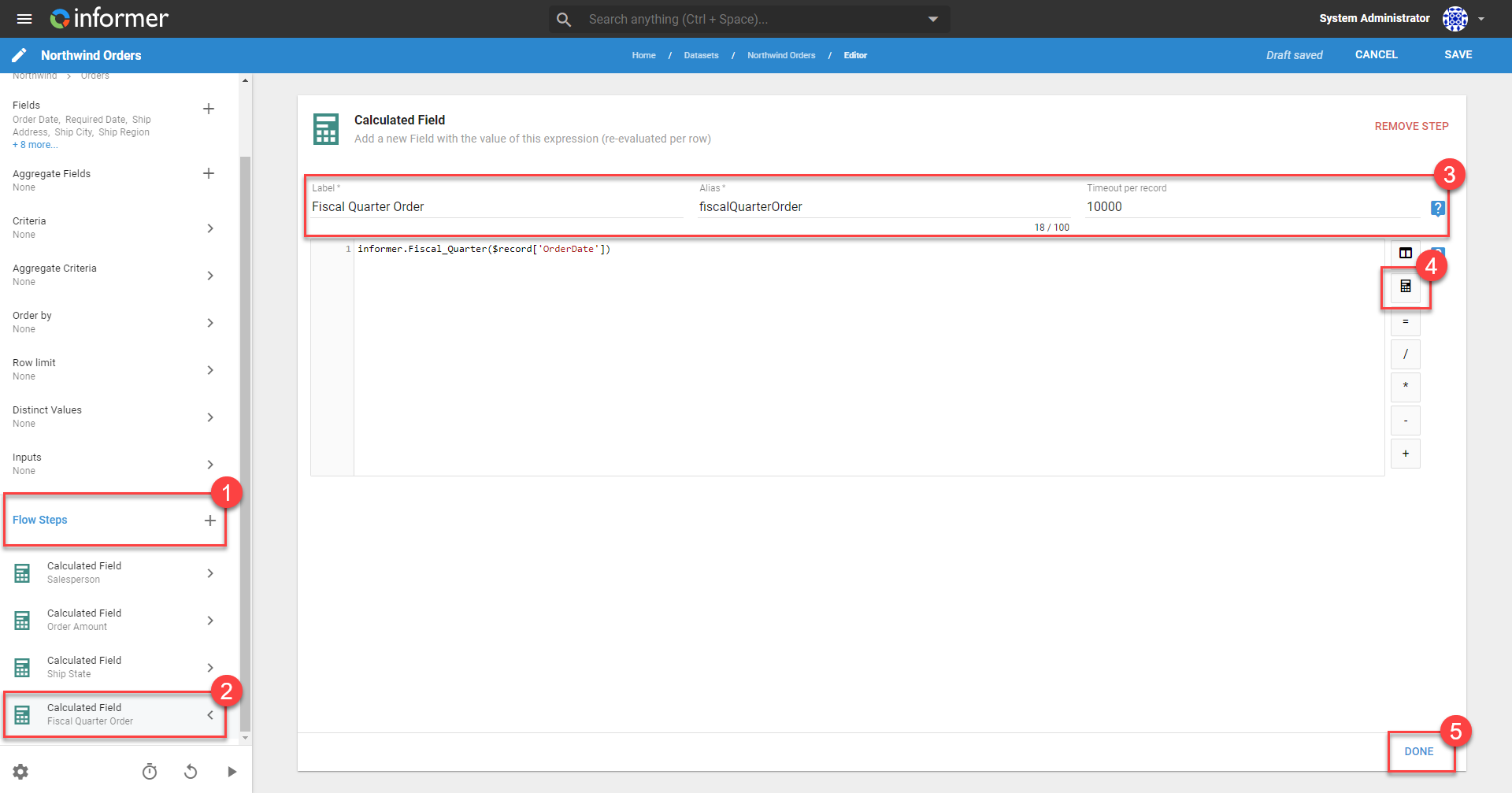
- From the Query Edit page, click the + button next to Flow Steps in the left panel.
- Select either Calculate Field (under Add Field) or Java Calculated Field (under Advanced).
- Enter the required information.
- Click the calculator button on the right side of the editor and select the desired function to add it.
- Click Done to save the Flow Step and add the function to the Query results.
See Flow Steps for more information.