Codes
Codes, sometimes referred to as validation tables, are code/description pairs associated with one or more properties. These pairs are the only valid values for a specified property. Some database models support code file definitions internally, such as the U2 family of databases (for example, val codes). Informer supports database codes, custom codes defined by Code administrators, Dataset Codes, and Native SQL Codes. All code types behave the same for end users. Code administrators manage them through the Codes button in the Administration area. Creating Codes requires Super User credentials. To create a new Code, navigate to Administration and click Codes.
Creating a new Code
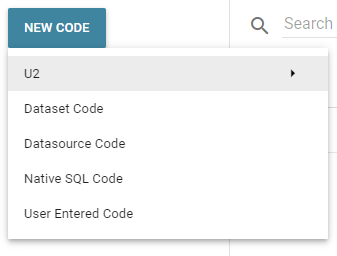
Choose New Code. There are five types of Codes available:
- U2 - Create and assign the Code based on VALCODE files in a U2 database.
- Dataset Code - Create and assign the Code to a Field in a Dataset. This type is useful if there is restricted access to a Datasource.
- Datasource Code - Create and assign the Code to a Field at the Datasource level.
- Native SQL Code - Create and assign the Code to a Field using Native SQL.
- User Entered Code - Manually create a Code by adding values and descriptions.
U2 Codes
There are three types of U2 Codes that can be created:
- Import generic multi-value codes
- Import SB+ multi-value codes
- Import Ellucian Valcode multi-value codes
Import generic multi-value codes: Use this option when a file stores all of the multi-value codes in one file and you need to bring them all in at once. Choose the Datasource, the ID, and the Description fields, then choose which multi-value codes to bring into Informer. Each imported value creates its own Code in Informer.
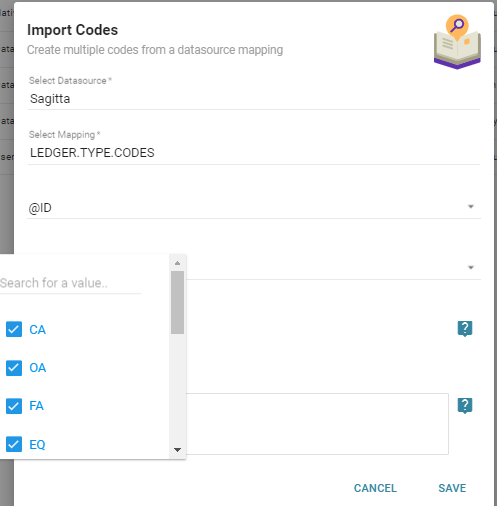
Import SB+ multi-value codes: Works the same as generic multi-value codes, except it is used for SB+ files.
Import Ellucian Valcode multi-value codes: Works the same as generic multi-value codes, but allows only the selection of CORE, ST, HR, CF, and CA Valcodes from Ellucian Colleague.
Dataset Codes
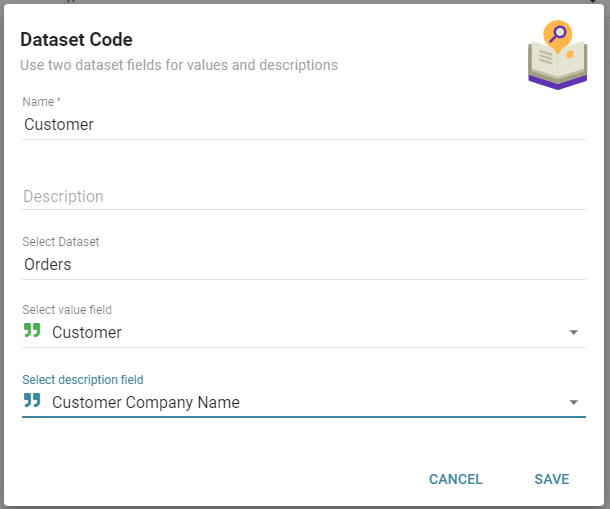
Add the Dataset Code in the Codes area. Choose the Dataset, the Value Field (the field that stores the Code), and the Description field (the value that displays). For example, if an Excel spreadsheet of IDs and Descriptions is in Informer as a Dataset, use the two columns as a code file, since this information may not live anywhere else in the database.
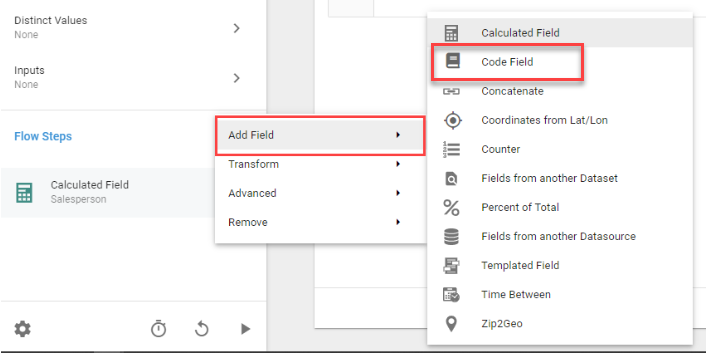
To use a Dataset Code, it has to reside as a Flow Step in either a Dataset or an Ad Hoc Query. In the edit screen of the Dataset or Ad Hoc Query, choose Add Flow Step, then Field, then Code Field.
Datasource Codes
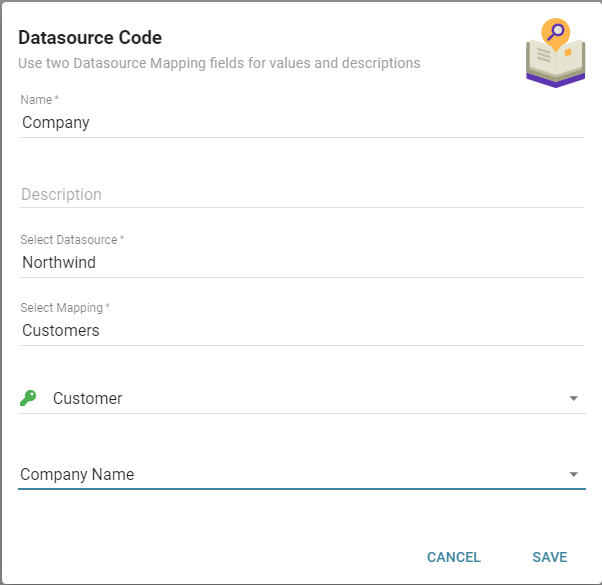
Add the Datasource Code in the Codes area. Add the name, the Datasource, and the Mapping where the ID and Description fields live. This creates a list of IDs and Descriptions that can attach to fields in other files to display the description, or a combination of the ID and Description. Attach this Code to any field in a Dataset or Ad Hoc Query that matches the value of the IDs. This code file can be used in either a criteria or in the output of a column.
Native SQL Codes
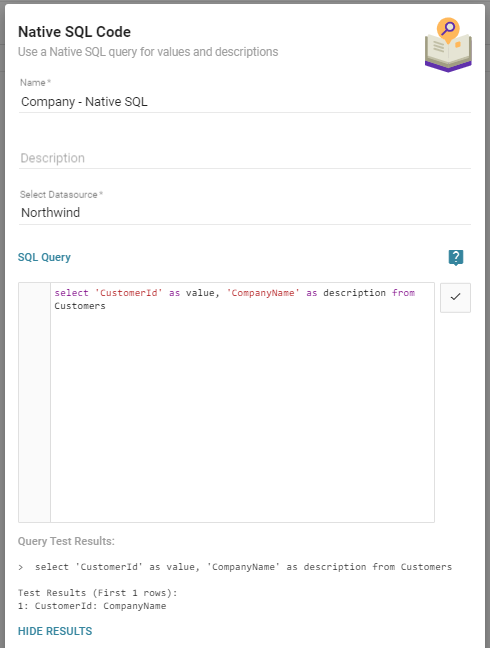
To use Native SQL to create a Code file, click the Native SQL Code option. The example below uses PostgreSQL, so the syntax may differ depending on the type of SQL database.
User Entered Codes
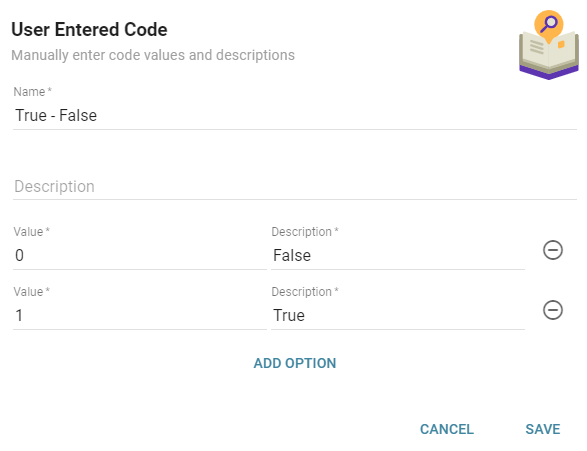
To manually create a Code, use the User Entered Code option. This creates a custom code file without attaching it to a database. For example, a True/False field in a database might return 0 for false and 1 for true. Create a User Entered Code by adding the values 0 and 1 that return the descriptions True and False. To use this Code, attach it to the original database field.
Adding Code to Criteria
To use a Code in Criteria, add a Criteria, then choose the Datasource field that has the Code set on it. Choose Inputs, then Code.
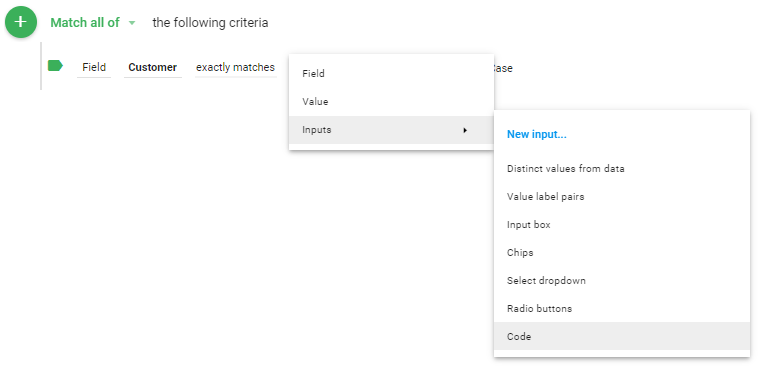
Options are Only Allow a Single Value (or not) and Require the value (or not), just like on regular Inputs. Display options are Multiple value autosuggest, Single value autosuggest, and Checkbox dropdown.
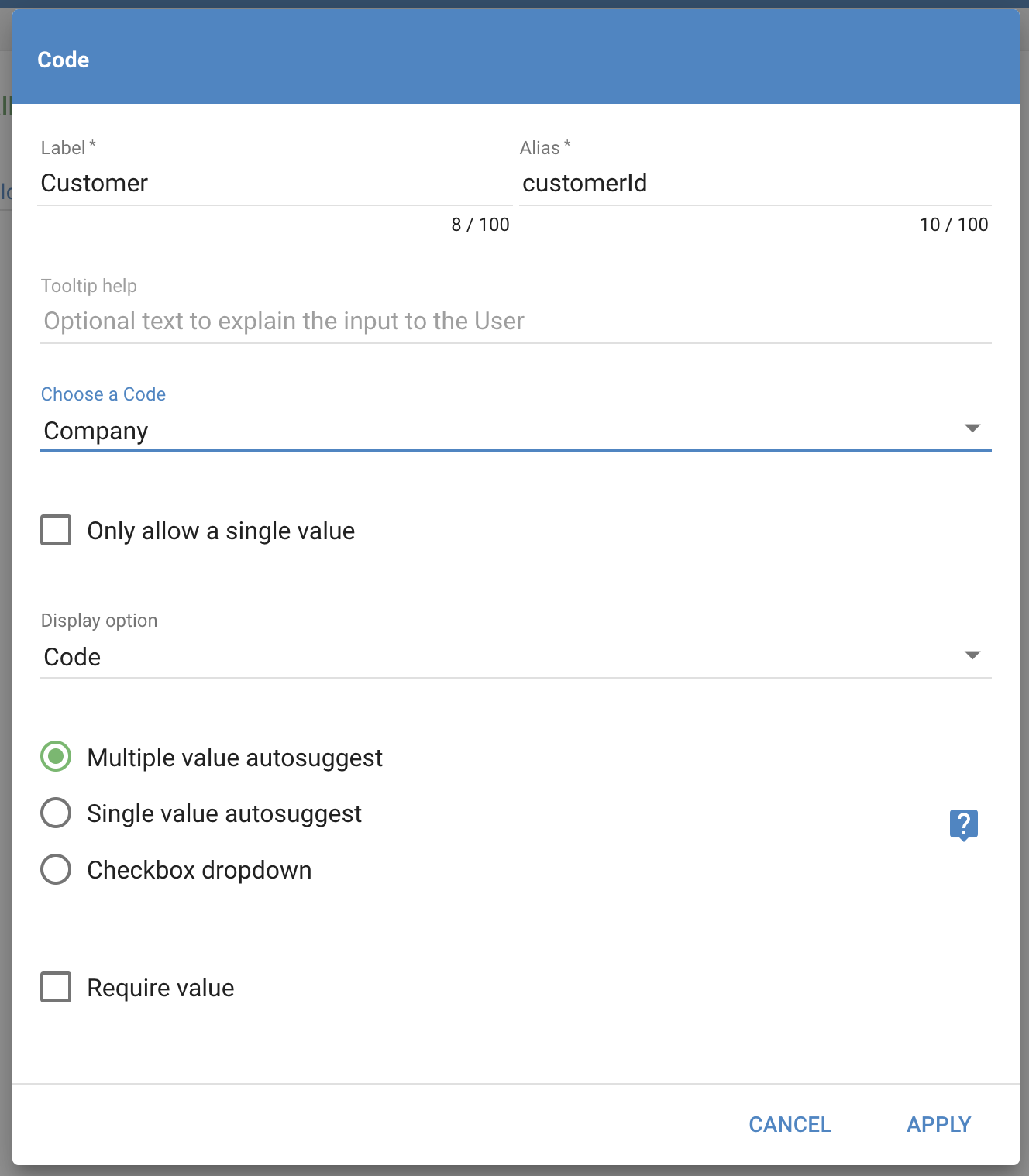
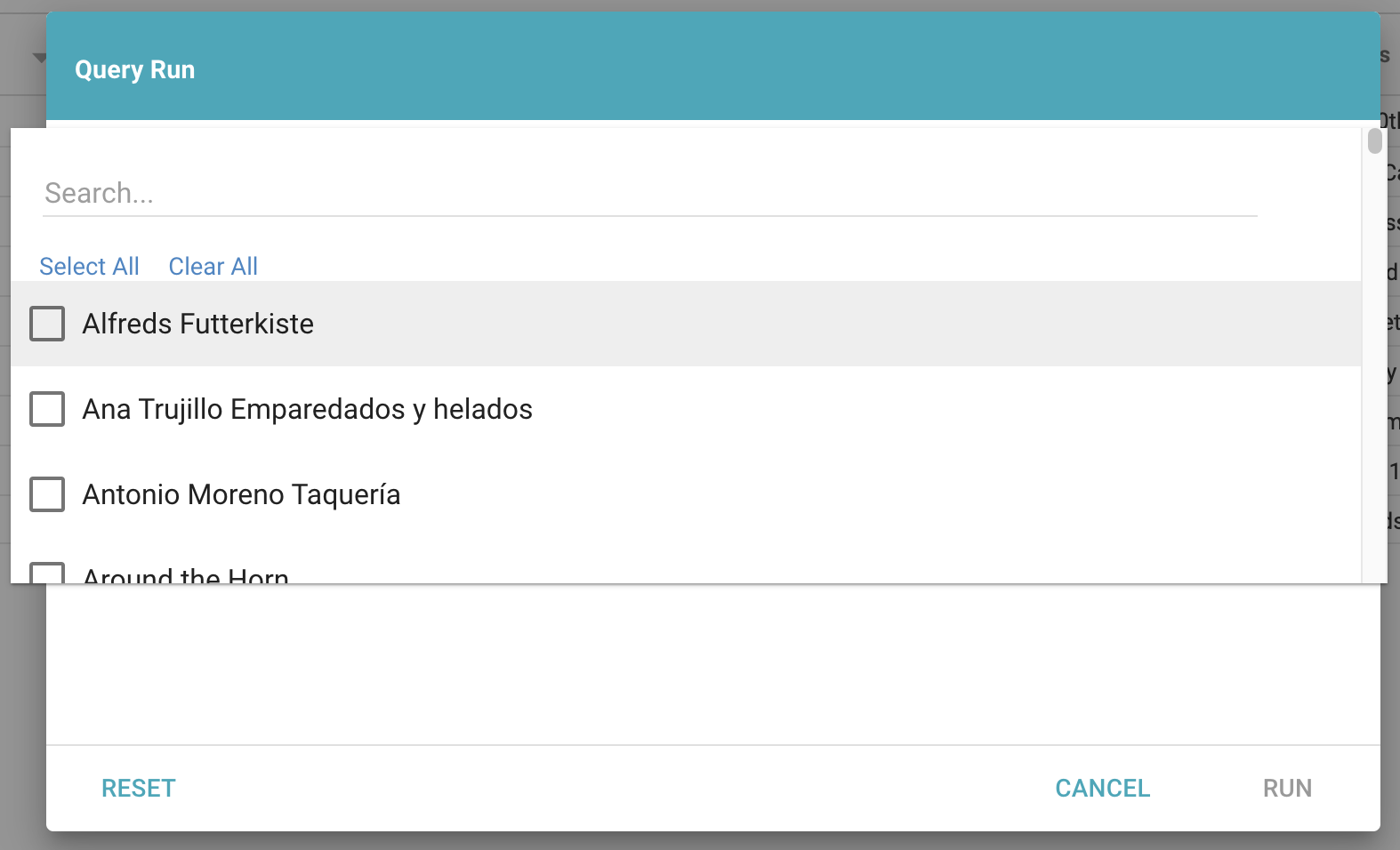
In the example below, the query uses the CustomerId as the field but displays the Description in the Input dropdown, using the Checkbox dropdown option. There are also options to Select All or Clear All values in the dropdown.
Adding Code to column output
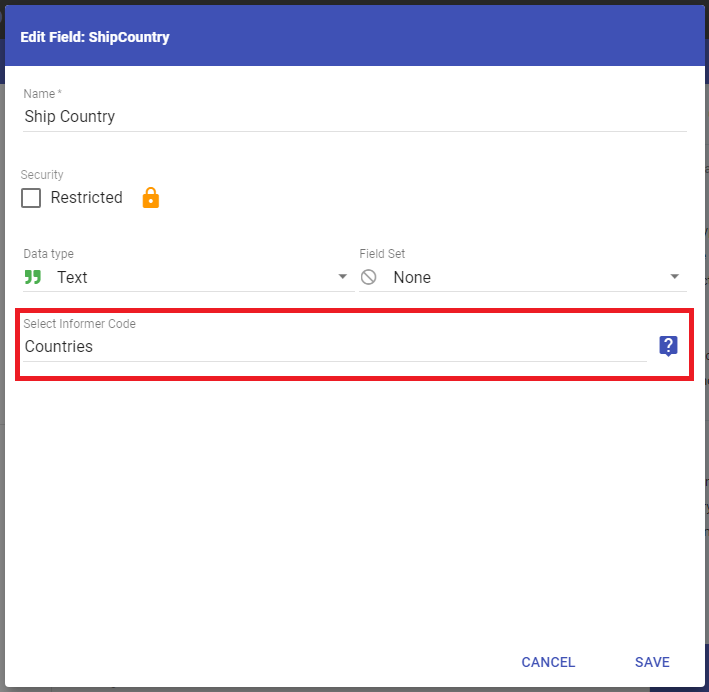
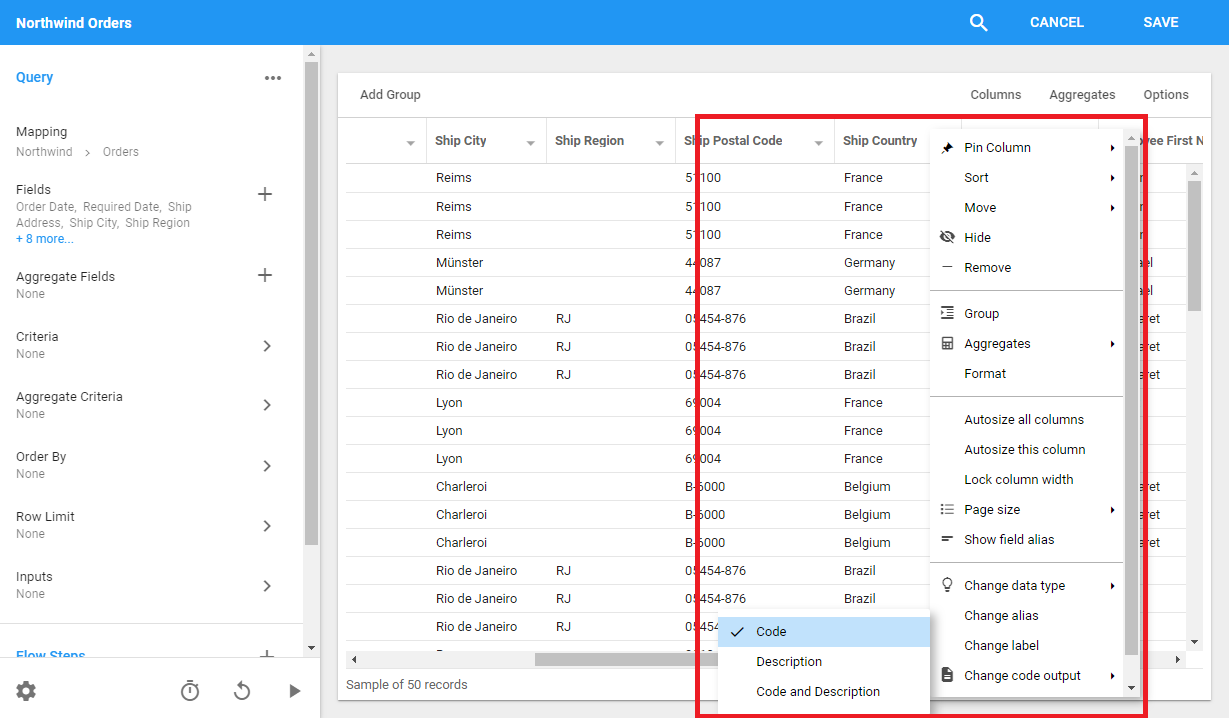
To add a Code to a Field in a result set, first configure the metadata for the Field on the Datasource to use a Code, then add the Field to the Dataset and click the Field Options dropdown for the column. Choose Change Code Output, then choose one of the options: see the Code, the Description, or both.
Bundling Codes
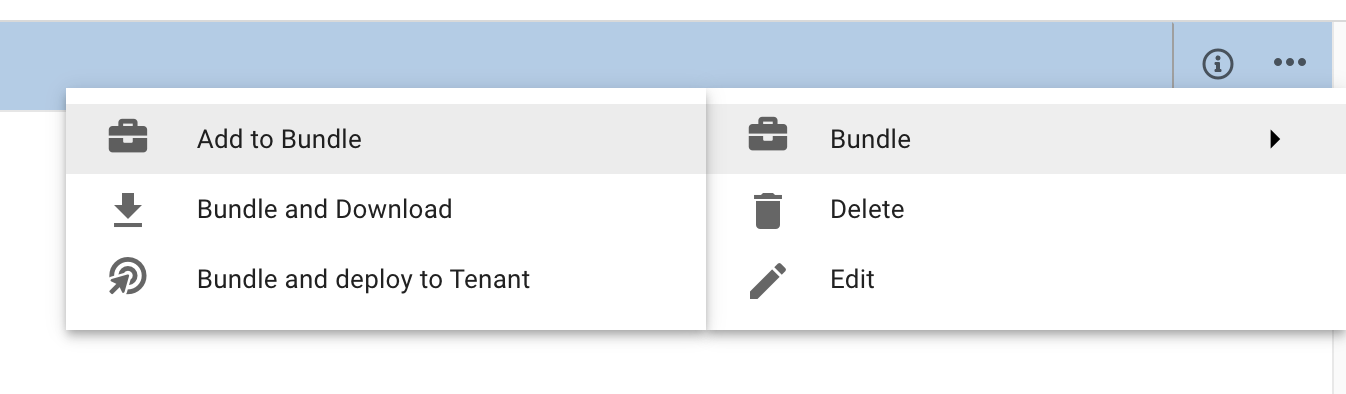
To add a Code to a Bundle, choose the three-dot menu and select Add to Bundle. This is also available for bulk selection, to add more than one Code at a time.