Letterheads
Elevate PDF exports across Informer with the Letterhead feature. Establish a brand identity by setting custom layout options, headers, footers, and watermarks. Apply a Letterhead to all exports, including Datasets, Ad Hoc Queries, and Templates, to present professional, polished documents in a distinctive style.
Super Users access Letterheads from the Administration page by clicking Letterheads in the left-hand menu under the Customization heading.
Letterheads listing page
The Letterheads listing page shows all available Letterheads. Use the search bar at the top to search for specific Letterheads. Use the Choose Columns button to select which columns appear in the table. Use the Reload button to refresh the table. Select a Letterhead's row to see additional information in the right-hand panel. Hold Shift and click different rows to select multiple Letterheads at once.
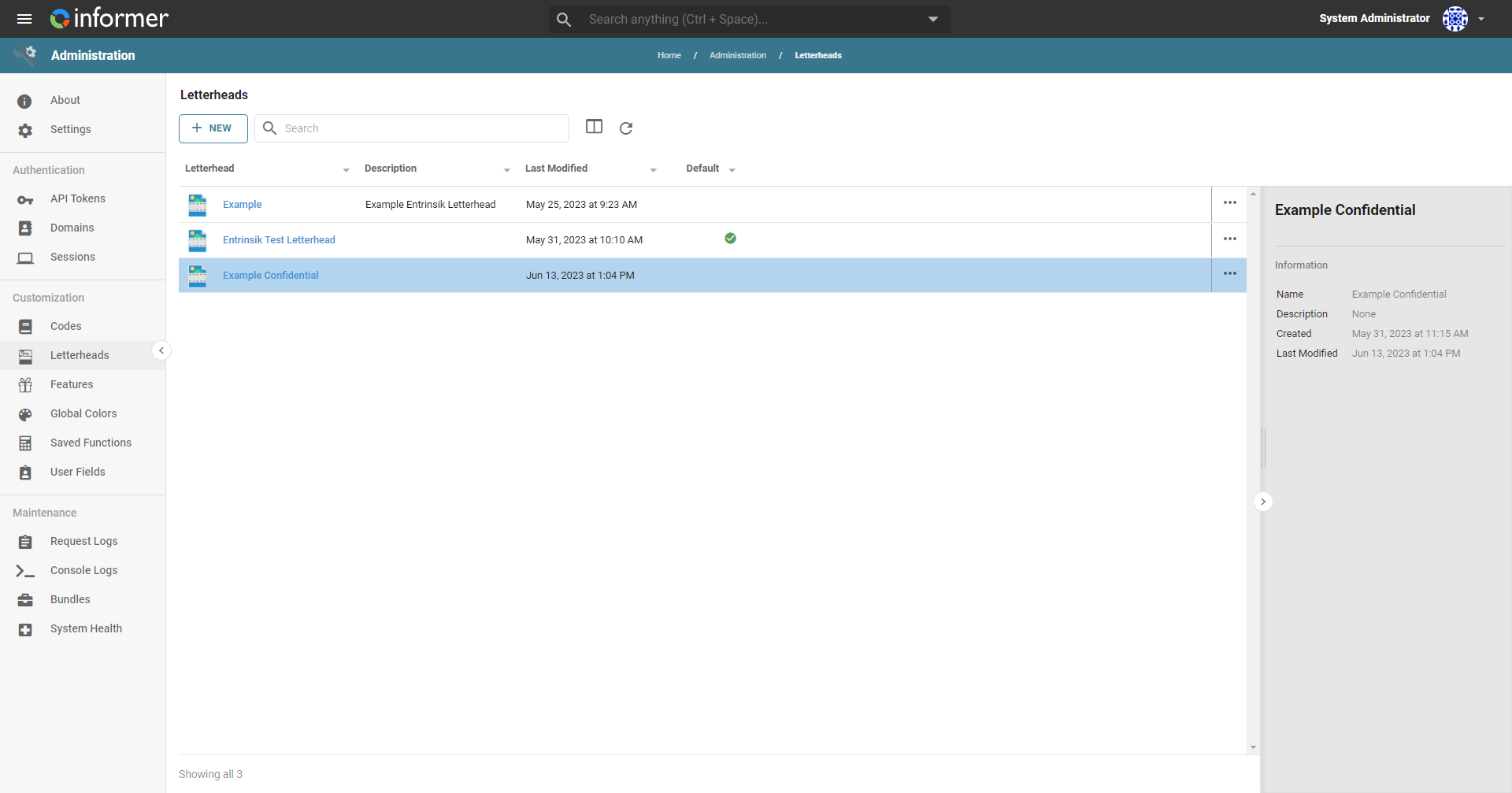
Click the ... at the end of a row to open the Action menu for options to interact with the selected Letterhead.
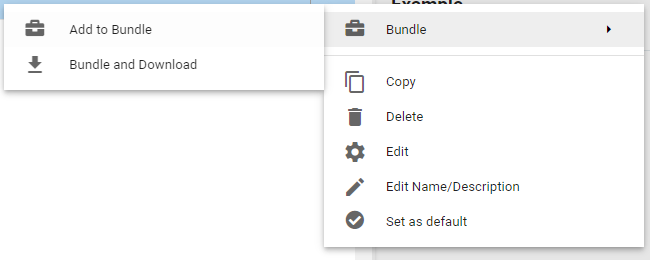
- Bundle - Add the Letterhead to a new or existing Bundle, or create a Bundle with the Letterhead and immediately download it.
- Copy - Create a copy of the selected Letterheads.
- Delete - Opens a dialog to delete the selected Letterheads.
- Edit - Opens the Letterhead Editor.
- Edit Name/Description - Change the name or description of the selected Letterhead.
- Set as Default - Sets the selected Letterhead as the default for exports across Informer. All PDF exports automatically use this Letterhead.
Viewing a Letterhead
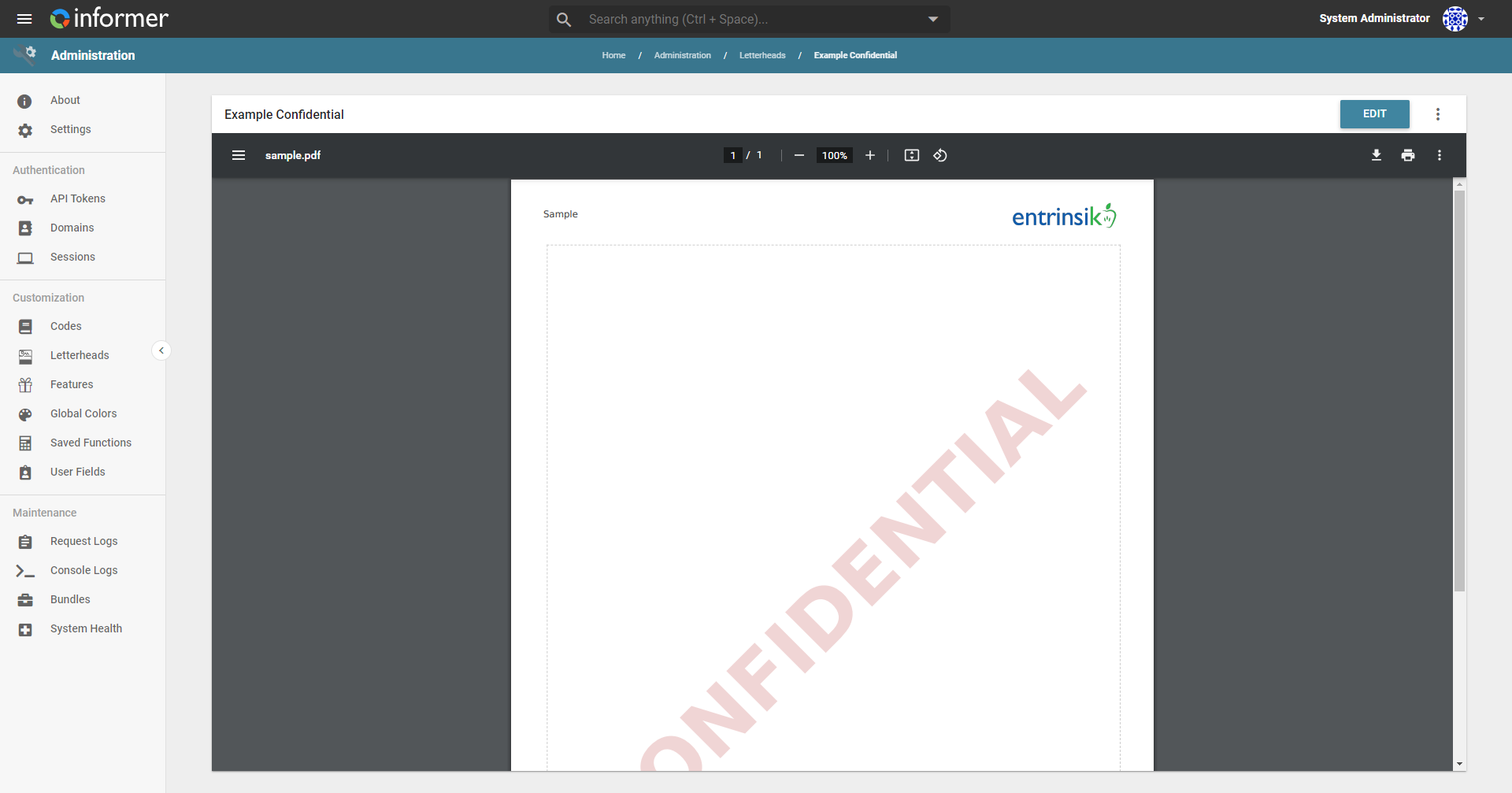
Clicking the name of a Letterhead opens a preview. Clicking the Edit button at the top of the preview opens the Letterhead Editor. Click the three vertical dots next to the Edit button to open the Actions menu, which has the same options as the listing page.
Letterhead Editor
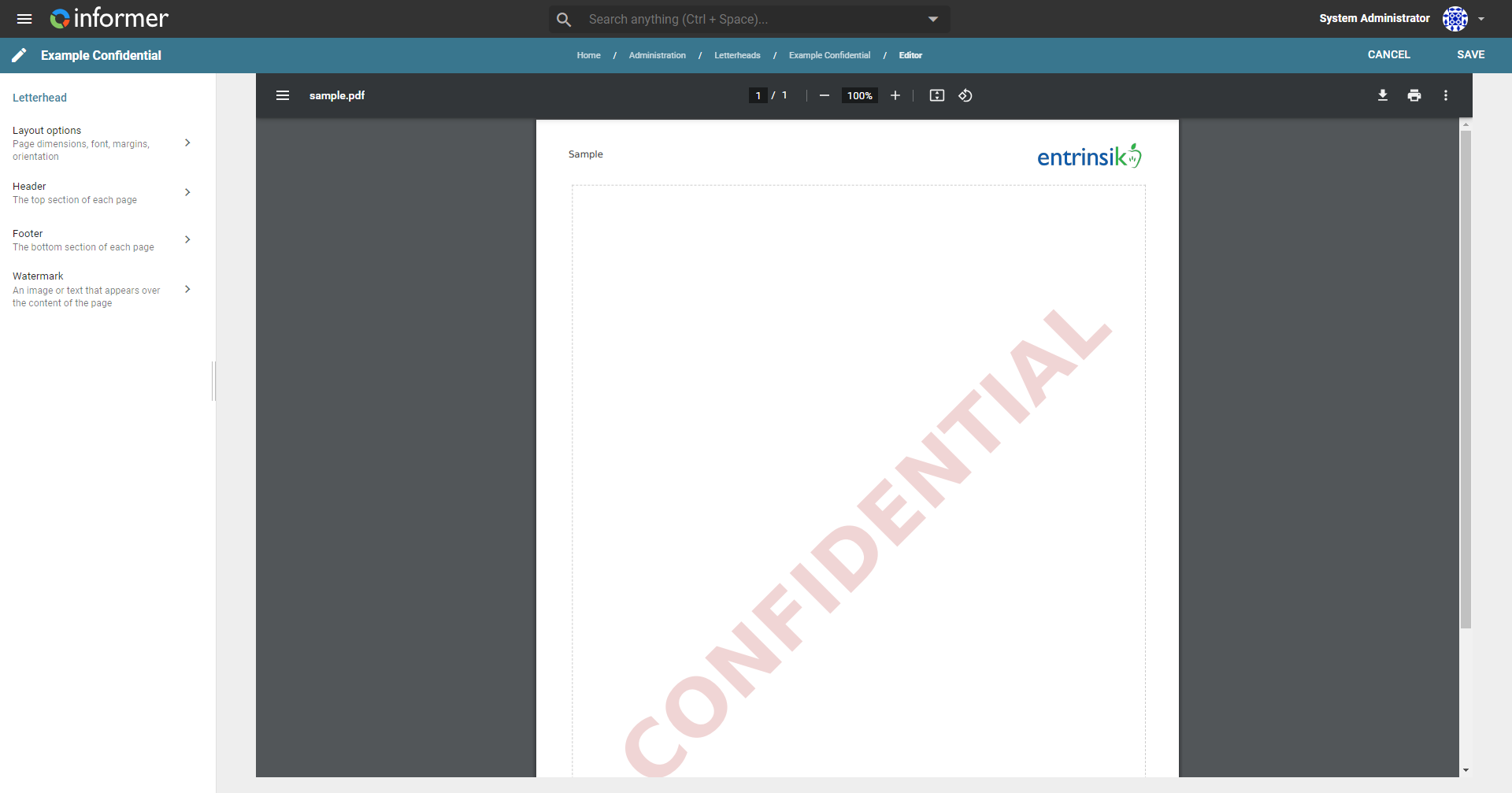
The Letterhead Editor is where you customize Letterheads. Edit the Layout Options, Header, Footer, and Watermark from here.
Layout Options
Set the font, font size, page size, margins, and orientation of the Letterhead. After selecting the desired options, click Done in the bottom right of the Editor.
Header and Footer
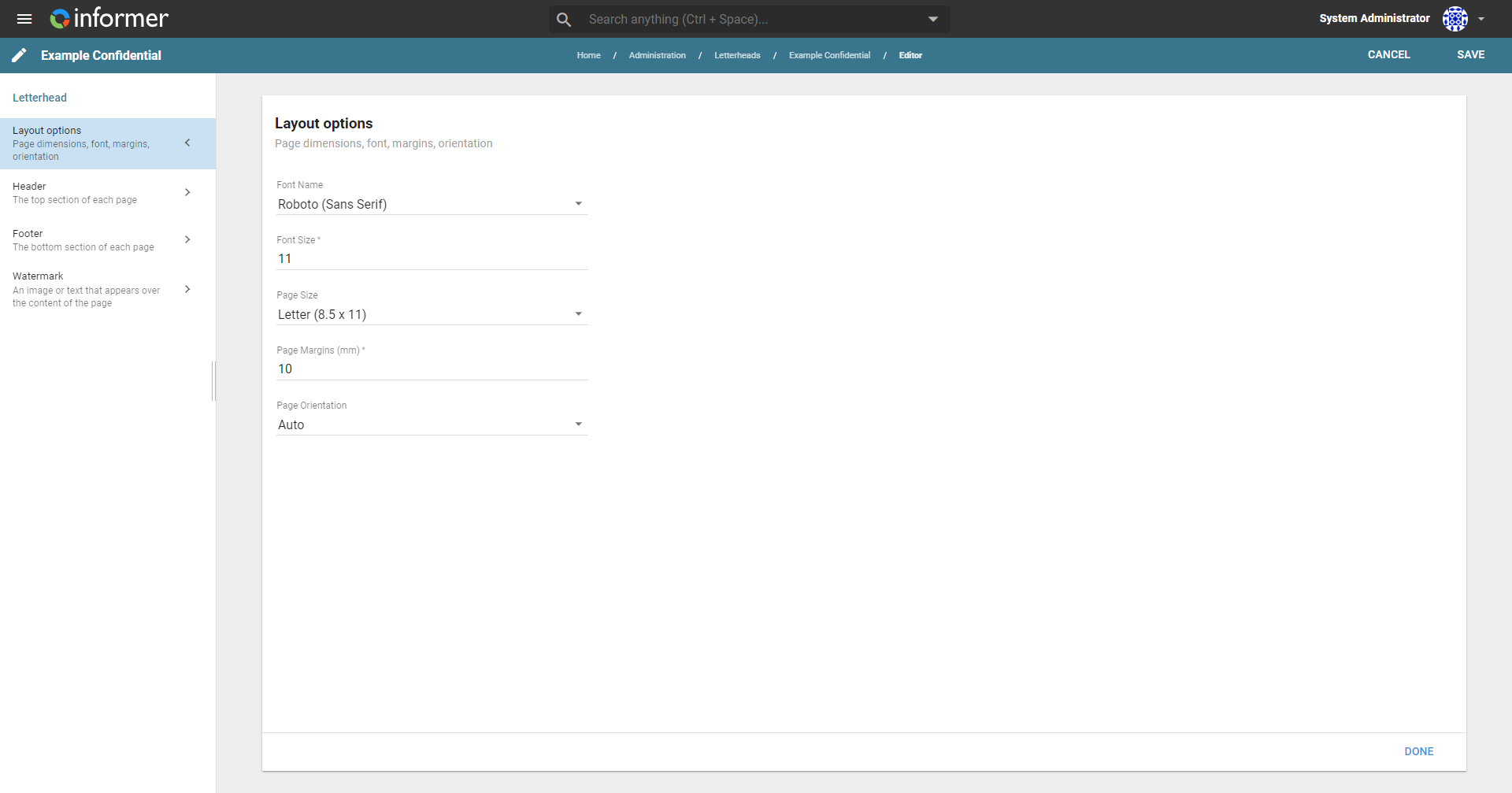
The Header and Footer sections contain WYSIWYG editors that let you customize the look and insert data at the top and bottom of the Letterhead. After creating a new Letterhead, these editors contain blank tables to use as a base. Use the Header/Footer Height field above the editor to set the height in millimeters; any overflow beyond the specified height is cut off on the PDF. Add information from Informer using the Insert Keyword button on the left side of the editor ribbon. Click Done when finished.
Watermark
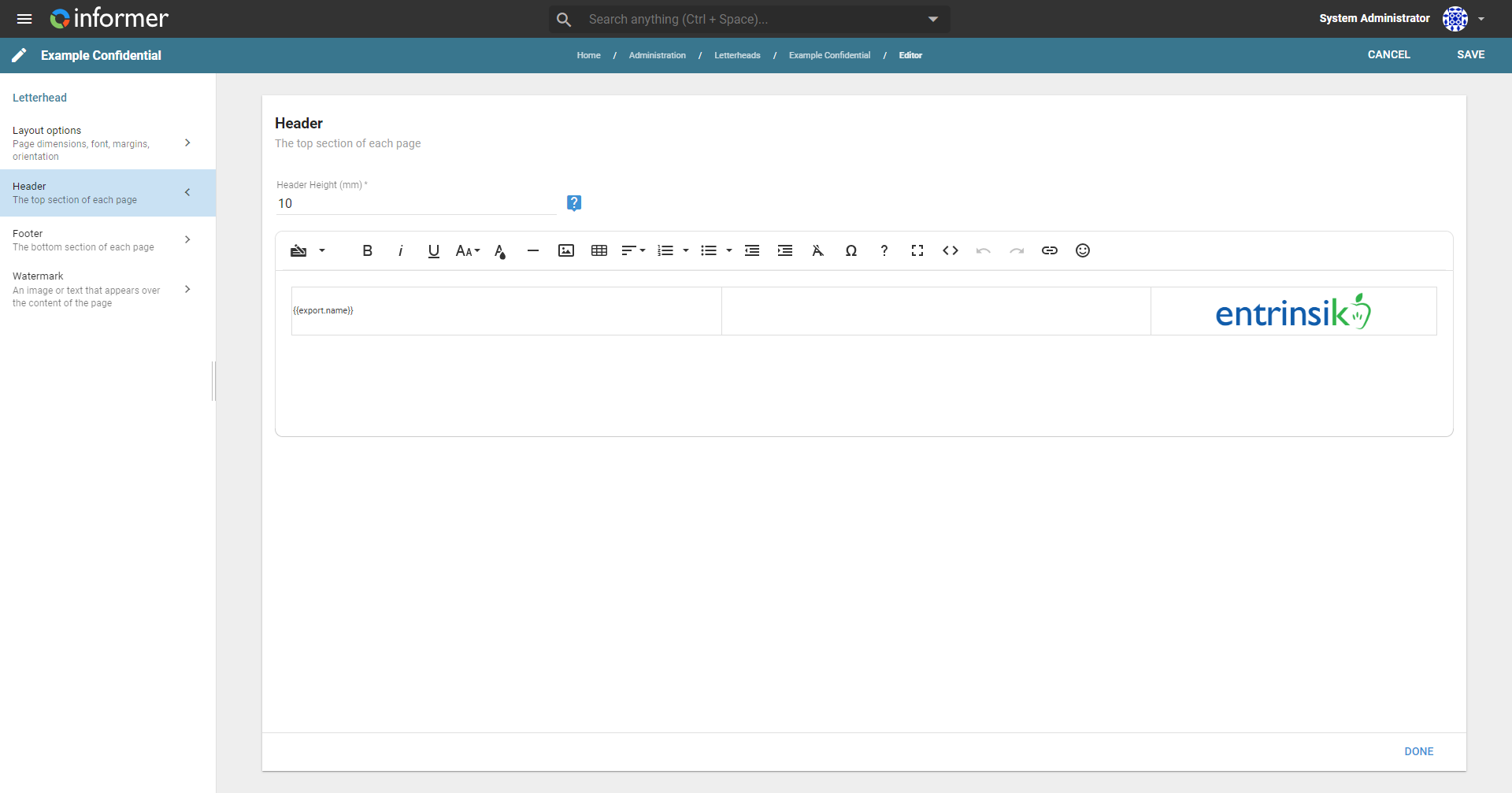
The Watermark section lets you add an image or text that appears over the content of the page. A watermark is normally a company logo or privacy warning. The editor works the same as the others. The two fields at the top set the opacity and angle of the watermark. Set the opacity lower to make the watermark more transparent. The Watermark Angle rotates the watermark clockwise in degrees (for example, 90 for vertical, or 180 to flip it upside down). Click Done when finished.
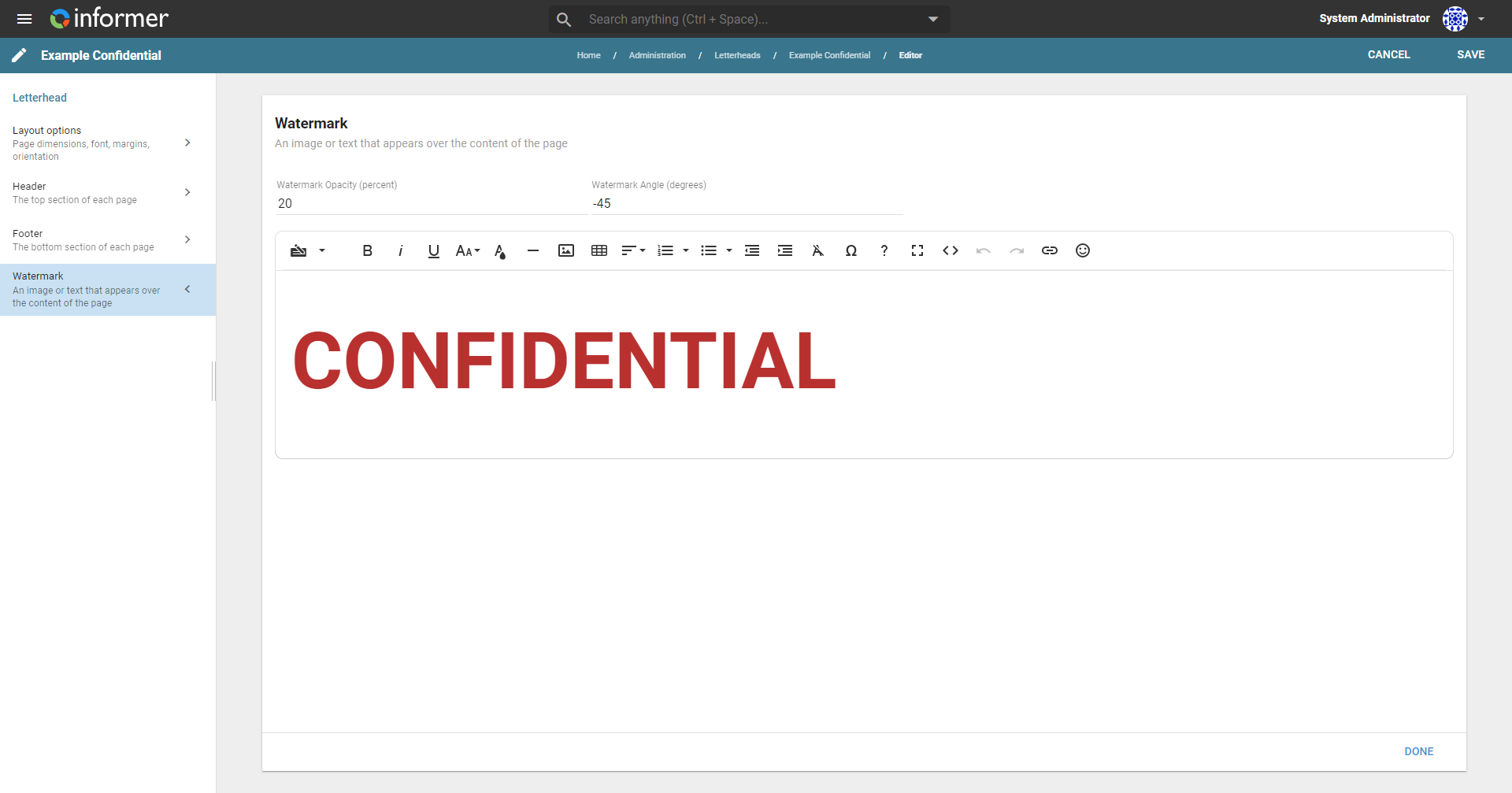
Once done, click the Save button in the upper-right corner to save the Letterhead.
Using a Letterhead
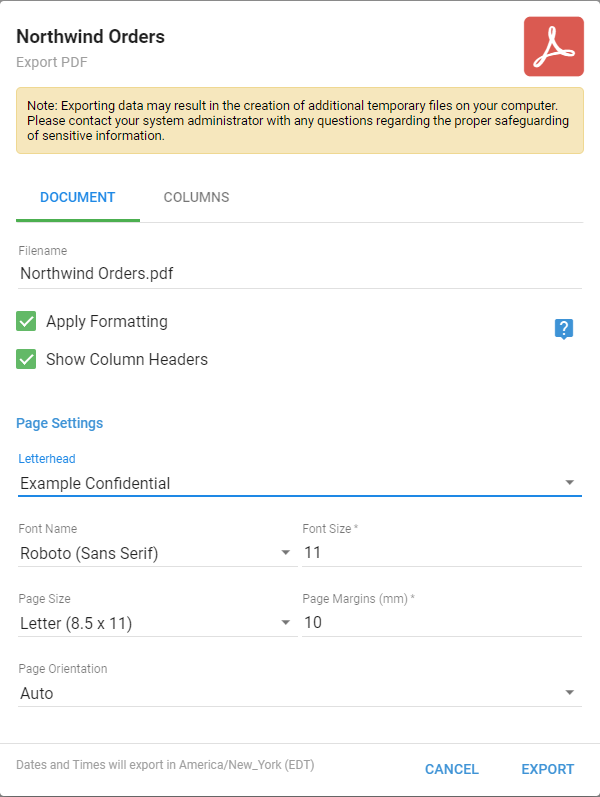
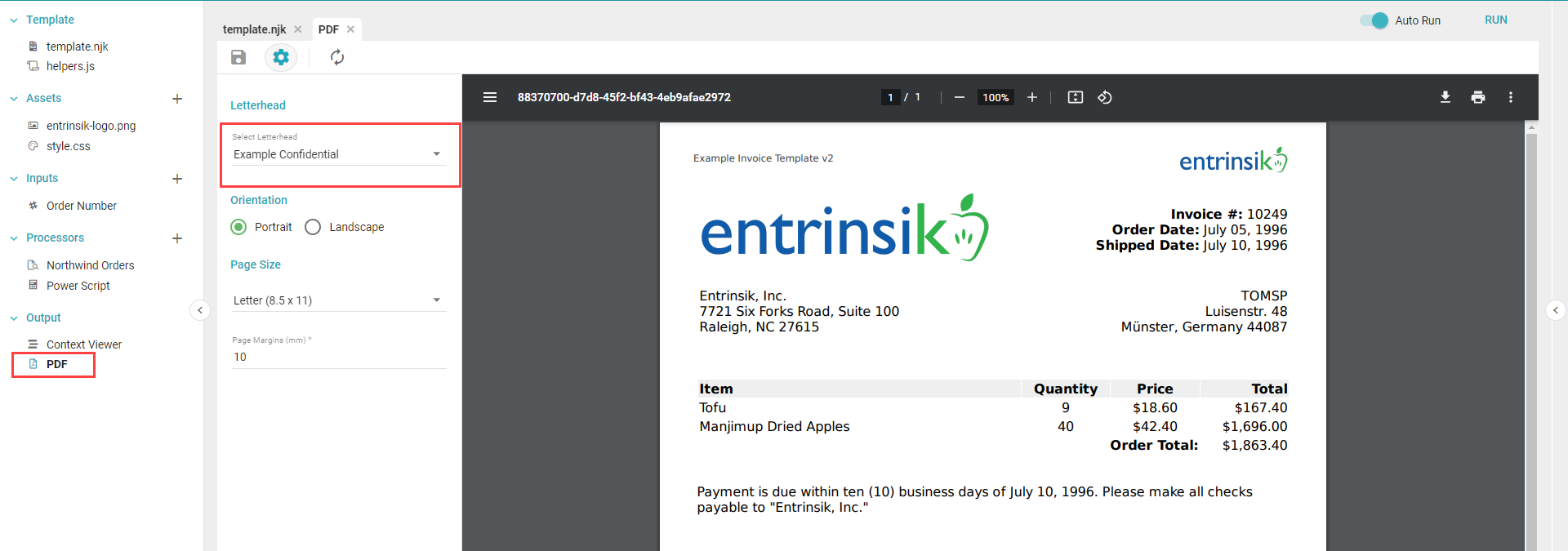
Letterheads can be applied to any PDF export across Informer, including Datasets and Ad Hoc Queries. A Letterhead set as Default is applied to all PDF exports unless otherwise specified. Select a Letterhead when exporting by choosing it from the dropdown in the export window.